1. Okwu mmalite
Daalụ maka ịzụrụasing the KODAK 7-inch Digital Photo Frame. This manual provides essential information for the safe and efficient use of your device. Please read it thoroughly before operation and retain it for future reference.
2. Ngwaahịa gafereview
2.1 Atụmatụ
- 7-inch LCD panel with 1024x600 resolution and 16:9 aspect ratio for vivid photo display.
- Supports photo, video, and music playback.
- Compatible with SD/MMC cards and USB memory sticks up to 32GB (FAT32 format recommended).
- Integrated functions: Calendar, clock, and alarm.
- Easy operation via included wireless remote control and on-device buttons.
- Lightweight ABS construction suitable for tabletop or wall mounting.
Ihe ngwugwu 2.2
Biko lelee ma ihe niile dị na ngwugwu ahụ:
- KODAK 7-inch Digital Photo Frame
- Njikwa ime ikuku ikuku
- Ihe nkwụnye ọkụ
- Ụba Guzosie
- Akwụkwọ ntuziaka onye ọrụ

Image: Package contents of the KODAK 7-inch Digital Photo Frame.
3. Nhazi
3.1 Mwepu na ntinye
- Jiri nlezianya wepụ ihe niile dị na nkwakọ ngwaahịa.
- Attach the included stand to the back of the frame for tabletop use, or prepare for wall mounting (wall mount hardware is sold separately).
- Place the frame on a stable, flat surface or mount it securely on a wall, ensuring adequate ventilation.

Image: KODAK 7-inch Digital Photo Frame in tabletop and wall-mounted configurations.
3.2 Njikọ ike
- Connect the power adapter cable to the DC IN port on the back of the photo frame.
- Plug the power adapter into a standard electrical outlet. The frame will typically power on automatically.

Image: Connecting the power adapter.
3.3 Itinye Mgbasa Ozi Nchekwa
The frame supports SD/MMC cards and USB memory sticks up to 32GB. Ensure your storage media is formatted to FAT32 for optimal compatibility.
- For SD/MMC Card: Insert the SD or MMC card into the designated card slot on the side of the frame until it clicks into place.
- For USB Memory Stick: Insert the USB memory stick into the USB port on the side of the frame.

Image: Inserting an SD card.

Image: Inserting a USB memory stick.
3.4 Remote Control Preparation
Before using the remote control for the first time, remove the clear plastic insulation sheet from the battery compartment.

Image: Removing the battery insulation tab from the remote control.
4. Ntuziaka ọrụ
4.1 Nhazi na Njikwa Ngwaọrụ
Familiarize yourself with the ports and buttons on your digital photo frame.

Image: Back and side view of the frame with labeled ports and buttons.
4.2 Ọrụ njikwa anya
The remote control allows for convenient operation of all frame functions from a short distance.
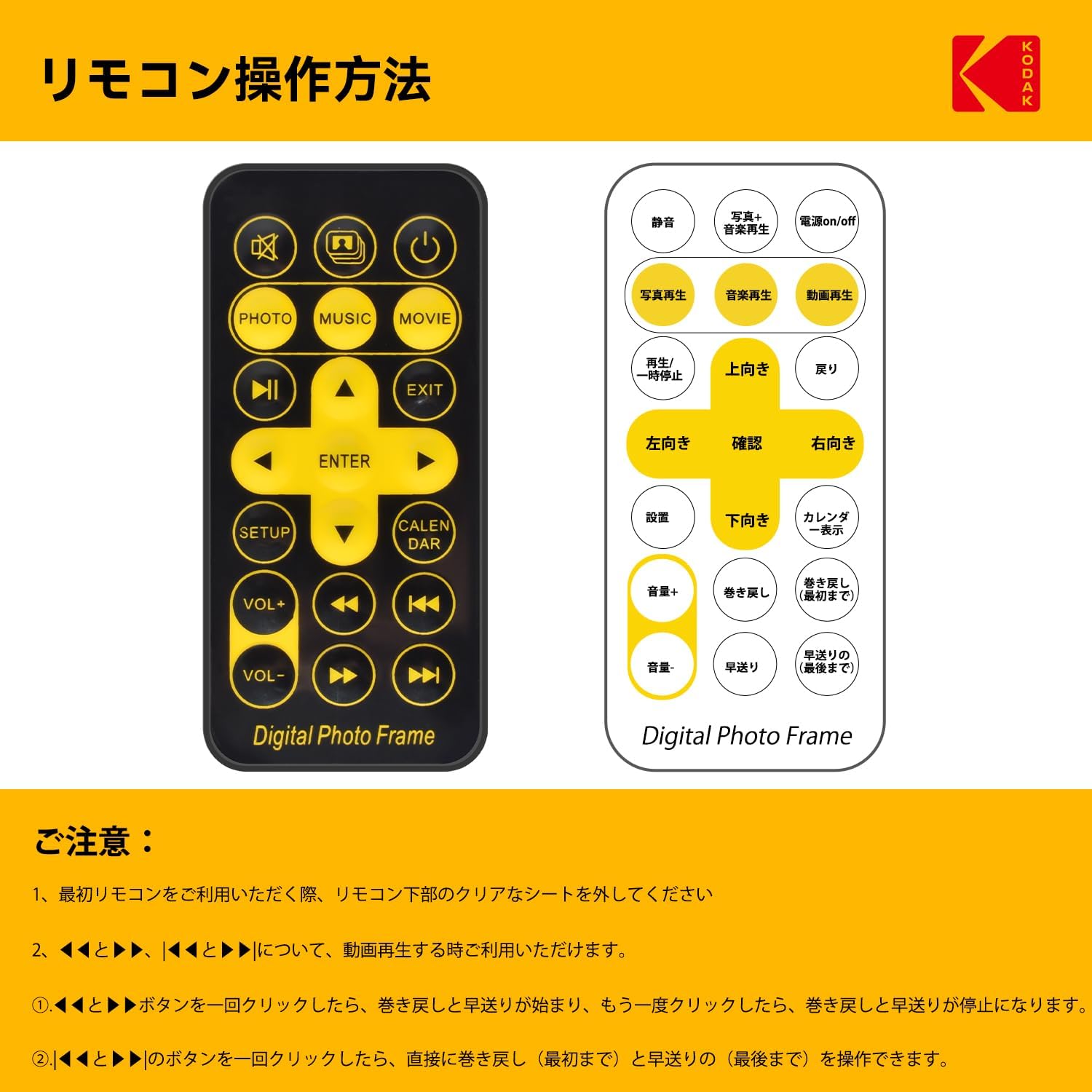
Image: Remote control layout and button functions.
4.3 Basic Navigation and Playback
- Gbanyụọ/ Gbanyụọ: Press the power button on the frame or remote control.
- Select Media Source: Use the remote's 'PHOTO', 'MUSIC', or 'MOVIE' buttons to switch between media types, or navigate through the main menu using the arrow keys and 'ENTER'.
- Nkpọghachi foto: Select 'PHOTO' to start a slideshow of images from the inserted storage media. Use arrow keys to navigate photos, 'PLAY/PAUSE' to pause/resume.
- Ihe nkiri vidiyo: Select 'MOVIE' to play video files. Use playback controls (play, pause, fast forward, rewind) on the remote.
- Nkpọghachi egwu: Select 'MUSIC' to play audio files. Adjust volume using 'VOL+' and 'VOL-'.
- Combined Playback: The frame can play photos with background music simultaneously.

Image: Photo slideshow in progress.
4.4 Settings and Functions
- Nhazi menu: Press the 'SETUP' button on the remote to access system settings, including language, time, date, and display preferences.
- Kalenda: Press the 'CALENDAR' button to display the calendar.
- Ọrụ ngụ oge: Configure the frame to automatically power on or off at specific times to conserve energy.
- Playback Interval: Adjust the duration each photo is displayed during a slideshow using the settings menu.

Image: Playback interval settings.
5. Nlekọta
5.1 Nhicha
- Always unplug the power adapter before cleaning.
- Jiri ákwà dị nro, kpọrọ nkụ, nke na-enweghị lint hichaa ihuenyo na fremu ahụ nke ọma.
- Do not use liquid cleaners, sprays, or abrasive materials, as they may damage the screen or finish.
5.2 Nchekwa
When not in use for extended periods, store the digital photo frame in a cool, dry place away from direct sunlight and extreme temperatures.
6. Nchọpụta nsogbu
If you encounter issues with your digital photo frame, please refer to the following common problems and solutions:
| Nsogbu | Ihe nwere ike ime | Ngwọta |
|---|---|---|
| Frame anaghị agbanye ọkụ. | Ejikọtaghị ihe nkwụnye ọkụ ma ọ bụ mejọrọ. | Ensure the power adapter is securely connected to the frame and a working electrical outlet. |
| Cannot read SD card or USB memory. | Incorrect format, unsupported file type, or faulty media. | Ensure the storage media is formatted to FAT32. Check that files are compatible (e.g., JPEG for photos). Try a different SD card or USB stick. |
| Images appear distorted or corrupted. | Unsupported image resolution or file nrụrụ aka. | Verify image file integrity on a computer. Ensure image resolution is within the frame's capabilities (1024x600 is native). |
| Njikwa anya anaghị aza. | Nsogbu batrị ma ọ bụ mgbochi. | Ensure the plastic insulation tab has been removed from the battery. Replace the battery if necessary. Ensure no obstructions between the remote and the frame's IR receiver. |
7. Nkọwapụta
- Akara: KODAK
- Nọmba nlereanya: KD-RDPF-708
- Nha ihuenyo: 7 sentimita asatọ
- Mkpebi: 1024x600 pikselụ
- Akụkụ akụkụ: 16:9
- Nchekwa akwadoro: SD/MMC Card, USB Memory (up to 32GB, FAT32 format recommended)
- Njikọta: Infrared (maka njikwa dịpụrụ adịpụ)
- Akụkụ ngwaahịa: Ihe dịka 16 x 21 x 2.51 cm
- Arọ ngwaahịa: Ihe dịka 660 g
- Ọrụ: Photo, Video, Music Playback, Calendar, Clock, Alarm, Timer
8. Akwụkwọ ikike na nkwado
KODAK provides quality assurance for this product. If you receive a product different from your order, experience initial defects (such as damage or missing parts), or encounter quality issues under normal use, please contact customer support.
To contact support, navigate to your Amazon account's 'Account Service' → 'Order History' → locate your order → 'Seller' → 'Ask a question'. Our team aims to provide a prompt response within 24 hours.


