1. Ngwaahịa gafereview
The E-ACE 4.3-inch Dual Lens Car DVR Rearview Mirror Dash Cam is designed to enhance driving safety by providing comprehensive video recording of your journeys. This device integrates a front-facing camera and supports an optional rear-facing camera, offering a wide field of view and continuous recording capabilities. Its sleek design replaces your existing rearview mirror, providing a discreet and integrated solution for vehicle surveillance.
Key features include a 4.3-inch high-definition display, dual-lens recording, night vision, loop recording, and a G-sensor for automatic incident detection.

Image: The E-ACE rearview mirror dash cam displaying both front and rear camera feeds on its integrated screen.
2. Ihe ngwugwu
Biko lelee ngwungwu maka ihe ndị a:
- E-ACE Rearview Mirror Dash Cam Unit
- Chaja ụgbọ ala
- Fixed Bandages (for mounting)
- Akwụkwọ ntuziaka onye ọrụ
- Onye na-agụ kaadị
- Optional: Rear View Camera + Cable (6M or 10M, depending on variant)
- Optional: Buck Line (for parking monitoring power)
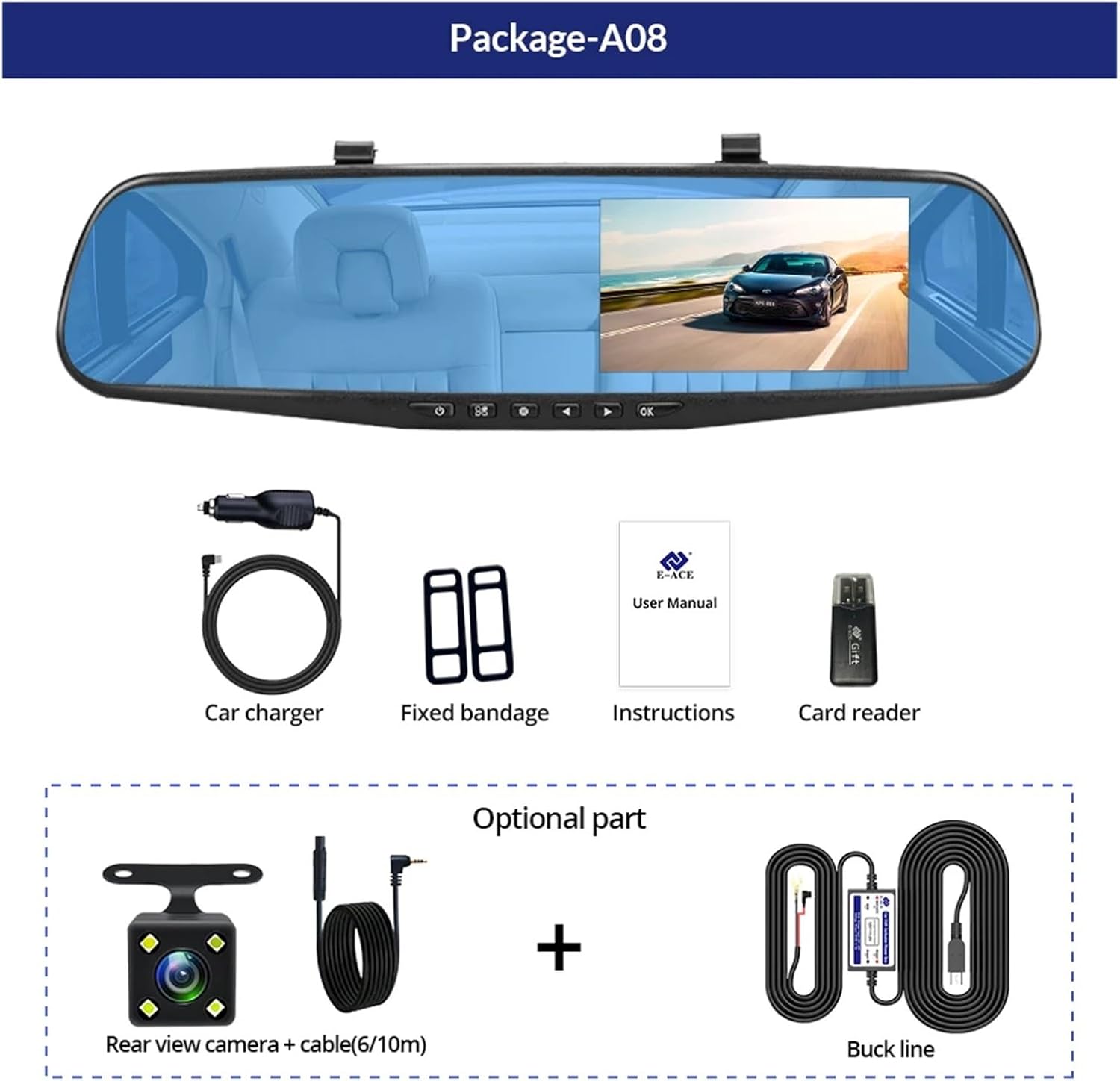
Image: A visual representation of the items included in the E-ACE dash cam package, showing the main unit and accessories.
3. Akụrụngwa Ngwaahịa
- 4.3-inch High-Definition Display: Provides clear visibility for real-time monitoring and playback.
- Nhazi Lensi Abụọ: Captures both front and rear footage simultaneously for comprehensive coverage.
- Built-in Night Vision Technology: Ensures clear recordings in low-light conditions.
- Nwụnye enyi na enyi: Sleek rearview mirror design integrates seamlessly into your vehicle.
- Ndekọ loop: Na-ehichapụ ihe ndị kacha ochie na akpaghị akatage mgbe kaadị ebe nchekwa zuru, na-eme ka ndekọ na-aga n'ihu.
- G-Sensor Feature: Detects sudden movements or impacts and automatically locks the current video file iji gbochie ya idegharị ya.
- Nlebanya ụgbọ ala: Records video when motion or impact is detected while the vehicle is parked (requires buck line connection).
- 170-Degree Wide Angle: Na-enye ebe sara mbara view nke ụzọ n'ihu.
- tụgharịa onyonyo: Displays the rear camera view with parking guidelines when reversing.
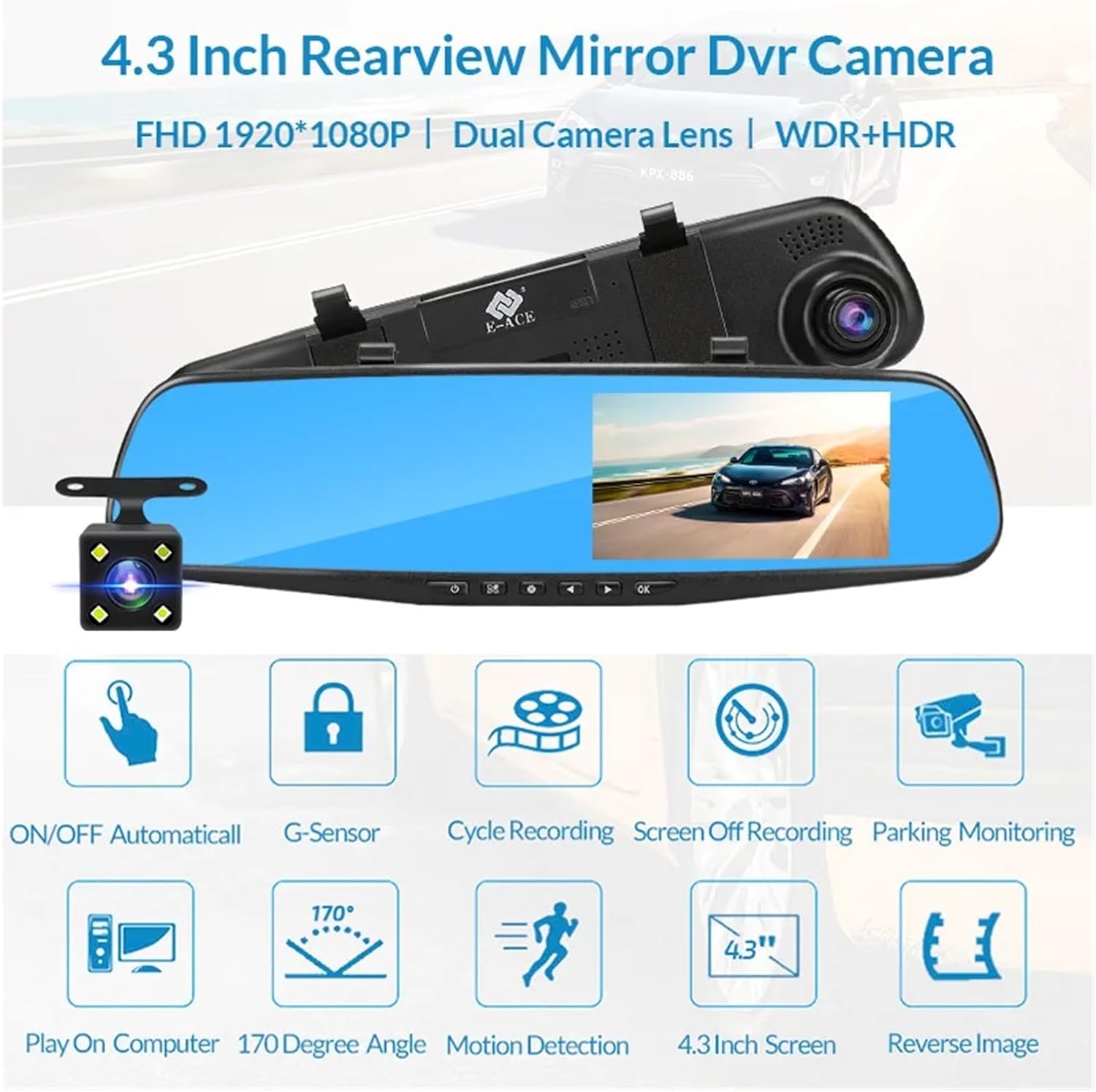
Image: An illustration highlighting the various functional features of the E-ACE dash cam.
4. Njirimara akụrụngwa
Familiarize yourself with the various parts and controls of your E-ACE dash cam:

Image: A detailed diagram identifying the buttons, ports, and features on the E-ACE dash cam unit.
- Bọtịnụ ngbanwu/ Gbanyụọ: Na-agbanye ngwaọrụ ahụ ma ọ bụ gbanyụọ.
- Bọtịnụ menu: Na-enweta ntọala na nhọrọ.
- Bọtịnụ ụkpụrụ: Switches between video recording, photo, and playback modes.
- Bọtịnụ elu: Na-agagharị elu na menus ma ọ bụ na-agbanwe ntọala.
- Pịa bọtịnụ: Na-agagharị na menu ma ọ bụ na-agbanwe ntọala.
- OK bọtịnụ: Confirms selections or starts/stops recording.
- Oghere TF Kaadị: Insert your MicroSD (TF) card here.
- AV-IN Port: Connects the rear camera.
- Ọdụ ụgbọ mmiri USB: For power supply and data transfer.
- Tọgharịa bọtịnụ: Resets the device to factory settings (use a thin pin).
- Igwe okwu: Na-edekọ ụda n'ime ụgbọala ahụ.
5. Ntọala na nwụnye
5.1 Ịtinye kaadị ebe nchekwa
Before installation, insert a high-speed MicroSD (TF) card (Class 10 or higher, up to 64GB recommended) into the TF Card Slot (7) with the contacts facing the screen. Ensure the card is inserted correctly until it clicks into place.
5.2 Ịrịgo Dash Cam
- Attach the fixed bandages to the back of the dash cam unit.
- Securely strap the dash cam over your vehicle's existing rearview mirror using the fixed bandages. Ensure it is centered and stable.
5.3 Jikọọ ike ọkọnọ
- Connect the car charger to the USB Port (9) on the dash cam.
- Tinye nsọtụ nke ọzọ nke chaja ụgbọala ahụ n'ime oghere ọkụ siga nke ụgbọala gị.
- Route the power cable neatly along the windshield trim to avoid obstructing your view.
5.4 Installing the Rear Camera (Optional)
- Connect the rear camera cable to the AV-IN Port (8) on the dash cam.
- Route the rear camera cable from the dash cam to the rear of your vehicle. This typically involves tucking the cable under the headliner and along the side pillars.
- Mount the rear camera on the rear windshield or near the license plate using its adhesive or screws. Ensure it has a clear view nke ụzọ n'azụ.
- If using the reverse image function, connect the red wire from the rear camera cable to your vehicle's reverse light power supply.
6. Ntuziaka ọrụ
6.1 Gbanyụọ ma ọ bụ gbanyụọ
- Akpaaka: The dash cam will automatically power on and start recording when your vehicle's ignition is turned on (if connected to a switched power source).
- Akwụkwọ ntuziaka: Press and hold the ON/OFF Button (1) to manually power the device on or off.
6.2 Basic Arụmọrụ
- Ụdị mgbanwe: Press the Mode Button (3) to cycle between Video Recording, Photo, and Playback modes.
- Nnweta NchNhr: In any mode, press the Menu Button (2) to enter the settings menu. Use the UP (4) and Down (5) buttons to navigate, and OK (6) to select.
- Malite/Kwụsị Ndekọ: In Video Recording mode, press the OK Button (6) to manually start or stop recording.
Ụdị ngosi 6.3
While recording, you can typically switch between different display views by pressing the UP or Down buttons:
- Front Camera Only
- Rear Camera Only
- Picture-in-Picture (Front main, Rear sub-window)
- Picture-in-Picture (Rear main, Front sub-window)
6.4 Ndekọ loop
Set the loop recording duration (e.g., 1, 3, or 5 minutes) in the settings menu. When the memory card is full, the oldest unlocked filea ga-eji ndekọ ọhụrụ dochie s.
6.5 G-ihe mmetụta
The G-sensor automatically detects collisions or sudden braking. When triggered, it locks the current video file, preventing it from being overwritten by loop recording. Adjust sensitivity in the settings.
6.6 Parking Monitoring (Optional)
If the buck line is installed, the dash cam can monitor your vehicle while parked. When motion or impact is detected, it will automatically record a short video. Enable this feature in the settings.
6.7 Nhazi ụbọchị na oge
It is important to set the correct date and time in the system settings for accurate timestamps na ndekọ gị.
7. Nlekọta
- Nhicha: Jiri ákwà dị nro ma kpọọ nkụ hichaa oghere anya na ihe mkpuchi ahụ. Zere ihe nhicha ma ọ bụ ihe mgbaze.
- Kaadị ebe nchekwa: Format the MicroSD card regularly (e.g., once a month) within the dash cam's settings to maintain optimal performance and prevent data corruption. Back up important files tupu nhazi.
- Okpomọkụ: Avoid exposing the device to extreme temperatures, as this can affect battery life and component integrity.
- Mmelite femụwe: Lelee onye nrụpụta website periodically for firmware updates that may improve performance or add features.
8. Nchọpụta nsogbu
| Nsogbu | Ihe nwere ike ime | Ngwọta |
|---|---|---|
| Igwefoto dash anaghị agbanye. | No power supply; faulty charger; loose connection. | Check car charger connection and vehicle's cigarette lighter. Try a different USB cable/charger. |
| Ndekọ na-akwụsị na-akpaghị aka. | Memory card full; slow memory card; G-sensor sensitivity too high. | Format the memory card. Use a Class 10 or higher MicroSD card. Lower G-sensor sensitivity in settings. |
| Vidiyo footage na-adịghị mma. | Protective film on lens; dirty lens; incorrect focus. | Remove any protective film. Clean the lens with a soft cloth. |
| Igwefoto azụ anaghị egosi. | Njikọ siri ike; eriri/kamera nwere nsogbu. | Check the AV-IN connection. Ensure the rear camera is properly installed. |
| Ngwaọrụ ahụ na-akpọnwụ ma ọ bụ na-akụda. | Software issue; memory card error. | Press the Reset Button (10) with a thin pin. Format the memory card. |
9. Nkọwapụta
- Aha nlereanya: DMMRUTXB
- Ngosipụta: 4.3 sentimita asatọ
- Igwefoto: Dual Lens (Front & Rear support)
- Mkpebi vidiyo: FHD 1920x1080P (Front)
- Atụmatụ: Loop Recording, G-Sensor, Night Vision, Parking Monitoring, 170-degree wide angle
- Nchekwa: Supports MicroSD (TF) card, Class 10 or higher (up to 64GB)
- Njikọta: USB, AV-IN (for rear camera)
- Ibu ihe: Ihe dị ka ounces 1.76 (gram 50)
- Akụkụ ngwugwu: Ihe dịka 0.39 x 0.39 x 0.39 sentimita asatọ
- Onye nrụpụta: DMMRUTXB
10. Akwụkwọ ikike na nkwado
For warranty information and technical support, please refer to the documentation provided with your purchase or contact the retailer/manufacturer directly. Keep your purchase receipt as proof of purchase.


