Okwu mmalite
The Nulea M514 Vertical Trackball Mouse is designed for ergonomic comfort and efficient navigation. This wireless mouse features a thumb-controlled trackball, quiet clicks, and ultra-fast scrolling, making it suitable for extended use across multiple devices.

Image: Nulea M514 Vertical Trackball Mouse product banner.
Atụmatụ igodo
- Ergonomic 65° Comfort Design: The vertical mouse features a perfect 65° ergonomic angle that keeps your wrist and arm naturally relaxed. Sculpted shape with wave-textured surface fits your palm seamlessly, offering ultimate comfort and effortless control all day.

Image: Hand using the Nulea M514 mouse, highlighting its 65° ergonomic tilt for a naturally relaxed posture.
- Thumb-Controlled Trackball: Navigate with ease using your thumb on this wireless mouse, reducing hand and arm movement. Helping to minimize strain and fatigue, the office mouse is perfect for long hours at the desk.

Image: Nulea M514 mouse in a compact workspace, emphasizing thumb control for precision without needing much desk space.
- Smart Infinite Scroll: The ergonomic vertical mouse features an advanced infinite scroll wheel that automatically switches between precise and fast modes based on scrolling speed. It supports smooth 4-way scrolling for effortless navigation through long pages—just a gentle spin.

Image: User scrolling with the Nulea M514 mouse, illustrating its smart infinite scroll feature for fast page navigation.
- Njikọ ọtụtụ ngwaọrụ: This wireless mouse connects via Bluetooth or the included USB receiver. Pair with up to 3 devices and switch instantly at the tap of a button—no need to re-pair for a seamless workflow. Compatible with PC, Mac, laptops, tablets, and phones.

Image: Nulea M514 mouse on a desk with a laptop and tablet, highlighting its Bluetooth and 2.4G wireless connectivity options.
- True Silent Control: Experience a completely noise-free operation with this cordless mouse. From the trackball to every button and scroll wheel. Perfect for shared spaces, late-night work, or anyone who values total focus without distractions.

Image: User smiling while using the Nulea M514 mouse in a quiet library setting, emphasizing its silent click feature.
- Ọkwa DPI 3 a na-agbanwe agbanwe: Choose from 3 sensitivity levels (600/800/1000DPI) for precise control or faster movement. This trackball mouse is ideal for drawing, editing, multitasking with different screens, and daily office work.

Image: Nulea M514 mouse with an overlay indicating the three adjustable DPI levels (600, 800, 1000) and their effect on cursor speed.
- Work Anywhere, Effortlessly: Trackball navigation lets you work precisely on any small surface, like a small café table, plane seat tray or your sofa at home. No need for extra space or a mouse pad. This wireless vertical mouse for laptop and PC is your reliable work companion.
Ihe ngwugwu
The Nulea M514 Vertical Trackball Mouse package includes:
- 1 x Nulea M514 Vertical Trackball Mouse
- 1 x USB Receiver (stored in the mouse)
- 1 x USB-C Nchaji USB
- 1 x Akwụkwọ ntuziaka onye ọrụ
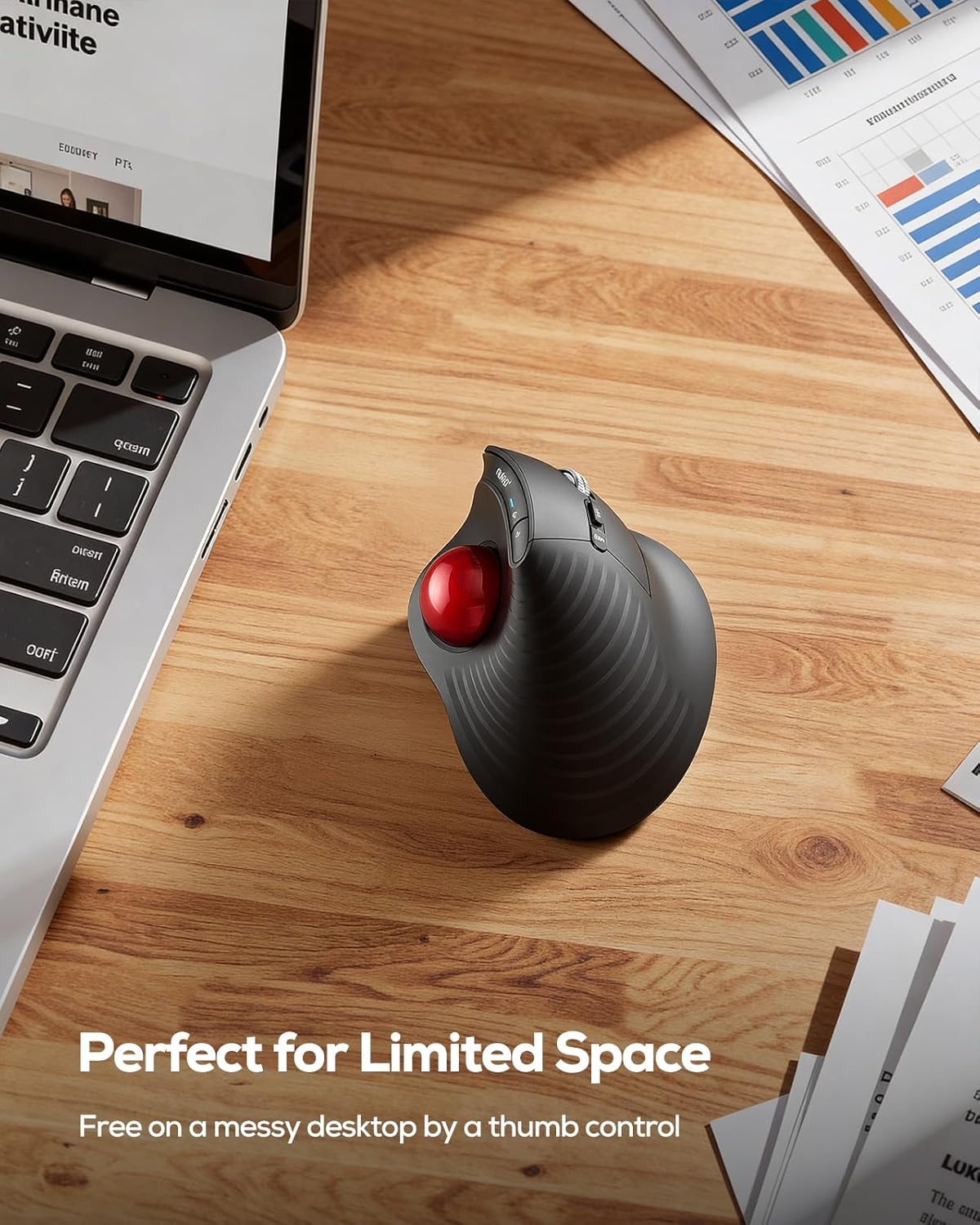
Image: The Nulea M514 Vertical Trackball Mouse, USB-C charging cable, and user manual laid out on a surface.
Ntuziaka nhazi
Ịchaji òké
Before first use, fully charge the mouse using the provided USB-C cable. The charging port is located at the front of the mouse. A full charge typically takes 2-3 hours and provides up to 60 days of working time.
Image: Nulea M514 mouse connected via a USB-C cable for charging, with text indicating 2-3 hours for full charge and 60 days working time.
Ijikọ na Ngwaọrụ gị
The Nulea M514 offers three connection modes: 2.4G Wireless (via USB receiver) and two Bluetooth channels (BT1, BT2).
- Ike Na: Locate the ON/OFF switch on the bottom of the mouse and slide it to the "ON" position.
- Select Connection Channel: Press the channel switch button on the bottom of the mouse to cycle through the modes (Channel 1 for 2.4G Wireless, Channel 2 for Bluetooth 1, Channel 3 for Bluetooth 2). The corresponding indicator light will illuminate.
- 2.4G Wireless Connection (Channel 1):
- Remove the USB receiver from its storage slot on the bottom of the mouse.
- Tinye eriri USB n'ọdụ ụgbọ mmiri dị na kọmputa gị.
- The mouse should connect automatically. The indicator light for Channel 1 will turn solid.
- Bluetooth Connection (Channel 2 or 3):
- Select either Channel 2 or Channel 3 using the channel switch button.
- Press and hold the channel switch button for 3 seconds until the indicator light for the selected Bluetooth channel starts blinking rapidly. This indicates pairing mode.
- On your device (PC, Mac, laptop, tablet, phone), go to Bluetooth settings and search for "Nulea M514" or "BT5.0 Mouse".
- Select the mouse to pair. The indicator light will turn solid once connected.
Image: Nulea M514 mouse on a desk with a laptop and tablet, highlighting its Bluetooth and 2.4G wireless connectivity options.
Ntuziaka ọrụ
Ọrụ bọtịnụ
The Nulea M514 features a 6-button design for enhanced productivity:
- Bọtịnụ Pịa aka ekpe: Ọrụ aka ekpe ọkọlọtọ.
- Pịa aka nri bọtịnụ: Ọrụ pịa nri ọkọlọtọ.
- Mpempe akwụkwọ mpịakọta: Scrolls vertically. Can be pressed for middle-click/auto-scrolling. Supports 4-way scrolling (tilt left/right for horizontal scrolling).
- Bọtịnụ mbugharị: Na-aga n'ihu web ihe nchọgharị ma ọ bụ file explorers. (Note: Not compatible with MAC OS for forward/backward functions).
- Bọtịnụ azụ: Na-agagharị azụ n'ime web ihe nchọgharị ma ọ bụ file explorers. (Note: Not compatible with MAC OS for forward/backward functions).
- Bọtịnụ Mgbanwe DPI: Cycles through 3 adjustable DPI levels (600/800/1000 DPI) to change cursor sensitivity.

Image: Diagram illustrating the various buttons on the Nulea M514 mouse, including Left, Right, Scroll Wheel, DPI Switch, Mode Switch, Forward, Backward, and Trackball.
Na-emezi Mmetụta DPI
Press the DPI Switch Button (located near the scroll wheel) to cycle through the available DPI settings (600, 800, 1000). Choose the sensitivity that best suits your task for precise control or faster movement.
Image: Nulea M514 mouse with an overlay indicating the three adjustable DPI levels (600, 800, 1000) and their effect on cursor speed.
Nlekọta
Na-ehicha bọọlụ egwu
To ensure smooth operation, periodically clean the trackball and its housing.
- Gently push the trackball out from the bottom of the mouse using your finger.
- Jiri ákwà dị nro, nke na-enweghị lint hichaa bọọlụ ahụ nke ọma.
- Use a cotton swab or compressed air to clean any dust or debris from the trackball housing inside the mouse.
- Tinyeghachi bọọlụ ahụ n'ime ebe ọ na-anọ ruo mgbe ọ kụrụ aka n'ebe ahụ nke ọma.

Image: Demonstrating how to easily remove and clean the trackball of the Nulea M514 mouse.
Nchọpụta nsogbu
Okwu njikọ
- Òké anaghị aza: Ensure the mouse is powered on and fully charged. Check the connection channel (2.4G Wireless or Bluetooth) is correctly selected.
- 2.4G Wireless not connecting: Ensure the USB receiver is securely plugged into your computer. Try a different USB port.
- Bluetooth not pairing: Ensure the mouse is in pairing mode (indicator light blinking). On your device, try forgetting the device and re-pairing. Ensure your device's Bluetooth is enabled.
Okwu ngagharị cursor
- Erratic or sticky cursor: Hichaa bọọlụ ahụ na ebe obibi ya dịka akọwara na ngalaba nlekọta.
- Cursor dị ngwa ngwa/dị nwayọ: Adjust the DPI sensitivity using the DPI Switch Button.
Buttons Not Working (Mac OS)
- Forward/Backward buttons: Note that these buttons are not compatible with MAC OS.
Nkọwapụta
| Njirimara | Nkọwa |
|---|---|
| Nọmba nlereanya | M514 |
| Njikọta | 2.4G Wireless (USB Receiver), Bluetooth (BT1, BT2) |
| Ọkwa DPI | 600/800/1000 DPI |
| Batrị | 1 Lithium Ion battery (Rechargeable) |
| Ike batrị | 500 mAh |
| Ibu Ibu | 5.3 ounces |
| Akụkụ ngwugwu | 5.31 x 4.33 x 2.99 sentimita asatọ |
| Njirimara Pụrụ Iche | Ergonomic Design, Silent Clicks, Infinite Scroll |
| Nchọpụta mmegharị | Bọọlụ egwu |
Akwụkwọ ikike na nkwado
For warranty information, technical support, or customer service, please refer to the contact details provided in your user manual or visit the official Nulea websaịtị.
Iwu nloghachi: This product is subject to a 30-day refund/replacement return policy.
Atụmatụ nchebe: Optional 3-Year and 4-Year protection plans are available for purchase.


