1. Okwu mmalite
This manual provides instructions for the setup, operation, maintenance, and troubleshooting of your CRUA 27-inch 240Hz QHD IPS Gaming Monitor. This monitor features a 2560x1440 QHD resolution, a 240Hz refresh rate, an IPS panel for wide viewing angles, AMD FreeSync support, a blue light filter for eye protection, and built-in speakers. Please read this manual thoroughly before using the product.
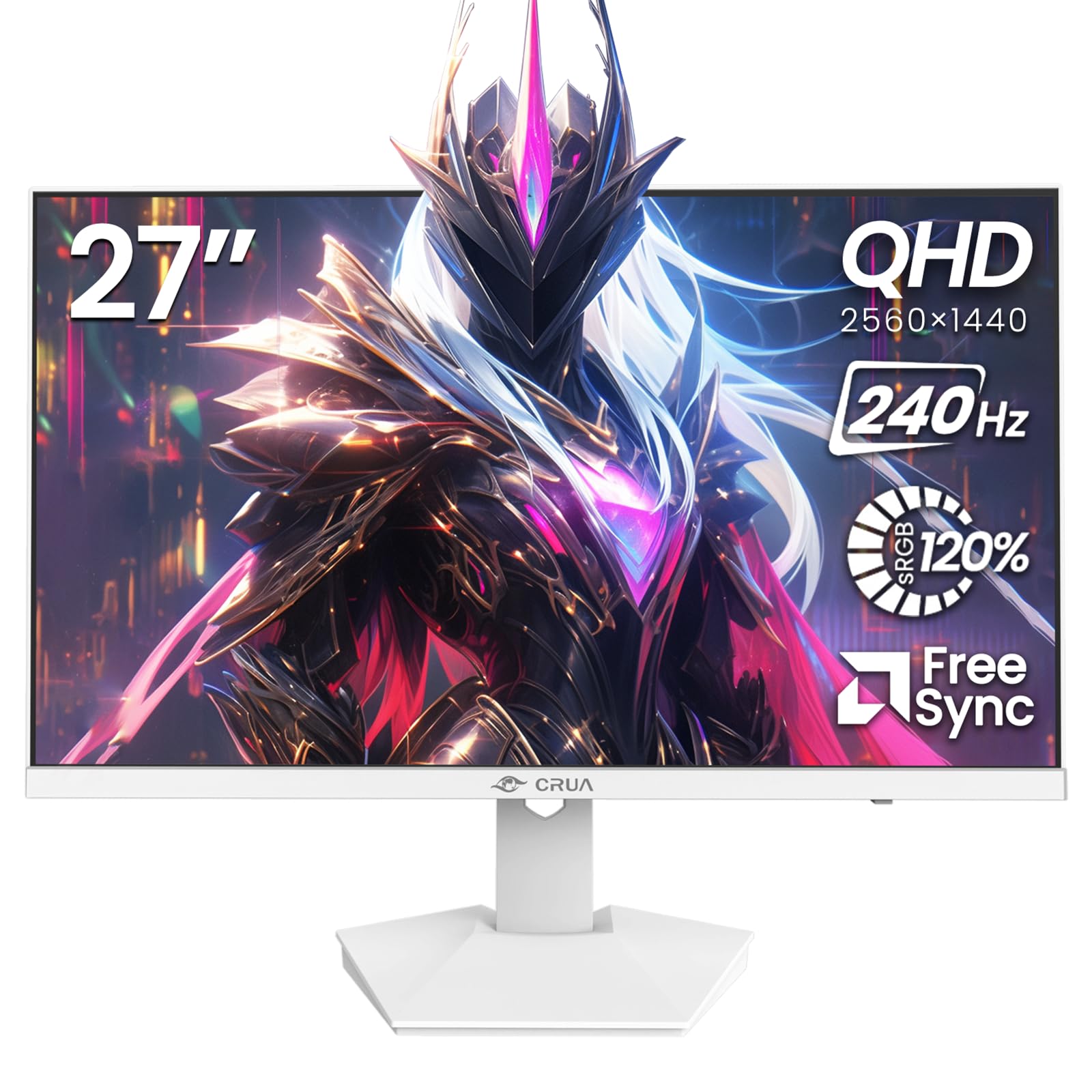
Foto: N'ihu view of the CRUA 27-inch 240Hz QHD IPS Gaming Monitor.
2. Ihe ngwugwu
Chọpụta na ihe niile dị na ngwugwu:
- CRUA 27-inch 240Hz QHD IPS Gaming Monitor
- Nyochaa Stand (Base and Olu)
- Ihe nkwụnye ọkụ na eriri
- HDMI USB
- Eriri DisplayPort (DP)
- Akwụkwọ ntuziaka (akwụkwọ a)
3. Nhazi
3.1 Mgbakọ Nguzo
- Jiri nlezianya wepụ ihe nlele ahụ n'ime ihe mkpuchi ya, tinye ya ihu ala n'elu ebe dị nro ma dị ọcha iji gbochie ọwa.
- Tinye olu kwụ ọtọ na panel nlekota. Gbaa mbọ hụ na ọ pịrị na ebe nchekwa.
- Attach the stand base to the stand neck. Tighten any screws if provided.
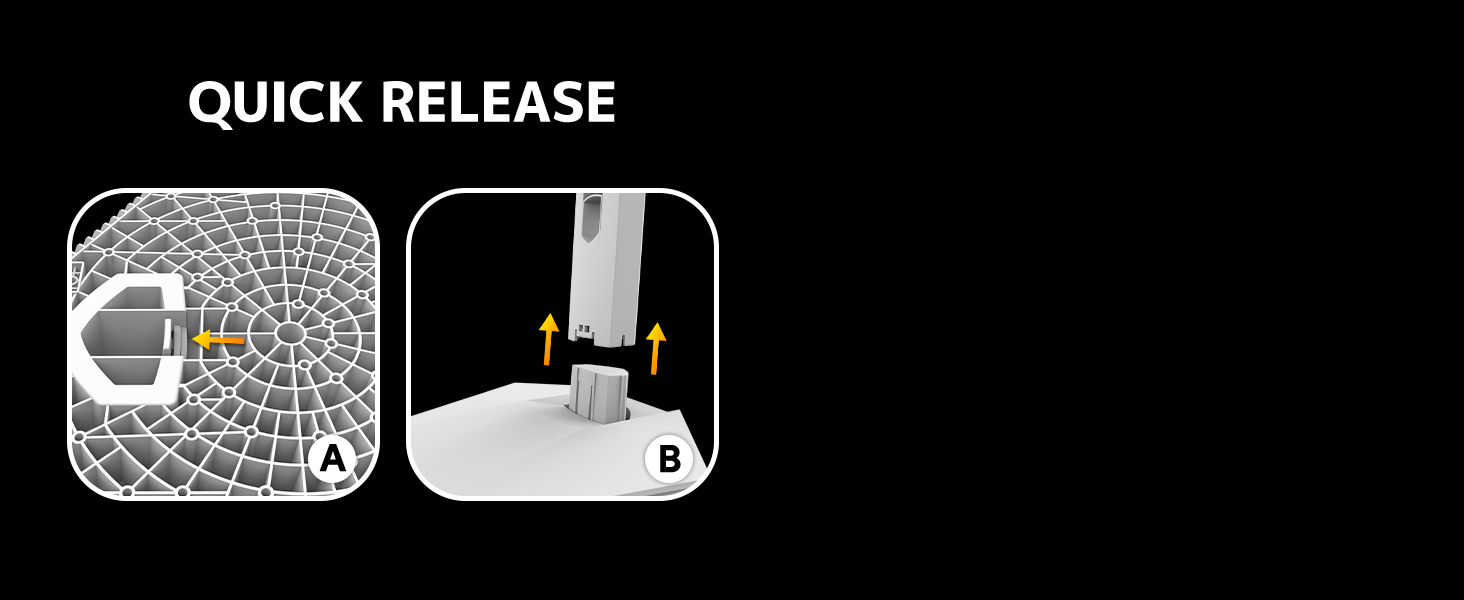
Image: Diagram illustrating the quick release stand assembly.
3.2 Mgbidi mgbidi (nhọrọ)
The monitor supports VESA wall mounting (75mm x 75mm). To wall mount:
- Remove the stand from the monitor if it is already attached.
- Attach a VESA-compatible wall mount bracket (not included) to the monitor using appropriate screws.
- Soro ntuziaka enyere na mgbago mgbidi gị maka nrụnye echekwara.

Foto: N'azụ view of the monitor showing VESA mount points (75x75mm) and built-in speakers.
3.3 Ijikọ na Kọmputa
Connect the monitor to your computer using one of the following methods:
- Ngosipụta ngosi (DP 1.4): For optimal performance, especially at 240Hz QHD resolution, use the included DisplayPort cable.
- HDMI (HDMI 2.0): Use an HDMI cable for QHD resolution at up to 144Hz.
Jikọọ ihe nkwụnye ọkụ na ntinye ike nke onye nleba anya wee gbanye ya n'ime oghere ọkụ.

Foto: N'azụ view of the monitor displaying the input ports, including HDMI and DisplayPort.
4. Ntuziaka ọrụ
4.1 Gbanyụọ ma ọ bụ gbanyụọ
Press the power button located on the back of the monitor to turn it on or off. The power button may resemble a joystick for OSD navigation.
4.2 Ngosipụta Ngosipụta (OSD) NchNhr
The OSD menu allows you to adjust various monitor settings. Use the joystick-like button on the back of the monitor to navigate the menu:
- Pịa bọtịnụ: Mepee menu OSD.
- Move Up/Down: Na-agagharị na nhọrọ menu.
- Move Left/Right: Adjusts selected settings or enters sub-menus.
- Pịa ọzọ: Confirms selection or exits a sub-menu.
4.3 Ntọala ngosi
Within the OSD menu, you can adjust:
- Icha ọkụ/ọdịiche: Gbanwee n'ozuzu luminance na iche ruru.
- Ntọala agba: Fine-tune color temperature, hue, and saturation. The monitor offers 120% sRGB color coverage for accurate and vibrant visuals.
- Isi mmalite ntinye: Manually select between HDMI and DisplayPort inputs.

Image: Details on true color accuracy, including 120% sRGB, 8-bit color depth, and 16.7 million colors.
4.4 Njirimara egwuregwu
- Ọnụego ume ọhụrụ: The monitor supports up to 240Hz refresh rate for smooth motion. Ensure your graphics card and cable support this rate.
- AMD FreeSync: Enable FreeSync in the OSD menu and on your AMD graphics card settings to eliminate screen tearing and stuttering.

Image: Visual comparison demonstrating the smoothness of 240Hz refresh rate versus 60Hz.

Image: Illustrates the effect of Adaptive Sync (FreeSync) on reducing screen tearing and stuttering.
4.5 Nchedo Anya
The monitor includes a built-in blue light filter to reduce eye strain during extended use. This feature can be enabled or adjusted through the OSD menu.
5. Nlekọta
To maintain your monitor's performance and appearance:
- Na-ehicha ihuenyo: Jiri nwayọ hichaa ihuenyo ahụ site na iji akwa dị nro na-enweghị lint. Maka akara isi ike, jiri ihe nchacha ọcha akọwapụtara nke etinyere na akwa, ọ bụghị ozugbo na ihuenyo.
- Na-ehicha Casing: Jiri ákwà dị nro ma kpọrọ nkụ hichaa ihe nlele ahụasing. Zere ihe nhicha ma ọ bụ ihe mgbaze.
- Gbanyụọ: Always turn off the monitor and unplug it from the power outlet before cleaning.
6. Nchọpụta nsogbu
| Nsogbu | Ihe nwere ike ime | Ngwọta |
|---|---|---|
| Enweghị onyonyo na ihuenyo | Monitor is off or not receiving signal. | Ensure power cable is connected and monitor is on. Check video cable connection (HDMI/DP) to both monitor and computer. Select correct input source via OSD. |
| Image flickering or tearing | FreeSync not enabled or incompatible settings. | Enable FreeSync in the monitor OSD and your graphics card control panel. Ensure your graphics card drivers are up to date. |
| Poor picture quality (blurry, incorrect colors) | Incorrect resolution, color settings, or faulty cable. | Set display resolution to 2560x1440. Adjust brightness, contrast, and color settings in the OSD. Try a different video cable. |
| Enweghị ụda sitere na igwe okwu arụnyere arụnyere | Volume too low, incorrect audio output selected. | Increase monitor volume via OSD. Ensure the monitor is selected as the audio output device in your computer's sound settings. |
| Dead pixels | Nrụpụta nrụpụta. | Refer to warranty information for pixel policy. Contact customer support if within warranty. |
7. Nkọwapụta
| Njirimara | Nkọwapụta |
|---|---|
| Nọmba nlereanya | CR270I |
| Nha ihuenyo | 27 sentimita asatọ |
| Ụdị panel | IPS |
| Mkpebi | 2560 x 1440 (QHD) |
| Ọnụego ume ọhụrụ | 240Hz |
| Akụkụ akụkụ | 16:9 |
| Agba Gamut | 120% sRGB |
| Icha ọkụ | 300 cd/m² |
| Ọnụọgụ ọdịiche | 1000:1 |
| Viewna n'akuku | 178° (Kwụ ọtọ/Kwụ ọtọ) |
| Ntinye vidiyo | HDMI 2.0, DisplayPort 1.4 |
| Audio | Ndị na-ekwu okwu arụrụ arụ |
| Ugwu VESA | 75mm x 75mm |
| Akụkụ ngwaahịa | 1.78 x 24 x 14 sentimita asatọ |
| Ibu Ibu | 12.62 pound |
8. Akwụkwọ ikike na nkwado
CRUA provides high-quality computer monitors and premium services. If you have any questions or require assistance, please contact CRUA customer support. Refer to your purchase documentation for specific warranty terms and contact information.


