1. Okwu mmalite
This manual provides comprehensive instructions for the Inateck AceTouch N0064 Keyboard Case, designed to enhance your tablet experience. Please read this manual carefully before use to ensure proper operation and maintenance.
1.1 Ngwaahịa gafereview
The Inateck AceTouch N0064 is a versatile keyboard case featuring a magnetic removable design, adjustable stand modes, a precision touchpad, and comfortable typing keys. It is engineered for productivity and convenience.
1.2 ndakọrịta
This keyboard case is exclusively designed for the following Samsung Galaxy Tab models:
- Samsung Galaxy Tab S10 FE 10.9 inch 2025 (Models: SM-X520, SM-X526, SM-X526B)
- Samsung Galaxy Tab S9 FE 10.9 inch 2023 (Models: SM-X510, SM-X516B, SM-X518U)
- Samsung Galaxy Tab S9 11 inch 2023 (Models: SM-X710, SM-X716B, SM-X718U)

Image: Visual representation of compatible Samsung Galaxy Tab models and their respective sizes.
2. Nhazi
2.1 Ịchaji ahụigodo
Before initial use, fully charge the keyboard. Connect the provided USB-C charging cable to the keyboard's charging port and a power source. The charging indicator light will show the charging status.
2.2 Njikọ Bluetooth
- Gbaa mbọ hụ na agbanyere na agbanyere ahụigodo.
- On your Samsung Galaxy Tab, navigate to Settings > Connected devices > Bluetooth.
- Gbanwuo Bluetooth.
- The keyboard will appear in the list of available devices (e.g., "Inateck Keyboard"). Select it to pair.
- A confirmation message may appear on your tablet. Confirm the pairing.
3. Ntuziaka ọrụ
3.1 Magnetic Removable Design
The keyboard attaches magnetically to the case, allowing for quick attachment and detachment. This design enables seamless transitions between typing and tablet-only use. Simply align the keyboard with the magnetic contacts on the case for secure attachment.

Image: Illustration of the strong magnetic connection between the keyboard and the case.
3.2 Stand Modes
The case supports both portrait and landscape orientations, with an adjustable stand angle ranging from 0 to 160 degrees. This flexibility accommodates various activities such as reading, watching videos, working, or handwriting.
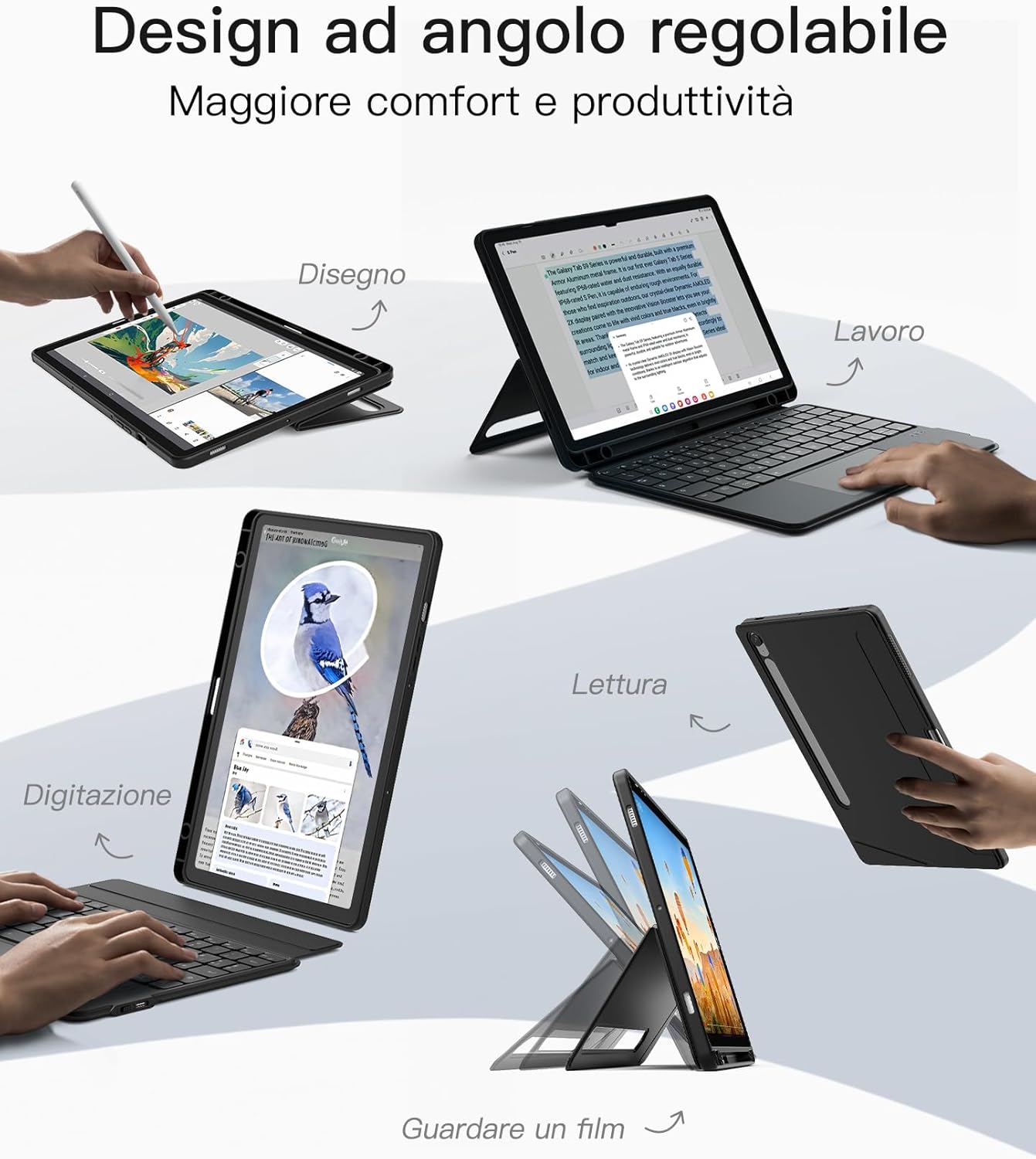
Image: Demonstrates the adjustable angle design for different usage scenarios like drawing, working, reading, and watching movies.

Image: Shows the tablet case configured for a comfortable typing angle, suitable for extended use.
3.3 Touchpad Functionality
The integrated touchpad supports Samsung's Precision Touch function, offering precise and lag-free operation. It also supports multi-finger gestures for efficient navigation, clicking, and switching between applications.

Image: Illustrates the touchpad's high reactivity and support for multi-touch gestures on Samsung devices.
3.4 Atụmatụ ahụigodo
The keyboard features 15x15mm keycaps designed for a comfortable touch and fit, reducing hand fatigue during prolonged typing. Independent shortcut keys allow for quick multitasking and efficient workflow.

Image: Close-up of the keyboard's key design, highlighting dedicated shortcut keys, scissor structure, and 1mm key travel for precise typing.
3.5 S Pen Holder
The case includes two S Pen holders: one on the side for quick access and another on the back. The back holder features a cutout that supports both storage and charging of your Samsung S Pen, ensuring it is always secure and ready for use.

Image: Depicts the seamless storage solution for the S Pen, including its charging capability within the case.
4. Nlekọta
4.1 Nhicha
To clean the keyboard and case, use a soft, damp cloth. Avoid using harsh chemicals or abrasive materials, as these may damage the surfaces. Ensure the keyboard is powered off and disconnected from any power source before cleaning.
4.2 Nchekwa
When not in use, store the keyboard case in a cool, dry place away from direct sunlight and extreme temperatures. Avoid placing heavy objects on the case to prevent deformation.
5. Nchọpụta nsogbu
5.1 Ahụigodo anaghị azaghachi
- Hụ na ejiri ahụigodo ahụ rụọ ọrụ ma chajị ya nke ọma.
- Check Bluetooth connection: Go to your tablet's Bluetooth settings and ensure the keyboard is connected. If not, try re-pairing.
- Restart both the tablet and the keyboard.
5.2 Touchpad anaghị arụ ọrụ
- Verify the keyboard is properly connected via Bluetooth.
- Ensure the touchpad is not accidentally disabled (check for a function key combination on the keyboard).
- Clean the touchpad surface to remove any dirt or debris.
5.3 Okwu njikọ
- Move the tablet and keyboard closer to each other to ensure they are within Bluetooth range.
- Zenarị nnyonye anya site na ngwaọrụ ikuku ndị ọzọ.
- Forget the device in your tablet's Bluetooth settings and re-pair.
6. Nkọwapụta
| Njirimara | Nkọwa |
|---|---|
| Ụdị | Enweghị ike |
| Nọmba nlereanya | N0064 |
| Teknụzụ Njikọta | Bluetooth 5.3 |
| Ike batrị | 500mAh (lithium ion) |
| Ihe onwunwe | Silicone, metal |
| Agba | Nwa |
| Atụmatụ pụrụ iche | Portrait/Landscape Stand, Removable Keyboard, Touchpad, Dual S Pen Holder |
| Nkọwa ahụigodo | Flexible, Scissor-switch mechanism |
| Njem igodo | 1 mm |
| Akụkụ (Ngwugwu) | 26.9 x 19.5 x 2.9 cm |
| Ibu (Ngwugwu) | 603 g |
7. Akwụkwọ ikike na nkwado ndị ahịa
Inateck products come with a standard manufacturer's warranty. For detailed warranty information, product support, or to report any issues, please visit the official Inateck webma ọ bụ kpọtụrụ ndị ọrụ ahịa ha ozugbo. Biko debe ihe akaebe nke ịzụrụ ihe gị maka nkwupụta nkwa.


