1. Okwu mmalite
This manual provides instructions for the installation, operation, and maintenance of your Lepro SE1 16.4ft AI Smart LED Strip Lights and 4 Pack BG1 AI GU10 Smart Bulbs. Please read this manual thoroughly before use and retain it for future reference.
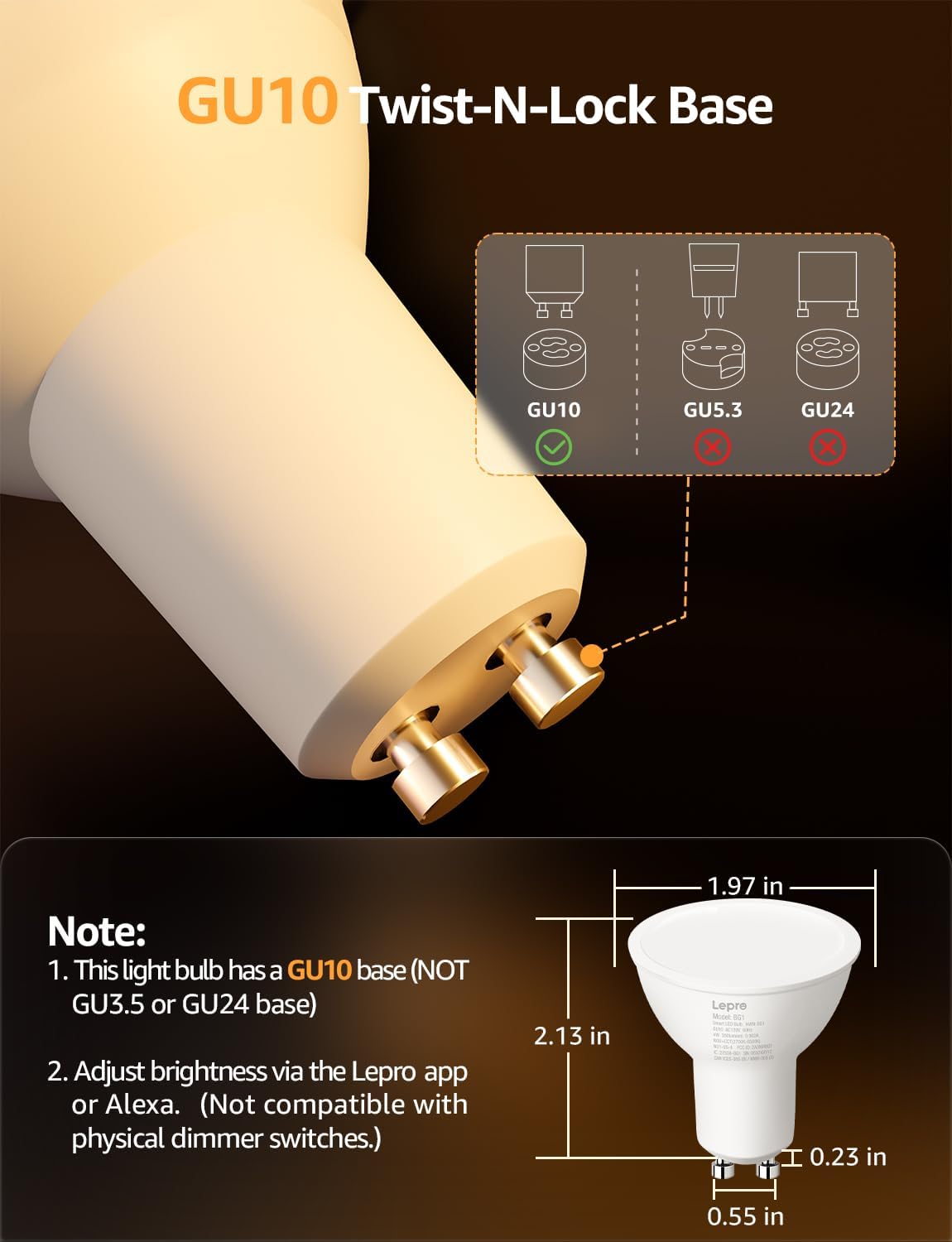
Foto 1.1: Ofeview of the Lepro Smart Lighting Bundle, including the LED strip and GU10 bulbs.
2. Ozi nchekwa
- Gbaa mbọ hụ na agbanyụrụ ọkụ tupu echichi ma ọ bụ mmezi.
- Do not expose the devices to water or high humidity.
- Jiri naanị vol dakọtaratage na ugbu a dị ka akọwapụtara.
- Do not attempt to disassemble or modify the products. This will void the warranty.
- Debe ebe ụmụaka na-apụghị iru.
- The LED strip is designed for indoor use only.
3. Ihe ngwugwu
Chọpụta na ihe niile dị na ngwugwu gị:
- 1 x Lepro SE1 16.4ft AI Smart LED Strip Light
- 1 x Power Adapter for LED Strip
- 4 x Lepro BG1 AI GU10 Smart Bulbs
- Akwụkwọ ntuziaka onye ọrụ 1 x (akwụkwọ a)
4. Ngwaahịa gafereview
The Lepro Smart Lighting Bundle includes two types of smart lighting devices:
4.1. SE1 AI Smart LED Strip Light
A 16.4ft (5-meter) flexible LED strip capable of displaying 16 million RGB colors and tunable white light (2700K-6500K). It connects to your home Wi-Fi network for smart control via the Lepro app, voice assistants, and AI-powered lighting features.
4.2. BG1 AI GU10 Smart Bulb
A GU10 base smart bulb offering 16 million RGB colors and tunable white light (2700K-6500K). These bulbs are designed for fixtures with a GU10 socket and integrate with the Lepro app and voice control systems.
5. Nhazi
5.1. Download the Lepro App
Chọọ maka the "Lepro" app in your smartphone's app store (iOS App Store or Google Play Store) and install it. Register or log in to your account.
5.2. Wi-Fi Connection Requirements
Both the LED strip and GU10 bulbs require a 2.4GHz Wi-Fi na netwọk for initial setup and operation. Ensure your router is configured to support 2.4GHz, or that your phone is connected to the 2.4GHz band during the pairing process.
5.3. GU10 Smart Bulb Installation
- Ensure the power to the light fixture is turned OFF at the switch before installation.
- Carefully insert the GU10 smart bulb into a compatible GU10 socket. The bulb features a twist-n-lock base.
- Turn the power ON at the switch. The bulb should begin to blink, indicating it is in pairing mode. If not, turn the power OFF and ON three times to reset it.
- Open the Lepro app, tap '+' to add a new device, and follow the on-screen instructions to connect the bulb to your Wi-Fi network.

Image 5.1: Illustration of the GU10 Twist-N-Lock base and bulb dimensions. Note that this bulb is specifically GU10 and not compatible with GU3.5 or GU24 bases.
5.4. SE1 LED Strip Light Installation
- Choose a clean, dry, and smooth surface for installation. Ensure the surface is free of dust and oil.
- Unroll the LED strip. Do not bend or fold the strip sharply.
- Peel off the adhesive backing from a small section of the strip and firmly press it onto the desired surface. Continue peeling and pressing along the length of the strip.
- Connect the LED strip to its power adapter, then plug the adapter into a power outlet.
- The strip should begin to blink, indicating pairing mode. If not, power cycle it three times.
- Open the Lepro app, tap '+' to add a new device, and follow the on-screen instructions to connect the strip to your Wi-Fi network.
6. Ntuziaka ọrụ
6.1. Lepro App Control
Once connected, use the Lepro app to control your lights:
- Nhọrọ agba: Choose from 16 million RGB colors for both the strip and bulbs.
- White Tunable: Adjust white light from warm (2700K) to cool (6500K).
- Ndozi ihie: Dim the lights from 1% to 100%. (Note: Not compatible with physical dimmer switches.)
- Ụdị ihe nkiri: Select from pre-set scenes or create custom lighting effects.

Image 6.1: Demonstrates the range of 16 million RGB colors, 1%-100% dimmable brightness, and tunable white light from warm to cool (2700K-6500K) available through the Lepro app.
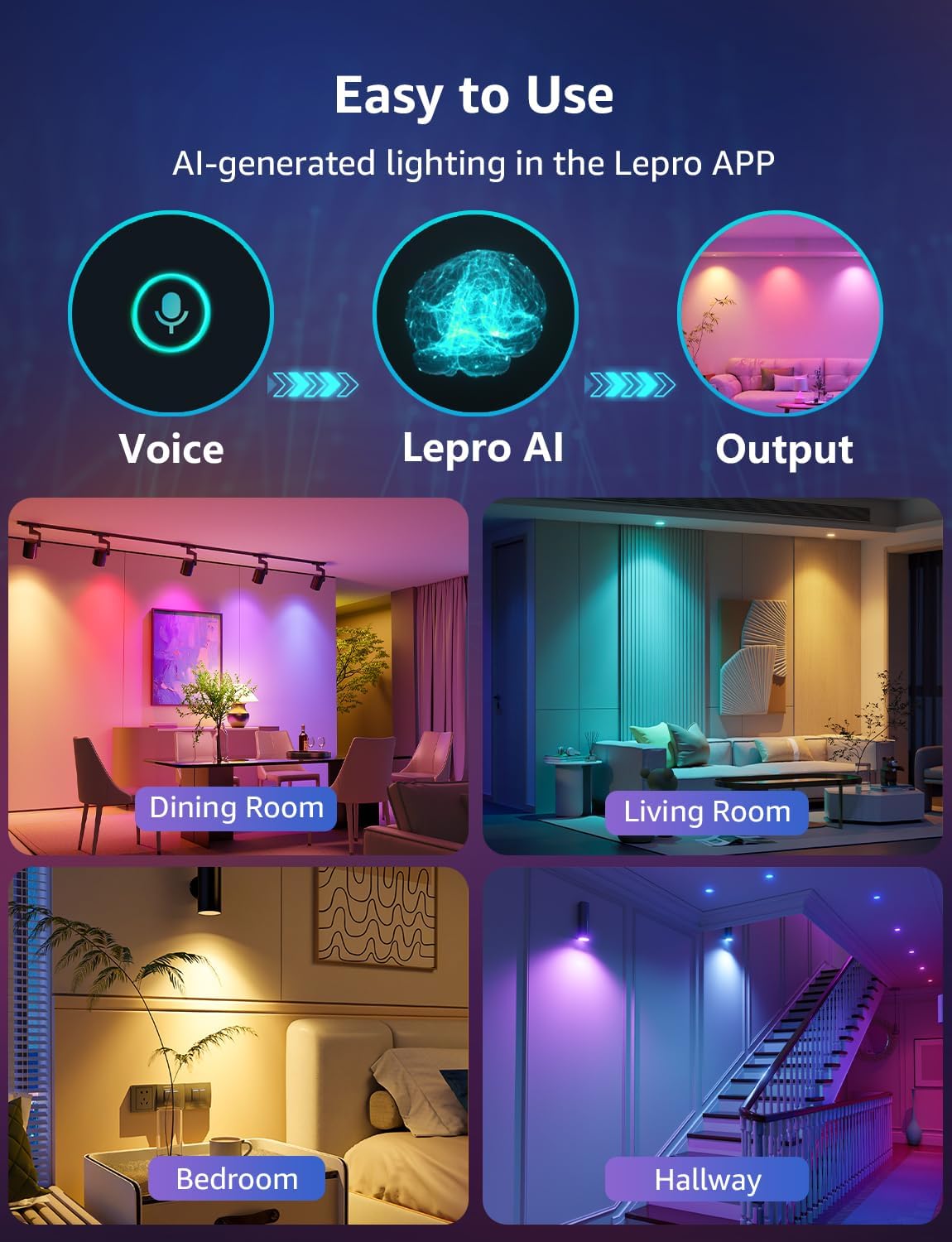
Image 6.2: Illustrates the process of AI-generated lighting within the Lepro app, showing how voice input can lead to various lighting outputs for different rooms.
6.2. Njikwa olu
The devices are compatible with Amazon Alexa and Google Assistant. Link your Lepro account to your voice assistant app (e.g., Alexa app, Google Home app) to enable hands-free control.
- ExampIwu:
- "Alexa, turn on the living room lights."
- "Hey Google, set the bedroom strip to blue."
- "Alexa, dim the kitchen lights to 50%."

Image 6.3: A user interacting with a smart speaker to control lighting, demonstrating hands-free voice control capabilities with Amazon Alexa and Google Assistant.

Image 6.4: Depicts advanced AI voice control where the system analyzes user prompts and emotions to generate appropriate lighting scenes, such as "turn on/off the lights" or "I feel happy."
6.3. AI LightGPM
Lepro LightGPM is an AI-powered lighting design assistant integrated into the Lepro app. It uses color psychology and lighting design principles to create professional lighting effects based on your input, simplifying complex lighting setups.

Image 6.5: Visual representation of the LightGPM AI Lighting Design Assistant, highlighting its role in making lighting design easy through artificial intelligence.
6.4. LightBeats Music Sync
The LED strip features a LightBeats Music Sync function, allowing the lights to change and pulse in rhythm with music. This feature typically uses your phone's microphone to pick up audio. Ensure the Lepro app is open and the screen is on for continuous synchronization.

Image 6.6: Depicts the LightBeats Music Sync feature, showing an LED strip light changing colors in sync with music, controlled via the Lepro app interface.
6.5. Timers & Schedules
Automate your lighting by setting custom on/off times or triggering specific scene modes at scheduled intervals through the Lepro app.
6.6. Grouping Devices
You can group multiple BG1 GU10 bulbs or other Lepro smart devices within the app to control them simultaneously with a single command.
7. Nlekọta
- Gbaa mbọ hụ na agbanyụrụ ọkụ tupu ihicha.
- Wipe the surfaces of the bulbs and LED strip with a soft, dry cloth.
- Ejila ihe nchacha abrasive ma ọ bụ ihe mgbaze.
8. Nchọpụta nsogbu
| Nsogbu | Ihe nwere ike ime | Ngwọta |
|---|---|---|
| Ngwaọrụ anaghị ejikọ na Wi-Fi | Incorrect Wi-Fi band (not 2.4GHz), incorrect password, device too far from router. | Ensure your router is broadcasting a 2.4GHz signal and your phone is connected to it during setup. Verify Wi-Fi password. Move device closer to router. Power cycle the device (OFF/ON three times) to re-enter pairing mode. |
| Lights not responding to app/voice control | Device offline, Wi-Fi issue, app not linked to voice assistant. | Check Wi-Fi connection. Ensure device is online in the Lepro app. Re-link Lepro account with Alexa/Google Assistant. |
| GU10 bulb not fitting | Incorrect base type. | Ensure your fixture uses a GU10 twist-n-lock base. This bulb is not compatible with GU3.5 or GU24 bases. |
| LED strip adhesive not sticking | Surface is dirty, oily, or uneven. | Clean the surface thoroughly with rubbing alcohol and let it dry completely before applying the strip. Ensure the surface is smooth. |
9. Nkọwapụta
- Akara: ekpenta
- Model (LED Strip): SE1
- Model (GU10 Bulb): BG1
- Ogologo eriri LED: 16.4ft (mita 5)
- Oke agba: 16 Million RGB Colors, Tunable White (2700K-6500K)
- Njikọta: 2.4GHz Wi-Fi
- Njikwa olu: Amazon Alexa, onye enyemaka Google
- Atụmatụ pụrụ iche: AI LightGPM, LightBeats Music Sync, Timers & Schedules, Group Control
- ASIN: B0F6CPMHQL
- Ụbọchị mbụ dị: Eprel 25, 2025
10. Akwụkwọ ikike na nkwado
Lepro products come with a standard manufacturer's warranty. For detailed warranty information, technical support, or customer service, please refer to the official Lepro website or contact their customer support directly. Please have your product model and ASIN (B0F6CPMHQL) available when contacting support.
Websaịtị: Visit the Lepro Store on Amazon


