Okwu mmalite
This manual provides instructions for the safe and effective use of the Insta360 Flow 2 White foldable AI phone gimbal. Please read this manual thoroughly before operating the device.
The Insta360 Flow 2 is an all-in-one content creation tool featuring AI tracking, multi-person tracking, a built-in tripod, selfie stick, and remote control capabilities. It is designed to provide stable footage for iPhone and Android smartphones.
Kedu ihe dị na Igbe ahụ
The standard bundle includes the following items:
- 1x Insta360 Flow 2 Gimbal
- 1x Magnetic Phone Clamp
- 1x USB-C to USB-A Charge Cable
- 1x Protective Pouch
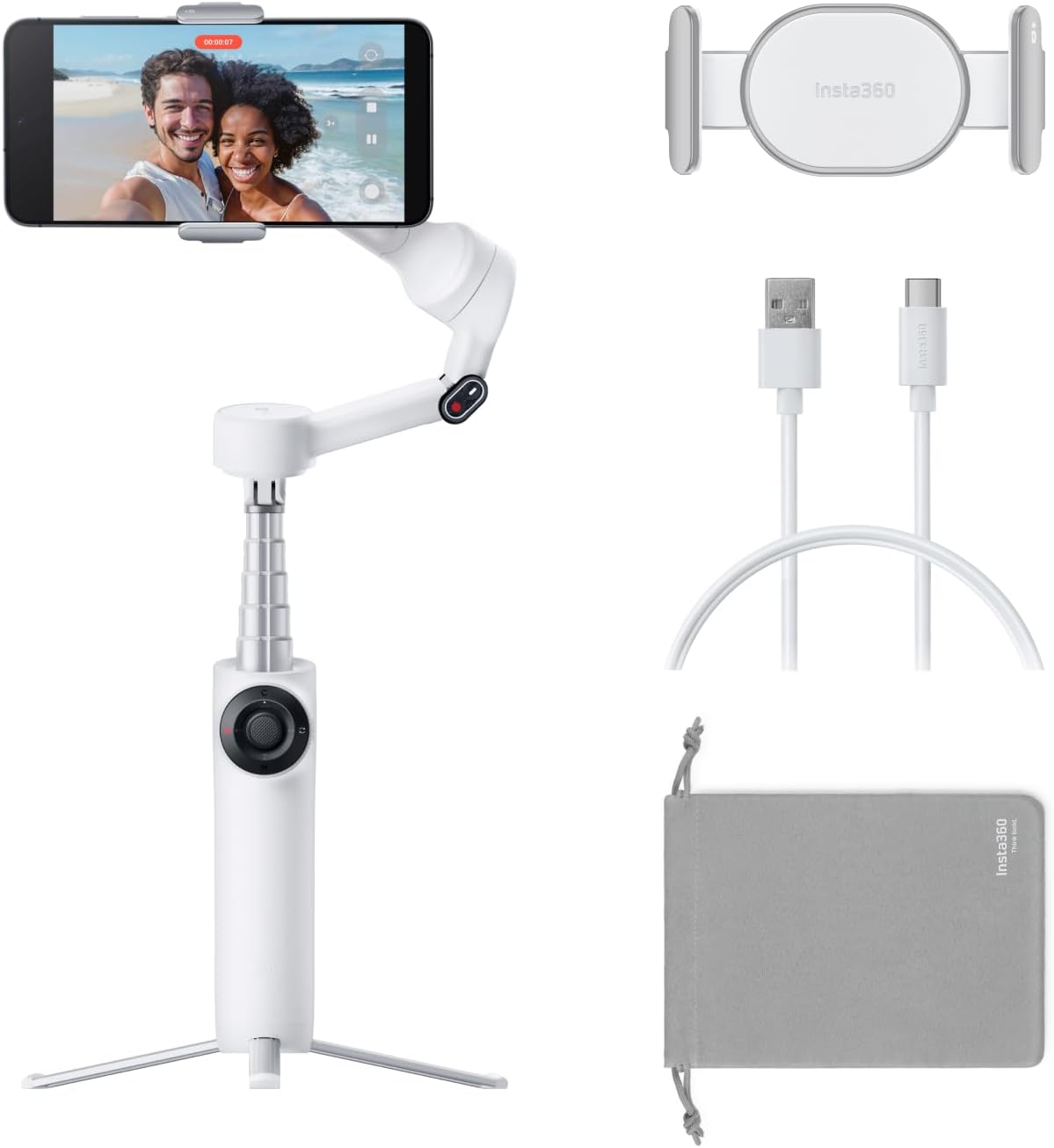
Melite
1. Unfolding and Deployment
The Insta360 Flow 2 is designed for quick deployment. Simply unfold the gimbal and it is ready for use. The 3-axis stabilization system will activate to ensure smooth footage.

2. Ịtinye ekwentị gị
Use the magnetic phone clamp to securely attach your smartphone to the gimbal. Ensure the phone is balanced for optimal performance.

Ntuziaka ọrụ
Ihe niile n'ime otu imewe
The Insta360 Flow 2 integrates multiple tools for content creation:
- Built-in Tripod: For stable shots and hands-free recording.
- Built-in Selfie Stick: Extends for wider shots and group photos.
- Ọrụ Bank Power: Can charge your phone during use.
- Ndụ batrị nke awa 10: Provides extended usage for a full day of filming.


AI Tracking Features
The Insta360 Flow 2 utilizes advanced AI for precise subject tracking:
- Active Zoom Tracking: Tracks fast-moving subjects even at up to 15x zoom. This feature is available for Pro & Pro Max models of iPhone 12-16.
- Multi-Person Tracking: Frames and tracks multiple individuals, ideal for group shots.
- Animal Tracking: Specifically designed to follow pets like dogs, cats, and horses.
- Person Re-Identification: Maintains tracking of a selected person even if they are temporarily blocked from view.


Stabilization and Composition
The 3-axis stabilization ensures smooth footage, while composition tools assist in framing:
- 3-Axis Stabilization: Cancels out shakes for smooth video recording.
- Perfect Framing: Features 9 golden ratio grid points to assist in composing aesthetically pleasing shots.


Remote Control and Creative Modes
Control the gimbal and capture unique shots using various methods:
- Remote Smartphone Control: Use a second phone as a remote to preview and control recording.
- Apple Watch Control: Control the gimbal directly from your Apple Watch.
- Njikwa mmegharị ahụ: Start and stop recording or tracking with simple hand gestures.
- Barrel Roll: Use the SmartWheel for FPV-like barrel roll effects.
- Mbugharị Dolly: Replicate the classic cinematic dolly zoom effect.
- 360° Panorama: Capture immersive 360-degree panoramic shots.


AI-Powered Editing
The Insta360 app provides AI-powered editing tools, including FlashCut, which automatically edits highlights to music.

Nlekọta
To ensure the longevity and optimal performance of your Insta360 Flow 2, follow these general maintenance guidelines:
- Nhicha: Use a soft, dry cloth to clean the gimbal body. Avoid using harsh chemicals or abrasive materials.
- Nchekwa: Store the gimbal in its protective pouch in a cool, dry place when not in use. Avoid extreme temperatures.
- Nlekọta batrị: For extended storage, ensure the battery is charged to approximately 50-60%. Recharge periodically if stored for long periods to prevent deep discharge.
- Mmelite femụwe: Regularly check the Insta360 app for firmware updates to ensure the best performance and access to new features.
Nchọpụta nsogbu
This section addresses common issues you might encounter with your Insta360 Flow 2.
Gimbal Not Powering On
- Ensure the battery is sufficiently charged. Connect the gimbal to a power source using the provided USB-C cable.
- Pịa ma jide bọtịnụ ike ahụ ruo sekọnd ole na ole iji hụ na ọ bụghị obere pịa.
Foo Na-akwụghị chịmtage / Gimbal Vibrating
- Ensure your smartphone is securely mounted in the magnetic clamp and is balanced.
- Calibrate the gimbal through the Insta360 app if the issue persists.
- Check for any obstructions to the gimbal's motors.
AI Tracking Not Working
- Ensure adequate lighting for the subject.
- Verify that the subject is clearly visible and not obscured.
- Check the Insta360 app settings to ensure AI tracking is enabled and configured correctly.
- Confirm your smartphone model is compatible with advanced tracking features (e.g., Active Zoom Tracking for specific iPhone models).
Connection Issues with App
- Gbaa mbọ hụ na agbanyere Bluetooth na ekwentị gị.
- Restart both the gimbal and the Insta360 app.
- Chezọ ngwaọrụ dị na ntọala Bluetooth ekwentị gị wee megharịa ọzọ.
For further assistance, please refer to the official Insta360 support resources.
Nkọwapụta
| Njirimara | Nkọwa |
|---|---|
| Akụkụ ngwaahịa | 3.82 x 1.42 x 7.01 sentimita asatọ |
| Nha agbakọtara | 97.9x178.4x36.7mm |
| Ibu Ibu | 13.2 ounce (gram 375) |
| Nọmba nlereanya | CINSABQA |
| Ụdị | Insta360 |
| Agba | Summit White |
| Ngwa dakọtara | iPhone, Cellphone |
| Batrị | Achọrọ batrị 1C (gụnyere) |
| Ndụ batrị | Ruo awa iri abụọ |
| UPC | 842126108242 |
Ekwentị ndakọrịta
The Insta360 Flow 2 supports various smartphone models with different capabilities. Refer to the table below for detailed compatibility information.

Akwụkwọ ikike na nkwado
Specific warranty details are typically provided with your product purchase documentation or can be found on the official Insta360 website. For technical support, product registration, or warranty claims, please visit the official Insta360 support page.
No specific warranty information was provided in the product data.
Vidiyo ngwaahịa
No official product videos with creator type "Seller" were found in the provided data to embed in this manual.


