1. Okwu mmalite
This manual provides essential information for the safe and effective operation of your Thermal Master Handheld Thermal Camera THOR 002. Please read this manual thoroughly before using the device and retain it for future reference. This thermal imager is designed for professionals in electrical, HVAC, mechanical, and building inspections, offering advanced thermal imaging capabilities for detailed diagnostics.
2. Ozi nchekwa
Always operate the device in accordance with the instructions provided. Do not attempt to disassemble or modify the camera, as this may void the warranty and cause damage. Avoid direct exposure of the lens to strong light sources. Ensure the device is charged using the provided cable and a compatible power source. Keep the device away from extreme temperatures and corrosive environments. The laser positioning feature should be used with caution; avoid direct eye exposure.
3. Ihe ngwugwu
Mgbe ị na-emepe igbe ahụ, biko hụ na ihe niile edepụtara n'okpuru dị ma dịkwa mma.
- Thor002 Thermal Camera ×1
- Explosion-Proof Case ×1
- 100cm USB Data Cable ×1
- 32GB Memory Card (pre-installed)

Figure 3.1: Contents of the Thermal Master THOR 002 package, showing the thermal camera, explosion-proof case, and USB data cable.
4. Ngwaahịa gafereview
The Thermal Master THOR 002 is a robust handheld thermal camera designed for professional use. It features an ergonomic body with an alloy base for durability.

Foto 4.1: N'ihu na akụkụ view of the THOR 002, highlighting the 3.5" IPS screen, laser targeting, LED light, thermal camera, visible light camera, flash shield, noise-reducing mic, and alloy base.
Akụkụ ndị bụ isi:
- Ngosipụta: 3.5'' 640×480 IPS screen with 60Hz refresh rate.
- Thermal Resolution: 512×384 X³ IR Resolution (upgraded from 256×192).
- Igwefoto a na-ahụ anya: 2MP visible light camera.
- Oke okpomọkụ: -4 Celsius F na 1022 Celsius (-20 Celsius C ruo 550 Celsius).
- izi ezi: ±3.6°F (±2°C) or ±2% of the reading.
- Mmetụta: Ultra-fine 40mK.
- oghere: 4.3mm lens, 4X digital zoom.
- Njikọta: USB for PC, WiFi for smartphones/tablets.
- Nchekwa: 8GB RAM, 32GB internal storage.
- Batrị: 5000mAh lithium battery, up to 10.5 hours runtime, 18W fast charging.
- Ogologo oge: IP54 protection, 2-meter drop resistance.
5. Nhazi
5.1 Nchaji izizi
Before first use, fully charge the thermal camera. Connect the provided USB data cable to the camera's USB-C port and plug the other end into a compatible 18W fast charger or a PC USB port. The battery indicator on the screen will show charging status.

Figure 5.1: The THOR 002 features a 5000mAh battery for up to 10.5 hours runtime and supports 18W fast charging.
5.2 Gbanyụọ ma ọ bụ gbanyụọ
- Ike Na: Press and hold the power button (usually located below the screen) for a few seconds until the Thermal Master logo appears.
- Gbanyụọ: Press and hold the power button until the shutdown prompt appears, then confirm.
6. Ntuziaka ọrụ
6.1 Nsoro ụzọ
Use the directional buttons and the central selection button to navigate through the camera's menu and settings on the 3.5" IPS screen.
Ụdị nha 6.2
The camera offers precise temperature measurement with multiple spot analysis options.
- Standard Points: Measure center, hottest, and coldest spots automatically.
- Custom Points: Define up to three additional measurement spots for specific areas of interest.

Figure 6.1: The camera display showing options for minimum, maximum, center, and three custom temperature points.
6.3 Ụdị onyonyo
Switch between different imaging modes to best suit your inspection needs.
- Infrared (IR): Displays only the thermal image.
- Ìhè A Na-ahụ Anya: Displays only the visual image from the 2MP camera.
- Fusion Mode: Blends the thermal and visual images for enhanced detail.
- Foto dị na foto (PIP): Overlays a smaller thermal image onto the visible light image.
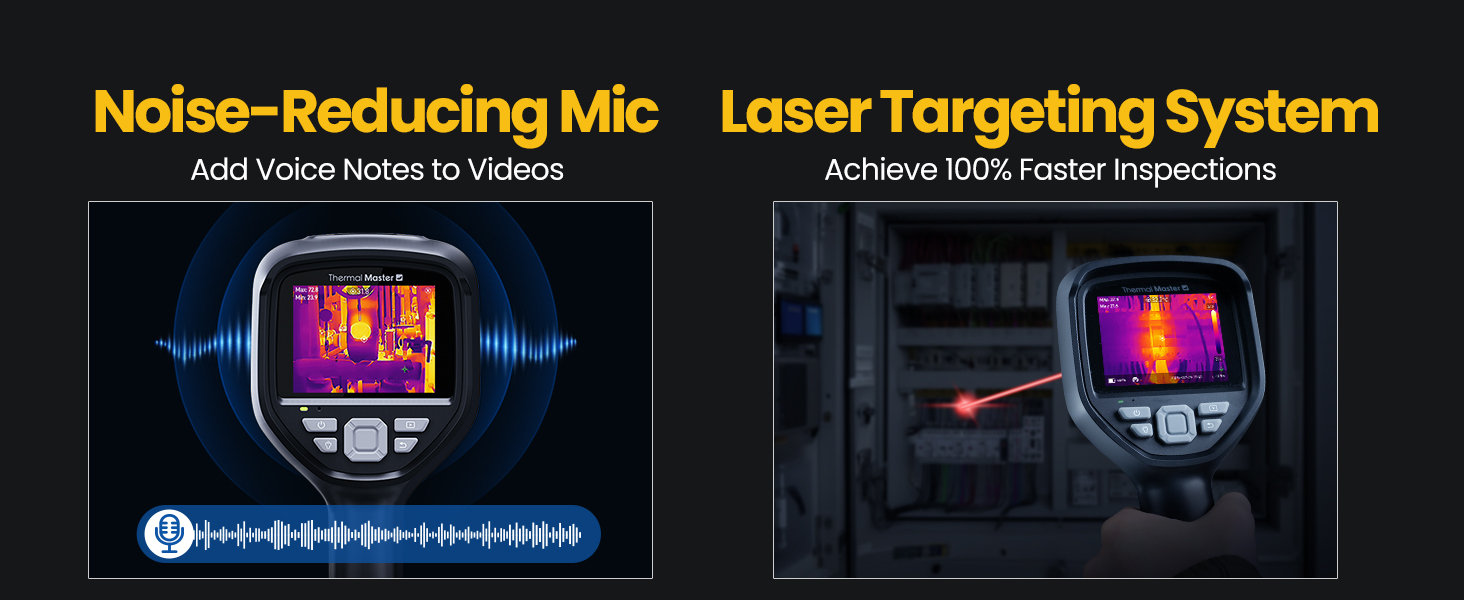
Figure 6.2: Comparison of Fusion Imaging and Picture-in-Picture modes for combining thermal and visual data.
6.4 Njikọta
The THOR 002 supports both wired and wireless connectivity for data transfer and real-time analysis.
- Njikọ USB: Connect to a PC via the USB cable for real-time thermal analysis and data transfer.
- WiFi Pairing: Pair with smartphones and iPads using the 'Thermal Smart' app for flexible operation and remote viewing.

Figure 6.3: The camera connected wirelessly to a smartphone and wired to a laptop for thermal reporting.
6.5 Ndekọ
Capture and store inspection data directly on the device.
- ese foto: Press the trigger button once to take a photo.
- Ndekọ vidiyo: Press and hold the trigger button to start recording video. Press again to stop.
- Ndetu olu: Add voice annotations to videos for detailed on-site documentation.
- QR Code Management: Use QR codes for simplified file management and reporting.

Figure 6.4: The camera features a noise-reducing microphone for voice notes and a laser targeting system for precise aiming.
6.6 Zoom & Focus
Hazie nke view for detailed inspections.
- Mbugharị dijitalụ: Utilize the 4X digital zoom (1x, 2x, and 4x magnification) for closer inspection of targets.
- oghere: The 4.3mm lens extends the detection range by 34.4%.
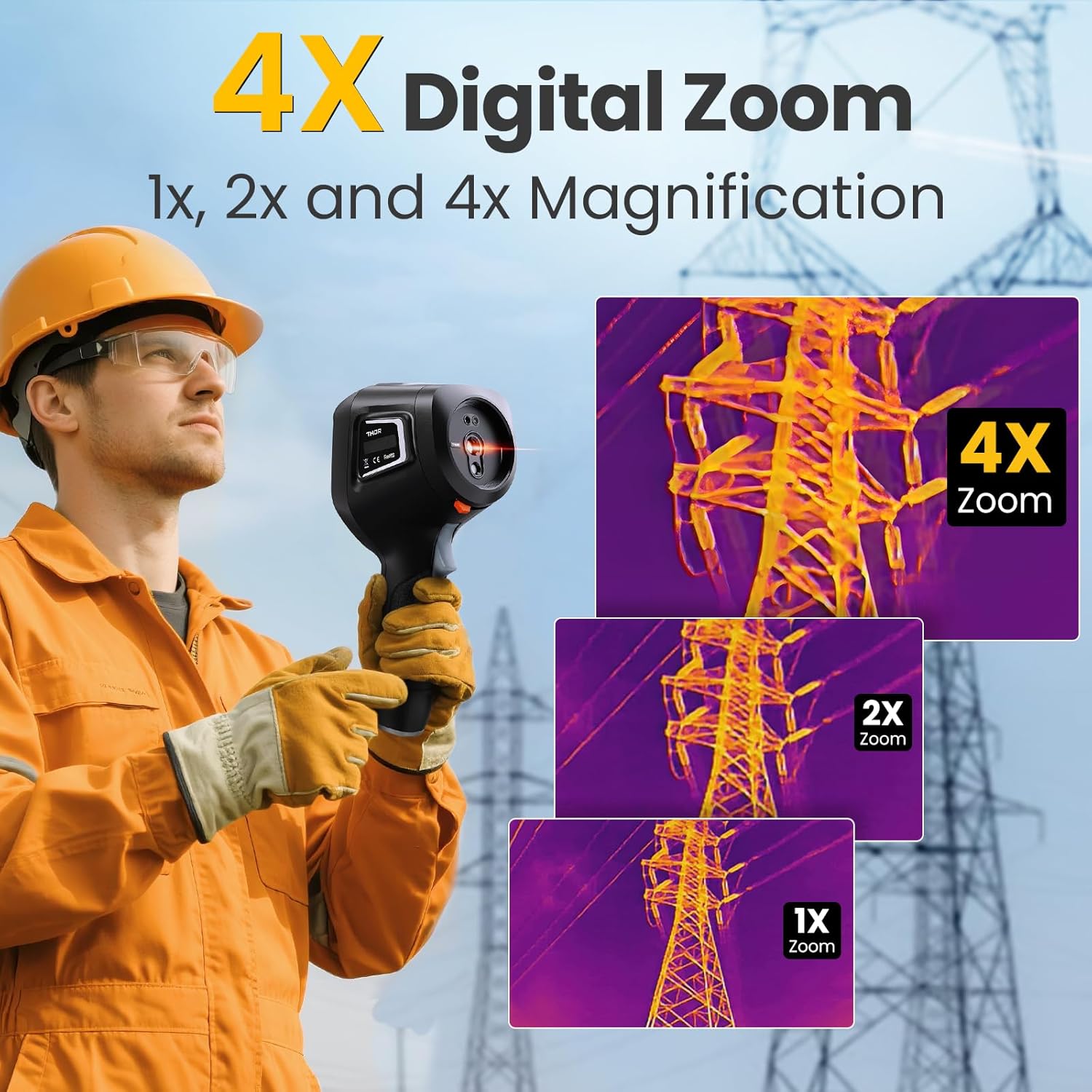
Figure 6.5: The camera's 4X digital zoom function, illustrating 1x, 2x, and 4x magnification levels.
6.7 Emissivity Adjustment
For accurate temperature readings, adjust the emissivity setting based on the surface material being inspected.

Figure 6.6: Emissivity settings menu, allowing adjustment for various materials like polished aluminum, light aluminum oxide, brass mirror, and brass oxide.
7. Nlekọta
To ensure the longevity and optimal performance of your Thermal Master THOR 002, follow these maintenance guidelines:
- Nhicha: Use a soft, dry cloth to clean the camera body. For the lens, use a lens cleaning cloth and solution.
- Nchekwa: Store the camera in its explosion-proof case when not in use to protect it from dust, moisture, and impact.
- Nlekọta batrị: Avoid fully discharging the battery frequently. Charge the battery regularly, even if the camera is not in active use, to maintain battery health.
- Mmelite ngwanrọ: Periodically check the Thermal Master official website for any available firmware or software updates for your device.
8. Nchọpụta nsogbu
If you encounter any issues with your Thermal Master THOR 002, refer to the common problems and solutions below. If the problem persists, contact customer support.
| Nsogbu | Ihe nwere ike ime | Ngwọta |
|---|---|---|
| Igwefoto anaghị agba ọkụ | Batrị dị ala ma ọ bụ mebie | Chajie batrị zuru oke. |
| Foto ahụ adịghị mma ma ọ bụ edoghị anya | Lens is dirty; Incorrect focus/zoom settings | Clean the lens. Adjust digital zoom. |
| Ọgụgụ okpomọkụ ezighi ezi | Incorrect emissivity setting; Distance to target too far | Adjust emissivity for the material. Ensure appropriate distance. |
| Cannot connect via WiFi | Incorrect WiFi password; Device not in hotspot mode | Verify password and network name. Ensure WLAN hotspot is enabled on camera. |
| PC software not working | Software not installed correctly; Compatibility issues | Download the latest software from the official website. Ensure PC meets system requirements. |
9. Nkọwapụta
Detailed technical specifications for the Thermal Master THOR 002.
| Njirimara | Nkọwapụta |
|---|---|
| Akụkụ ngwaahịa | 10.24 x 4.33 x 4.13 sentimita; 4.59 pound |
| Nọmba Nlereanya ihe | Thor 002 |
| Batrị | 1 batrị lithium ion achọrọ (gụnyere) |
| Onye nrụpụta | Thermal Master |
| Mkpebi okpomọkụ | 512×384 X³IR |
| Igwefoto Anya | 2MP |
| Ngosipụta ihuenyo | 3.5" 640×480 IPS |
| Ọnụego ume ọhụrụ | 60Hz |
| Mmetụta okpomọkụ (NETD) | 40mK |
| Oke okpomọkụ | -4°F ruo 1022°F (-20°C ruo 550°C) |
| Okpomọkụ ziri ezi | ±3.6°F (±2°C) or ±2% of the reading |
| Dijitalụ mbugharị | 4X |
| Nchekwa | 8GB RAM, 32GB nchekwa n'ime |
| Ike batrị | 5000mAh |
| Oge ịgba ọsọ batrị | Ruo awa iri abụọ |
| Ịchaji | Nchaji ngwa ngwa 18W |
| Ogo nchekwa | IP54 |
| Wepu Nguzogide | Ruo mita 2 |
10. Akwụkwọ ikike na nkwado
Thermal Master is committed to providing high-quality products and customer satisfaction.
- Akwụkwọ ikike: The Thermal Master THOR 002 comes with a 2-Year Warranty. Replacements are provided only under warranty conditions.
- Nkwado ndị teknuzu: Lifetime technical support is available. For assistance, please contact Thermal Master customer service.
Figure 10.1: The camera display showing options for minimum, maximum, center, and three custom temperature points.


