1. Okwu mmalite
This manual provides essential information for setting up, operating, and maintaining your Hisense 32E5Q Smart QLED Google TV. Please read it thoroughly before using the television to ensure proper functionality and safety. Keep this manual for future reference.
The Hisense 32E5Q is an 80 cm (32-inch) HD Ready Smart QLED Google TV, featuring HDR10 support, 30W powerful speakers with Dolby Audio, a Super Bright Panel, Google Assistant, and built-in Chromecast for an enhanced viewahụmahụ.
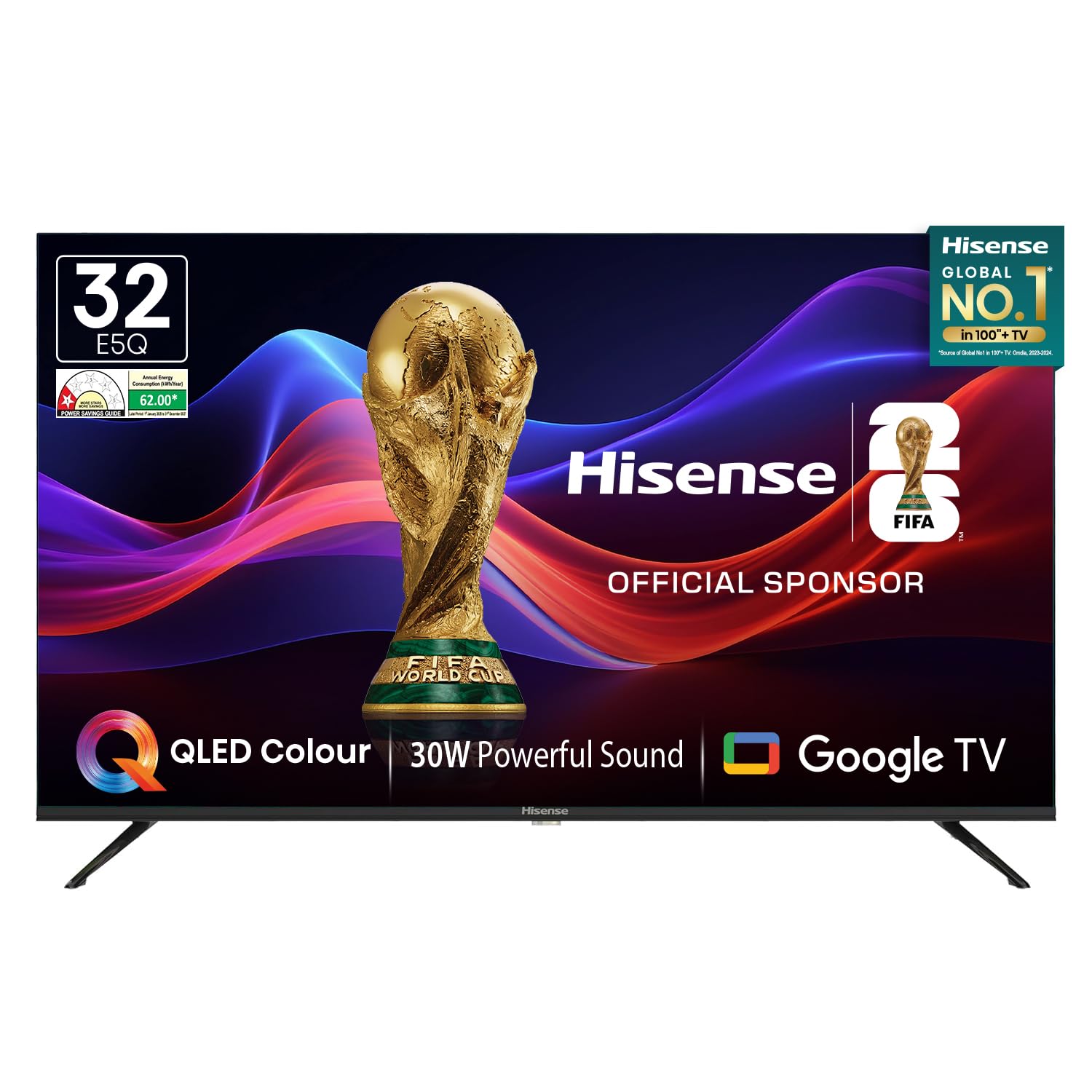
Image: Hisense 32E5Q Smart QLED Google TV, front view.
2. Kedu ihe dị na Igbe ahụ
Jiri nlezianya bupụ igbe ahụ wee hụ na ihe niile dị na emebibeghị. Ọ bụrụ na ihe ọ bụla na-efu ma ọ bụ mebie, kpọtụrụ onye na-ere ahịa gị ozugbo.
- 1 x Hisense 32E5Q LED TV
- Ntọala Tebụl 2 x
- Akwụkwọ ntuziaka onye ọrụ 1 x (akwụkwọ a)
- 1 x kaadị ikike
- 1 x Njikwa anya
- 2 x AAA batrị

Image: Diagram showing the Hisense TV, remote, table stands, batteries, warranty card, and manual included in the box.
3. Nhazi
3.1. Guzosie nwụnye
To install the table stand bases:
- Debe ihuenyo TV ahụ n'elu ala dị nro ma dị larịị iji gbochie ọkọ.
- Align each stand base with the corresponding slots on the bottom of the TV.
- Chekwaa ihe nkwụnye ahụ site na iji skru ndị enyere. Gbaa mbọ hụ na ejikọtara ha nke ọma.

Image: Diagram illustrating the dimensions of the Hisense E5Q QLED TV and how the table stands attach.
3.2. Mgbidi Mgbidi
This TV supports wall mounting. For wall mounting, please refer to the instructions provided with your wall mount kit. Ensure the wall mount is compatible with the TV's VESA mounting pattern and weight. Professional installation is recommended for wall mounting.
3.3. Ijikọ Ngwaọrụ
Connect your external devices to the TV using the appropriate ports. Ensure the TV and all devices are powered off before making connections.
- ọdụ ụgbọ mmiri HDMI (x3): For connecting set-top boxes, gaming consoles, Blu-ray players, etc.
- ọdụ ụgbọ mmiri USB 2.0 (x2): For connecting USB storage devices (hard drives, flash drives) to play media.
- Ethernet (RJ45): Maka njikọ ịntanetị ejikọrọ.
- Port ekweisi: Maka ijikọ ekweisi.
- Ntinye AV: Maka ijikọ ngwaọrụ ndị ochie na-eji vidiyo composite na stereo audio cable.
- VGA N'ime: For connecting a computer.
- ANT: For connecting an antenna for terrestrial broadcasting.

Image: Detailed diagram of the Hisense TV's rear and side connectivity ports, including HDMI, USB, Ethernet, AV, VGA, and Headphone.
4. Na-arụ ọrụ na TV
4.1. Gbanyụọ / gbanyụọ
Connect the power cord to the TV and a power outlet. Press the power button on the remote control or the TV to turn it on or off.
4.2. Mbido Mmalite (Google TV)
Mgbe agbanyere ọkụ mbụ, TV ga-eduzi gị na usoro nhazi mbụ. Nke a gụnyere:
- Nhọrọ asụsụ.
- Njikọ netwọkụ (Wi-Fi ma ọ bụ Ethernet).
- Google account sign-in for Google TV features.
- Google Assistant setup.
- Channel scanning (if using an antenna).
4.3. Smart TV Atụmatụ
Your Hisense 32E5Q TV runs on Google TV, offering a personalized entertainment experience.
- Google TV: Access a vast library of movies, shows, and apps from various streaming services.
- Chromecast arụnyere n'ime: Tụgharịa ọdịnaya ozugbo site na ekwentị mkpanaaka gị, mbadamba gị, ma ọ bụ kọmputa gị na TV.
- Onye enyemaka Google: Jiri iwu olu ka ịchọọ ọdịnaya, jikwaa ngwaọrụ ụlọ smart, wee nweta ozi.
- Ngwa akwadoro: Pre-installed and downloadable apps include Netflix, YouTube, Prime Video, Hotstar, SonyLiv, Hungama, JioCinema, Zee5, Eros Now, and many more.

Image: Screenshot of the Google TV home screen displaying popular streaming applications like Prime Video, Netflix, YouTube, and Disney+ Hotstar.
4.4. Remote Control
The included remote control features dedicated buttons for popular streaming services and voice control functionality.
- Njikwa olu: Press the Google Assistant button and speak into the remote to issue commands.
- One-touch Access: Quickly launch Netflix, YouTube, Prime Video, and other apps with dedicated buttons.

Image: The Hisense voice remote control, highlighting the power, volume, channel, navigation, and dedicated app buttons.
4.5. Ngosipụta Ntọala
Bulite gị viewing experience with the following display features:
- QLED Display: Delivers vibrant colors and enhanced picture quality.
- HDR10: Provides superior contrast and color accuracy for compatible content.
- Panel Na-egbuke egbuke nke ukwuu: Ensures high brightness levels for clear visibility in various lighting conditions.
- Ụdị foto: Choose from Standard, Dynamic, Movie, ECO, Gentle, Vivid, Sport, Game, and Personal to suit your content.
- Natural Colour Enhancer: Fine-tunes colors for a more realistic and immersive visual experience.
- Mbelata mkpọtụ: Reduces visual noise and graininess for a clearer picture.
- Ọdịiche dị omimi: Enhances the contrast between light and dark areas of the screen.

Image: Visual representation of key display technologies including QLED Color, HDR10 comparison, and 4K Digital Noise Reduction.
4.6. Ntọala ọdịyo
Experience rich and powerful sound with the TV's audio features:
- 30W Powerful Speakers: Delivers clear and immersive audio.
- Dolby Audio: Provides enhanced sound quality for movies, music, and games.
- Ụdị ụda: Select from Standard, Music, Cinema, News, and Personal to optimize audio for different content types.

Image: Graphic illustrating the Dolby Audio and 30W Powerful Sound features, showing sound waves emanating from the TV.
4.7. Ihuenyo mirroring
Share content from your devices to the TV screen:
- Chromecast arụnyere: Easily cast videos, photos, and music from compatible apps on your smartphone or tablet.
- DLNA, Miracast, Airplay: Supports various screen mirroring protocols for seamless content sharing.
5. Nkọwapụta
| Njirimara | Nkọwapụta |
|---|---|
| Nlereanya | 32E5Q |
| Nha ihuenyo | 32 sentimita (80 cm) |
| Ngosipụta teknụzụ | QLED |
| Mkpebi | HD Ready (1366x768) |
| Ọnụego ume ọhụrụ | 60 Hertz |
| Viewna n'akuku | 178 ogo |
| Icha ọkụ | Nits 330 |
| Ọnụọgụ ọdịiche | 3000:1 (Ụmụ amaala) |
| Nkwado HDR | HDR 10 |
| Sistemụ nrụọrụ | Google TV |
| Ebe nchekwa RAM | 1.5 GB |
| Ike nchekwa | 8 GB |
| Mmepụta ndị na-ekwu okwu | 30 Watt |
| Teknụzụ ọdịyo | Dolby Audio |
| ọdụ ụgbọ mmiri HDMI | 3 |
| ọdụ ụgbọ mmiri USB | 2 (USB 2.0) |
| Njikọta | Built-in Wi-Fi, Bluetooth 5.0, Ethernet RJ45 |
| Akụkụ ngwaahịa (ya na nkwụnye) | 71.6 x 48.78 x 22.45 cm |
| Akụkụ ngwaahịa (na-enweghị nkwụnye) | 71.6 x 43.34 x 8.61 cm |
| Ibu Ibu | 3.9 n'arọ |
| Oriri ike | 55 Watt |
6. Nlekọta
6.1. Nhicha TV
- Kwupuo TV mgbe niile tupu ihicha ya.
- Jiri akwa dị nro, kpọrọ nkụ, akwa enweghị lint iji hichaa ihuenyo na kabinet.
- Maka akara ndị isi ike, dị obere dampen the cloth with water or a mild screen cleaner. Never spray cleaner directly onto the screen.
- Zere iji ihe nhicha, wax, ma ọ bụ ihe mgbaze mee ihe n'ihi na ha nwere ike imebi ihe dị na TV ahụ.
6.2. Ntuziaka nchekwa
- Akwụsịla oghere ikuku.
- Mee ka TV ghara ịdị na ìhè anyanwụ kpọmkwem, ebe okpomọkụ, na uzuzu buru ibu.
- Avoid placing liquids or heavy objects on top of the TV.
- If the TV emits smoke or unusual odors, immediately unplug it and contact customer support.
7. Nchọpụta nsogbu
Ọ bụrụ na ị na-enwe nsogbu na TV gị, rụtụ aka na azịza ndị a na-ahụkarị:
- Enweghị ike: Ensure the power cord is securely plugged into both the TV and a working power outlet. Check if the power outlet is active.
- Enweghị foto/ụda: Verify that the correct input source is selected. Check all cable connections (HDMI, AV, etc.). Try restarting the TV.
- Njikwa anya anaghị arụ ọrụ: Dochie batrị AAA n'ime ime obodo. Gbaa mbọ hụ na enweghị ihe mgbochi n'etiti igwe anya na TV.
- Okwu njikọ netwọkụ: For Wi-Fi, check your router and ensure the TV is within range. For Ethernet, verify the cable connection. Try restarting your router and the TV.
- Okwu Ogo foto: Adjust picture settings (brightness, contrast, color) in the TV menu. Ensure the content source is of high quality.
For more detailed troubleshooting or persistent issues, please contact Hisense customer support.
8. Akwụkwọ ikike na nkwado
8.1. Akwụkwọ ikike Ozi
Your Hisense 32E5Q TV comes with a 1-afọ akwụkwọ ikike from the date of purchase on the television set and a 1-afọ akwụkwọ ikike on the remote control, provided by the brand.
Warranty claims can be processed using your Amazon e-invoice as proof of purchase. Please retain your invoice for warranty purposes.
8.2. Nkwado ndị ahịa
For technical assistance, service requests, or any other inquiries, please contact Hisense customer support. Refer to the warranty card or Hisense's official websaịtị maka nkọwa kọntaktị.
You may also consider extended warranty plans offered by third-party providers for additional coverage beyond the standard manufacturer's warranty.
9. Product Video Overview
Lelee vidio a ka ị hụ ihe na-eme n'ọdịnihuview of the Hisense E5Q Series HD Ready Smart QLED Google TV's features and benefits.
Vidiyo: Mkpebi dị mkpirikpiview highlighting the QLED display, HD Ready resolution, 60Hz refresh rate, 178-degree viewing angle, 330 nits brightness, 3000:1 contrast ratio, HDR10, Google TV, Chromecast, Google Assistant, 3 HDMI ports, 2 USB 2.0 ports, built-in Wi-Fi, Bluetooth 5.0, Ethernet RJ45, headphone port, 30W speaker output, and Dolby Audio. It also shows the contents of the box and warranty information.


