1. Okwu mmalite
This manual provides detailed instructions for the setup, operation, and maintenance of your Thundeal TD93 Pro Mini Projector. Please read this manual thoroughly before using the product to ensure proper functionality and to extend its lifespan.

Image 1.1: Thundeal TD93 Pro Mini Projector overview.
2. Kedu ihe dị na Igbe ahụ
Nyochaa na etinyere ihe niile edepụtara n'okpuru na ngwugwu gị:
- Thundeal TD93 Pro Projector
- Njikwa anya
- Ụdọ ọkụ
- Akwụkwọ ntuziaka (akwụkwọ a)
- Igwe AV
- HDMI USB
- Ihe mkpuchi oghere projector

Image 2.1: Package contents of the TD93 Pro Projector.
3. Product Specifications and Features
3.1. Nka na ụzụ nkọwa
| Nọmba nlereanya | TD93 Pro (Item Model Number: TD97) |
| Mkpebi obodo | 1920 x 1080 (HD zuru ezu) |
| Nkwado mkpebi kacha | 2K 4K UHD (from HD Signal) |
| Icha ọkụ | 12000 Lumen |
| Ọnụọgụ ọdịiche | 15000:1 |
| Akụkụ akụkụ | 4:3 / 16:9 / akpaaka |
| Sistemụ nrụọrụ | Android 9.0 OS |
| Njikọ ikuku | 2.4G / 5G WiFi, Bluetooth-compatible |
| Ebe nchekwa | RAM 1G DDR3 + ROM 8G |
| Keystone Ndozi | 6D Keystone (4-point corner +/- 60°, Vertical +/- 60°) |
| Ọrụ Mbugharị | 50-100% Proportional Reduction |
| Nha amụma | 49 to 300 inches (recommended 93-150 inches) |
| Ogologo amụma | 1.6 to 6.5 meters (recommended 3-5 meters) |
| Lamp Oge ndụ | awa 50,000 |
| Audio | Built-in 5W stereo speakers with SRS sound system |
| Atụmatụ pụrụ iche | 3D-Ready (Red-Blue 3D), Auto Horizontal Keystone, Built-In Wi-Fi, Portable, Dust Removal Net |
3.2. Atụmatụ igodo
- High Definition Visuals: Native 1080P resolution with support for 2K/4K UHD signals, delivering clear and vibrant images.
- Smart Android OS: Integrated Android 9.0 operating system allows direct app downloads and streaming.
- Abụọ-Band WiFi: 2.4G and 5G WiFi connectivity for stable and fast wireless streaming and screen mirroring.
- Njikọ Bluetooth: Jikọọ ọkà okwu Bluetooth mpụta ma ọ bụ ekweisi maka ọdịyo emelitere.
- Advanced Image Correction: 6D Keystone correction (4-point and vertical) for flexible placement and precise image alignment.
- Ntụle mgbanwe: Adjustable zoom from 50% to 100% and support for screen sizes up to 300 inches.
- Ogologo oge Lamp: Ọkụ lamp designed for up to 50,000 hours of operation.
- Multi-Media Compatibility: Supports various input sources including HDMI, USB, AV, and direct office file playback site na USB.

Image 3.1: Visual comparison of projector brightness and resolution.
4. Ntuziaka Nhazi
4.1. Ntinye ihe ngosi
The projector can be placed in various positions to suit your viewing environment:
- On a Desk: Debe ihe ngosi ahụ n'elu ebe kwụsiri ike ma dị larịị.
- Na Tripod: Utilize the 6mm screw hole on the bottom for tripod mounting.
- Ceiling Hoisting: Mount the projector to the ceiling using a compatible hanger.
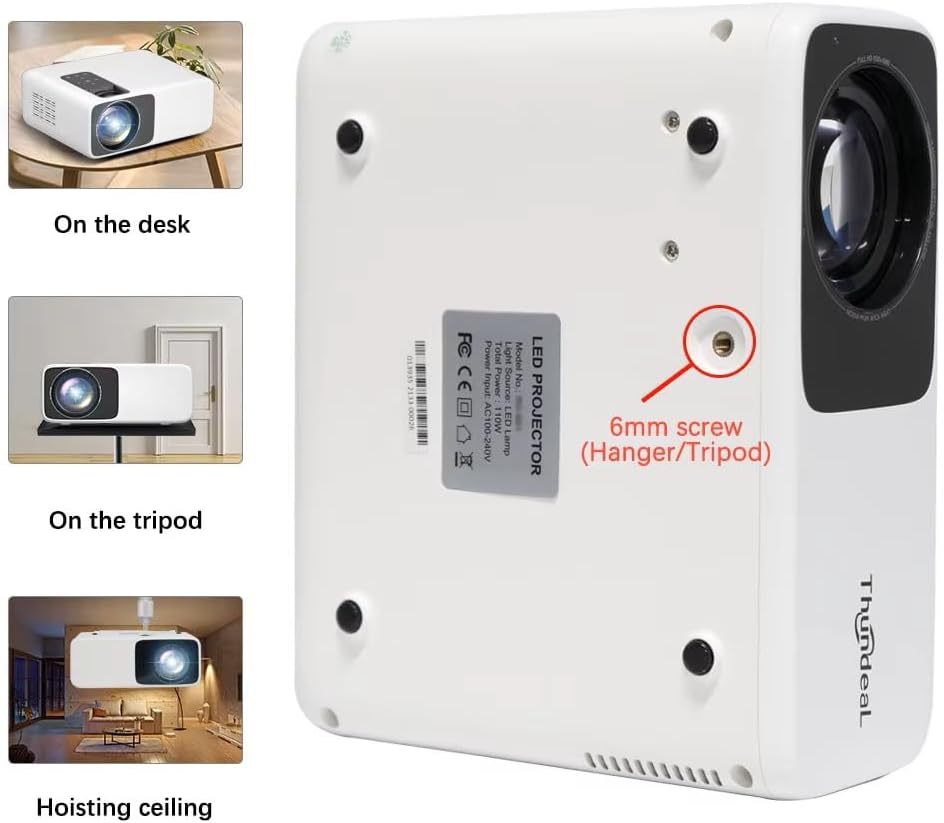
Image 4.1: Projector placement options and mounting point.
Maka kacha mma viewing, ensure the projector is positioned perpendicular to the screen or wall. Adjust the projection distance (1.6 to 6.5 meters) to achieve your desired screen size (49 to 300 inches). A distance of 3-5 meters for a 93-150 inch screen is recommended for eye comfort.
4.2. Njikọ ike
- Jikọọ eriri ike na ọdụ ụgbọ mmiri ntinye ike nke projector.
- Tinye nsọtụ nke ọzọ nke eriri ọkụ n'ime oghere eletrik ọkọlọtọ.
- Pịa bọtịnụ ike na projector ma ọ bụ remote control ka ịgbanwuo ya.
5. Ntuziaka ọrụ
5.1. Multi-Media Connections
The TD93 Pro projector offers various ports for connecting external devices:
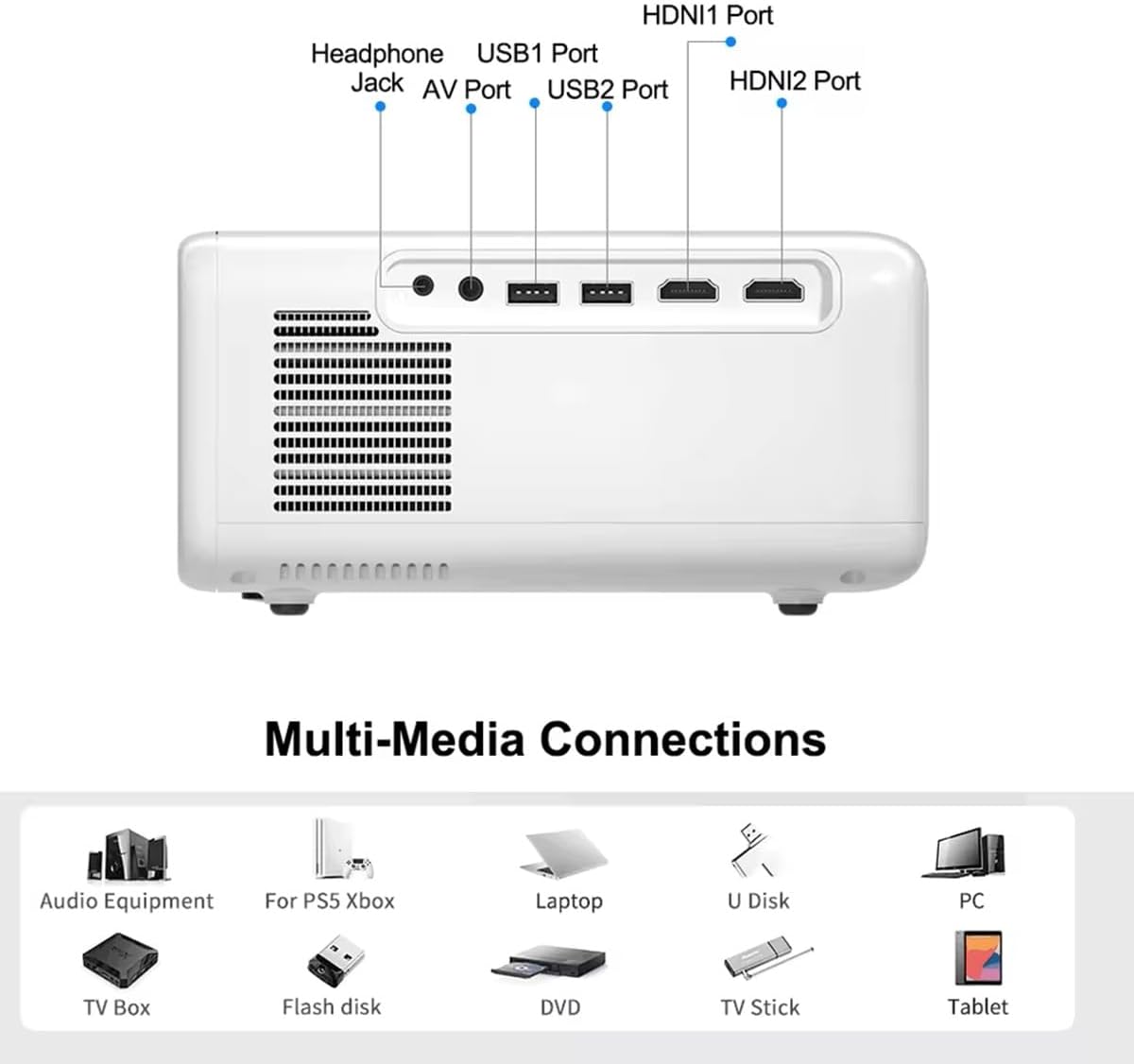
Image 5.1: Available multimedia connection ports.
- HDMI Ports (HDMI1, HDMI2): Connect devices such as TV boxes, gaming consoles (PS5, Xbox), laptops, or Blu-ray players.
- Ọdụ USB (USB1, USB2): Connect USB flash drives for direct media playback (photos, videos, office documents).
- Ọdụ ụgbọ mmiri AV: Connect older devices using the provided AV cable.
- Jack ekweisi (3.5mm): Jikọọ ekweisi ma ọ bụ igwe okwu mpụga.
To switch input sources, use the "Source" button on the remote control or the projector's control panel and select the desired input (HDMI1, HDMI2, AV, USB).
5.2. Njikọ ikuku
5.2.1. WiFi Connection (2.4G/5G)
The projector supports dual-band WiFi for internet access and network features:
- Navigate to the "Settings" menu on the projector's Android interface.
- Select "Network & Internet" and then "Wi-Fi".
- Gbanwuo Wi-Fi wee họrọ netwọk ịchọrọ na listi ahụ.
- Tinye paswọọdụ ma ọ bụrụ kpaliri wee jikọọ.
5.2.2. Njikọ Bluetooth
Connect Bluetooth-compatible audio devices like speakers or headphones:
- Go to "Settings" > "Connected devices" > "Bluetooth".
- Gbanwuo Bluetooth.
- Tinye ngwaọrụ Bluetooth gị n'ọnọdụ njikọta.
- Họrọ ngwaọrụ gị n'ime listi ngwaọrụ dị ka ijikọ.
5.3. Screen Mirroring (Airplay/WiFi-Display)
Wirelessly display content from your Android or iOS phone:

Image 5.2: Screen mirroring from iOS and Android devices.
- Ensure both your projector and mobile device are connected to the same Wi-Fi network.
- On the projector's main interface, select the "Screen Mirroring" or "Airplay/WiFi-Display" application.
- For iOS devices: Open Control Center, tap "Screen Mirroring" or "AirPlay Mirroring", and select the projector from the list.
- For Android devices: Open the notification panel, find "Cast", "Smart View", "Wireless Display", or similar function, and select the projector.
5.4. Ndozi onyonyo
5.4.1. Keystone Correction (6D)
The projector features 6D keystone correction to adjust image shape:
- Isi okwu kwụ ọtọ: Adjust +/- 60 degrees vertically using the remote control.
- 4-Point Corner Keystone: Adjust each of the four corners independently by +/- 60 degrees for side projection or irregular surfaces. This allows for precise rectangular image alignment.
Access keystone settings via the projector's menu or dedicated buttons on the remote.
5.4.2. Ọrụ mbugharị
Adjust the display size from 50% to 100% proportionally without moving the projector. This feature is useful for fine-tuning the image size to fit your screen or wall.
Access the zoom function through the projector's menu settings.
5.5. Android OS and App Usage
The integrated Android 9.0 OS allows you to download and install applications directly from the Play Store. Ensure the projector is connected to Wi-Fi to access online services and apps.
- Ụlọ ahịa Play: Access the Google Play Store to download streaming apps, games, and utilities.
- Ndabere mgbasa ozi: Use pre-installed media players or download alternatives (e.g., VLC player for AC3 audio support).
6. Nlekọta
6.1. Dust Removal
The projector is equipped with a built-in dust net for easy cleaning. Regularly clean the dust net to maintain optimal performance and prevent overheating. Press to pop out the dust net for cleaning.
6.2. Sistemụ jụrụ oyi
The advanced cooling system is designed to dissipate heat efficiently and extend the lamp's lifespan. Ensure proper ventilation around the projector and avoid blocking air vents during operation.
6.3. Lamp Oge ndụ
Igwe ọkụ LED lamp has an estimated lifespan of 50,000 hours. No lamp replacement is typically required during the product's operational life under normal usage conditions.
7. Nchọpụta nsogbu
7.1. No Image Displayed
- Lelee ma agbanyere projector.
- Verify the input source is correctly selected (e.g., HDMI1, USB).
- Gbaa mbọ hụ na ejikọrọ eriri niile na nchekwa.
- Adjust focus and keystone correction.
7.2. Enweghị ụda
- Check the volume level on the projector and the connected source device.
- Ensure external speakers or headphones are properly connected and powered on if used.
- If using an external source, verify its audio output settings.
- For AC3 audio, ensure you are using a compatible player like VLC.
7.3. Connectivity Issues (WiFi/Bluetooth)
- Ensure WiFi is enabled and you are connected to the correct network.
- Malitegharịa ihe ngosi ahụ na ngwaọrụ rawụta/Bluetooth gị.
- For screen mirroring, confirm both devices are on the same Wi-Fi network.
7.4. Image is Blurry or Distorted
- Gbanwee mgbanaka elekwasị anya na oghere projector.
- Use the keystone correction features to correct any trapezoidal distortion.
- Hụ na elu ihe ngosi ahụ dị larịị ma dị ire ụtọ.
8. Akwụkwọ ikike na nkwado
Maka ozi gbasara akwụkwọ ikike na nkwado teknụzụ, biko lee akwụkwọ enyere n'oge ịzụrụ ihe ma ọ bụ kpọtụrụ onye na-ere ahịa gị. Debe risit ịzụrụ ihe gị dị ka ihe akaebe nke ịzụrụ ihe.


