Okwu mmalite
This manual serves as your essential companion for the Apple AirPods 4, designed to help you understand and utilize all features of your device. It covers everything from initial setup to advanced functionalities, maintenance tips, and troubleshooting common issues. By following the instructions provided, you can maximize your AirPods 4 experience.
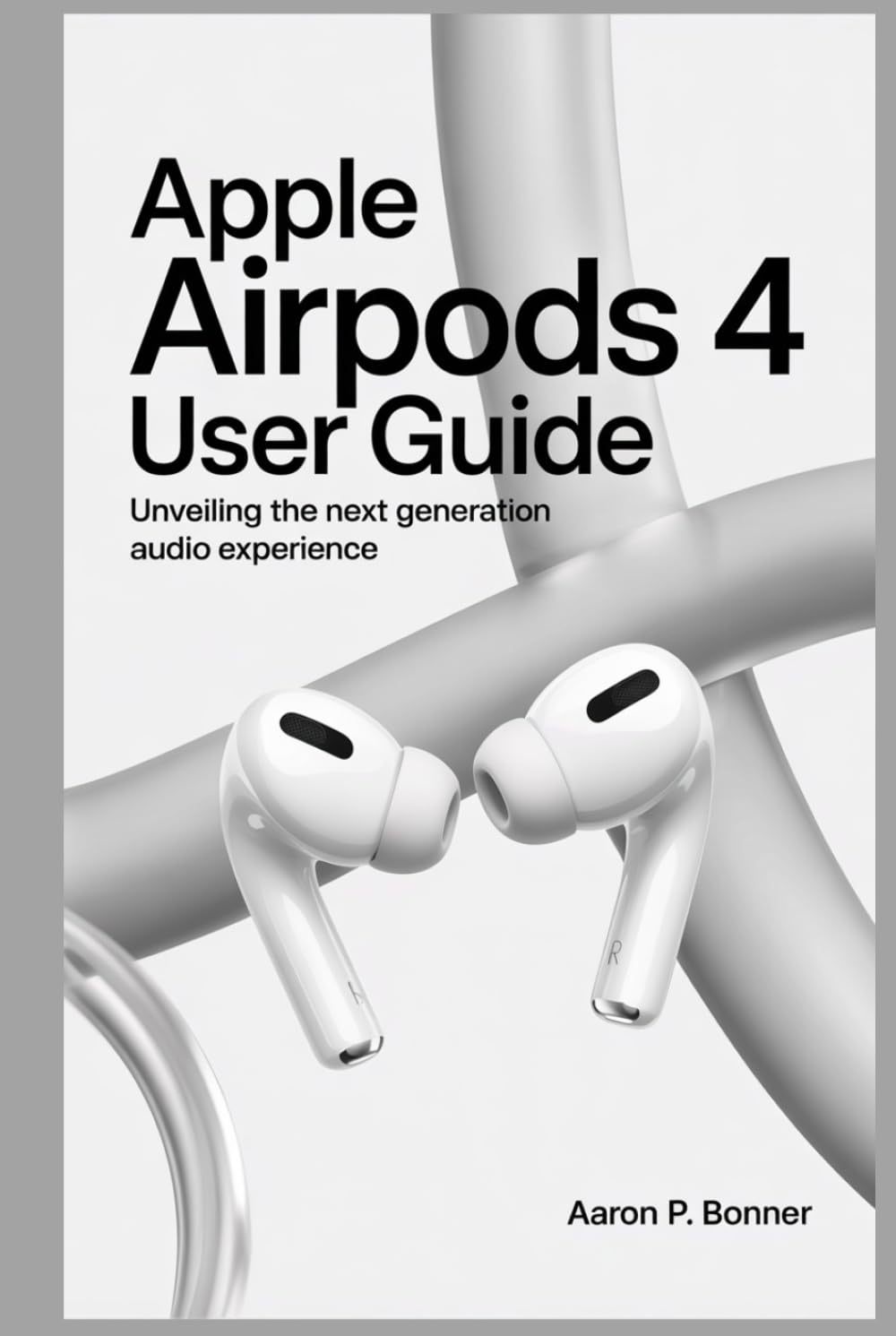
Foto: Cover of the Apple AirPods 4 User Guide book. This image displays the title "Apple AirPods 4 User Guide" along with a graphic representation of the AirPods 4 earbuds.
Melite
Follow these steps for initial pairing and setup of your Apple AirPods 4 with your devices.
- Charge Your AirPods: Ensure your AirPods and charging case are sufficiently charged. Place the AirPods in their charging case and connect the case to a power source using a Lightning to USB-C cable or a compatible wireless charger.
- Mepee Okwu ahụ: With your AirPods in the charging case, open the lid and hold the case near your iPhone, iPad, or iPod touch.
- Jikọọ: A setup animation will appear on your device's screen. Tap "Connect" and follow any on-screen instructions. If you have an Apple Watch, Mac, or Apple TV signed in with the same Apple ID, your AirPods will automatically set up with those devices.
- Pairing with Non-Apple Devices: To pair with an Android phone or other Bluetooth device, place your AirPods in the charging case with the lid open. Press and hold the setup button on the back of the case until the status light flashes white. Then, select your AirPods from the Bluetooth settings on your device.
Na-arụ ọrụ
Understand the various controls and features of your AirPods 4 for an optimized audio experience.
Njikwa mmetụ
- Single Mgbata: Play/Pause audio, answer a call.
- Ugboro abụọ Mgbata: Gaa n'ihu.
- Mmaji Atọ: Magharịa azụ.
- Pịa ma jide: Switch between Active Noise Cancellation and Transparency mode, or activate Siri (customizable in settings).
Atụmatụ igodo
- Nkagbu mkpọtụ mkpọtụ (ANC): Reduces unwanted background noise. Activate via touch control or Control Center on your Apple device.
- Ụdị nghọta: Allows you to hear your surroundings while listening to audio. Activate via touch control or Control Center.
- Ọdịda oghere ahaziri iche: Provides an immersive, three-dimensional audio experience. Set up and customize in your iPhone's Bluetooth settings for your AirPods.
- Mgbanwe na-akpaghị aka: AirPods 4 seamlessly switch between your active Apple devices (iPhone, iPad, Mac, Apple Watch) when signed in with the same Apple ID.
- "Hey Siri" Support: Activate Siri hands-free by saying "Hey Siri."
Nlekọta
Proper care and maintenance ensure the longevity and optimal performance of your AirPods 4.
Nhicha
- Use a soft, dry, lint-free cloth to wipe down your AirPods and charging case.
- Do not use abrasive materials, sprays, solvents, or cleaning solutions.
- For ear tips, remove them from the AirPods and rinse with water. Dry thoroughly before reattaching.
- Ensure no liquid enters the openings.
Ndụ batrị
- Ịchaji: Place AirPods in the charging case. The case itself can be charged via a Lightning cable or wirelessly.
- Optimized Battery Charging: Enable this feature in your iPhone's AirPods settings to reduce battery aging by learning your daily charging routine.
- Nchekwa: If storing for an extended period, ensure AirPods and case have some charge (around 50%) to prevent deep discharge.
Nchọpụta nsogbu
Common issues and their solutions for your AirPods 4.
- AirPods Not Connecting:
- Gbaa mbọ hụ na agbanyere Bluetooth na ngwaọrụ gị.
- Place AirPods in the case, close the lid, wait 15 seconds, then open it.
- Restart your source device (iPhone, iPad, etc.).
- Reset your AirPods: With AirPods in the case and lid open, press and hold the setup button on the back of the case for about 15 seconds until the status light flashes amber, then white. Re-pair them.
- Sound Issues (Low Volume, Distortion):
- Clean the mesh on your AirPods to remove any debris.
- Check volume settings on your connected device.
- Ensure AirPods are fully charged.
- Nkagbu mkpọtụ adịghị arụ ọrụ:
- Hụ na AirPods nọ n'ọnọdụ kwesịrị ekwesị n'ime ntị gị.
- Lelee maka mmelite firmware maka AirPods gị.
- Clean the microphones and speaker mesh.
- Ibe Nchaji Anaghị agbacha:
- Try a different Lightning cable and power adapter.
- Gbaa mbọ hụ na ọdụ ụgbọ mmiri ahụ dị ọcha na enweghị irighiri ihe.
- If using wireless charging, ensure the case is correctly positioned on the charger.
Nkọwapụta
Below are typical specifications for Apple AirPods, representing what might be expected for a 4th generation model. Please note that these are illustrative as official specifications for a real AirPods 4 product are not provided in the source material.
| Aha Nlereanya | Apple AirPods (4th Generation) |
| Njikọta | Bluetooth 5.x |
| Teknụzụ ọdịyo | Active Noise Cancellation, Transparency Mode, Adaptive EQ, Personalized Spatial Audio with dynamic head tracking |
| Ihe mmetụta | Dual beamforming microphones, inward-facing microphone, skin-detect sensor, motion-detecting accelerometer, speech-detecting accelerometer, force sensor |
| Njikwa | Force sensor on stem for playback, calls, and mode switching; "Hey Siri" support |
| Ndụ batrị (Earbuds) | Up to 6 hours listening time (ANC off), up to 4.5 hours talk time |
| Ndụ batrị (ya na igbe nchaji) | Up to 30 hours listening time, up to 20 hours talk time |
| Nchaji case | Lightning connector, MagSafe compatible, Qi-certified wireless charging |
| Ọsụsọ na mmiri na-eguzogide | IPX4 (AirPods na igbe chaja) |
These specifications are based on typical Apple AirPods features and are provided for illustrative purposes for a hypothetical AirPods 4 model. Actual product specifications may vary.
Akwụkwọ ikike na nkwado
For detailed warranty information and official support, please refer to Apple's official website or contact Apple Support directly.
- Akwụkwọ ikike: Apple products typically come with a limited hardware warranty. Details regarding coverage period and terms are available on Apple's official support pages.
- Nkwado ndị teknuzu: For technical assistance, troubleshooting beyond this manual, or service requests, visit nkwado.apple.com.
- Ndebanye aha Ngwaahịa: Registering your AirPods 4 with Apple may provide additional benefits and streamline support processes.


