1. Okwu mmalite
This manual provides essential information for the safe and efficient use of your KOORUI G2711P 27-inch IPS Full HD Gaming Monitor. Please read it thoroughly before operating the device and retain it for future reference.
The KOORUI G2711P monitor features a 27-inch IPS non-glare panel with Full HD (1920x1080) resolution, a 200Hz refresh rate, and a 1ms MPRT response time, designed for an immersive gaming and viewing experience. It includes multiple connectivity options and eye-care features.

Foto 1.1: N'ihu view of the KOORUI G2711P 27-inch IPS Full HD Gaming Monitor.
2. Ozi nchekwa
- Do not expose the monitor to rain or moisture to prevent fire or electric shock.
- Emeghela ihe nlele ahụ casing. Enweghị akụkụ ọrụ ọ bụla dị n'ime ya. Nye ndị ọrụ ruru eru ọrụ niile.
- Debe ihe nlele ahụ n'elu ebe kwụsiri ike ma dị larịị iji gbochie ya ịda.
- Hụ na ikuku dị mma gburugburu ihe nlele ahụ. Ekpuchila oghere ikuku.
- Jiri naanị ihe nkwụnye ọkụ wetara n'ihe nleba anya.
- Kwụpụ ihe nlele ahụ na ebe ọkụ eletrik dị n'oge oké ifufe ma ọ bụ mgbe ejiri ya ruo ogologo oge.
3. Nhazi
3.1 Nwepu
Carefully remove all components from the packaging. Ensure all parts listed in the packing list are present and undamaged. Keep packaging materials for future transport or return.
3.2 Mgbakọ Nguzo
- Tinye ntọala n'olu nkwụnye.
- Secure the assembled stand to the back of the monitor panel. Refer to the product images for visual guidance on the attachment method.

Image 3.1: Monitor dimensions and side view, illustrating the stand attachment area.
3.3 Ijikọ na ngwaọrụ
The monitor supports various input options:
- HDMI: Connect an HDMI cable from your computer or other device to one of the two HDMI 2.0 ports on the monitor.
- DisplayPort (DP): Connect a DisplayPort cable from your computer to the DP 1.4 port on the monitor.
- Audio Out (A/O): Connect external speakers or headphones to the audio output port if desired, as the monitor does not have built-in speakers.

Foto 3.2: N'azụ view of the monitor showing HDMI, DisplayPort, and Audio Out connections, along with the 75x75mm VESA mount.
3.4 Njikọ ike
Connect the power adapter to the monitor's power input, then plug the power cable into a wall outlet. The monitor is designed for 110V power input.
4. Ntuziaka ọrụ
4.1 Gbanyụọ ma ọ bụ gbanyụọ
Press the power button, typically located on the back or bottom of the monitor, to turn the monitor on or off. An indicator light will show the power status.
4.2 Nhagharị NchNhr Ngosipụta N'ihuenyo (OSD)
The monitor features a 5-way joystick for intuitive OSD menu navigation. This joystick allows you to access and adjust various display settings.
- Press the joystick: Kwenye nhọrọ.
- Move joystick up/down: Adjust or select options.
- Move joystick left/right: Adjust or select options.
- Move joystick back (usually left): Exit menu or go back.

Image 4.1: Illustration of the 5-way joystick control for OSD menu navigation.
4.3 Ntọala ngosi
- Mkpebi: The native resolution is 1920x1080 Full HD. Ensure your device is set to this resolution for optimal display quality.
- Ọnụego ume ọhụrụ: The monitor supports up to 200Hz. Adjust your graphics card settings to utilize the higher refresh rate for smoother visuals.
- Oge nzaghachi (MPRT): The monitor features 1ms MPRT (Moving Picture Response Time) for reduced motion blur. This setting can usually be enabled or adjusted in the OSD menu.
- Mmekọrịta na-agbanwe agbanwe: This technology synchronizes the monitor's refresh rate with your graphics card's frame rate to eliminate screen tearing and stuttering. Enable it in the OSD menu and your graphics card control panel.
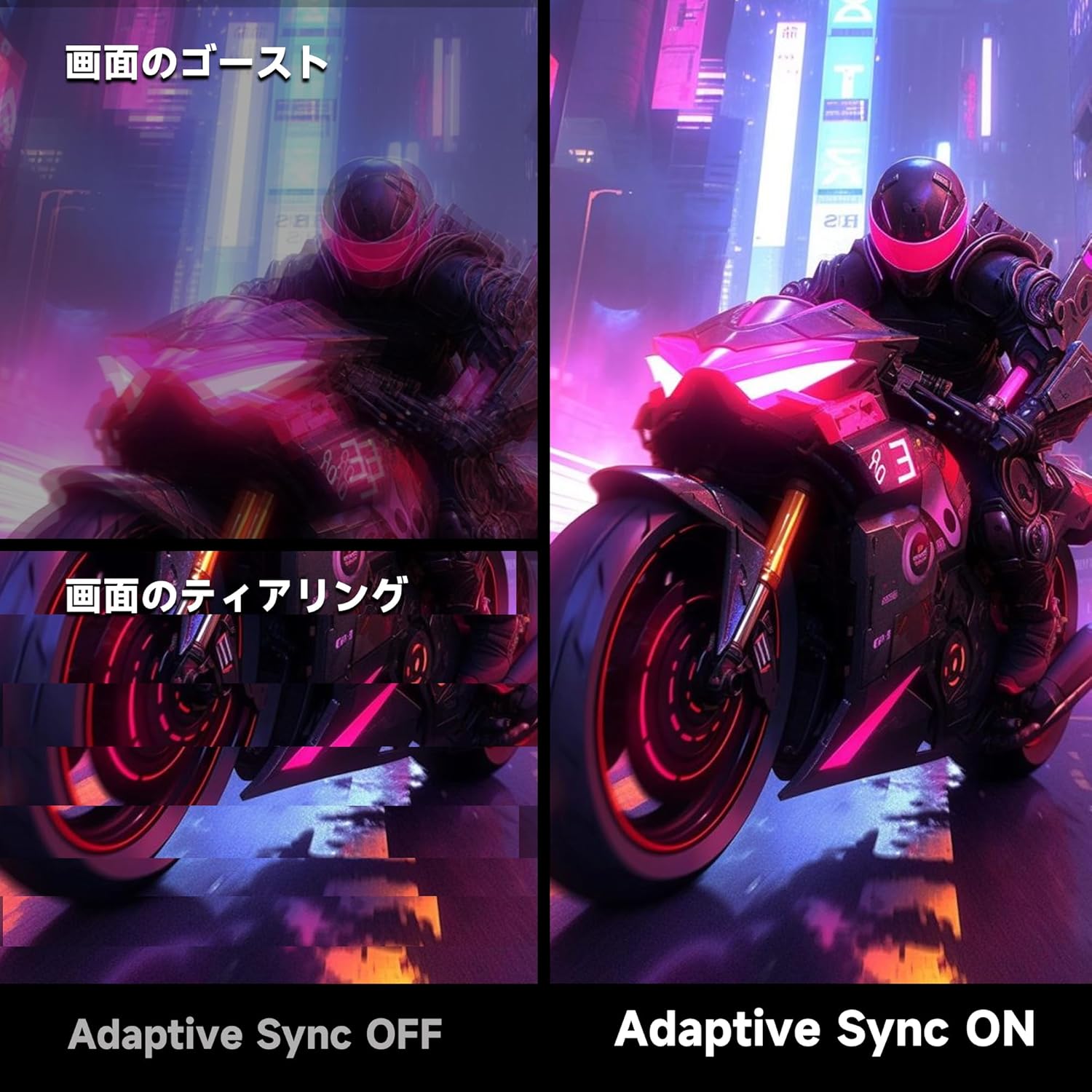
Image 4.2: Visual comparison demonstrating the effect of Adaptive Sync being OFF (showing ghosting and tearing) versus ON (smooth image).

Image 4.3: Comparison illustrating the difference in motion clarity between 200Hz 1ms MPRT and 75Hz 5ms settings.
- HDR 400: The monitor supports HDR 400 for enhanced contrast and color depth. Enable HDR in your operating system settings for compatible content.

Image 4.4: Visual representation of HDR 400 providing more impressive and vibrant images compared to standard HDR 10.
- Ntọala agba: The monitor offers 93% DCI-P3 color gamut for accurate and vibrant color reproduction. Adjust brightness, contrast, and color temperature via the OSD menu.

Image 4.5: Display showing a wide range of colors, indicating 93% DCI-P3 color gamut coverage for accurate and vivid visuals.
- Atụmatụ Nlekọta Anya: The monitor incorporates 'Blue Light Reduction' and 'Flicker-Free' technologies to minimize eye strain during prolonged use. These settings can be adjusted in the OSD menu.
- Crosshair Function: For shooting games, a built-in crosshair overlay can be enabled via the OSD menu to assist with aiming.

Image 4.6: A gaming scene demonstrating the monitor's crosshair function, which can be toggled ON or OFF to assist players in shooting games.
5. Nlekọta
5.1 Na-ehicha ihuenyo ahụ
Jiri nwayọ hichaa ihuenyo ahụ site na iji akwa dị nro na-enweghị lint. Maka akara isi ike, dampen the cloth with a small amount of screen cleaner specifically designed for monitors. Do not spray cleaner directly onto the screen.
5.2 Ihicha Casing
Jiri ákwà dị nro ma kpọrọ nkụ hichaa ihe nlele ahụasing. Avoid using abrasive cleaners or solvents that may damage the surface.
6. Nchọpụta nsogbu
- Enweghị ike: Ensure the power cable is securely connected to both the monitor and the power outlet. Check if the power outlet is functioning.
- Enweghị akara: Hụ na eriri vidiyo (HDMI ma ọ bụ DisplayPort) jikọtara nke ọma na ihe nlele ahụ na kọmputa gị. Hụ na ahọpụtara isi mmalite ntinye ziri ezi na menu OSD nke ihe nlele ahụ.
- Ihuenyo Na-egbukepụ egbukepụ: Check the video cable connection. Try a different cable or port. Ensure your graphics card drivers are up to date.
- Image Distortion/Tearing: Ensure Adaptive Sync is enabled in both the monitor's OSD and your graphics card settings. Check for correct resolution and refresh rate settings.
- Poor Color Quality: Adjust color settings (brightness, contrast, color temperature) in the OSD menu. Ensure HDR is enabled for HDR content.
7. Nkọwapụta
| Njirimara | Nkọwapụta |
|---|---|
| Ụdị | KOORUI |
| Nlereanya | G2711P |
| Nha ihuenyo | 27 sentimita asatọ |
| Ụdị panel | IPS, Non-Glare |
| Mkpebi | 1920 x 1080 (HD zuru ezu) |
| Akụkụ akụkụ | 16:9 |
| Ọnụego ume ọhụrụ | 200Hz |
| Oge nzaghachi | 1ms MPRT (GTG) |
| Icha ọkụ | 300 cd/m² |
| Ọnụọgụ ọdịiche | 1000:1 |
| Viewna n'akuku | 178° (Kwụ ọtọ/Kwụ ọtọ) |
| Agba Gamut | 93% DCI-P3 |
| Nkwado HDR | HDR 400 |
| Njikọta | 2x HDMI 2.0, 1x DisplayPort 1.4, 1x Audio Out |
| Ndị na-ekwu okwu | Agụnyeghị |
| VESA Ugwu ndakọrịta | 75x75mm |
| Akụkụ (W x H x D) | 61.34 x 47.23 x 21.49 cm (ya na nkwụnye) |
| Ibu | 5.8 n'arọ |
| Ntinye ike | 110V |
8. Akwụkwọ ikike
The KOORUI G2711P monitor screen is covered by a 1-afọ akwụkwọ ikike from the date of purchase. All other included accessories are covered by a 3-afọ akwụkwọ ikike. Please retain your proof of purchase for warranty claims. The warranty covers manufacturing defects and malfunctions under normal use conditions.
9. Nkwado
For technical assistance, troubleshooting, or warranty inquiries, please contact KOORUI customer support through the retailer where you purchased the product or visit the official KOORUI website for contact information. When contacting support, please have your monitor model number (G2711P) and proof of purchase readily available.