Okwu mmalite
This manual provides detailed instructions for the setup, operation, and maintenance of your DOYO Gaming Steering Wheel with Pedals. This device is designed to enhance your racing game experience across multiple platforms, including Nintendo Switch, PC, PlayStation 4, PlayStation 3, iOS, and Android devices.

Image: The DOYO Gaming Steering Wheel and its accompanying pedal unit, showcasing the main components.
Ngwaahịa gafereview
The DOYO Gaming Steering Wheel features a 270-degree rotation, dual-vibration motors, and a robust design for immersive racing. It includes a separate pedal unit for acceleration and braking. The wheel offers both wireless Bluetooth and wired connectivity options.
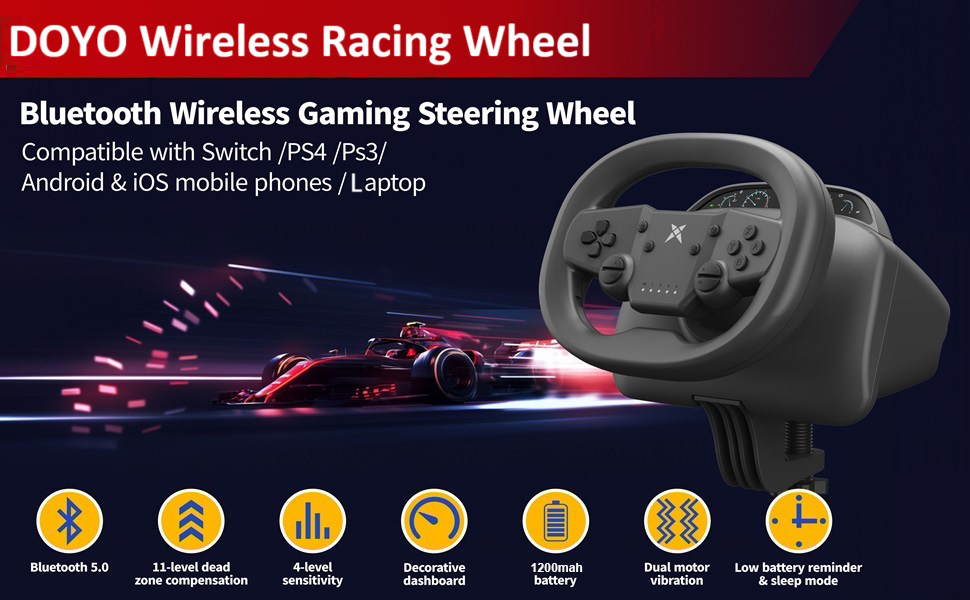
Foto: Ofeview of the DOYO Wireless Racing Wheel highlighting key features such as Bluetooth 5.0, 11-level dead zone compensation, 4-level sensitivity, decorative dashboard, 1200mAh battery, dual motor vibration, and low battery reminder/sleep mode.
Isi ihe:
- Ngwugwu wiilụ ịkwọ ụgbọala: Main control unit with buttons, D-pad, and paddle shifters.
- Ngalaba pedal: Separate unit with accelerator and brake pedals.
- Ịkwalite Clamp: For securing the steering wheel to a desk or table.
- USB USB: Maka njikọ wired na ịchaji.
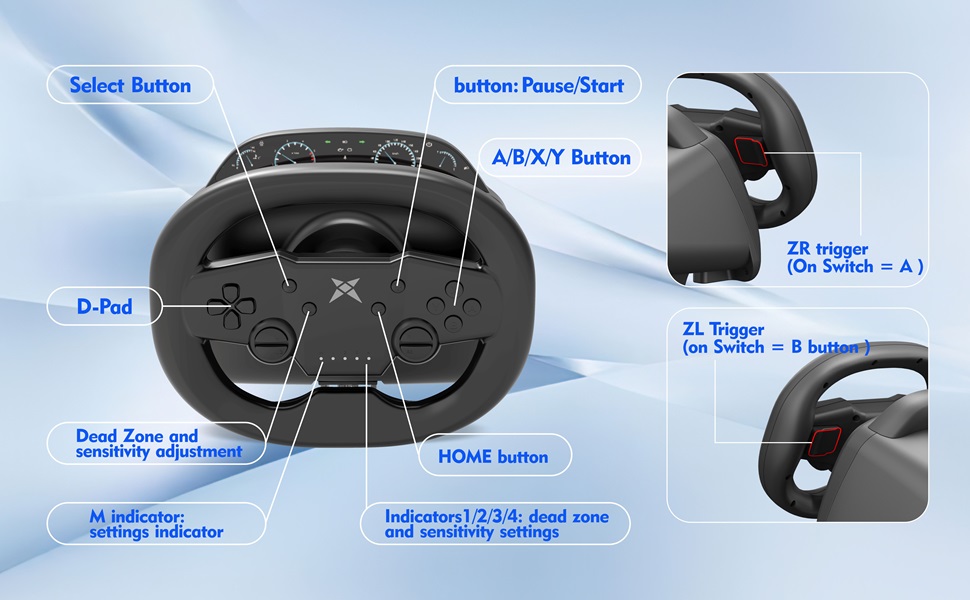
Image: Detailed diagram of the steering wheel's button layout, including Select, Pause/Start, A/B/X/Y buttons, D-Pad, Dead Zone and sensitivity adjustment indicators, M indicator, HOME button, and ZR/ZL triggers.
Ntuziaka nhazi
1. Nwụnye anụ ahụ:
- Secure the Steering Wheel: Jiri ihe agbakwunyere clamp to attach the steering wheel to a stable desk or table. Ensure the clamp is tightened securely to prevent movement during use.
- Position the Pedals: Place the pedal unit on the floor in a comfortable position for your feet.

Image: Illustration of the steering wheel's clamp mechanism, demonstrating how to secure it to surfaces of varying thicknesses (3mm to 49mm).
2. Nhọrọ njikọ:
The DOYO Gaming Steering Wheel supports both wired and wireless connections depending on the platform.

Image: Diagrams illustrating both Bluetooth wireless connection (for Laptop, Android, Switch) and wired USB connection (for PC, PS3/PS4) setups.
Wired Connection (PC, PS3, PS4):
- Connect the USB cable from the steering wheel to an available USB port on your PC, PS3, or PS4 console.
- For PC, the device is typically Plug & Play and will install necessary drivers automatically.

Image: Visual guide for connecting the steering wheel to a PC via USB, indicating X-INPUT support for Windows systems.
Wireless Bluetooth Connection (Nintendo Switch, iOS, Android, Laptop):
- Ensure the steering wheel is fully charged.
- Activate Bluetooth on your device (Nintendo Switch, iOS/Android device, or laptop).
- Put the steering wheel into pairing mode (refer to specific device instructions for button combinations, usually holding a specific button until an indicator light flashes).
- Select "DOYO Racing Wheel" from the list of available Bluetooth devices on your platform to pair.

Image: A family enjoying a racing game on a TV with the DOYO steering wheel connected wirelessly via Bluetooth, demonstrating stable connection up to 8 meters.
Ntuziaka ọrụ
Njikwa ndị bụ isi:
- Nduzi: Rotate the wheel up to 270 degrees for directional control.
- Ọsọ ọsọ: Press the right pedal on the pedal unit.
- breeki: Press the left pedal on the pedal unit.
- Paddle Shifters (ZR/ZL): Use the triggers behind the wheel for specific in-game functions, such as shifting gears or special actions. On Nintendo Switch, ZL typically acts as the B button and ZR as the A button.

Image: Close-up of the steering wheel's rear, highlighting the ZL and ZR triggers and their functions (left trigger for braking, right trigger for acceleration).
Akụkụ dị elu:
- Injin Mkpọgharị Abụọ: Provides haptic feedback for an immersive experience. Vibration intensity may be adjustable in some games or through the wheel's settings.
- Adjustable Dead Zone and Sensitivity: Customize the responsiveness of the steering wheel to your preference. Refer to the button layout image for indicators and adjustment buttons.
- Bọtịnụ enwere ike ime: Certain buttons may be programmable for specific in-game actions. Consult your game's control settings for customization options.

Image: Visual representation of dual motor vibration feedback and 270-degree rotation, showing hands gripping the wheel as it vibrates.
Platform-Specific Notes:
- Nintendo Switch: Supports enhanced features like adjustable vibration feedback and a screenshot function for capturing gameplay moments.
- PC: Compatible with mainstream PC games and racing simulations. Ensure your PC meets the system requirements (Windows 10/XP/7/8/8.1).
- iOS/Android: Enhance your mobile gaming experience with Bluetooth connectivity.
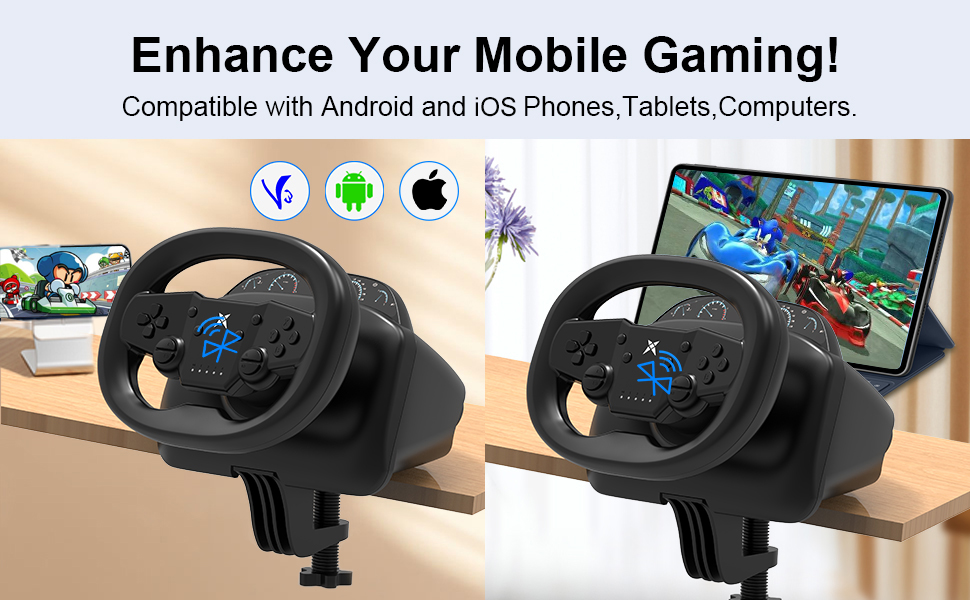
Image: The DOYO steering wheel set up for mobile gaming, showing compatibility with Android and iOS phones and tablets.
Ndakọrịta
The DOYO Gaming Steering Wheel is designed for broad compatibility across various gaming platforms.
Platform akwadoro:
- Nintendo Switch
- PC (Windows 10/XP/7/8/8.1)
- PlayStation 4 (PS4)
- PlayStation 3 (PS3)
- Ngwa iOS
- Ngwa gam akporo
Recommended Games:
The steering wheel is compatible with a wide range of racing titles. Here are some examples:
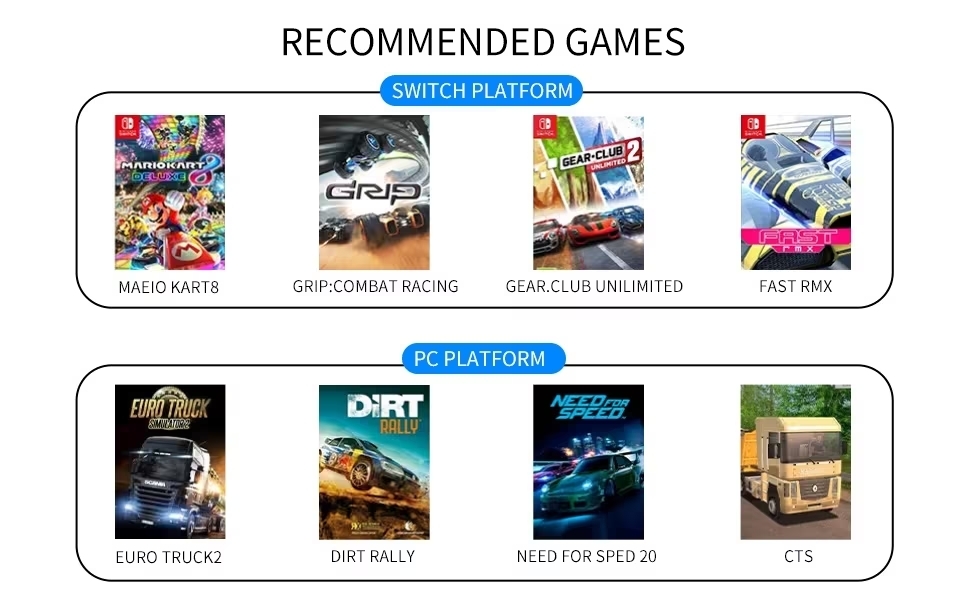
Image: List of recommended games for Nintendo Switch (Mario Kart 8, GRIP: Combat Racing, GEAR.CLUB UNLIMITED, FAST RMX) and PC (Euro Truck 2, Dirt Rally, Need for Speed 20, CTS).
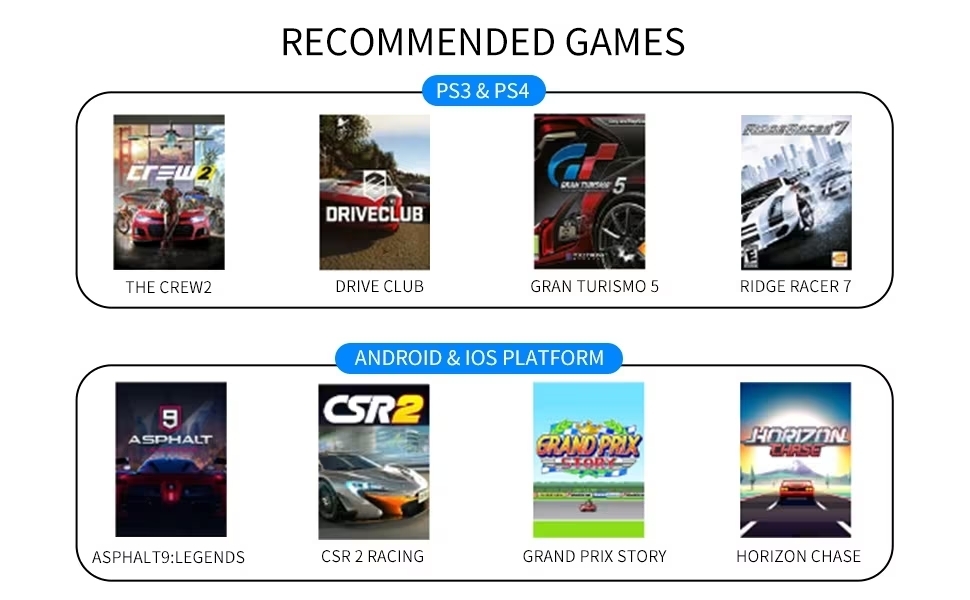
Image: List of recommended games for PS3/PS4 (The Crew 2, Driveclub, Gran Turismo 5, Ridge Racer 7) and Android/iOS (Asphalt 9: Legends, CSR 2 Racing, Grand Prix Story, Horizon Chase).
Nchọpụta nsogbu
Okwu na azịza ndị nkịtị:
- Wheel not connecting wirelessly:
- Ensure the steering wheel is fully charged.
- Verify Bluetooth is enabled on your device and the wheel is in pairing mode.
- Move the wheel closer to the device to rule out range issues (max 8 meters).
- Try restarting both the wheel and your device.
- Wheel not responding in game (wired connection):
- Check if the USB cable is securely connected to both the wheel and the console/PC.
- Ensure the correct input mode is selected on the wheel if applicable (some wheels have mode switches).
- For PC, check Device Manager to ensure drivers are installed correctly.
- Verify game settings to ensure the steering wheel is recognized as the primary controller.
- Enweghị nzaghachi mkpọtụ:
- Confirm that the game supports vibration feedback.
- Lelee ntọala egwuregwu ahụ iji hụ na agbanyere mkpọtụ ahụ.
- Ensure the wheel's battery is not critically low if using wirelessly.
- Pedals not responding:
- Ensure the pedal unit is properly connected to the steering wheel.
- Test the pedals in a different game or calibration utility if available.
Nkọwapụta
| Njirimara | Nkọwa |
|---|---|
| Nọmba nlereanya | B0F42N3TC4 |
| Akụkụ ntụgharị | 270 ogo |
| Nzaghachi nke ịma jijiji | Moto Vibration Dual |
| Njikọta | Wireless (Bluetooth 5.0), Wired (USB) |
| Ikuku iche | Ruo mita 8 |
| Platform akwadoro | Nintendo Switch, PC, PS4, PS3, iOS, Android |
| PC OS Compatibility | Windows 10/XP/7/8/8.1 |
| Akụkụ ngwugwu | 9.5 x 9.29 x 9 sentimita asatọ |
| Ibu Ibu | 4.39 pound |
| Onye nrụpụta | DOYO |
| Ụbọchị mbụ dị | Febụwarị 11, 2025 |
Nlekọta
- Nhicha: Use a soft, dry cloth to wipe down the steering wheel and pedals. Avoid using abrasive cleaners or solvents.
- Nchekwa: Debe ngwaọrụ ahụ n'ebe dị jụụ ma kpọọ nkụ, ebe anwụ na-anaghị apụta kpọmkwem, okpomọkụ na oke okpomọkụ mgbe a naghị eji ya.
- Nlekọta USB: Zere ịgbagọ ma ọ bụ gbagọọ eriri USB iji gbochie mmebi.
Akwụkwọ ikike na nkwado
DOYO provides customer support for its products. If you encounter any issues or have questions regarding your DOYO Gaming Steering Wheel, please contact customer service.
For support, please refer to the contact information provided with your product packaging or visit the official DOYO websaịtị.
The product comes with a standard manufacturer's warranty. Please retain your proof of purchase for warranty claims.


