1. Okwu mmalite
This manual provides essential instructions for setting up, operating, and maintaining your SIMO Solis Go 4G Mobile Hotspot WiFi Power Bank. The Solis Go is designed to provide reliable internet connectivity in over 140 countries and also functions as a portable power bank for your devices. Please read this manual thoroughly before using the device to ensure optimal performance and safety.
2. Ihe ngwugwu
Chọpụta na ihe niile dị na ngwugwu gị:
- SIMO Solis Go Device
- Charging Cable (built-in)
- Ntuziaka mmalite ngwa ngwa

The image above displays the SIMO Solis Go device, a compact black unit with orange accents, alongside two cards indicating "10GB Data Included" and "Lifetime Data 12GB Per Year". The device features built-in charging cables.
3. Ngwaahịa gafereview
The SIMO Solis Go combines a 4G mobile hotspot with a power bank, offering versatile connectivity and charging capabilities. It features a virtual SIM (vSIM) technology, eliminating the need for physical SIM cards and contracts.
Akụkụ ndị bụ isi:
- Global Connectivity: Access to 4G LTE in over 140 countries via multiple carriers.
- Ụlọ akụ ọkụ arụnyere ya: 8,000mAh capacity to charge external devices.
- Igwe eji arụnyere: Integrated USB-A, USB-C, and Lightning cables for convenience.
- SignalScan™ Technology: Automatically connects to the strongest available 4G network.
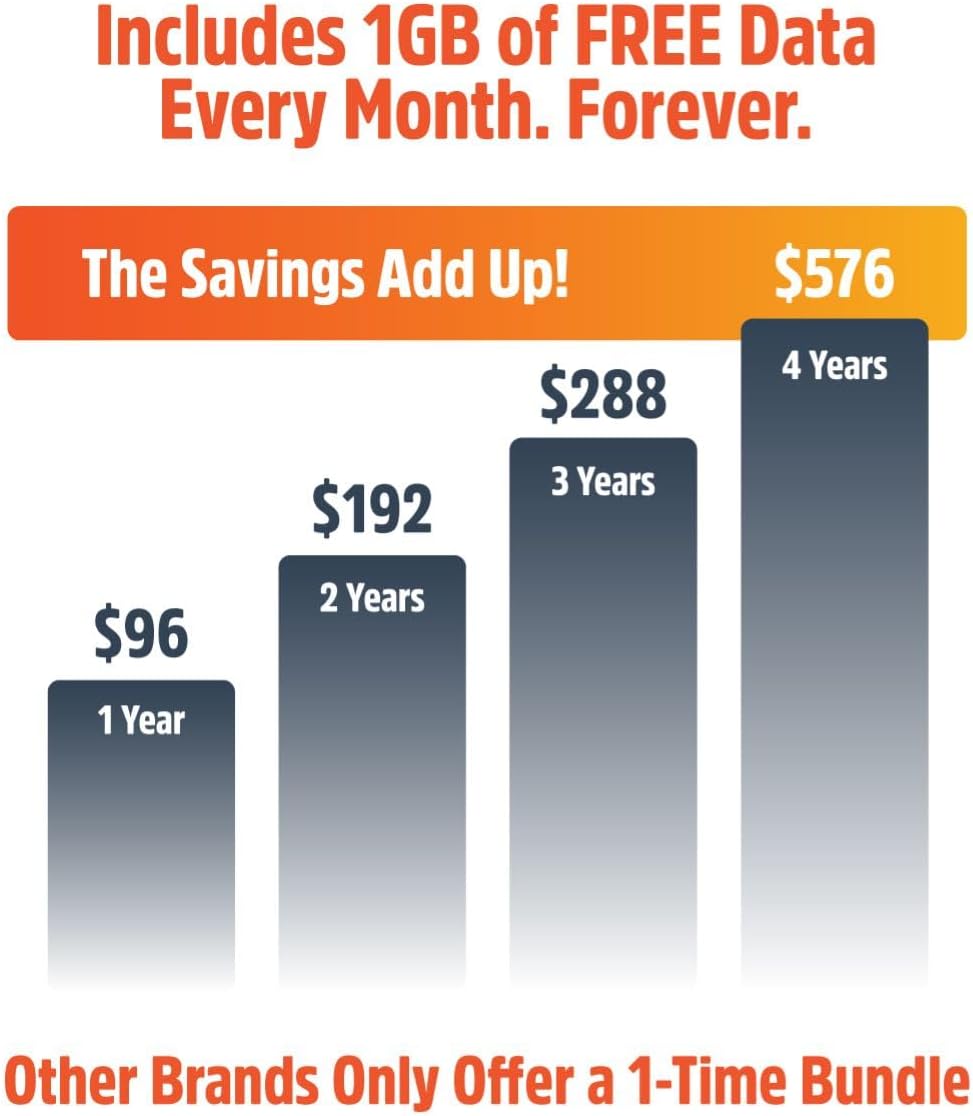
- Lifetime Data: Includes 1GB of global data per month for the life of the device.
- Ịkekọrịta ngwaọrụ: Connect up to 16 devices simultaneously.

This image displays six icons representing key features: SignalScan™ Technology for automatic best carrier connection, Private, Secure Data for personal encrypted networks, Built-in Charging Cables (USB-A, USB-C, Lightning), Global WiFi in 140+ countries, 16+ Hours of Battery Life, and the ability to Share with 10 Devices.
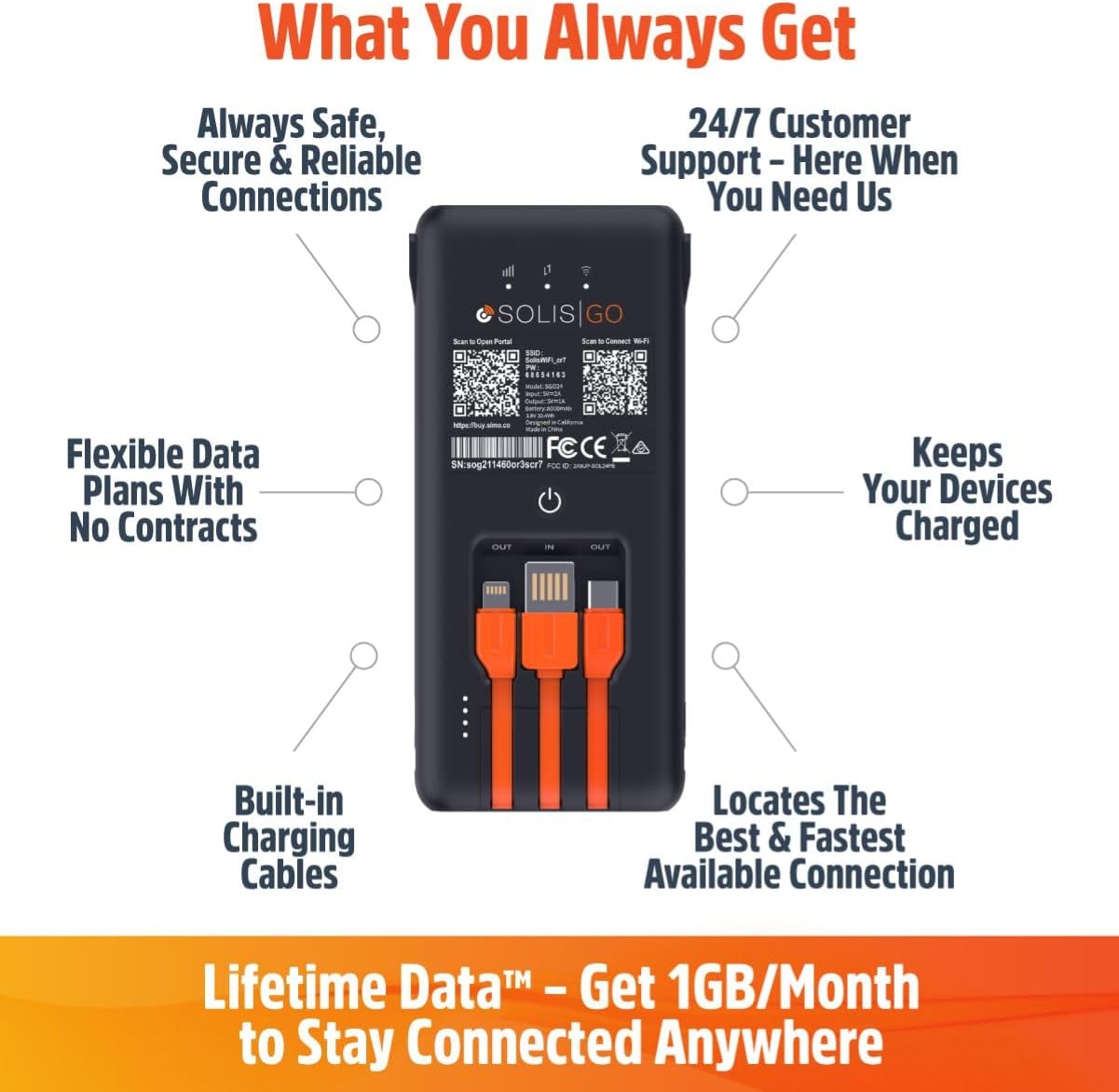
This image shows the back of the Solis Go device, detailing its various features such as built-in charging cables, the power button, and indicators for signal strength and battery. Labels point to "Always Safe, Secure & Reliable Connections", "24/7 Customer Support", "Flexible Data Plans With No Contracts", "Keeps Your Devices Charged", "Built-in Charging Cables", and "Locates The Best & Fastest Available Connection".
4. Nhazi
Follow these steps to set up your SIMO Solis Go:
- Chaja ngwaọrụ: Before first use, fully charge your Solis Go using the built-in charging cable and a compatible USB power adapter (not included).
- Download the Solis App: Chọọ maka "Solis" in your device's app store (iOS or Android) and download the official Solis app.
- Deba aha Ngwaọrụ gị: Open the Solis app and follow the on-screen instructions to create an account and register your Solis Go device. You will typically need to scan a QR code or enter a serial number found on the device.
- Activate Data Plan: Once registered, your included 1GB/month Lifetime Data plan will be active. You can view your data usage and purchase additional data plans through the app.
- Ike Na: Press and hold the power button on the Solis Go until the indicator lights illuminate.
- Jikọọ na WiFi: On your smartphone, tablet, or laptop, search for available WiFi networks. Select the network name (SSID) broadcast by your Solis Go (e.g., "Solis_XXXX") and enter the password. The default SSID and password can be found on a sticker on the device or in the Quick Start Guide.

This diagram illustrates the three main steps for using the Solis Go: 1) Grab a Solis Global Hotspot, 2) Register Your Hotspot & Choose Your WiFi Plan (via a smartphone app), and 3) Enjoy WiFi Anywhere (showing multiple devices connected wirelessly).
5. Ntuziaka ọrụ
5.1 Gbanyụọ/ gbanyụọ
- Iji gbanye: Press and hold the power button for approximately 3 seconds until the indicator lights activate.
- Iji gbanyụọ: Press and hold the power button for approximately 3 seconds until the indicator lights turn off.
5.2 Ngwa jikọọ
The Solis Go can connect up to 16 devices simultaneously. Ensure your device's WiFi is enabled and select the Solis Go network from the list of available networks. Enter the WiFi password when prompted.
5.3 Iji dị ka Bank Power
The Solis Go features built-in USB-A, USB-C, and Lightning cables. To charge an external device:
- Pull out the appropriate built-in cable from the Solis Go.
- Connect the cable to your external device.
- The Solis Go will automatically begin charging the connected device.
This image shows a hand holding the Solis Go device, with its integrated USB-A, USB-C, and Lightning cables clearly visible and ready for use, highlighting its function as a power bank.
5.4 Global Coverage and Network Selection
The Solis Go utilizes SignalScan™ technology to automatically detect and connect to the strongest available 4G network in over 140 countries. This ensures optimal connectivity without manual network selection or SIM card swapping.

This image displays a world map with various national flags and signal strength indicators, emphasizing the Solis Go's global coverage in over 140 countries with no locked-in contract or SIM card required.
6. Data Plans and Management
Your Solis Go comes with a Lifetime Data plan, providing 1GB of global data per month. Additional data can be purchased as needed through the Solis app.
- Lifetime Data: Enjoy 1GB of global data every month, automatically refreshed.
- Data agbakwunyere: Purchase one-time data packages (e.g., 10GB Global Data) or monthly plans directly from the Solis app.
- Monitoring Usage: The Solis app allows you to monitor your current data usage and plan status.
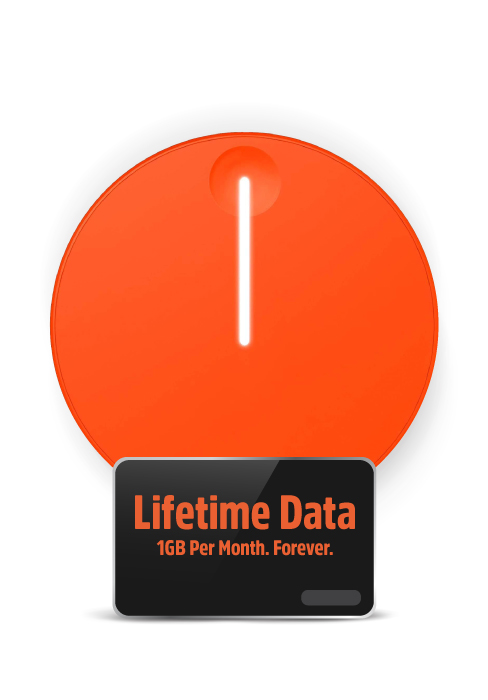
This image highlights the "Lifetime Data" feature, offering "1GB Per Month. Forever." for continuous connectivity.
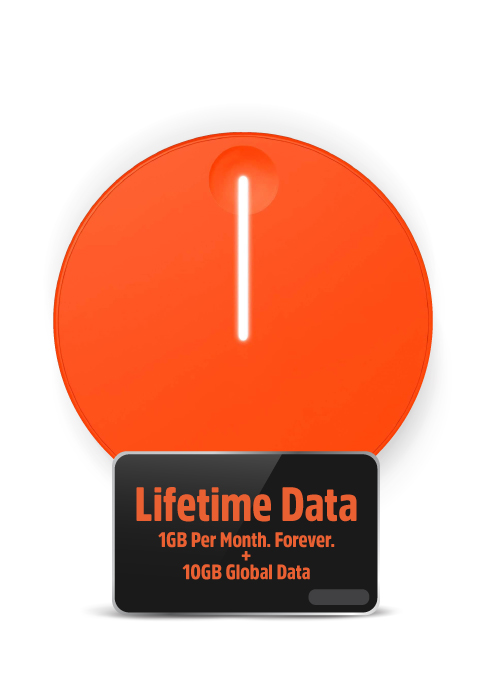
This image shows the "Lifetime Data" plan, which includes "1GB Per Month. Forever." along with an additional "10GB Global Data" bundle.
7. Nchọpụta nsogbu
If you encounter issues with your Solis Go, try the following steps:
- Enweghị njikọ ịntanetị:
- Ensure the Solis Go is powered on and fully charged.
- Check the signal strength indicators on the device.
- Verify that your connected device is properly linked to the Solis Go's WiFi network.
- Restart the Solis Go device.
- Open the Solis app to check your data plan status and ensure you have available data.
- If in a new location, allow a few minutes for the device to connect to the local network via SignalScan™.
- Ọsọ njikọ dị nwayọ:
- Move to an area with better cellular signal.
- Belata ọnụọgụ ngwaọrụ ejikọrọ.
- Close bandwidth-intensive applications on connected devices.
- Restart the Solis Go.
- Ngwaọrụ anaghị akwụ ụgwọ:
- Ensure the built-in charging cable is securely connected to a working USB power source.
- Gbalịa ihe nkwụnye ọkụ USB ma ọ bụ ọdụ ụgbọ mmiri dị iche.
- If using the Solis Go to charge another device, ensure the Solis Go itself has sufficient battery charge.
- Okwu ngwa:
- Ensure your Solis app is updated to the latest version.
- Restart the app or your smartphone.
If problems persist, please contact SIMO customer support for further assistance.
8. Nkọwapụta
| Njirimara | Nkọwa |
|---|---|
| Nọmba nlereanya | SGO24 |
| Teknụzụ Njikọta | Wi-Fi, 4G LTE |
| Ikuku Communication Standard | 802.11a, 802.11ac, 802.11b |
| Klaasị ugboro ugboro | Abụọ-Band |
| Ngwa dakọtara | Smart Phones, Tablets, Laptops, Wi-Fi Compatible Devices |
| Njirimara Pụrụ Iche | Access Point Mode, Built-in Power Bank, Built-in Cables |
| Batrị | 1 Lithium Ion battery required (built-in) |
| Ibu Ibu | 14.9 ounces |
| Akụkụ ngwugwu | 7.83 x 4.29 x 2.05 sentimita asatọ |
| Onye nrụpụta | SIMO Holdings Inc. |
9. Ozi nchekwa
Please observe the following safety precautions to prevent damage to your device or injury to yourself:
- Ewepụla ngwaọrụ ahụ na oke okpomọkụ, ìhè anyanwụ kpọmkwem, ma ọ bụ oke iru mmiri.
- Zere idobe ma ọ bụ idobe ngwaọrụ ahụ na mmetụta siri ike.
- Agbalịla ịgbasa, rụzie, ma ọ bụ gbanwee ngwaọrụ ahụ. Nke a ga-eme ka akwụkwọ ikike ahụ ghara ịdị irè.
- Debe ngwaọrụ ahụ na mmiri na mmiri mmiri ndị ọzọ.
- Jiri naanị ngwa nchaji akwadoro.
- Tụfuo ngwaọrụ na batrị ya nke ọma dịka iwu mpaghara siri dị.
10. Akwụkwọ ikike na nkwado
The SIMO Solis Go is manufactured by SIMO Holdings Inc. For detailed warranty information, product support, or to contact customer service, please visit the official SIMO websaịtị ma ọ bụ kpọtụrụ kaadị akwụkwọ ikike dị na nzụta gị.
Onye nrụpụta: SIMO Holdings Inc.
For the most up-to-date support resources, please visit: www.soliswifi.co


