1. Ngwaahịa gafereview
The HUMZOR Z100 OBD2 Scanner is a Bluetooth 5.2 diagnostic tool designed to provide comprehensive vehicle diagnostics and maintenance functions. It connects wirelessly to your iOS or Android device via the NexzDAS application, offering full OBD2 functionality, 9+ reset functions, and bidirectional control capabilities.
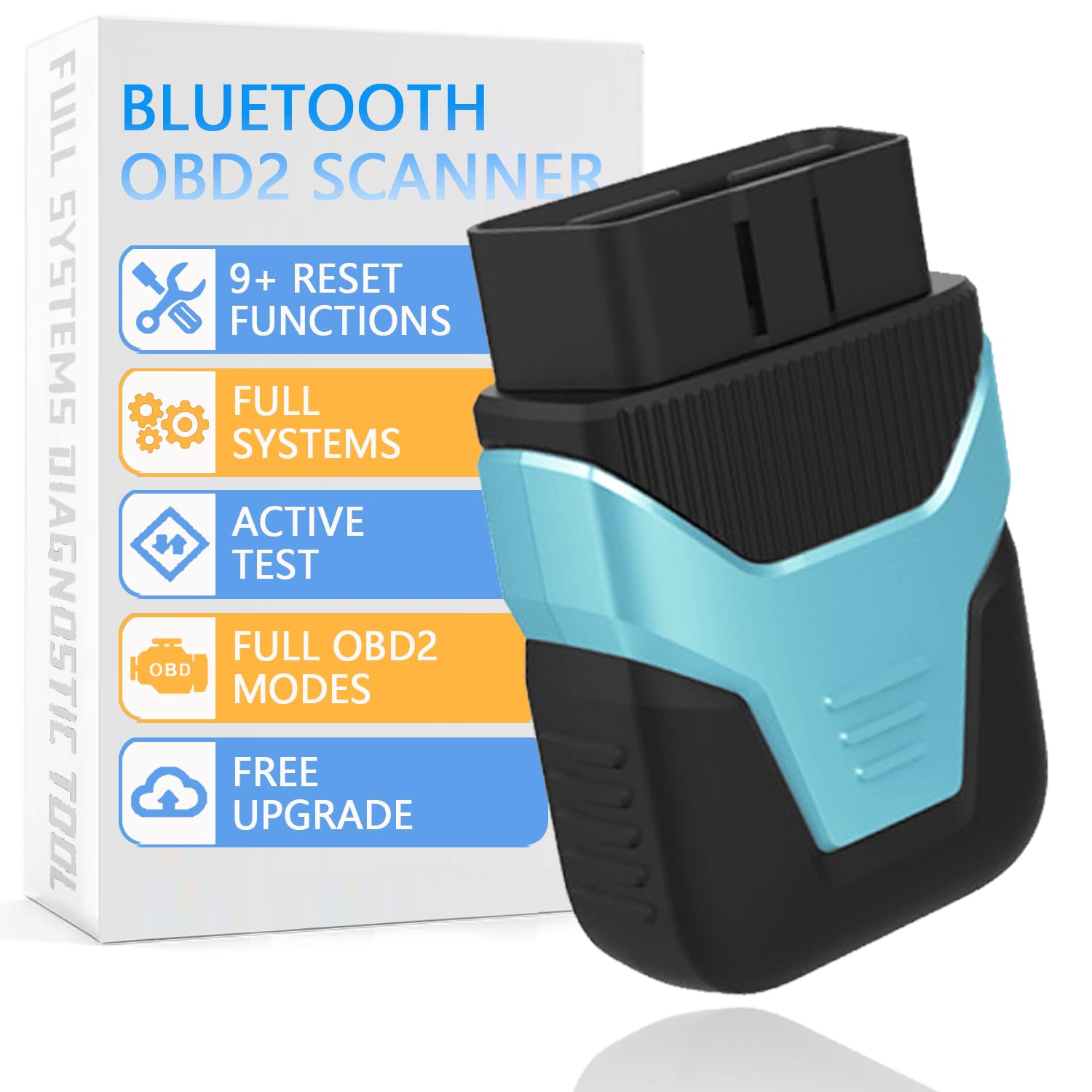
Figure 1: HUMZOR Z100 OBD2 Scanner device.
2. Ntọala na nwụnye
2.1 Ngwa nwụnye
The HUMZOR Z100 requires the NexzDAS application for operation. Download the app from the Apple App Store (for iOS) or Google Play Store (for Android).

Figure 2: NexzDAS App download options and Bluetooth connectivity.
2.2 Njikọ ngwaọrụ
- Locate your vehicle's OBD-II port, typically found under the dashboard on the driver's side.
- Plug the HUMZOR Z100 device into the OBD-II port. The device will power on, indicated by LED lights.
- Turn your vehicle's ignition to the 'ON' position (engine off).
- Open the NexzDAS app on your smartphone. The app will automatically search for and connect to the Z100 device via Bluetooth 5.2. Ensure Bluetooth is enabled on your smartphone.

Figure 3: Step-by-step guide for connecting the HUMZOR Z100 to your vehicle.
3. Ntuziaka ọrụ
3.1 Nchọpụta Sistemu zuru oke
The HUMZOR Z100 supports full OBD2 functionality, allowing you to read and clear fault codes, view system status, I/M readiness, freeze frames, and data streams across various vehicle systems including Engine, SRS, ABS, BMS, ESP, SAS, IMMO, and TPMS.

Figure 4: Visual representation of the all-system diagnostic capabilities.
3.2 Njikwa bidirectional (Nnwale na-arụ ọrụ)
Utilize the bidirectional control feature to send commands directly from your smartphone to your vehicle's ECU. This allows for proactive detection and testing of components like windows, windshield wipers, and headlights, aiding in quick problem identification.

Figure 5: Smartphone interface demonstrating bidirectional control over vehicle components.
4. Maintenance Functions
The Z100 offers over 9 reset functions to assist with common vehicle maintenance tasks:
- ABS ọbara: Bleeds air from the ABS system.
- Ntọgharị Batrị: Registers new batteries and resets battery management systems.
- Ntọghari mmanụ: Na-emegharị ọkụ ọrụ mmanụ mgbe agbanwechara mmanụ.
- Throttle Learning: Adapts the throttle body after replacement or cleaning.
- Tọgharia TPMS: Resets the Tire Pressure Monitoring System.
- Tọgharịa SAS: Na-emegharị ihe mmetụta akụkụ steering.
- Mmeghari DPF: Na-amalite imeghari ihe nzacha dizel.
- Injector Adjustment: Na-etinye ụkpụrụ injector ọhụrụ n'ime ECU.
- Tọgharia EPB: Na-emegharị brek eletrọniki a na-adọba ụgbọala.

Nyocha 6: N'eluview of the 9+ maintenance and reset functions.
5. Nchọpụta nsogbu
5.1 Okwu Njikọta Ngwa
If the app fails to connect or crashes, ensure your smartphone's Bluetooth is enabled and the Z100 device is properly plugged into the OBD-II port. Restarting the app or your phone may resolve temporary issues. For persistent problems, verify the app is updated to the latest version.
5.2 I/M Readiness Interpretation
The I/M Readiness display indicates whether your vehicle's emission-related systems are ready for testing. A 'PASS' status with green checkmarks for all monitors indicates readiness. If certain monitors are 'Not Ready' or 'Not Supported', the vehicle may not pass an emissions test. The app's display may not always clearly differentiate between ready and not-ready states for all monitors; consult your vehicle's manual for specific drive cycle requirements to set all monitors.
5.3 Koodu nsogbu nsogbu (DTCs)
The scanner displays Current, Pending, and History DTCs. Note that Permanent DTCs cannot be cleared by the scanner and require the underlying issue to be resolved before they self-clear after a sufficient number of drive cycles. A low battery condition can sometimes trigger numerous fault codes across various systems; clearing these codes after addressing the battery issue is recommended.
6. Nkọwapụta
- Akara: HUMZOR
- Ụdị: Z100 OBD2 Bluetooth Scanner
- Njikọta: Bluetooth 5.2
- Usoro ogbugba akwadoro: J1850 (PWM, VPW), ISO9141-2, ISO-14230-4 (KWP, KWP-5BPS), ISO-15765-4 (CAN, CAN-B, CAN-C, CAN-D)
- ndakọrịta: Most 12V OBD2-compliant vehicles (US 1996+, Europe 2002+, Asia 2008+)
- Sistemụ nrụọrụ: Compatible with iOS & Android (NexzDAS app)
- Asụsụ: Na-akwado asụsụ 16
- Ibu ihe: 3.52 ounces
- Akụkụ ngwugwu: 4.3 x 3.1 x 1.27 sentimita asatọ
7. Kedu ihe dị na Igbe ahụ
- 1 x HUMZOR Z100 OBD2 Bluetooth Scanner
8. Akwụkwọ ikike na nkwado
The HUMZOR Z100 comes with lifetime free software upgrades. For any issues or questions regarding compatibility or usage, please contact HUMZOR customer support via Amazon (providing car brand/year/model). Responses are typically provided within 24 hours. The product also includes a 30-day free return policy.
9. Official Product Video
Watch the official product video for a visual guide on the HUMZOR Z100 OBD2 Scanner's features and operation.
Vidiyo 1: Ngwaahịa a kwụsịrịview of the HUMZOR Z100 OBD2 Scanner, demonstrating its key features and ease of use.


