1. Okwu mmalite
Thank you for choosing the ATTACK SHARK×Magic-Refiner G6 Wireless Gaming Mouse. This manual provides detailed instructions on how to set up, operate, and maintain your new gaming mouse. The G6 mouse features tri-mode connectivity, a high-precision PixArt PAW3311 sensor, and a lightweight ergonomic design, making it ideal for various computing tasks and gaming scenarios.
2. Ihe ngwugwu
Biko lelee igbe maka ihe ndị a:
- ATTACK SHARK×Magic-Refiner G6 Wireless Gaming Mouse
- 2.4G USB nnata
- USB-C eriri USB
- Anti-Slip Grip Tape Set

Image: The ATTACK SHARK G6 Wireless Gaming Mouse in white, shown with its accompanying USB receiver.
3. Ngwaahịa gafereview
The G6 gaming mouse is designed for versatility and performance. Familiarize yourself with its key components and features.

Image: Detailed diagram of the G6 mouse, highlighting its buttons and features including the Left Button, Scroll Wheel + Middle Button, Right Button, Back Button, Forward Button, Power Toggle Switch (2.4G-OFF-Bluetooth), DPI Cycle Button, Atmosphere Light Switch & Wireless Mode Frequency Binding Button, Battery & DPI Indicator Light, Atmosphere Light, and USB Receiver storage.
3.1. Atụmatụ igodo
- Njikọta ụdị atọ: Seamlessly switch between USB-C wired, 2.4GHz wireless, and Bluetooth 5.0 connections. The 2.4GHz mode offers a polling rate of 125-1000Hz, while Bluetooth operates at 125Hz. This allows for flexible use across various devices and scenarios.
- Ihe mmetụta dị elu nke ọma: Equipped with the PixArt PAW3311 optical sensor, offering six adjustable DPI levels from 800 to 24000. Features a 1000Hz polling rate, 1ms response time, 300 IPS tracking, and 35G acceleration for precise control.
- Lightweight Design & Long Battery Life: Weighs approximately 72±3g, minimizing hand fatigue during extended use. The built-in 750mAh battery provides over 150 hours of wireless usage on a single charge.
- Durable Switches & Customization: Features 10M micro switches with a 10 million click lifespan. Includes a 1.5m braided USB-C cable. Customize rear RGB lighting via a bottom button for various effects.
- Anti-Slip Grips: Comes with a set of 6 DIY anti-slip grip tapes for enhanced control and sweat resistance.

Image: The G6 mouse illustrating its 2.4GHz Wireless, USB-C Wired, and Bluetooth connection modes.
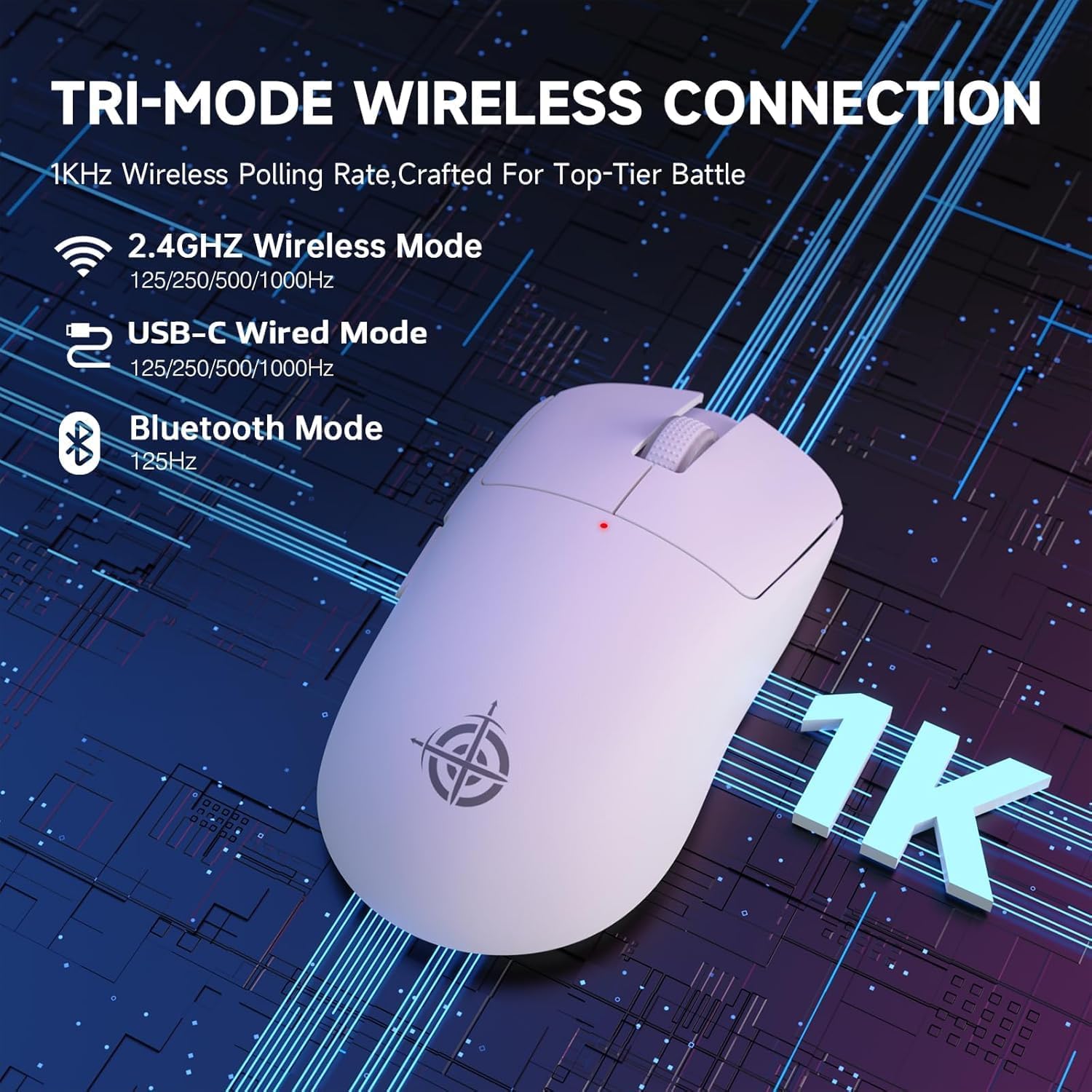
Image: The G6 mouse with an overlay indicating DPI levels (800-24000) and their associated indicator light colors (Red, Green, Blue, Yellow, Cyan, Purple).

Image: The G6 mouse displaying its customizable RGB lighting effects, including rainbow and single color options.

Image: The G6 mouse with its practical non-slip stickers applied, showing the textured surface for improved grip.
4. Ntuziaka Nhazi
The G6 mouse offers three connection methods. Choose the one that best suits your needs.
4.1. Ọnọdụ ikuku 2.4GHz
- Locate the 2.4G USB receiver stored in the compartment on the bottom of the mouse.
- Tinye eriri USB n'ọdụ ụgbọ mmiri dị na kọmputa gị.
- Slide the power toggle switch on the bottom of the mouse to the '2.4G' position.
- The mouse should automatically connect. If not, press the 'Atmosphere light switch & wireless mode frequency binding button' on the bottom of the mouse to initiate pairing.
4.2. Ọnọdụ Bluetooth
- Slide the power toggle switch on the bottom of the mouse to the 'Bluetooth' position.
- The mouse's indicator light will start blinking, indicating it's in pairing mode.
- Na kọmputa ma ọ bụ ngwaọrụ gị, gaa na ntọala Bluetooth wee chọọ ngwaọrụ ọhụrụ.
- Select 'ATTACK SHARK G6' (or similar name) from the list of available devices to pair.
4.3. Ọnọdụ Waya USB-C
- Jikọọ eriri USB-C enyere na ọdụ ụgbọ mmiri dị n'ihu nke òké ahụ.
- Jikọọ nsọtụ nke ọzọ nke eriri USB-C na ọdụ USB dị na kọmputa gị.
- Òké ga-agbanwe na-akpaghị aka na wired mode wee malite chajị.
5. Ntuziaka ọrụ
5.1. DPI mmezi
The G6 mouse has a dedicated DPI cycle button on the bottom. Press this button to cycle through the preset DPI levels (800, 1600, 2400, 3200, 6400, 24000). The indicator light will change color to reflect the current DPI setting (Red, Green, Blue, Yellow, Cyan, Purple respectively).
5.2. Ọrụ bọtịnụ
The G6 mouse features 5 programmable buttons:
- Bọtịnụ aka ekpe: Pịa aka ekpe nkịtị.
- Bọtịnụ aka nri: Pịa aka nri nkịtị.
- Scroll Wheel + Middle Button: Pịgharịa gaa na elu/ala, pịa etiti.
- Bọtịnụ mbugharị: Na-aga n'ihu web ihe nchọgharị ma ọ bụ file ndị na-eme nchọpụta.
- Bọtịnụ azụ: Na-agagharị azụ n'ime web ihe nchọgharị ma ọ bụ file ndị na-eme nchọpụta.
For advanced customization of button functions and macros, please download the official driver software from the ATTACK SHARK websaịtị.
5.3. Njikwa ọkụ RGB
The G6 mouse features customizable RGB lighting. Use the 'Atmosphere light switch' button on the bottom of the mouse to cycle through different lighting effects (e.g., Rainbow Lighting, Single Lighting) or to turn the lighting off.
6. Nlekọta
To ensure the longevity and optimal performance of your G6 gaming mouse, follow these maintenance guidelines:
- Nhicha: Jiri akwa dị nro ma kpọọ nkụ hichaa elu òké. Maka unyi isi ike, ntakịrị dampen akwa na mmiri ma ọ bụ a nwayọọ ihicha ngwọta. Zere kemịkalụ siri ike ma ọ bụ ihe na-emebi emebi.
- Nlekọta ihe mmetụta: Debe ihe mmetụta anya dị n'ala òké ahụ ọcha ma ghara ịpụ na uzuzu ma ọ bụ ihe ruru unyi. Jiri ákwà owu ma ọ bụ ikuku a kpọchiri akpọchi ma ọ bụrụ na ọ dị mkpa.
- Nchekwa: Mgbe a naghị eji ya ogologo oge, chekwaa òké ahụ n'ebe dị jụụ, kpọrọ nkụ pụọ na ìhè anyanwụ kpọmkwem na oke okpomọkụ.
- Batrị: Zere ịchaji batrị ugboro ugboro. Na-akwụ ụgwọ òké oge niile iji kwado ahụike batrị.
7. Nchọpụta nsogbu
If you encounter any issues with your G6 gaming mouse, please refer to the following common solutions:
- Òké anaghị aza:
- Ensure the mouse is charged. Connect it via USB-C cable to charge.
- Check the power toggle switch on the bottom of the mouse is in the correct position (2.4G, BT, or OFF for wired).
- Maka ọnọdụ 2.4GHz, hụ na e tinyere ihe nnata USB n'ime ọdụ USB na-arụ ọrụ nke ọma. Nwaa ọdụ USB dị iche.
- For Bluetooth mode, ensure Bluetooth is enabled on your device and the mouse is paired. Try unpairing and re-pairing.
- Mmegharị cursor adịghị agbanwe agbanwe ma ọ bụ nke na-ezighi ezi:
- Hichaa ihe mmetụta anya na ala nke òké ahụ.
- Ensure you are using the mouse on a suitable surface. Some surfaces (e.g., plain black neoprene pads, highly reflective surfaces) may interfere with optical tracking. Try a different mouse pad or surface.
- Adjust the DPI setting using the DPI cycle button.
- 2.4GHz dongle not working:
- Ensure the mouse is switched to 2.4G mode.
- Gbalịa itinye dongle n'ọdụ ụgbọ mmiri USB dị iche na kọmputa gị.
- If issues persist, try re-pairing the mouse with the dongle by pressing the binding button on the mouse while the dongle is connected.
- Nsogbu njikọ Bluetooth:
- Ensure the mouse is in Bluetooth pairing mode (indicator light blinking).
- Remove the mouse from your device's Bluetooth list and attempt to pair again.
- Hụ na draịva Bluetooth nke ngwaọrụ gị dị ọhụrụ.
8. Nkọwapụta
| Njirimara | Nkọwapụta |
|---|---|
| Nọmba nlereanya | G6 |
| Teknụzụ Njikọta | 2.4Ghz / Bluetooth / USB-C Wired |
| Teknụzụ nchọpụta ngagharị | Optical (PixArt PAW3311) |
| Ọkwa DPI | 800-24000 (6 adjustable levels) |
| Ọnụego ntuli aka | 125-1000Hz (2.4Ghz), 125Hz (Bluetooth) |
| Ike batrị | 750mAh |
| Ibu Ibu | 72±3g (2.54 ounces) |
| Akụkụ | 116.2 x 62.2 x 37.3mm (ihe dị ka) |
| Gbanwee ndụ ndụ | Nde 10 Pịa |
| Ogologo eriri USB | 1.5m (Braided USB-C) |
| Ndakọrịta | Windows, macOS, Linux, Chrome OS, Consoles, Tablets, Smartphones |
9. Akwụkwọ ikike na nkwado
The ATTACK SHARK×Magic-Refiner G6 Wireless Gaming Mouse comes with a standard manufacturer's warranty. Please refer to the product packaging or the official ATTACK SHARK websaịtị maka usoro na ọnọdụ akwụkwọ ikike akọwapụtara.
Maka nkwado teknụzụ, enyemaka nsogbu, ma ọ bụ nkwupụta nkwa, biko kpọtụrụ ọrụ ndị ahịa ATTACK SHARK site na ndị ọrụ gọọmentị ha. websaịtị ma ọ bụ ụlọ ahịa ebe ịzụrụ ngwaahịa ahụ.
Mara: Ọ nweghị vidiyo ngwaahịa sitere n'aka onye na-ere ahịa dị maka itinye n'akwụkwọ ntuziaka a.


