1. Okwu mmalite
This manual provides detailed instructions for the installation, operation, and maintenance of your Vueroid S1 4K Infinite 3 Channel Dash Cam. Please read this manual thoroughly before using the product to ensure proper function and safety. Keep this manual for future reference.
2. Ozi nchekwa
- Do not operate the device while driving. Adjust settings only when the vehicle is safely parked.
- Ensure the dash cam is securely mounted to prevent obstruction of the driver's view ma ọ bụ itinye airbag.
- Use only approved power cables and accessories to avoid damage or fire.
- Zere ikpughe ngwaọrụ ahụ na oke okpomọkụ, ìhè anyanwụ kpọmkwem maka ogologo oge, ma ọ bụ mmiri mmiri.
- Anwala ịkwasa ma ọ bụ rụkwaa ngwaọrụ n'onwe gị. Kpọtụrụ nkwado ndị ahịa maka enyemaka.
3. Ihe ngwugwu
Chọpụta na ihe niile dị na ngwugwu gị:
- Igwefoto ihu
- Rear Camera & Cable (approx. 20ft)
- Hardwire Power Cable 3M
- Cigar Jack Cable
- USB 2.0 C-Type Data Cable
- Cable Clip (6EA)
- Kpaa ngwa
- Foam Tape (3EA)
- Akwụkwọ ntuziaka onye ọrụ
Note: MicroSD card is not included. For optimal performance, we recommend using 128GB, 256GB, or 512GB cards.
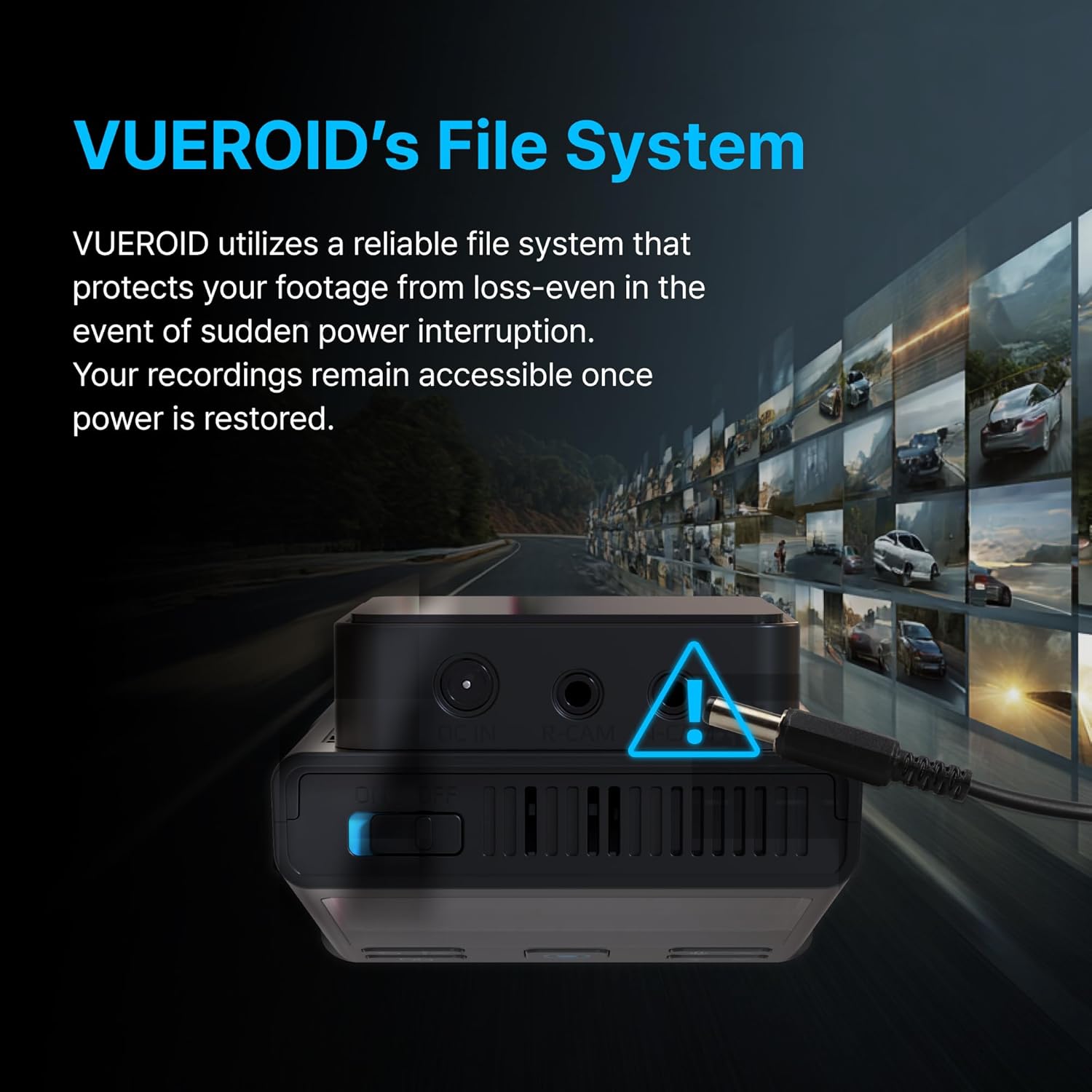
Figure 3.1: Contents of the Vueroid S1 4K Infinite 3 Channel Dash Cam package.
4. Ngwaahịa gafereview
The Vueroid S1 4K Infinite is a 3-channel dash cam system designed to record video from the front, interior, and rear of your vehicle. It features a 4K front camera, 2.5K interior camera, and FHD rear camera, utilizing a Sony STARVIS 2 image sensor for enhanced clarity.
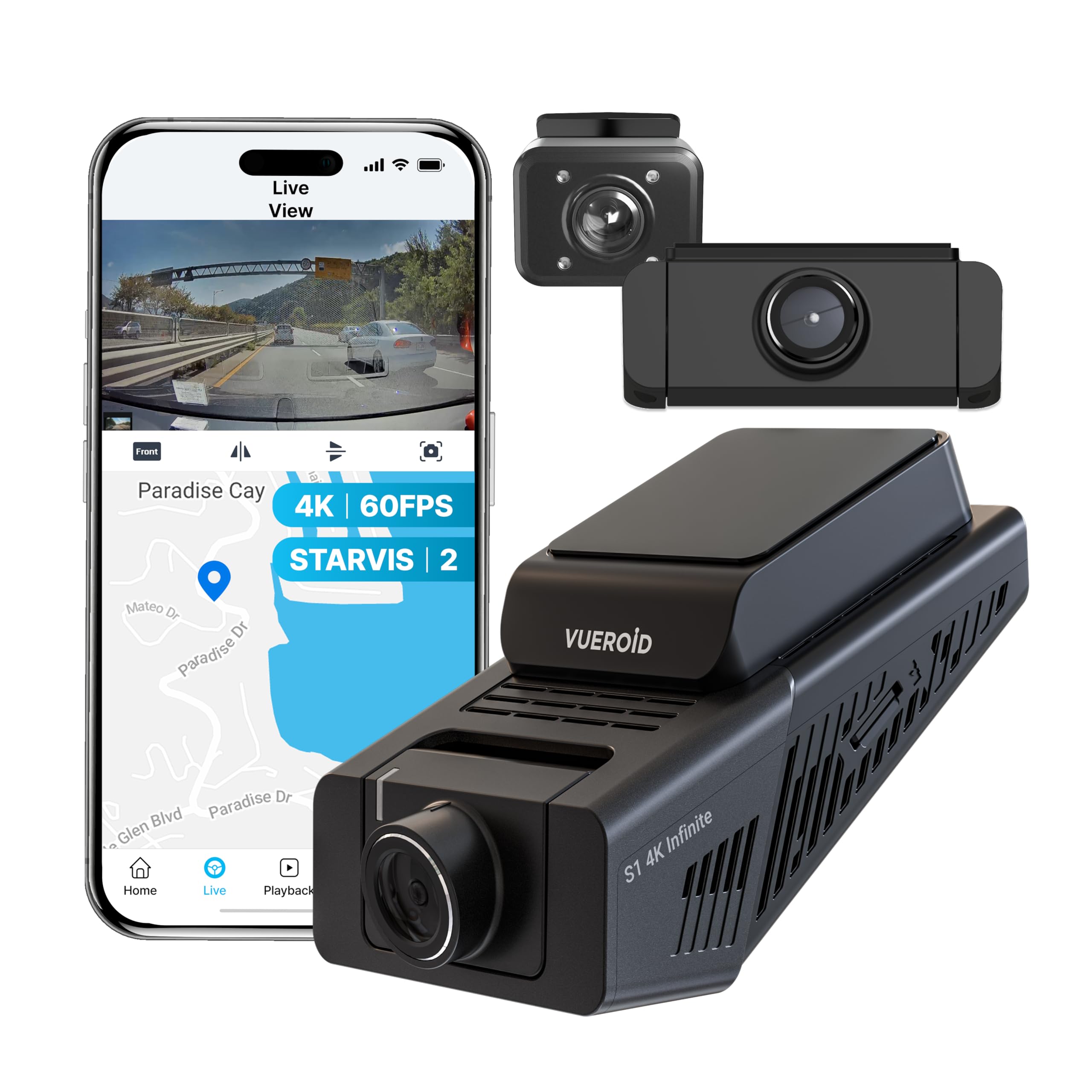
Figure 4.1: Vueroid S1 4K Infinite 3 Channel Dash Cam main unit and cameras.
5. Nhazi
5.1. Ịtinye kaadị MicroSD
Before powering on the device, insert the MicroSD card into the designated slot. Push the card in until you hear a 'click' sound, ensuring it is securely in place.
Video 5.1: This video demonstrates the unboxing of the Vueroid S1 4K Infinite, including the insertion of the MicroSD card into the main unit.
5.2. Nhazi mmalite
After inserting the MicroSD card and powering on the device, follow the on-screen prompts for initial configuration. Use the navigation buttons (Up, Down, Confirm) on the device to make selections.
- Nhọrọ asụsụ: Họrọ asụsụ nke masịrị gị.
- Ụdị oge: Select the desired time format (e.g., YYYY/MM/DD). The date will be automatically set via GPS. Daylight Saving Time settings can be adjusted later.
- Mpaghara Oge: Set the time zone for your current location.
- Ugboro sistemụ: Select the system frequency (e.g., 60Hz for NTSC/US) to prevent video flickering.
- Rear Camera Usage: Choose whether to enable or disable the rear camera. This can be changed later in system settings.
- Mkpebi na Ọnụ Ọgụgụ: Select your preferred recording resolution and frame rate. Note that for 4K 60fps front recording in 3-channel mode, rear and interior cameras are limited to 15fps.
- Bitrate: Choose the desired bitrate (Low, Mid, High). Higher bitrate results in better quality but larger file sizes, reducing total recording time.
- Memory Allocation: Configure how storage space is allocated for different recording modes (Driving, Parking, Event).
Video 5.2: This video provides a step-by-step guide for the initial setup of the Vueroid S1 4K Infinite Dash Cam, covering language, time, frequency, and recording settings.
5.3. Nwụnye
Mount the front camera on your windshield, ensuring a clear view of the road. Install the interior and rear cameras as per your vehicle's layout. Connect the hardwire power cable to your vehicle's fuse box for continuous power and parking mode functionality. Use the provided cable clips and trim tool to neatly route cables.
6. Ntuziaka ọrụ
6.1. Driving Recording
The Vueroid S1 automatically begins recording when the vehicle starts. It captures footage in Ultra 4K (front), 2.5K (interior), and FHD (rear) resolutions. The Sony STARVIS 2 image sensor and HDR mode ensure clear video quality in various lighting conditions.
Video 6.1: Driving footage captured by the Vueroid S1 4K Infinite main camera, demonstrating video quality during daytime driving.

Figure 6.1: Key features of the Vueroid S1 4K Infinite Dash Cam.
6.2. Parking Mode (24/7 Surveillance)
With the included hardwire kit, the S1 Infinite provides 24/7 parking surveillance. It features DURASHIFT Parking Mode, which prevents overheating by entering a low-power state and records instantly upon impact. The Geofencing System automatically disables parking mode when you enter a specified 'safe' area to prevent battery drain.

Figure 6.2: Extreme Low Power Parking Mode operation.
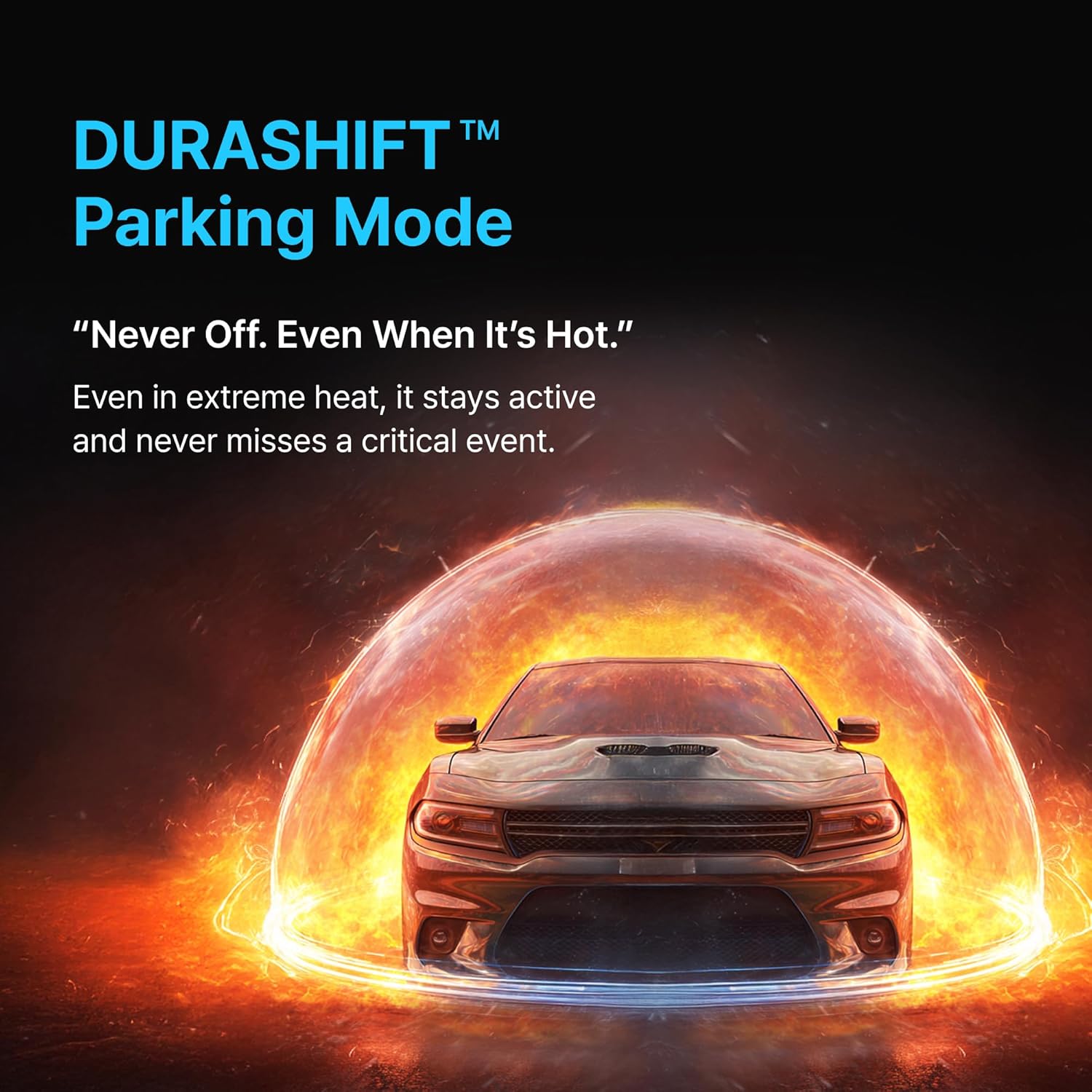
Figure 6.3: DURASHIFT Parking Mode for continuous protection.

Figure 6.4: Auto REC Off Zone functionality.
6.3. Njirimara AI
The S1 Infinite incorporates advanced AI for enhanced footage clarity and privacy.
- AI License Plate Restoration: Enhances blurry license plates in footage, making them clearer for recognition.
- AI Privacy Protection: Automatically blurs personal information, such as license plates and faces, to safeguard privacy.
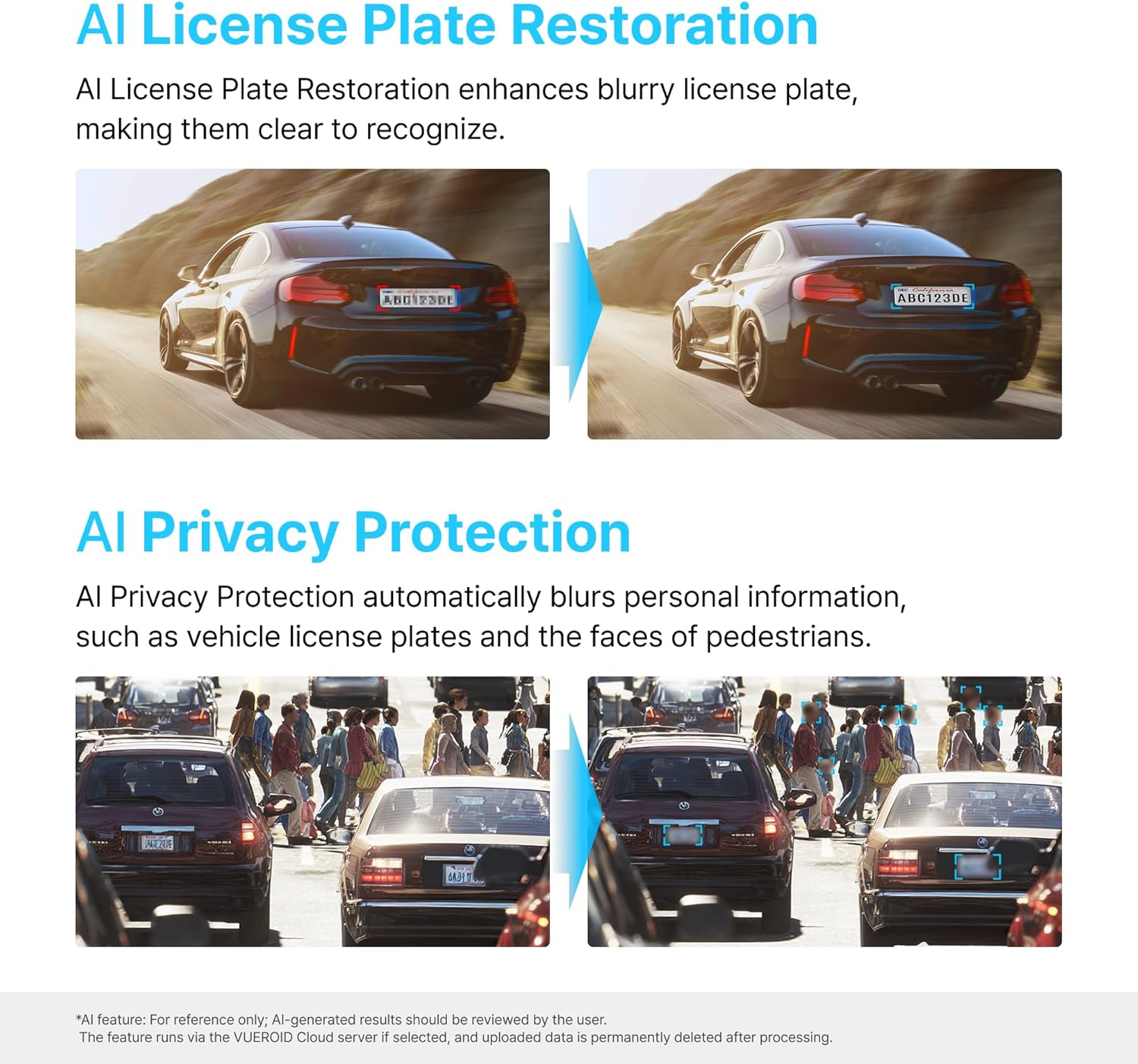
Figure 6.5: AI-powered features for clarity and privacy.
6.4. Vueroid File Sistemu
The Vueroid S1 utilizes a reliable file system that protects your footage from loss, even in the event of a sudden power interruption. Recordings remain accessible once power is restored.

Figure 6.6: Vueroid's robust file usoro.
6.5. Njikọta
The dash cam features built-in 5G WiFi and GPS. Use the dedicated mobile application to easily access, review, ma kesaa foo gitage. Firmware updates can also be performed wirelessly via the app.
7. Nlekọta
7.1. Njikwa Kaadị MicroSD
- Regularly format the MicroSD card (e.g., once a month) to maintain optimal performance and prevent data corruption.
- Replace the MicroSD card if you experience frequent errors or reduced recording capacity.
7.2. Nhicha
- Wipe the camera lenses with a soft, dry cloth to ensure clear recordings.
- Clean the device exterior with a slightly damp akwa . Ejila kemịkalụ siri ike ma ọ bụ ihe mkpocha abrasive.
8. Nchọpụta nsogbu
| Nsogbu | Ihe nwere ike ime | Ngwọta |
|---|---|---|
| Ngwaọrụ anaghị agbanwu ọkụ | No power supply; Loose connection | Check power cable connection; Ensure vehicle ignition is on (if not hardwired). |
| Recording errors | Faulty/full MicroSD card; Incorrect card format | Format MicroSD card; Replace card if necessary; Use recommended card types. |
| Ogo vidiyo na-adịghị mma | Dirty lens; Incorrect resolution settings | Clean camera lenses; Adjust resolution and bitrate settings. |
| Nsogbu njikọ Wi-Fi | Incorrect password; Device out of range | Verify Wi-Fi password; Ensure mobile device is close to the dash cam. |
9. Nkọwapụta
| Njirimara | Nkọwa |
|---|---|
| Akụkụ ngwaahịa | 1.8 x 2.38 x 4.09 sentimita asatọ |
| Ibu Ibu | 2.42 pound |
| Aha Nlereanya | S1 Infinite 3CH |
| Mkpebi ịse vidiyo | 2160p (4K Front) |
| Teknụzụ Njikọta | Wi-Fi |
| Njirimara Pụrụ Iche | Njikwa ngwa |
| Ụdị nkwụnye | Ugwu Dashboard |
| Ngalaba nke View | ogo 151 |
| Ngwa gụnyere | Kit Hardwire |
10. Akwụkwọ ikike na nkwado
For warranty information, technical support, or service inquiries, please refer to the official Vueroid websaịtị ma ọ bụ kpọtụrụ ndị ahịa ha ozugbo. Debe nnata nzụta gị dị ka ihe akaebe nke ịzụrụ maka nkwupụta ikike.
Ị nwekwara ike ịga na Vueroid Store on Amazon for additional resources and contact information.


