1. Okwu mmalite
The Wacom One 14 Drawing Tablet is a versatile pen display designed for digital artists, illustrators, and creative professionals. Featuring a 14-inch HD full-laminated display and a battery-free pen, it offers a natural and precise drawing experience. This manual provides essential information for setting up, operating, maintaining, and troubleshooting your device.

Figure 1: Wacom One 14 Drawing Tablet with its accompanying pen.
2. Kedu ihe dị na Igbe ahụ
Verify that all items listed below are included in your Wacom One 14 package:
- Wacom One 14 Pen Display
- USB-C cable (for Video) x 1pc
- Wacom One Standard Pen White-Gray (CP92303B2Z)
- Replacement nib (POM) x 3pcs
- Nib removal tool x 1pc
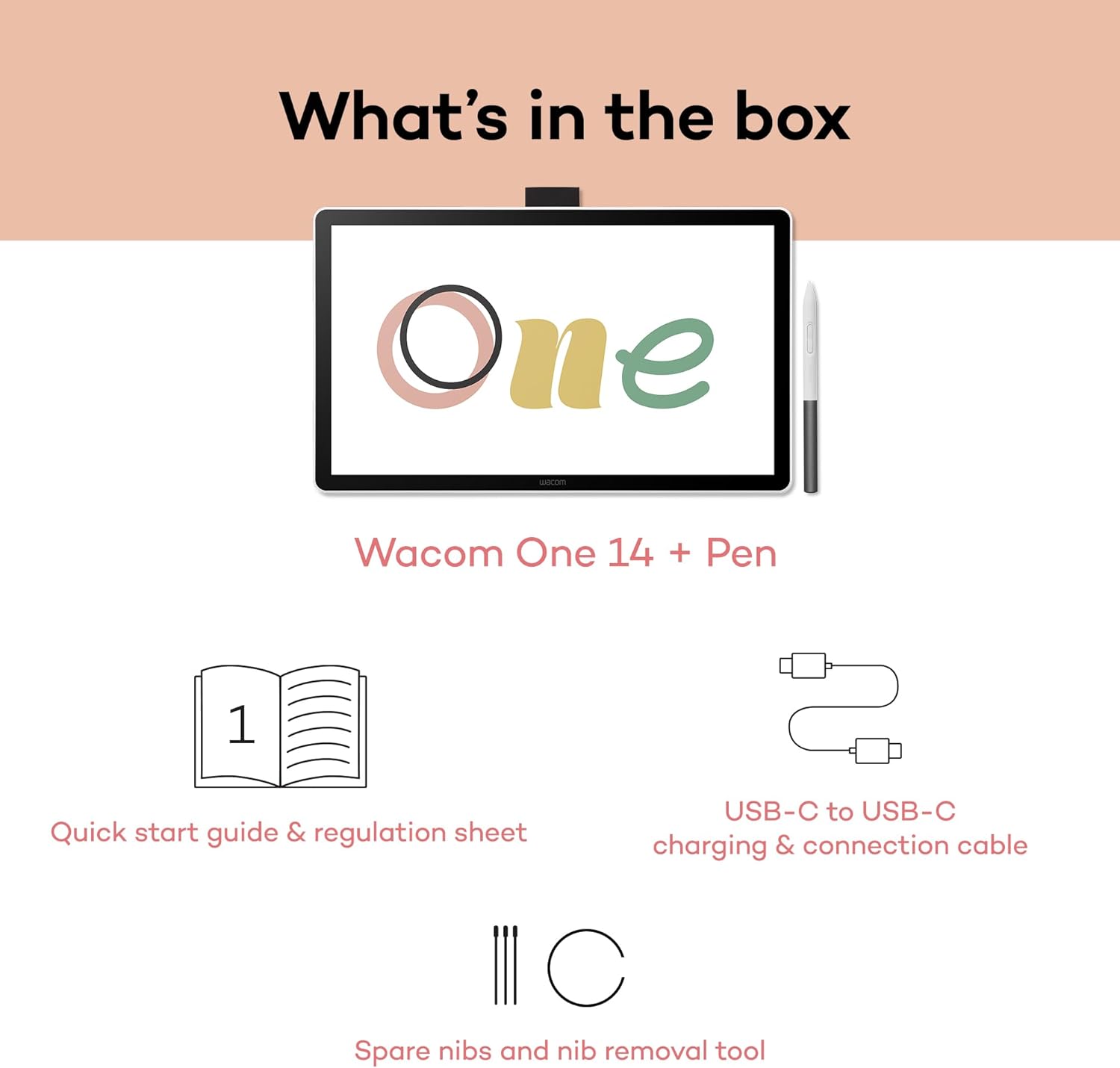
Figure 2: All components included in the Wacom One 14 package.
3. Nhazi
3.1. Ijikọ na kọmputa gị
The Wacom One 14 offers flexible connectivity options:
- Single USB-C Connection: For computers equipped with a Thunderbolt 3, Thunderbolt 4, or USB Type-C port supporting DisplayPort Alt mode, connect the included USB-C cable directly to your computer and the tablet. This single cable handles power, video, and pen data.
- HDMI or USB Type-C (without DisplayPort Alt mode): If your computer uses an HDMI port or a USB Type-C port without DisplayPort Alt mode, an additional Wacom converter (ACK45219Z) and specific cables (sold separately) are required. This setup merges power, video, and pen data into a single USB-C connection for the display.

Figure 3: Visual guide for connecting the Wacom One 14 to various computer setups.
Video 1: A short instructional video demonstrating the connection process for the Wacom One tablet.
3.2. Nwụnye ọkwọ ụgbọala
To ensure full functionality and optimal performance, download and install the latest drivers for your Wacom One 14 from the official Wacom website. The tablet is compatible with:
- PC (Windows 10 or later)
- Mac (macOS 13 ma ọ bụ karịa)
- Chromebook
4. Na-arụ ọrụ mbadamba nkume
4.1. Ngosipụta atụmatụ
The Wacom One 14 features a 14-inch crisp IPS Full HD display, offering a generous drawing area with 98% sRGB color accuracy. The full-laminated screen provides a paper-like texture and is designed to minimize glare and smudges, enhancing your creative workflow.
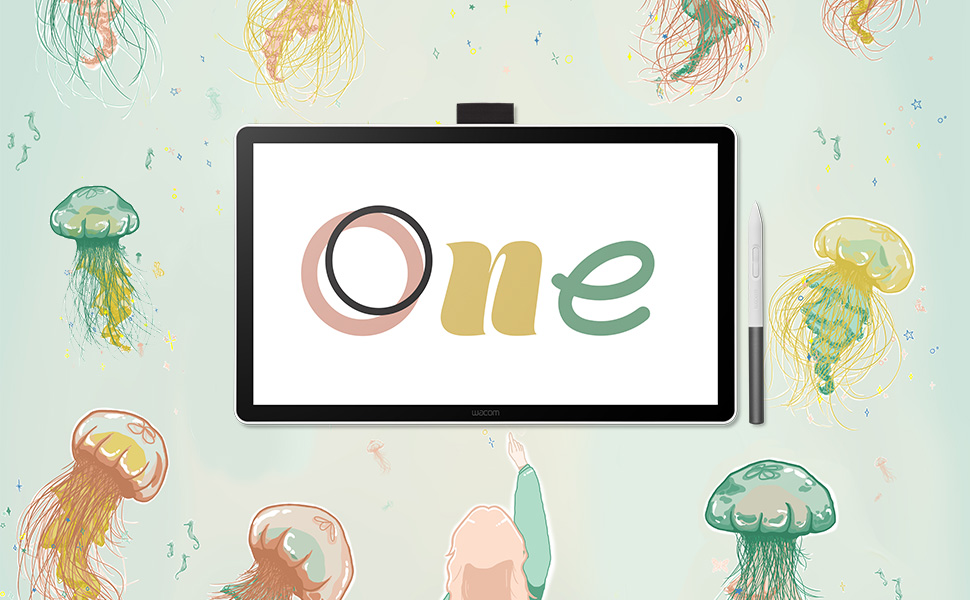
Figure 4: The Wacom One 14 display showcasing detailed digital artwork.
4.2. Wacom One Standard Pen
The included Wacom One Standard Pen is battery-free, eliminating the need for charging. It captures everything from light lines to bold strokes with 4096 levels of responsive pressure sensitivity and supports 60-degree tilt, providing a precise and natural feel similar to traditional drawing tools.
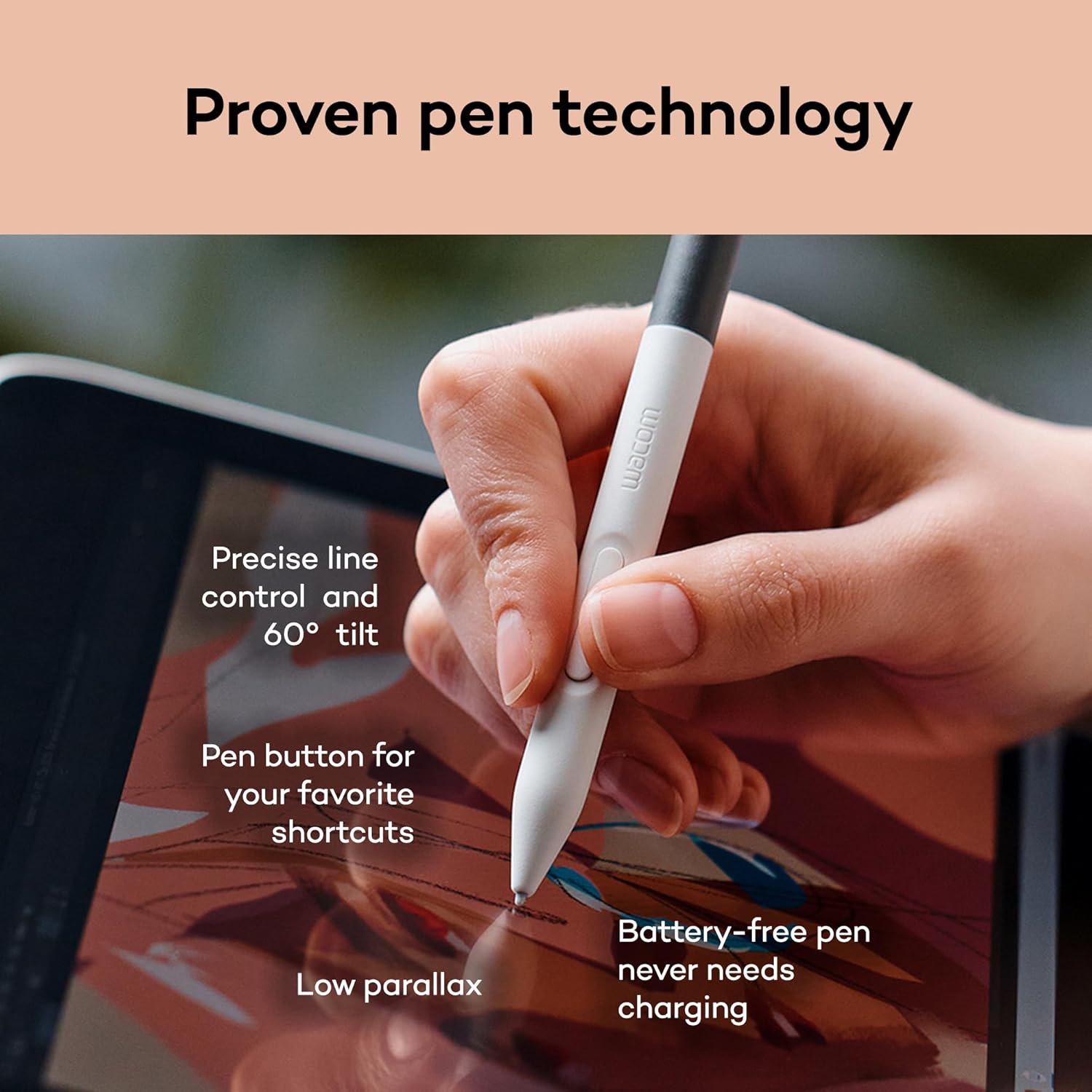
Figure 5: The Wacom One pen in use, demonstrating its precise line control and ergonomic design.
4.3. Creative Applications
The Wacom One 14 is suitable for various creative tasks:
- Digital Art: Create natural brush strokes and precise line control to bring your artistic vision to life.
- Ndezi foto: Achieve pinpoint accuracy for detailed retouching and color correction work.
- Nleba anya: Handwrite directly on documents and PDFs with the natural feel of pen on paper.

Figure 6: The Wacom One 14 in use for digital art, showcasing ya versatility.
Video 2: A short video highlighting the creative possibilities with the Wacom One 14.
5. Nlekọta
5.1. Nhicha Mbadamba ahụ
To maintain the clarity and responsiveness of your Wacom One 14 display:
- Use a soft, lint-free cloth to gently wipe the screen.
- Maka isi ike smudges, dị obere dampen akwa na mmiri ma ọ bụ ihe na-echebe ihuenyo. Zere kemịkalụ siri ike.
- Ensure the tablet is powered off and unplugged before cleaning.
5.2. Ndochi Mkpụrụ Akwụkwọ
Over time, the pen nib may wear down. Replace it using the included nib removal tool and spare nibs:
- Gently grip the worn nib with the nib removal tool.
- Pull the nib straight out from the pen.
- Insert a new replacement nib firmly into the pen until it clicks into place.
5.3. Nlekọta n'ozuzu
To prolong the life of your tablet:
- Avoid exposing the tablet to extreme temperatures, direct sunlight, or high humidity.
- Do not spill liquids on the tablet or pen.
- Store the pen securely when not in use to prevent damage.
6. Nchọpụta nsogbu
6.1. No Display/Connectivity Issues
- Ensure all cables are securely connected to both the tablet and your computer.
- If using an HDMI connection, confirm the Wacom converter (ACK45219Z) and all associated cables are correctly installed and powered.
- Verify that your computer's USB-C port supports DisplayPort Alt mode for single-cable connection.
- Try connecting the tablet to a different USB-C port or computer to rule out port-specific issues.
6.2. Pen Not Responding
- Check if the pen nib is properly inserted. Replace if it appears damaged or worn.
- Ensure the latest Wacom drivers are installed and up-to-date on your computer. Reinstall if necessary.
- Restart your computer and the Wacom One 14 tablet.
6.3. Driver-Related Problems
- Uninstall any previous tablet drivers from other brands to avoid conflicts.
- Download and install the latest Wacom drivers directly from the official Wacom websaịtị.
- Temporarily disable any antivirus or firewall software during driver installation if issues persist.
7. Nkọwapụta
| Njirimara | Nkọwa |
|---|---|
| Akụkụ ngwaahịa | 13.23 x 7.91 x 0.04 sentimita asatọ |
| Ibu Ibu | 1.65 pound |
| Nọmba Nlereanya ihe | DTC141W0 |
| Teknụzụ Njikọta | USB-C port with Thunderbolt 3, Thunderbolt 4, or USB Type-C supporting DisplayPort Alt mode. PC on an HDMI port or a USB Type-C port without DisplayPort Alt mode requires Wacom converter (ACK45219Z) and cables (sold separately). |
| Mmetụta nrụgide | Ọkwa 4096 |
| Sistemụ nrụọrụ | The latest version of ChromeOS, Windows 10 and later, macOS 13 and later |
| Atụmatụ pụrụ iche | 14” Full HD Display, Anti-Glare Glass, Battery free pen supporting 60 degree tilt. |
8. Akwụkwọ ikike na nkwado
Wacom products are known for their proven reliability and quality. For any technical assistance, product inquiries, or warranty claims, please refer to the official Wacom support channels. Wacom's dedicated support team is available to assist you with any issues you may encounter.
Video 3: A brief unboxing video of the Wacom One 14, showcasing its contents.


