1. Okwu mmalite
Welcome to the CATLINK RFID Automatic Cat Feeder (Model F04 Pro) instruction manual. This guide provides comprehensive instructions for setting up, operating, and maintaining your feeder, ensuring optimal and convenient feeding for your feline companions. Please read this manual thoroughly before first use.

The CATLINK RFID Automatic Cat Feeder F04 Pro, shown with its included RFID collars and a smartphone displaying the companion app interface.
2. Atụmatụ igodo
- Exclusive Feeder for Your Cat: Utilizes RFID technology with dedicated collars to ensure each cat in a multi-cat household accesses its own exclusive feeder, preventing food theft.
- Nleba anya ahụike: The Fresh 2 system recognizes individual cats, records their diet, and generates health reports viewable in the app. Abnormal diet patterns trigger alert messages.
- Scheduled Automatic Feeding: Easily set up and schedule feedings based on your pet's needs through the app, ensuring timely meals even when you are away.
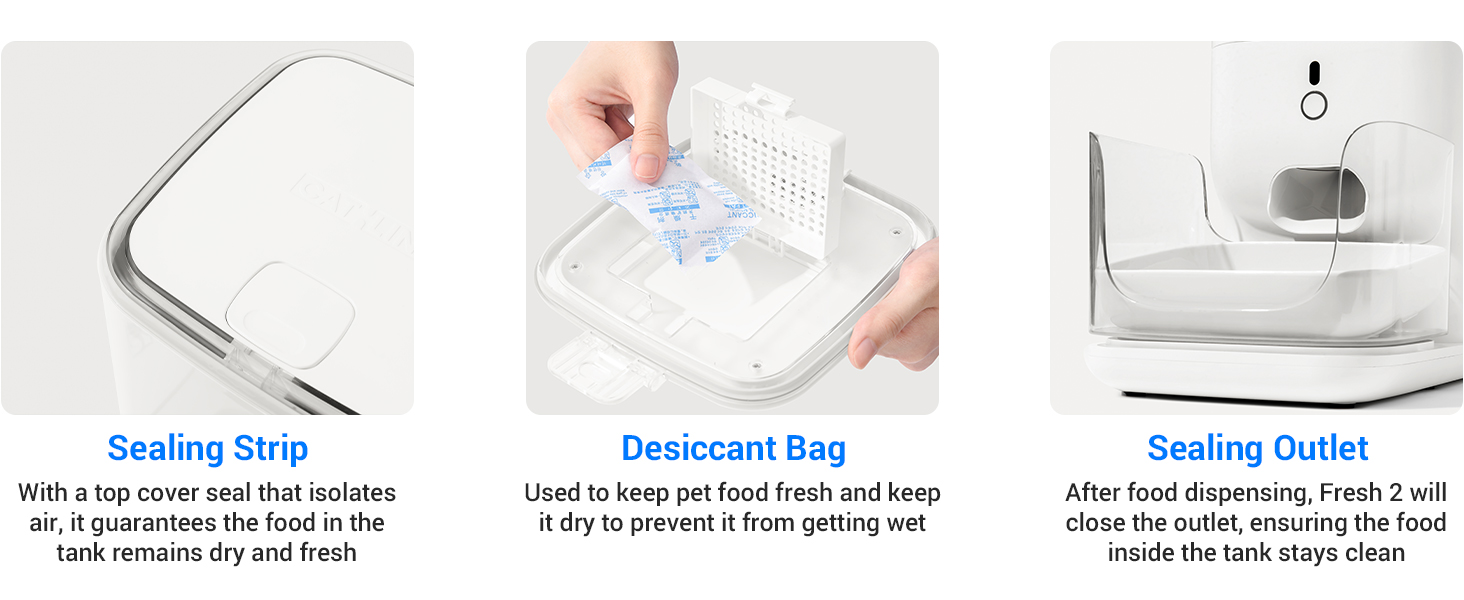
- Multiple Seals to Keep Food Fresh: Features rubber seals between the lid and container, a desiccant bag for moisture control, and a sealed revolving door to prevent oxidation, odor, and dust.
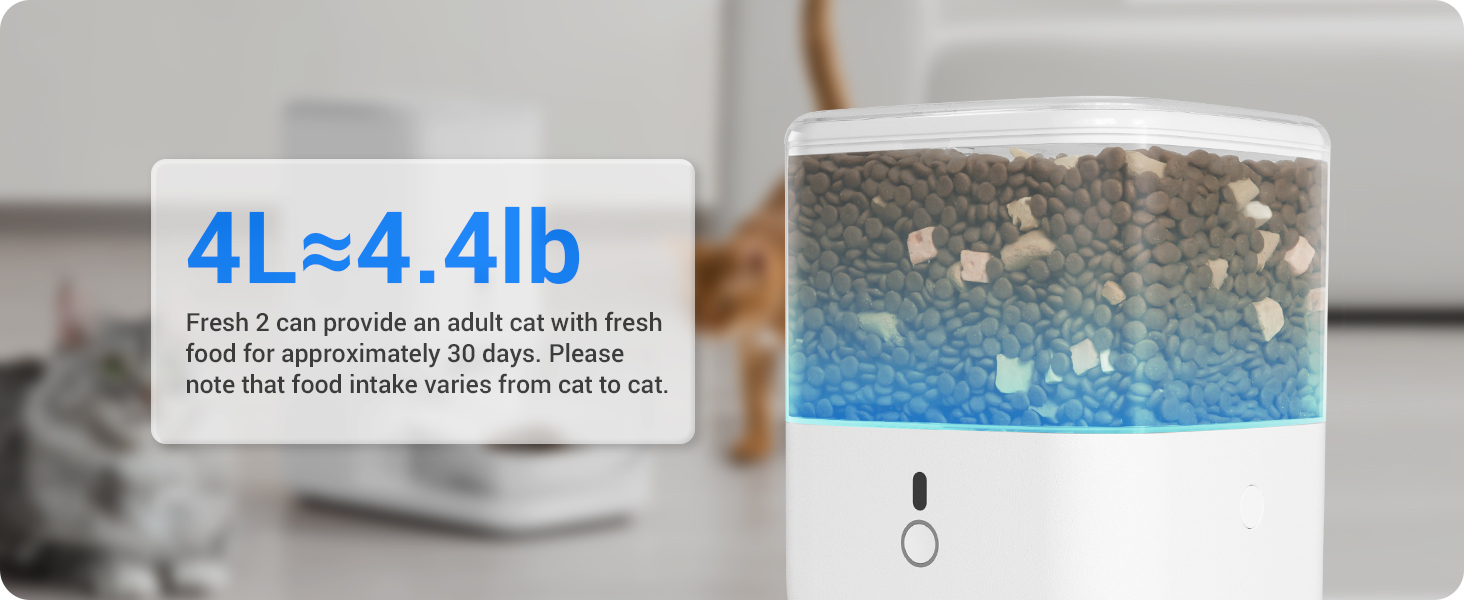
- Long-Lasting Feeding Capacity: Stores 4L of food (grains or freeze-dried pellets up to 15mm diameter), providing nourishment for one cat for up to 30 days.
- Pet Safe Design: The top lid is designed to be difficult for pets to open, preventing unauthorized access to food. A nylon braided cable prevents pet chewing and reduces electrical risk.
3. Ngwa ngwaahịa
The CATLINK RFID Automatic Cat Feeder (F04 Pro) package includes the following components:
- 1 x Automatic Cat Feeder Unit
- 2 x RFID Identification Tags
- 2 x Collars for RFID Tags
- Akwụkwọ ntuziaka onye ọrụ 1 x (akwụkwọ a)
- 1 x eriri ọkụ

Two RFID collars with their respective identification tags, essential for multi-cat recognition.

A nso-elu view of the feeder's sealed food storage compartment, highlighting the mechanism designed to maintain food freshness.
4. Ntuziaka Nhazi
4.1 Mwepu na Mgbakọ
- Jiri nlezianya wepụ ihe niile dị na nkwakọ ngwaahịa.
- Debe isi ihe na-enye nri n'elu larịị ma kwụsie ike.
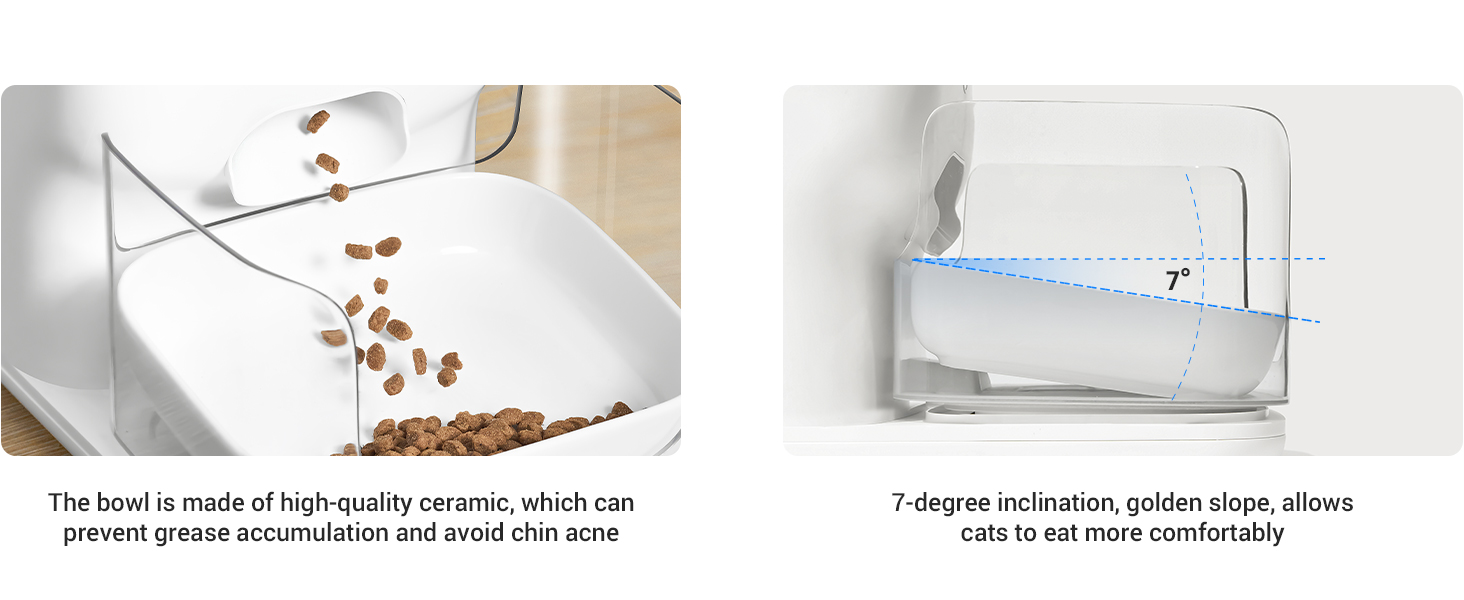
- Insert the food bowl into its designated slot at the front of the feeder.
- Ensure the food tank is clean and dry before proceeding.
4.2 Njikọ ike
- Connect the power cable to the feeder's power input port.
- Tinye nkwụnye ọkụ n'ime oghere mgbidi ọkọlọtọ.
- Maka ike gitages, the feeder supports backup batteries (not included). Install 4 D-cell batteries in the battery compartment at the bottom of the unit for uninterrupted operation.
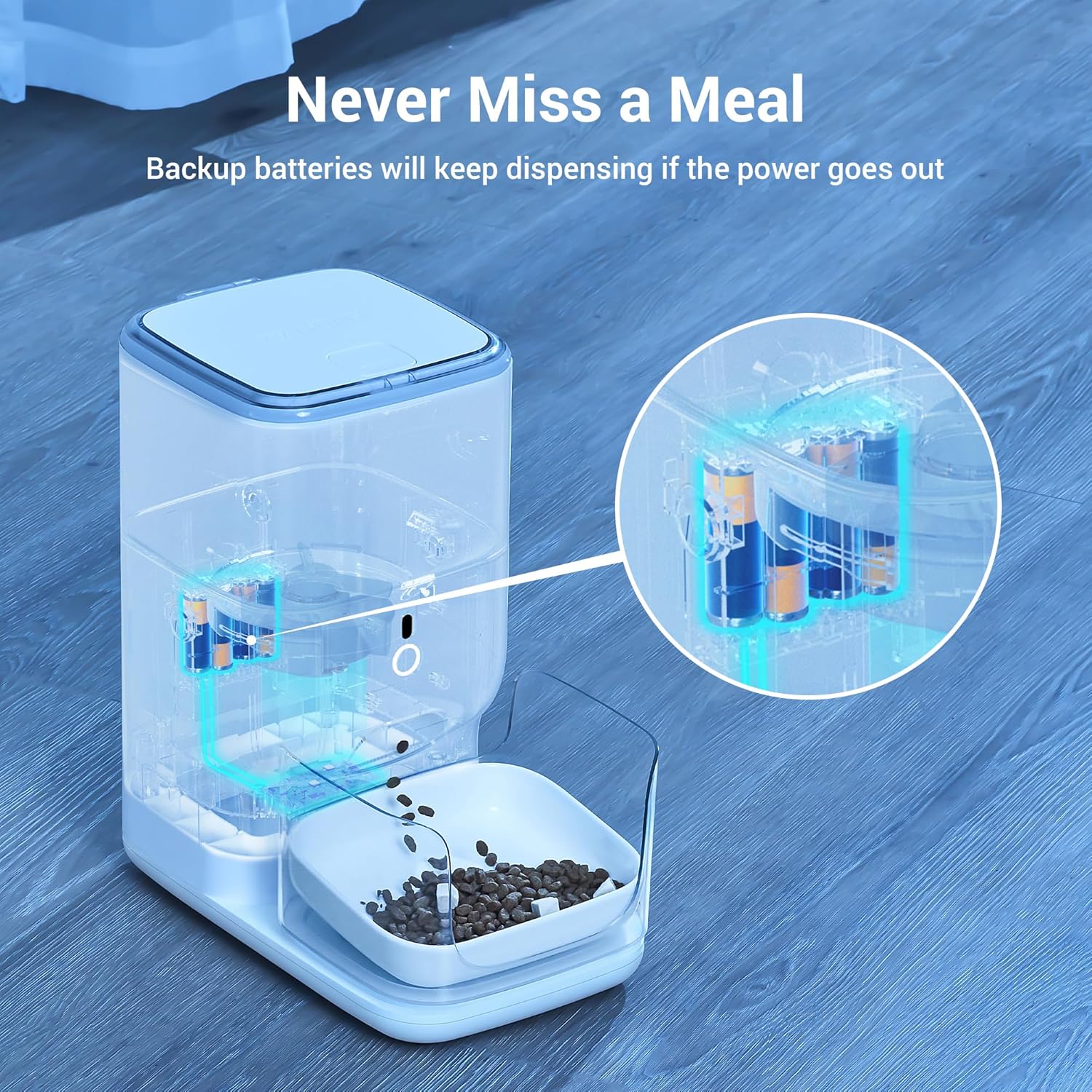
A transparent view of the feeder illustrating the internal battery compartment, indicating where backup batteries can be installed to ensure continuous operation during power outages.
4.3 Ngwa nbudata na njikọ
- Download the 'CATLINK' app from your smartphone's app store (available for Android and iOS).
- Mepee ngwa ahụ ma soro ntuziaka na ihuenyo ka ịmepụta akaụntụ ma ọ bụ banye.
- Add your CATLINK F04 Pro feeder to the app by selecting 'Add Device' and following the pairing process. Ensure your phone is connected to a 2.4GHz Wi-Fi network during setup.
- Update the app and feeder firmware to the newest version for optimal performance.
Visual instructions detailing the steps to enable and configure the 'RFID-Auto' mode on the CATLINK Fresh 2 feeder, including app updates and collar pairing.
4.4 RFID Tag Ijikọta
- Attach an RFID identification tag to each cat's collar.
- Within the CATLINK app, navigate to the feeder settings and follow the instructions to pair each RFID tag with a specific cat profile. This enables multi-cat recognition and personalized feeding.
5. Ọrụ
5.1 Ijupụta Tankị nri
- Press the lid of the tank and then pull it up to open.
- Pour dry kibble or freeze-dried food into the tank. Ensure the kibble diameter does not exceed 15mm to prevent jamming.
- Close the lid securely to maintain food freshness.
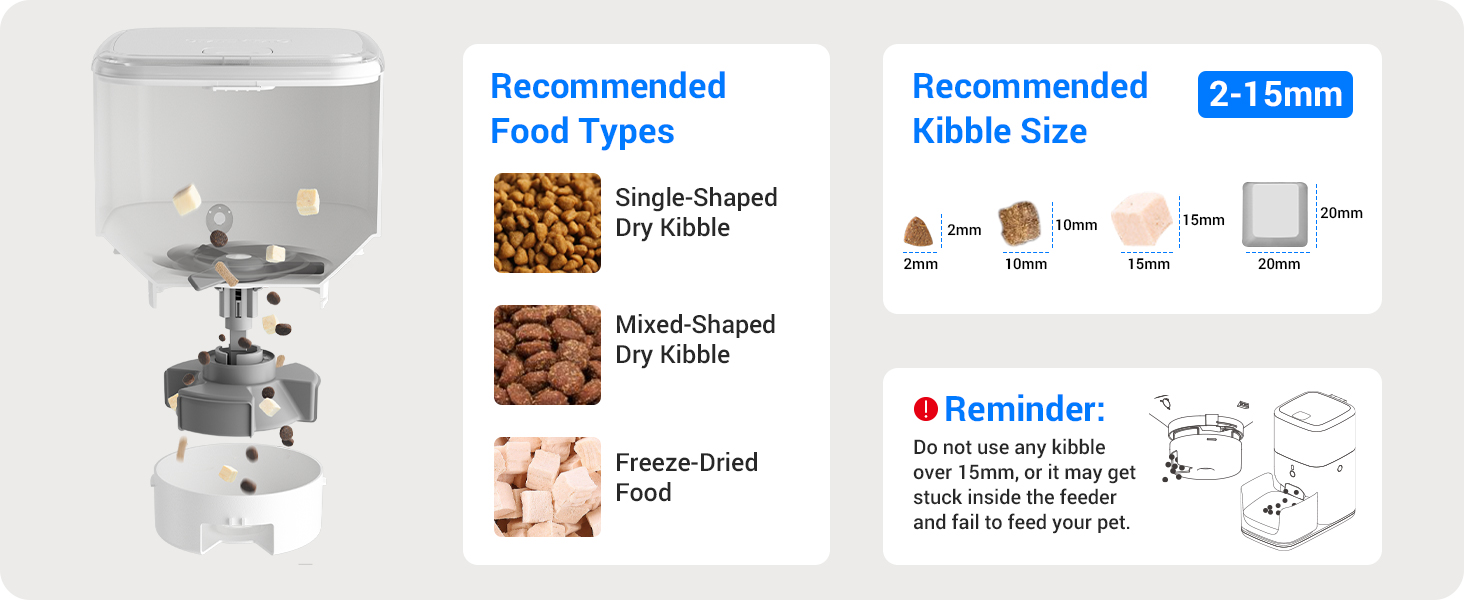
A diagram illustrating recommended food types (single-shaped dry kibble, mixed-shaped dry kibble, freeze-dried food) and acceptable kibble sizes (2-15mm) for the feeder.
5.2 App Control and Scheduling
The CATLINK app provides full control over your feeder:
- Remote Feeding: Dispense food manually from anywhere using the app.
- Atụmatụ nri: Set up customized feeding schedules with specific times and portion sizes for each cat.
- Akụkọ Ahụike: Monitor your cat's eating habits and view detailed health reports based on their food intake.
- Multi-cat Recognition: Manage feeding for multiple cats, ensuring each receives their designated portion.

The app interface displaying scheduled feeding times and corresponding portion sizes, demonstrating the feeder's automated meal delivery capabilities.

A smartphone screen displaying health reports for multiple cats, including diet and duration metrics, highlighting the multi-cat recognition feature.
5.3 RFID Feeding Mechanism
When a cat wearing an RFID collar approaches the feeder, the feeder recognizes the tag and dispenses the pre-set portion for that specific cat. This ensures personalized feeding in multi-cat households.
5.4 Button Lock Feature
The feeder includes a button lock feature to prevent pets from accidentally or intentionally dispensing food. Activate this feature via the app to secure the feeder's controls.
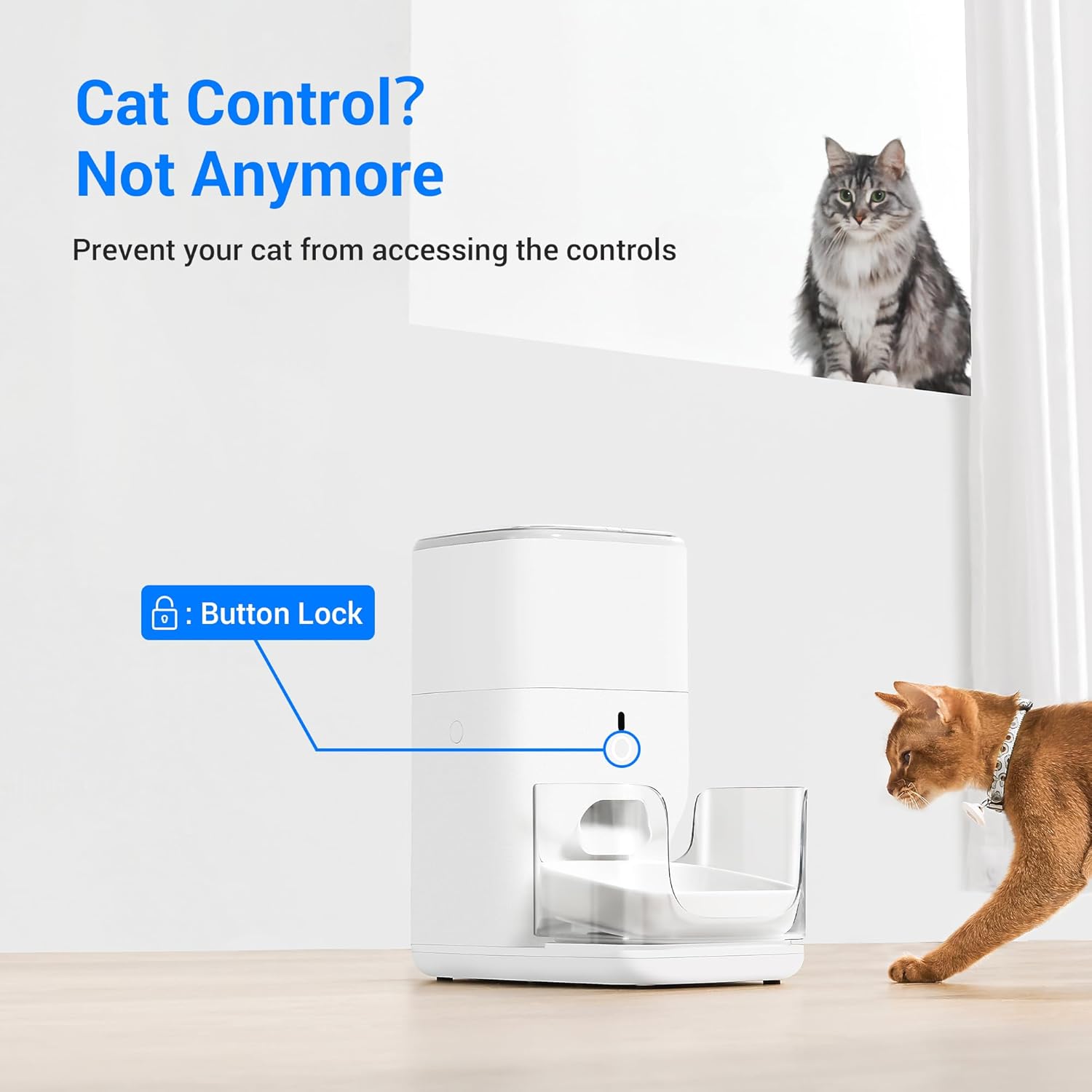
The feeder unit with a visual indicator pointing to the control button, labeled 'Button Lock', demonstrating the feature designed to prevent accidental activation by pets.
6. Nlekọta
6.1 Ntuziaka nhicha
Regular cleaning is essential for hygiene and proper functioning. All parts of the feeder, except the base unit (which contains electronics), are washable.
- Unplug the feeder from the power outlet.
- Remove the food tank, food bowl, and lid.
- Wash these removable parts with mild soap and water. Rinse thoroughly and dry completely before reassembling.
- Jiri mgbasa ozi hichapụ ngalaba ntọalaamp cloth. Do not submerge the base unit in water.
A step-by-step diagram illustrating the four simple steps to disassemble the feeder for cleaning, emphasizing that all parts except the base can be washed.
6.2 Desiccant Bag Replacement
The desiccant bag helps absorb moisture and keep food fresh. Replace the desiccant bag periodically (e.g., every 1-2 months) to ensure optimal food preservation.
6.3 Food Freshness Features
The feeder is designed with multiple features to maintain food freshness:
- Eriri akara: A top cover seal isolates air, guaranteeing dry and fresh food in the tank.
- Sealing Outlet: The unique sealed revolving door automatically closes after each feeding to prevent dust and maintain freshness.
Images demonstrating the proper method to open the feeder's lid by pressing and pulling, and a close-up of the durable nylon braided power cable designed to prevent pet chewing.
7. Nchọpụta nsogbu
| Nsogbu | Ihe nwere ike ime | Ngwọta |
|---|---|---|
| Feeder not connecting to Wi-Fi. | Incorrect Wi-Fi password, 5GHz network, temporary network issue. | Ensure you are connecting to a 2.4GHz Wi-Fi network. Double-check the password. Try restarting your router and the feeder. Patience may be required, as some users report it connects after multiple attempts. |
| RFID not recognizing cat or dispensing food. | RFID tag not properly attached/paired, cat not close enough, rapid re-triggering. | Ensure the RFID tag is securely attached to the collar and correctly paired in the app. Make sure the cat is positioned directly in front of the feeder. If testing, note that the feeder may have a short delay (a few minutes) before dispensing again after a recent RFID activation to prevent overfeeding. |
| Food not dispensing. | Food tank empty, kibble jammed, dispenser mechanism blocked. | Check if the food tank is empty and refill if necessary. Ensure kibble size is within 2-15mm. Clean the dispenser mechanism to remove any blockages. Check the app for any error notifications. |
| App alerts for abnormal diet. | Changes in cat's eating habits, feeder malfunction. | Review the health report in the app for detailed information. Observe your cat's behavior. If concerns persist, consult a veterinarian. Check feeder for proper operation. |
For further assistance, refer to the detailed information within the CATLINK app or contact customer support.
8. Nkọwapụta
| Njirimara | Nkọwa |
|---|---|
| Ụdị | CATLINK |
| Aha Nlereanya | F04 PRO |
| Nọmba Nlereanya ihe | CL-FD-01 |
| Ike | 4 Liters (approx. 4.4 lbs of dry food) |
| Akụkụ (L x W x H) | 16 x 15 x 9 sentimita asatọ |
| Agba | Ọcha |
| Nha Kibble akwadoro | 2-15 mm dayameta |
| Atụmatụ pụrụ iche | Automatic, RFID Multi-cat Recognition, App Control, Health Reports, Timed Feeding, Freshness Seals, Button Lock |
| Isi Iyi Ike | Power Cable, Optional D-cell Battery Backup |
| Ụdị ebumnuche | Nwamba |
| Akwadoro ojiji | Ime ụlọ |
9. Akwụkwọ ikike na nkwado
9.1 Ozi akwụkwọ ikike
The CATLINK RFID Automatic Cat Feeder (Model F04 Pro) comes with a Akwụkwọ ikike nke afọ 1 site na ụbọchị ịzụrụ. Akwụkwọ ikike a na-ekpuchi ntụpọ nrụpụta na adịghị arụ ọrụ n'okpuru ojiji nkịtị. Biko dowe ihe akaebe nke ịzụrụ ihe maka akwụkwọ ikike.
9.2 Nkwado ndị ahịa
For technical support, troubleshooting assistance, or warranty inquiries, please contact CATLINK customer service. Contact details can typically be found on the official CATLINK website or within the CATLINK mobile application.


