Okwu mmalite
Thank you for choosing the Mars Gaming MC-REV ATX Gaming Case. This manual provides essential information for the proper installation, operation, and maintenance of your new PC case. The MC-REV is designed for high-performance gaming systems, featuring a revolutionary airflow system, double tempered glass panels, and support for vertical GPU installation.
Please read this manual carefully before beginning the assembly process to ensure optimal performance and longevity of your components.
Njirimara ngwaahịa
- Dual Seamless Tempered Glass Panels: Nwee ọmarịcha panoramic view of your build with frameless, screwless tempered glass panels, allowing easy access and an impressive aesthetic.
- Revolutionary Airflow System: Three 120mm ARGB fans are strategically tilted at a 25° angle to direct cool air directly to the GPU and motherboard, ensuring efficient heat dissipation.
- Compatibility with Reverse Port Motherboards: Designed to support motherboards with reverse connectors for optimized cable management and improved internal aesthetics.
- Vertical GPU Mounting System: A dedicated steel structure allows for vertical installation of your graphics card, enhancing visual appeal and airflow (optional riser cable not included).
- Advanced Connectivity & ARGB Hub: Features a lower control panel with USB-C, USB 3.0, USB 2.0, HD audio, and microphone ports. An integrated ARGB hub with RF remote control allows for customizable lighting effects and fan speed adjustments, with motherboard synchronization capability.
- Ike kacha: Supports ATX, MicroATX, and Mini-ITX motherboards, GPUs up to 420mm, CPU coolers up to 157mm, and liquid cooling up to 360mm. Includes internal bays for 2 x HDD 3.5" + 1 x SSD 2.5" or 1 x HDD 3.5" + 2 x SSD 2.5".
Ntọala na nwụnye
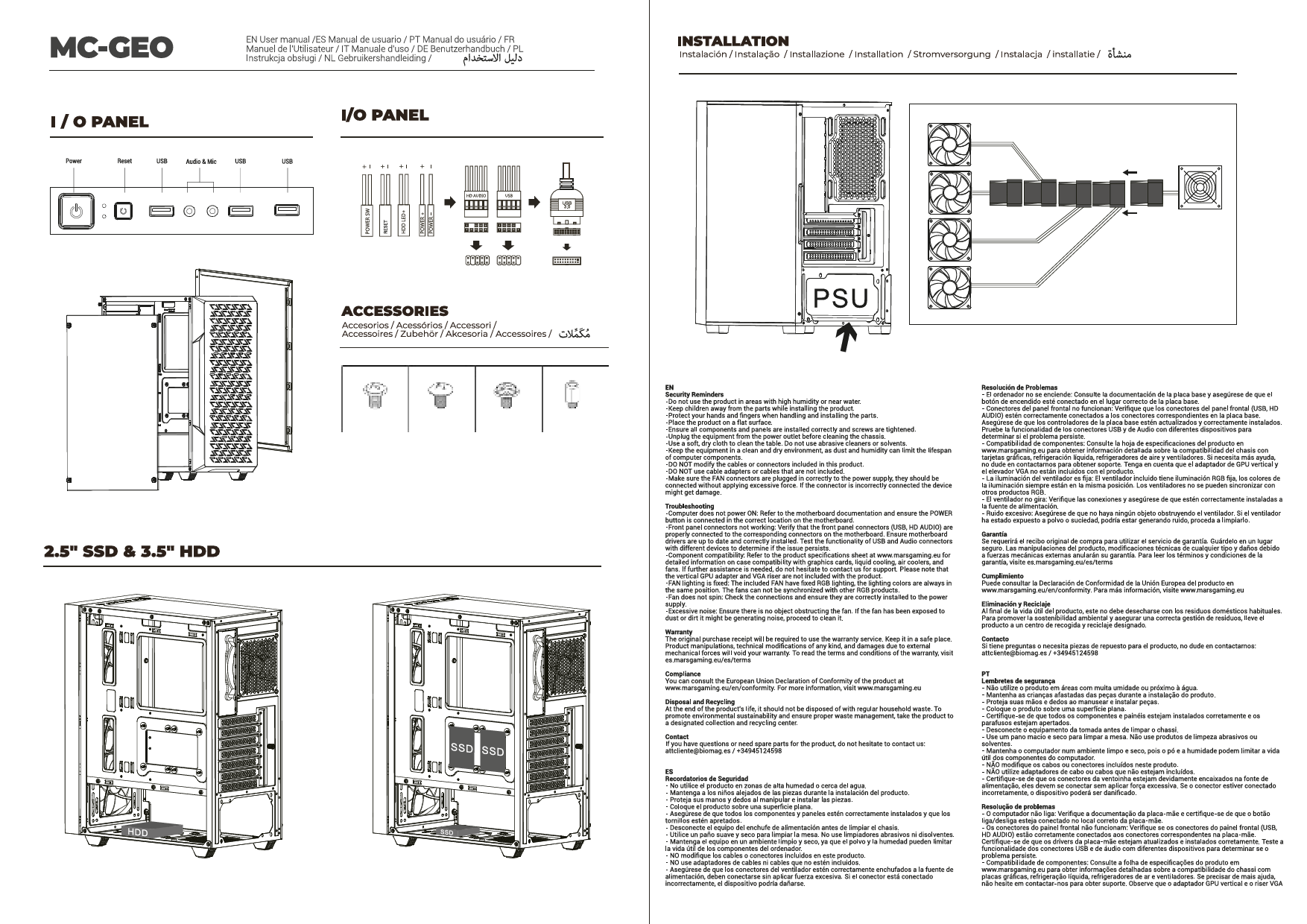
Safety First: Always disconnect the power supply from the wall outlet before installing or removing any components. Wear an anti-static wrist strap to prevent electrostatic discharge (ESD) damage to your components.
1. Mwepu na nyocha
Carefully remove the MC-REV case from its packaging. Inspect the case for any signs of damage during transit. Report any damage to your retailer immediately.
2. Iwepụ Ogwe Akụkụ
The MC-REV features screwless tempered glass panels. Gently lift and remove the side panels to access the interior for component installation.
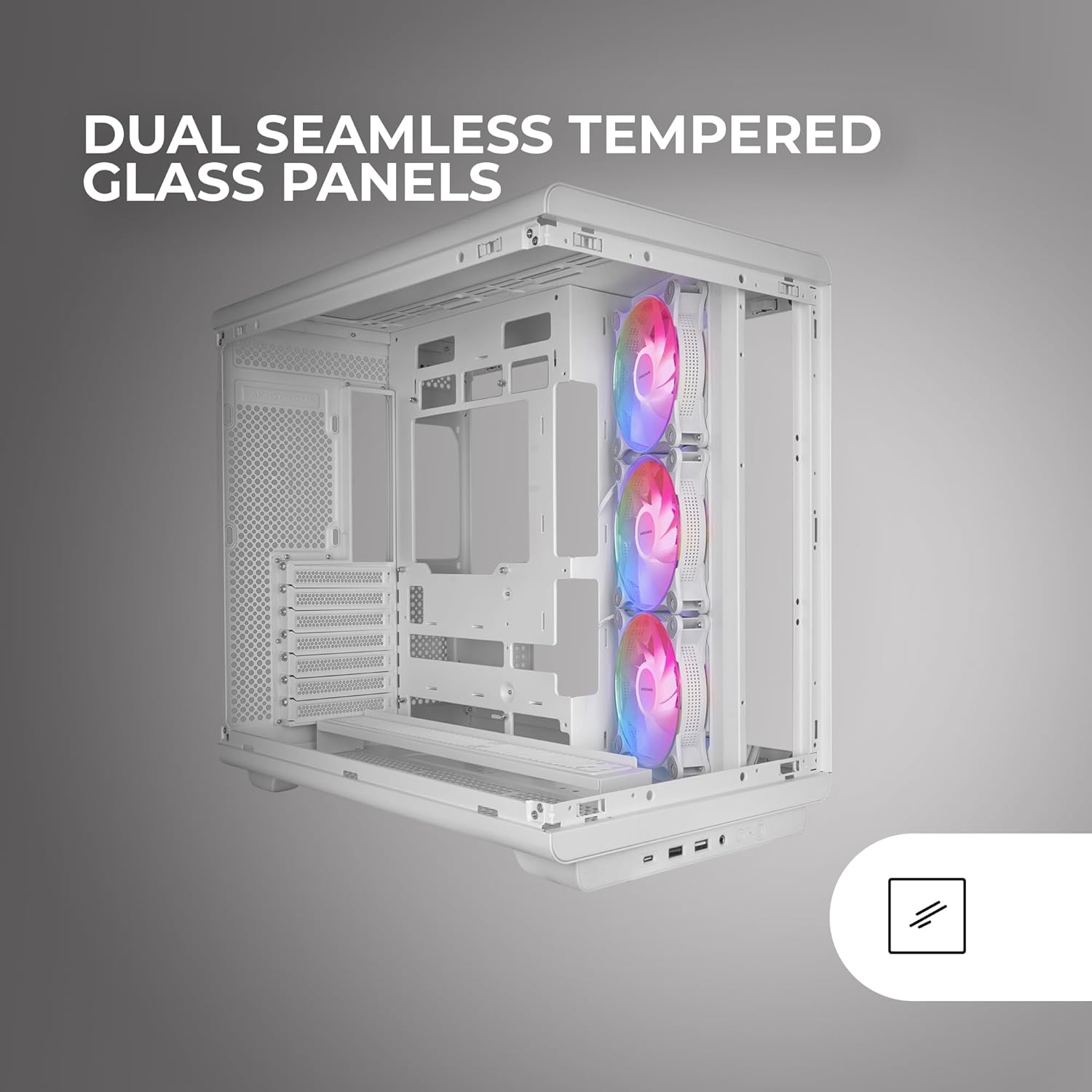
Image: The Mars Gaming MC-REV PC case with its dual seamless tempered glass panels removed, providing a clear view of the internal structure and component mounting areas.
3. Nwụnye motherboard
- Identify the correct standoffs for your ATX, MicroATX, or Mini-ITX motherboard. Install any necessary standoffs if they are not pre-installed.
- Carefully place your motherboard onto the standoffs, aligning the screw holes.
- Chekwaa motherboard site na skru ndị enyere.
- If using a reverse port motherboard, ensure all connectors are routed through the designated cutouts for optimal cable management.

Foto: nkọwa zuru ezu view of a motherboard installed in the MC-REV case, demonstrating the compatibility with back-connect motherboards and the clean routing of power and data cables behind the motherboard tray.
4. Nwụnye kaadị eserese (GPU).
- Standard Horizontal Installation: Remove the necessary PCIe slot covers. Insert your GPU into the primary PCIe slot on your motherboard and secure it with screws.
- Nwụnye kwụ ọtọ: The MC-REV supports vertical GPU mounting. Install your graphics card into the vertical mounting bracket. Note: A PCIe riser cable is required for vertical GPU installation and is not included with the case. Secure the bracket to the case.

Image: The interior of the Mars Gaming MC-REV PC case, featuring a graphics card mounted vertically, showcasing the dedicated vertical GPU mounting system and the illuminated ARGB fans.
5. Nchekwa mbanye nwụnye
- Locate the internal drive bays for 3.5" HDDs and 2.5" SSDs.
- Mount your drives into the appropriate bays and secure them with screws.
6. Nrụnye Ike Ike (PSU).
Install your PSU into the designated compartment, typically at the bottom rear of the case. Secure it with screws from the rear of the case. Route all necessary power cables through the cable management cutouts.
7. Fan and Liquid Cooling Installation
The MC-REV comes with three pre-installed 120mm ARGB fans. Additional fans (up to 10 total 120mm fans) or liquid cooling radiators (up to 360mm) can be installed in various locations. Refer to the case's specifications for supported mounting points.
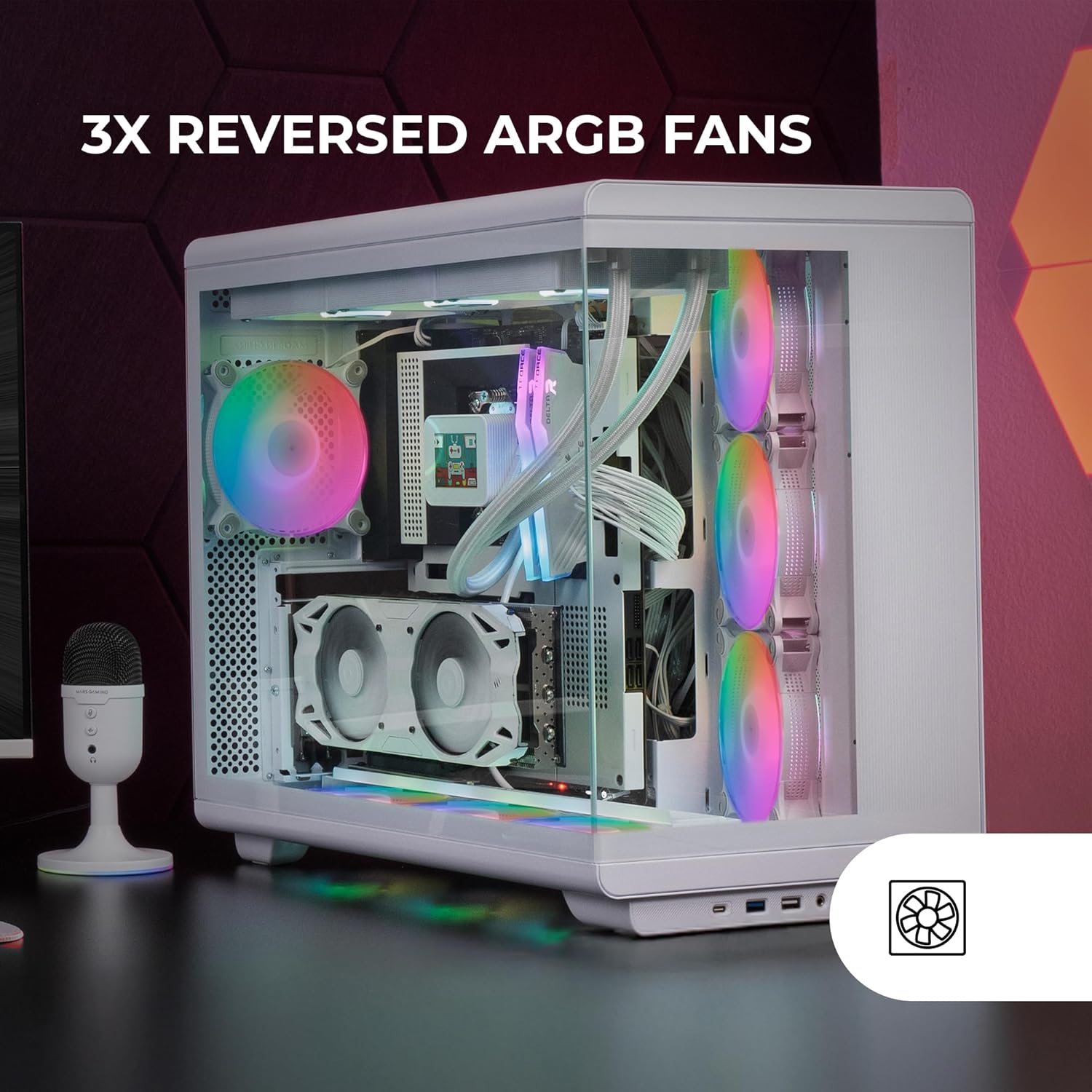
Image: The interior of the Mars Gaming MC-REV PC case, highlighting the three reversed ARGB fans with their vibrant illumination, designed for optimal airflow.
8. Connecting Front Panel I/O
Connect the cables from the case's front panel (USB-C, USB 3.0, USB 2.0, HD Audio, Microphone, Power, Reset) to the corresponding headers on your motherboard. Refer to your motherboard manual for header locations.
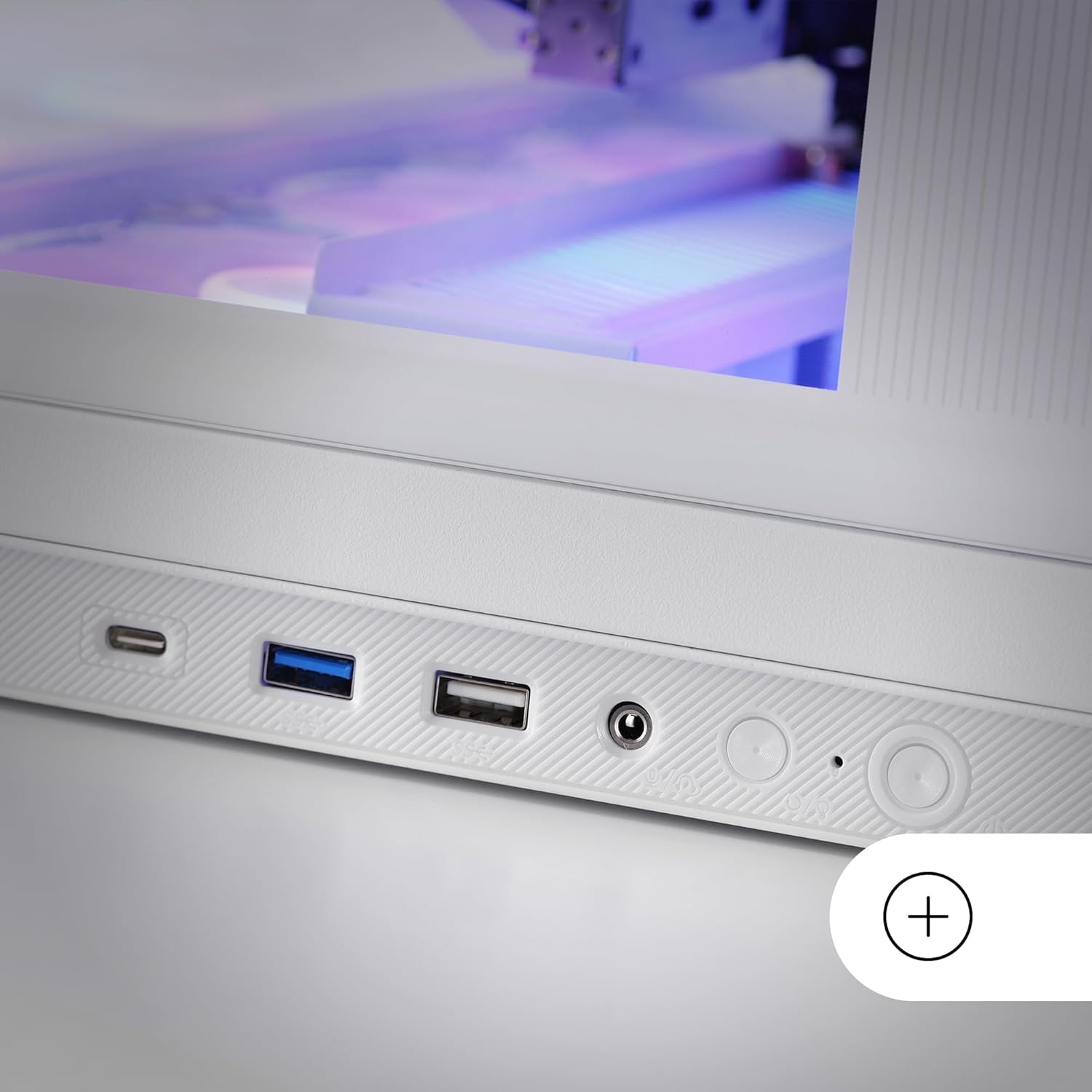
Image: A close-up of the lower control panel on the Mars Gaming MC-REV PC case, showing the USB-C, USB 3.0, USB 2.0, HD audio, and microphone ports.
9. ARGB Hub Connection
Connect the integrated ARGB hub to your power supply and, if desired, to your motherboard's ARGB header using the included connection cable for software synchronization.
10. Njikwa USB
Utilize the double chamber structure and cable routing channels behind the motherboard tray to organize and secure all cables. This improves airflow and maintains a clean interior aesthetic.
11. Reinstalling Side Panels
Once all components are installed and cables are managed, carefully reattach the tempered glass side panels.
Ntuziaka ọrụ
Na-agbanye ike
After ensuring all connections are secure and the power supply is switched on, press the power button located on the front I/O panel to start your system.
Njikwa ọkụ ARGB
- Njikwa anya RF: Use the provided RF remote control to cycle through various ARGB lighting effects, adjust brightness, and change fan speeds for the connected fans.
- Mmekọrịta Motherboard: If the ARGB hub is connected to your motherboard's ARGB header, you can control the lighting effects and fan speeds through your motherboard's proprietary RGB software (e.g., ASUS Aura Sync, MSI Mystic Light, Gigabyte RGB Fusion).
Nlekọta
Na-ehicha ikpe ahụ
- Mputa: Jiri nwayọọ, damp ákwà iji hichaa elu mpụta. Zere iji ihe nhicha ihe nhicha.
- Ogwe iko ekpo ọkụ: Clean with a glass cleaner and a microfiber cloth to avoid streaks.
- Ihe nzacha uzuzu: Periodically remove and clean the dust filters (if present) to maintain optimal airflow and prevent dust buildup inside the case.
Nchacha ime
Every few months, or as needed, open the case and use compressed air to remove dust from fans, heatsinks, and other components. Ensure the system is powered off and unplugged before performing internal cleaning.
Nchọpụta nsogbu
- Sistemụ anaghị arụ ọrụ:
- Check all power connections from the PSU to the motherboard and components.
- Ensure the power button cable is correctly connected to the motherboard header.
- Verify the PSU switch is in the "ON" position.
- Ndị Fans Anaghị Agbagharị / ARGB Anaghị Agbagharị:
- Ensure all fans are properly connected to the ARGB hub or motherboard headers.
- Verify the ARGB hub is receiving power.
- If using motherboard sync, check your motherboard's RGB software settings.
- Test the RF remote control's battery (1 AAAA battery included).
- Ọdụ ụgbọ mmiri USB anaghị arụ ọrụ:
- Check if the front panel USB cables are securely connected to the correct headers on your motherboard.
- Jacks ọdịyo anaghị arụ ọrụ:
- Ensure the HD Audio cable from the front panel is correctly connected to the motherboard's audio header.
For issues related to specific internal components (CPU, GPU, RAM, etc.), please refer to their respective manuals or manufacturer support.
Nkọwapụta
| Njirimara | Nkọwa |
|---|---|
| Aha Nlereanya | MCREVW |
| Ụdị | Ịgba egwu Mars |
| Ụdị ikpe | Ụlọ elu ATX |
| Ndakọrịta Motherboard | ATX, Micro ATX, Obere ITX |
| Ihe onwunwe | Igwe ọkụ, Steel |
| Agba | Ọcha |
| Akụkụ (LxWxH) | 16.65 x 17.44 x 10.94 sentimita (423 x 443 x 278 mm) |
| Ibu Ibu | 15.09 pound (6.86 n'arọ) |
| Nchapụta Ogologo Ogologo GPU | Ruo 420 mm |
| GPU Width Clearance | Ruo 147 mm |
| Nchapụta elu CPU cooler | Ruo 157 mm |
| Oghere Mgbasawanye | 7 |
| Ụgbọ okporo ígwè | 2 x HDD 3.5" + 1 x SSD 2.5" or 1 x HDD 3.5" + 2 x SSD 2.5" |
| Ndị Fans etinyegoro mbụ | 3 x 120mm ARGB (Inverse Airflow) |
| Nkwado ndị fan | Ihe ruru 10 x 120mm fan |
| Nkwado Nkwado Mmiri Liquid | Up to 360mm radiator |
| N'ihu I / O Ports | 1 x USB-C, 1 x USB 3.0, 1 x USB 2.0, HD Audio, Microphone |
| Atụmatụ pụrụ iche | Double Tempered Glass, Vertical GPU Support, ARGB Hub with RF Remote, Reverse Port Motherboard Compatibility |
| Batrị njikwa anya | 1 x AAAA battery (included) |
Akwụkwọ ikike na nkwado
Mars Gaming products are manufactured to high-quality standards. For warranty information and technical support, please refer to the official Mars Gaming websaịtị ma ọ bụ kpọtụrụ onye na-ere ahịa mpaghara gị.
Debe ihe akaebe nke ịzụrụ ihe maka akwụkwọ ikike.
Official Brand Websaịtị: Ịgba egwu Mars