1. Okwu mmalite
Welcome to the TABWEE T80 Tablet user manual. This guide provides comprehensive instructions to help you get the most out of your new Android 15 tablet. The T80 is designed for a seamless and powerful user experience, featuring advanced AI capabilities, a vibrant display, and robust performance for both work and entertainment.
Akụkụ ndị bụ isi:
- Sistemụ arụmọrụ Android 15: Experience the latest features and security enhancements.
- Gemini AI 2.0: Enhanced AI for smarter interactions and controls.
- 10.5-inch HD+ IPS Display: Enjoy clear and vibrant visuals with a wide viewakụkụ n'akuku.
- Arụmọrụ siri ike: Equipped with a 2.0GHz CPU, 12GB RAM, and 64GB ROM (expandable up to 2TB via TF card).
- Batrị na-adịte aka: 6000mAh mega battery for extended use.
- Njikọ dị elu: Supports 5G WiFi and Bluetooth 5.0.
- 5MP Google Lens Camera: For clear photos and smart scene recognition.

Figure 1.1: The TABWEE T80 Tablet, showcasing ya sleek imewe na ngosi.
2. Nhazi
2.1 Unboxing na ụgwọ mbụ
Carefully remove your TABWEE T80 Tablet from its packaging. Before first use, it is recommended to fully charge the device using the provided USB-C cable and power adapter. The charging port is located on the side of the tablet.
2.2 Ịgbanye na nhazi mbido
- Press and hold the Power button (located on the side) until the TABWEE logo appears on the screen.
- Soro mkpali na ihuenyo ka ịhọrọ asụsụ gị, jikọọ na netwọk Wi-Fi, wee guzobe akaụntụ Google gị.
- Review ma nabata usoro na ọnọdụ iji mezue usoro ntọala ahụ.

Onyonyo 2.1: Ofefeview of the TABWEE T80's core specifications and features.
3. Na-arụ ọrụ mbadamba nkume
3.1 Android 15 Features
Your TABWEE T80 runs on the latest Android 15, offering enhanced user experience, improved privacy, and smart features.
Split-Screen Combo
The split-screen feature allows you to run two applications simultaneously, enhancing multitasking and productivity. You can easily save app pairs for quick access.
Video 3.1: Demonstrates how to use the split-screen feature to run two applications concurrently on the TABWEE T80 tablet.
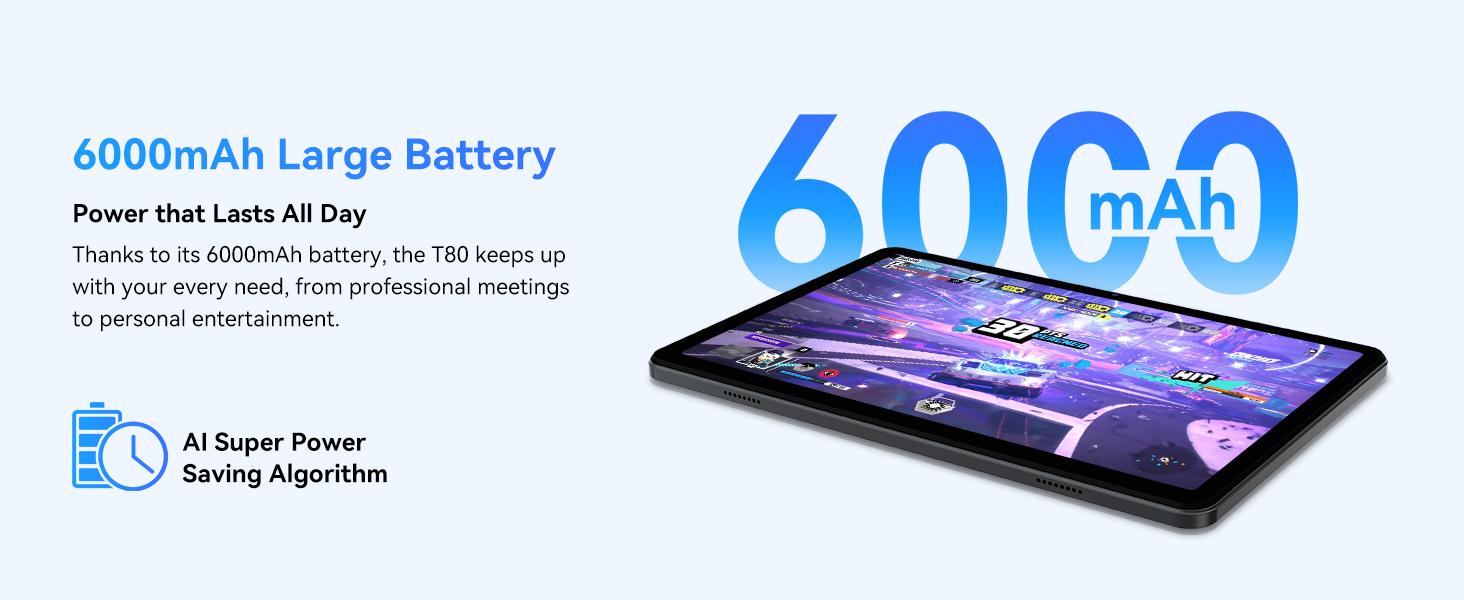
Figure 3.1: Visual representation of the split-screen functionality, allowing for efficient multitasking.
Desktop Customization and Widgets
Personalize your home screen by dragging and grouping apps freely. You can also add various widgets, such as the calendar, to quickly access information and tasks.
Video 3.2: Illustrates how to customize your desktop layout and add widgets for quick access to information.
Njikwa nzuzo
Android 15 offers enhanced privacy controls, allowing you to manage app permissions and secure your data. You can block app access to sensitive information like location.
Video 3.3: Shows how to manage privacy settings and control app access to your data on the TABWEE T80.
Parental Controls with Gemini AI
Utilize Gemini AI parental controls to manage screen time, automatically lock games during homework, and ensure a safe digital environment for children.
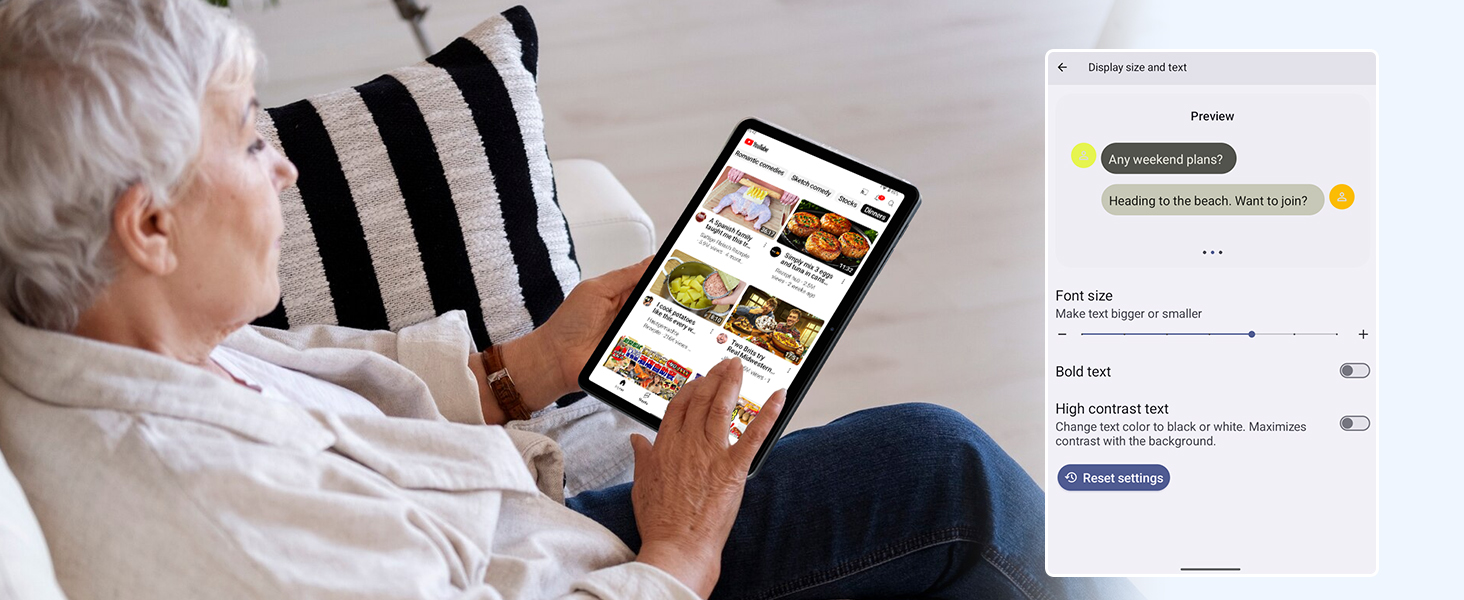
Figure 3.2: The Digital Wellbeing interface, demonstrating options for managing screen time and parental controls.
3.2 Ngosipụta na ihe ngosi
The 10.5-inch HD+ IPS display provides a clear and immersive viewing experience with a 1280x800 resolution and 84.9% screen-to-body ratio. It's ideal for watching videos, browsing, and reading.

Figure 3.3: Details of the tablet's display, highlighting its resolution and IPS full view ike.
3.3 Arụmọrụ na Nchekwa
Powered by a 2.0GHz Unisoc T310 CPU and 12GB RAM (expandable via software memory extension), the T80 ensures smooth multitasking and responsive performance. With 64GB of internal storage and support for up to 2TB TF cards, you have ample space for all your files, apps, and media.

Figure 3.4: Illustration of the tablet's processing power and memory, enabling seamless multitasking and productivity.
3.4 Ndụ batrị
The 6000mAh mega battery provides extended usage, offering up to 8 hours of video streaming, 6 hours of gaming, or 30 hours of music playback. Smart power-saving modes further optimize battery longevity.

Figure 3.5: Depiction of the tablet's large 6000mAh battery and its USB-C charging port.
3.5 Akụkụ igwefoto
The T80 features a 5MP Google Lens enabled camera. This allows for scene recognition, night mode optimization, and useful functions like text translation and object identification.

Onyonyo 3.6: Ofefeview of the tablet's camera and its integration with Google Lens for smart functions.
4. Nlekọta
To ensure the longevity and optimal performance of your TABWEE T80 Tablet, follow these maintenance guidelines:
- Nhicha: Jiri akwa dị nro na-enweghị lint hichaa ihuenyo na ahụ. Zere ihe na-emebi emebi ma ọ bụ kemịkalụ siri ike.
- Mmelite ngwanrọ: Na-enyocha ma wụnye mmelite sistemụ mgbe niile iji rite uru na atụmatụ kachasị ọhụrụ, ihe mkpuchi nchekwa, na mmezi arụmọrụ.
- Nlekọta batrị: Avoid extreme temperatures. Do not let the battery fully drain frequently. For long-term storage, charge the battery to about 50%.
- Njikwa nchekwa: Na-ekpochapụ oge ụfọdụ na-adịghị mkpa files na ngwa iji mee ka ohere nchekwa dị mfe ma nọgide na-arụ ọrụ nke ọma.
- Nchedo: Tụlee iji ihe nchebe na ihe nchekwa ihuenyo chebe megide ọdịda na ncha.
5. Nchọpụta nsogbu
This section addresses common issues you might encounter with your TABWEE T80 Tablet.
5.1 Ngwaọrụ anaghị agba ọkụ
- Lelee batrị: Ensure the tablet has sufficient charge. Connect it to the charger and wait a few minutes before attempting to power on again.
- Ntọgharị siri ike: Press and hold the Power button for about 10-15 seconds until the device restarts.
5.2 Okwu Njikọta Wi-Fi
- Gbanwee Wi-Fi: Turn Wi-Fi off and then on again in Settings.
- Malitegharịa ekwentị rawụta: Gbanye rawụta Wi-Fi gị n'ọkụ.
- Chezọ netwọk: Go to Wi-Fi settings, forget the problematic network, and then reconnect.
5.3 Ịrụ ọrụ nwayọ
- Mechie ngwa ndabere: Mechie ngwa ejighi ya na-agba n'azụ.
- Kpochapụ cache: Regularly clear app caches in Settings > Apps.
- Nchekwa Efu: Hichapụ adịghị mkpa files or uninstall rarely used apps.
- Malitegharịa ngwaọrụ: A simple restart can often resolve temporary slowdowns.
5.4 Ngwa na-adakpọ ma ọ bụ anaghị aza
- Force Stop App: Go to Settings > Apps, select the problematic app, and choose 'Force Stop'.
- Clear App Data/Cache: In the same app settings, try clearing its cache or data (note: clearing data will reset the app to its default state).
- Tinyegharịa ngwa: Uninstall and then reinstall the app from the Google Play Store.
6. Nkọwapụta
Detailed technical specifications for the TABWEE T80 Tablet:
| Njirimara | Nkọwapụta |
|---|---|
| Ụdị | TABWEE |
| Aha Nlereanya | T80 |
| Sistemụ nrụọrụ | Android 15 |
| Nha ihuenyo | 10.5 sentimita asatọ |
| Mkpebi ihuenyo | 1280 x 800 pikselụ |
| Nhazi | 2.0 GHz Unisoc T310 |
| Ebe nchekwa (RAM) | 12 GB |
| Nchekwa (ROM) | 64 GB |
| Nchekwa enwere ike ịgbasa | Ruo 2TB TF Kaadị |
| N'azụ Webcam mkpebi | 5 MP |
| Ụdị ikuku | 802.11n, 802.11b, 802.11a, 802.11ac, 802.11g (5G WiFi) |
| Bluetooth | Bluetooth 5.0 |
| Ike batrị | 6000mAh |
| Nkezi Ndụ batrị | Awa 550 (Njikere) |
| Ibu Ibu | 1.1 pound (ihe dị ka gram 523) |
| Akụkụ ngwaahịa | 9.5 x 6.4 x 0.3 sentimita asatọ |
| Agba | Agba ntụ |
7. Akwụkwọ ikike na nkwado
TABWEE is committed to quality and customer satisfaction. Your T80 Tablet comes with comprehensive support to ensure a worry-free experience.
7.1 Ozi akwụkwọ ikike
The TABWEE T80 Tablet is backed by a 2-afọ akwụkwọ ikike. This warranty covers manufacturing defects and ensures free repair service for eligible issues. Please retain your proof of purchase for warranty claims.
7.2 Nkwado ndị ahịa
For any questions, technical assistance, or warranty claims, please contact our dedicated support team:
- 24/7 Online Call Support: Available for immediate assistance.
- Nkwado nka na ụzụ oge ndụ: Expert help whenever you need it.
- Hassle-Free Service: Assistance available through the TABWEE Official Flagship Store.
We are dedicated to providing prompt and effective solutions to all your inquiries.

Figure 7.1: Our dedicated customer support team is ready to assist you.


