1. Okwu mmalite
Daalụ maka ịzụrụasing the YABER U11 Smart Projector. This manual provides essential information for setting up, operating, and maintaining your device. Please read it thoroughly before use to ensure optimal performance and safety.
2. Kedu ihe dị na Igbe ahụ
- YABER U11 Smart Projector
- HDMI USB
- Njikwa anya
- Akwụkwọ ntuziaka onye ọrụ
- Ụdọ ọkụ
- Ihe mkpuchi oghere projector
3. Akụrụngwa Ngwaahịa
- 4K Support with Auto Setup Pro: Enjoy instant clarity with automatic focus and keystone correction. Project flawlessly from various angles (40"-150" screen).
- Smart Hub with Built-in Apps: Stream content from Prime Video, YouTube, MAX, and other apps via the integrated smart projector OS.
- Theater Sound & Bluetooth 5.0: Features 15W stereo speakers for rich audio. Expand sound via Bluetooth 5.0 or wired HDMI/audio-out. Wi-Fi 6 ensures stable 4K streaming.
- Dustproof Cinema Engine: Exclusive sealed optical system protects against dust, extending lifespan and maintaining visual quality.
- Pro Connectivity: Connect gaming consoles, Fire Stick, and Bluetooth speakers via 2x HDMI, 2x USB, and Ethernet ports. Versatile 1.33:1 throw ratio.
4. Ntuziaka Nhazi
4.1 Nhazi anụ ahụ
1. Place the projector on a stable, flat surface or mount it securely. Ensure proper ventilation around the device.
2. Connect the power cord to the projector and then to a power outlet.
3. Remove the lens cover before powering on the projector.

Image: YABER U11 Smart Projector with its lens cover removed, ready for use.
4.2 Nhazi izizi
1. Power on the projector using the power button on the device or the remote control.
2. The projector will automatically perform autofocus and keystone correction for a clear, rectangular image. Manual adjustments can be made via the settings menu if needed.

Image: The YABER U11 Projector showcasing its auto-adjust features, including auto focus, keystone correction, and digital zoom, ensuring a perfectly aligned and clear image.
4.3 Ngwa jikọọ
The YABER U11 offers multiple connectivity options:
- HDMI: Connect gaming consoles, laptops, or streaming devices using an HDMI cable.
- USB: Tinye draịva USB iji kpọọ mgbasa ozi files ozugbo.
- Bluetooth Bluetooth: Pair with external Bluetooth speakers or headphones for enhanced audio.
- Wi-Fi 6: Connect to your home network for high-speed streaming and access to built-in apps.
- Ethernet: Maka njikọ ịntanetị kwụsiri ike.

Foto: N'azụ view of the YABER U11 Smart Projector, highlighting its array of input ports for versatile connectivity.
5. Ntuziaka ọrụ
5.1 Ime Remote
The included remote control allows full navigation of the projector's interface. It features dedicated buttons for popular streaming apps like Netflix, YouTube, and Prime Video, as well as controls for volume, focus, and keystone correction.
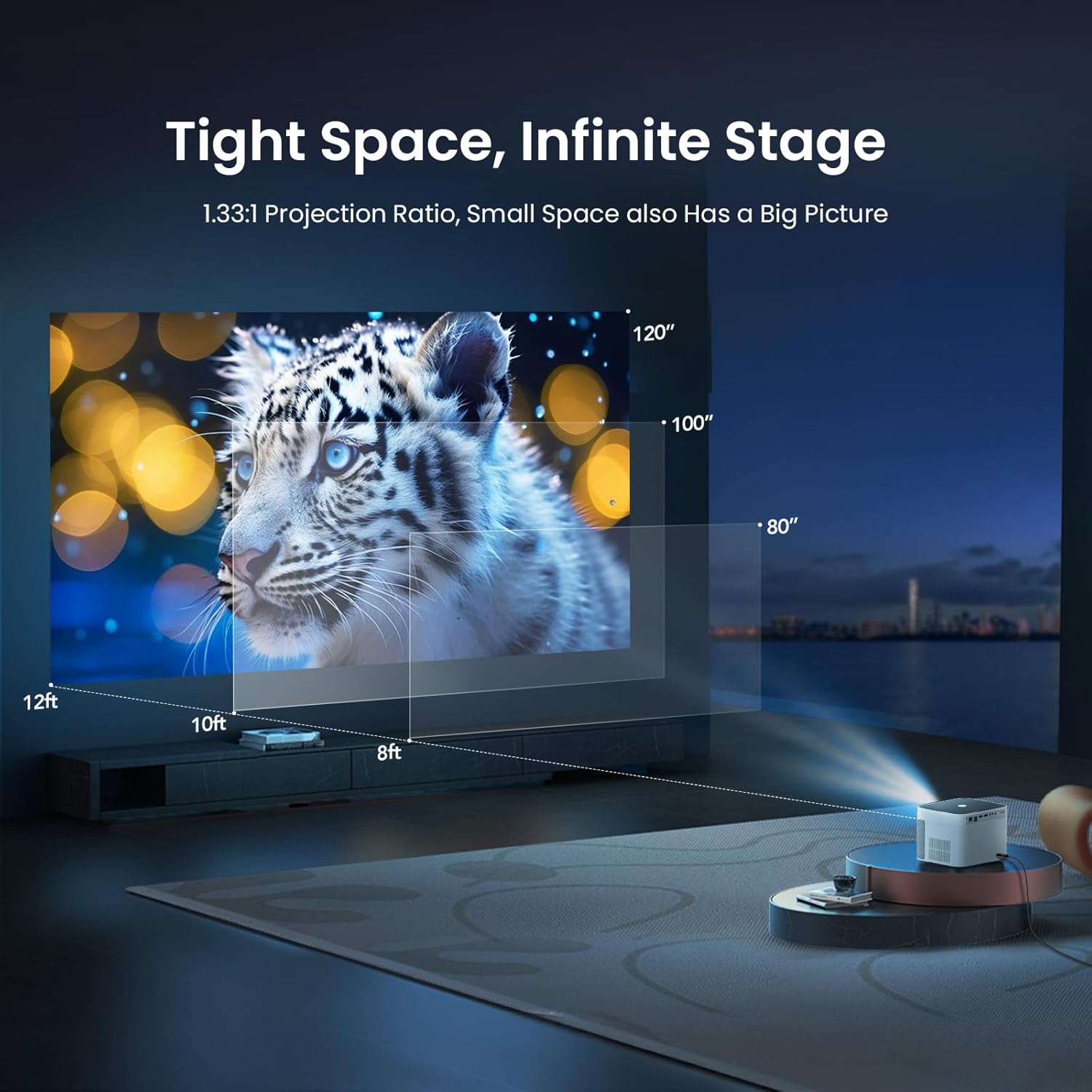
Image: The remote control for the YABER U11 Smart Projector, featuring dedicated buttons for quick access to streaming services and essential functions.
5.2 Navigation and Apps
The YABER U11 runs on a smart OS with a user-friendly interface. Navigate through the home screen to access installed applications, media inputs, and settings. You can download additional apps from the integrated app store.

Image: The YABER U11 Smart Projector's home screen, showcasing its built-in apps and smart interface for easy content access.
5.3 Projection Settings
Access the 'Projection Settings' menu to fine-tune your display. Options include:
- Auto Focus/Keystone: Enable or disable automatic adjustments.
- Igodo okwu n'aka: Adjust the corners of the image manually for perfect alignment.
- Mbugharị dijitalụ: Adjust the size of the projected image without moving the projector.
5.4 Ngosipụta ihuenyo
The YABER U11 supports screen mirroring from compatible devices. Refer to the on-screen instructions within the projector's interface for detailed steps on connecting your smartphone or tablet.
6. Nlekọta
The YABER U11 features a Dustproof Cinema Engine with a sealed optical system to prevent dust accumulation and extend its lifespan. To maintain optimal performance:
- Regularly clean the exterior of the projector with a soft, dry cloth.
- Use the provided cleaning tools to gently clean the lens if necessary. Avoid abrasive materials.
- Ensure the projector's vents are clear of obstructions to prevent overheating.

Image: A diagram highlighting the sealed dust-proof optical engine of the YABER U11 Smart Projector, designed for lifelong clarity.
7. Nchọpụta nsogbu
- Enweghị ike: Ensure the power cord is securely connected and the power outlet is functional.
- Enweghị onyonyo: Check the input source selection. Verify that connected devices are powered on and sending a signal.
- Onyonyo na-adịghị ahụkebe: Allow the auto-focus to complete. If needed, manually adjust focus and keystone in the settings.
- Enweghị ụda: Check the volume level on the projector and any connected audio devices. Ensure the correct audio output is selected.
- Remote anaghị arụ ọrụ: Replace the AAA batteries in the remote control. Ensure there are no obstructions between the remote and the projector.
8. Nkọwapụta
| Njirimara | Nkọwa |
|---|---|
| Akụkụ ngwaahịa | 8.32 x 7.25 x 6.28 sentimita asatọ |
| Ibu Ibu | 5.84 pound |
| Ngosipụta mkpebi | 1920 x 1080 (HD zuru ezu) |
| Nkwado 4K | Ee |
| Teknụzụ Njikọta | 3.5mm Jack, Bluetooth 5.0, HDMI (2x), USB (2x), Wi-Fi 6, Ethernet |
| Atụmatụ pụrụ iche | 280 ISO Lumens, Auto Focus, Auto Screen Alignment, Digital Keystone Correction, Dust-Proof Sealed Optical System |
| Eji akwadoro | Home Cinema, Outdoor Movies |
9. Akwụkwọ ikike na nkwado
YABER offers lifetime technical support for the U11 Smart Projector. For any inquiries or assistance, please contact service@yaber.com. They provide 24-hour customer support and 30-day hassle-free returns.


