1. Okwu mmalite
This manual provides essential information for the proper setup, operation, and maintenance of your Amazon Basics Portable External Solid State Drive (SSD), Model LSPSSD1TB. Please read this manual thoroughly before using the product to ensure optimal performance and longevity.

Foto 1.1: N'ihu view of the Amazon Basics Portable External SSD.
2. Ihe ngwugwu
Hụ na ihe niile edepụtara n'okpuru dị na ngwugwu ngwaahịa gị:
- Amazon Basics Portable External SSD (Model LSPSSD1TB)
- USB-C na eriri USB-C
- USB-C na eriri USB-A
- Akpa nchekwa

Image 2.1: The Amazon Basics Portable External SSD, two USB cables (Type C to C, Type C to A), and a protective storage case.
3. Atụmatụ igodo
The Amazon Basics Portable External SSD offers the following features:
- Ọsọ mbufe ngwa ngwa: Achieves read and write speeds up to 2000MB/s. Actual speeds may vary based on connected devices, file sizes, and operating conditions.
- Nhazi na-adịgide adịgide: Features a compact form factor with a premium metal casing and a scratch-resistant polymer bottom for enhanced durability.
- Nchekwa okpomọkụ: Incorporates an advanced thermal solution to maintain the SSD's temperature below 50°C/122°F, preventing overheating during intensive use.
- IP65 Mmiri na Uzuzu Na-eguzogide: Provides protection against water splashes and dust ingress, suitable for various environments.
- Ndakọrịta sara mbara: Pre-formatted with exFAT for broad compatibility across different operating systems and devices.
- Cables gụnyere: Comes with both USB Type-C to Type-C and USB Type-C to Type-A cables for versatile connectivity.
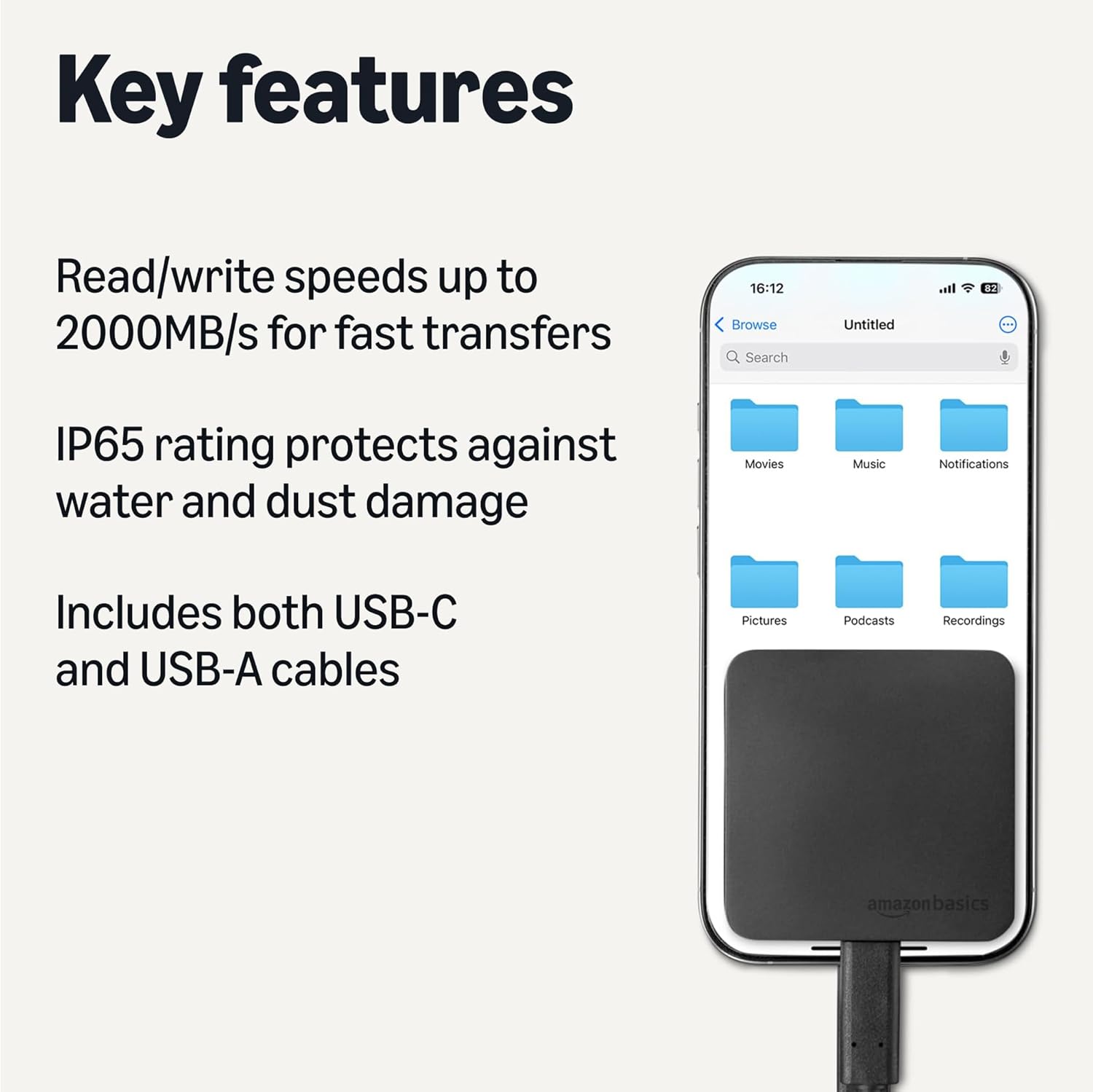
Image 3.1: Visual representation of the SSD's key features, including high transfer speeds, IP65 rating, and included USB-C and USB-A cables.
4. Nhazi
Follow these steps to set up your Amazon Basics Portable External SSD:
- Select the Correct Cable: Choose either the USB-C to USB-C cable or the USB-C to USB-A cable based on the available port on your computer or device.
- Connect to SSD: Plug the USB-C end of the chosen cable into the USB-C port on the Amazon Basics Portable External SSD.
- Jikọọ na ngwaọrụ: Plug the other end of the cable (USB-C or USB-A) into an available port on your computer, laptop, or compatible device. For optimal speeds (up to 2000MB/s), ensure your device supports USB 3.2 Gen 2 and use the appropriate port.
- Nchọpụta ngwaọrụ: The SSD should be automatically recognized by your operating system. It will appear as an external drive.

Image 4.1: The two types of USB cables included for connecting the SSD to various devices.
5. Ntuziaka ọrụ
Once connected, the SSD functions like any other external storage device:
- File Nyefee: Dọrọ na dobe files or folders to and from the SSD. You can also use your operating system's copy/paste functions.
- High-Resolution Video Playback: The high transfer speeds support direct playback of high-resolution video files from the SSD without significant buffering.
- Njikwa okpomọkụ: The SSD is designed to manage its temperature effectively. If the device feels warm during prolonged heavy use, this is normal and indicates the thermal solution is active.
- Mgbapụ adịghị mma: Always safely eject the SSD from your operating system before disconnecting the cable to prevent data corruption.
6. Nlekọta
To ensure the longevity and optimal performance of your SSD:
- Nhicha: Use a soft, dry cloth to clean the exterior of the SSD. Avoid abrasive cleaners or solvents.
- Nchekwa gburugburu: While IP65 rated for water and dust resistance, avoid submerging the device in water or exposing it to extreme temperatures.
- Nchekwa: When not in use, store the SSD in its included protective case to prevent physical damage.
- Mmelite femụwe: Periodically check the Amazon Basics support website for any available firmware updates for your SSD model.
7. Nchọpụta nsogbu
If you encounter issues with your Amazon Basics Portable External SSD, refer to the following common problems and solutions:
| Nsogbu | Ihe nwere ike ime | Ngwọta |
|---|---|---|
| SSD not recognized by device | Loose cable connection, incompatible port, driver issue. | Ensure cables are securely connected. Try a different USB port or cable. Restart your device. Check device manager for driver status. |
| Ọsọ mbufe nwayọ | Using a slower USB port (e.g., USB 2.0 instead of USB 3.2 Gen 2), background processes, fragmented files. | Connect to a USB 3.2 Gen 2 compatible port. Close unnecessary applications. Ensure your device's drivers are up to date. |
| SSD feels warm | Normal operation during heavy data transfer or prolonged use. | This is expected due to the advanced thermal solution. Ensure adequate airflow around the device. If it becomes excessively hot or performance drops significantly, discontinue use and contact support. |
| Nrụrụ data ma ọ bụ njehie | Improper ejection, power loss during transfer, faulty cable. | Always safely eject the SSD. Use the provided cables. Run disk error checking tools on your operating system. |
If the problem persists after attempting these solutions, please contact Amazon Basics customer support for further assistance.
8. Nkọwapụta
| Njirimara | Nkọwa |
|---|---|
| Nọmba nlereanya | LSPSSD1TB |
| Ike Nchekwa Dijitalụ | 1 TB |
| Teknụzụ Njikọta | USB 3.2 Gen 2 |
| Read/Write Speeds | Ruo 2000MB / s |
| Nleba nchekwa mbata | IP65 (Water & Dust Resistant) |
| Agba | Nwa |
| Ibu Ibu | 1.83 ounces |
| Akụkụ ngwaahịa (LxWxH) | 2.33 x 2.33 x 0.39 sentimita asatọ |
| Ngwa dakọtara | Laptop, PC, and other devices with USB-C or USB-A ports |
| Onye nrụpụta | Amazon |

Image 8.1: The compact dimensions of the Amazon Basics Portable External SSD.
9. Akwụkwọ ikike na nkwado
For warranty information and customer support, please refer to the official Amazon Basics website or contact Amazon customer service directly. Keep your purchase receipt for warranty claims.


