1. Ngwaahịa gafereview
The iFFALCON 55U65 is a 55-inch 4K Google TV designed to deliver an immersive entertainment experience. Featuring a frameless design, AI PQ processor for enhanced picture quality, Dolby Audio for rich sound, and integrated Google TV for smart functionality, this television offers a comprehensive viewing solution. It includes built-in Chromecast, voice search capabilities, and a dedicated game mode for optimal performance.
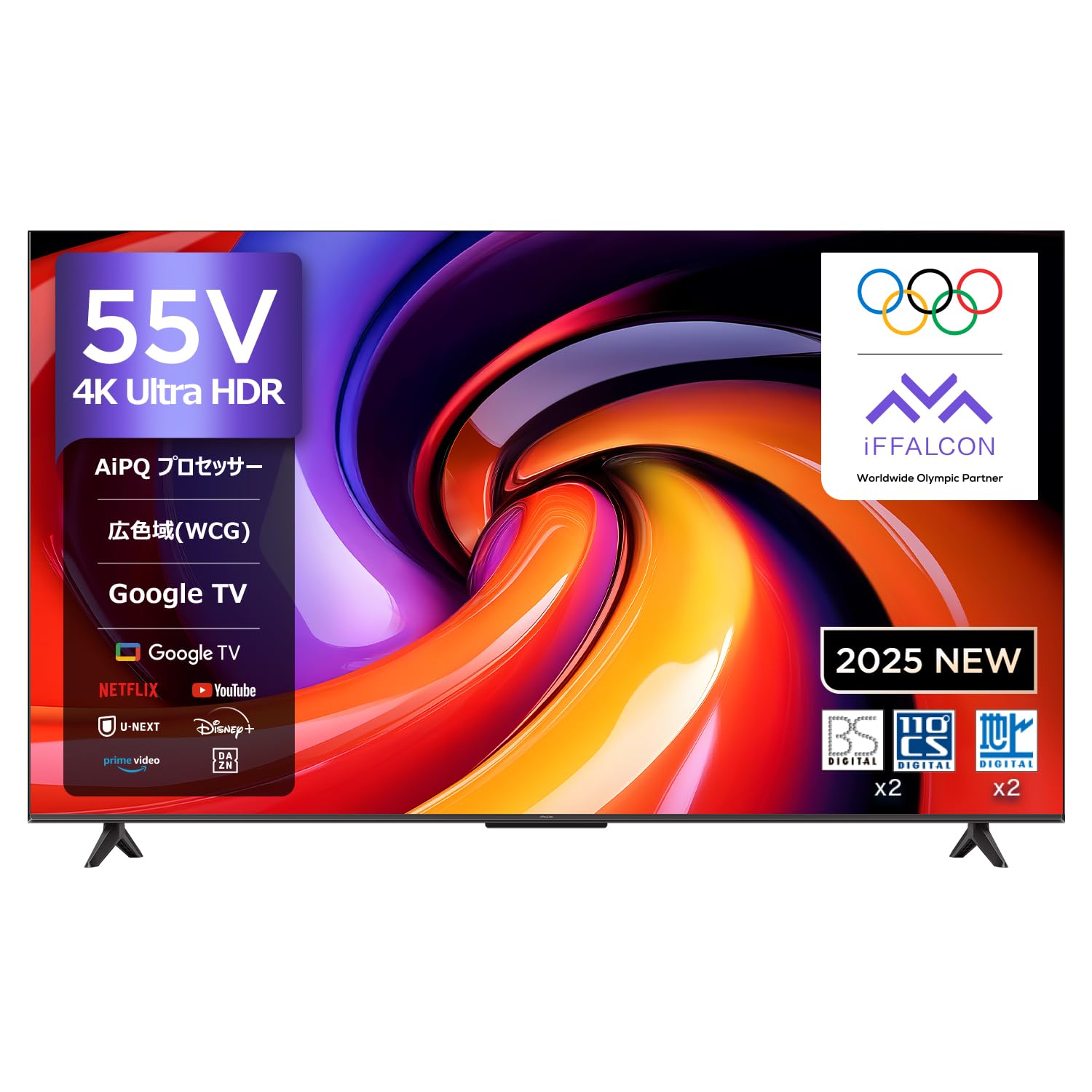
N'ihu view of the iFFALCON 55U65 55-inch 4K Google TV, showcasing its frameless design.
2. Ntuziaka Nhazi
2.1 Unboxing na nkwụnye nkwụnye
Follow these steps to safely unbox your iFFALCON TV and attach the stand.
- Carefully cut the tape on the top of the TV box and open it.
- Remove the two stands from the box.
- Remove the top protective foam.
- Lift the TV out of the box and place it face down on the protective foam.
- Identify the included screws for the stand.
- Align each stand with the corresponding slots on the TV's bottom panel.
- Securely fasten the stands using the provided screws and a screwdriver.
This video demonstrates the unboxing process and how to attach the stand to the FPD Canvas 43/50/55 inch TV. It guides users through carefully opening the package, identifying components, removing protective foam, securing the stands with screws, and connecting the power cable.
2.2 Ijikọ ike
Once the stand is attached, connect the power cable.
- Jikọọ eriri ike ahụ na ntinye ike nke TV.
- Plug the other end of the power cable into a nearby electrical outlet.
- Remove the protective film from the TV screen.
2.3 Initial Setup (Google TV)
Upon first power-on, the TV will guide you through the initial setup process for Google TV. This includes connecting to Wi-Fi, signing in with your Google account, and configuring basic settings.
3. Ntuziaka ọrụ
3.1 Ime Remote
The iFFALCON 55U65 comes with a remote control that supports voice operation. Dedicated buttons provide quick access to popular streaming services.
- Bọtịnụ ike: Gbanyụọ ma ọ bụ gbanyụọ TV.
- Nnyagharị Nsoroụzọ (bọtịnụ dị mma): Na-agagharị menu ma na-akwado nhọrọ.
- Bọtịnụ olu: Na-edozi olu.
- Bọtịnụ enyemaka olu: Na-arụ ọrụ enyemaka Google maka iwu olu.
- Bọtịnụ nweta ngwa ngwa: Direct access to services like Netflix, Prime Video, YouTube, and more.
3.2 Google TV Interface
Google TV organizes all your favorite content from various streaming services into one personalized interface. It offers recommendations based on your viewing àgwà.

A screenshot of the Google TV interface, displaying a wide array of streaming content from YouTube, Netflix, Prime Video, Disney+, and more.
3.3 Voice Search with 'Hey Google'
Use the built-in Google Assistant to quickly find content, get information, or control your smart home devices.
- Press the Voice Assistant button on your remote.
- Say "Hey Google" followed by your command, such as "Find action movies" or "Open Netflix."

An image showing a user interacting with the TV using 'Hey Google' voice commands to search for content or control smart home devices.
3.4 Chromecast Built-in & AirPlay 2
Easily cast content from your smartphone or tablet to the TV screen.
- Gbaa mbọ hụ na ejikọrọ ngwaọrụ mkpanaka gị na TV na otu netwọk Wi-Fi.
- Open a compatible app on your mobile device (e.g., YouTube, Netflix).
- Tap the Cast icon (for Chromecast) or AirPlay icon (for Apple devices) within the app and select your iFFALCON TV.

An illustration demonstrating AirPlay 2 and Chromecast built-in, allowing users to easily cast videos, photos, and music from Apple and Android devices to the TV.
This video highlights the key features of the FPD Google TV, including its smart interface, seamless streaming experience, and integration with various apps and services.
4. Atụmatụ igodo
4.1 AI PQ Processor
The AI PQ processor incorporates numerous picture quality adjustment algorithms. With intelligent perception capabilities like AI Clarity, AI Color, AI Contrast, AI Motion, and AI HDR, it optimizes picture quality at the pixel level.

An illustration of the AI PQ processor, emphasizing its role in optimizing picture quality at the pixel level through intelligent perception capabilities.

Visual representation of AI PQ processor's sub-features including AI Clarity for clear images, AI Color for natural colors, AI Contrast for detailed darks and brights, AI Motion for smooth movement, and AI HDR for multi-HDR format processing.
4.2 HDR10 Support
Experience stunning brightness, superior shadow detail, and vivid colors with HDR10 technology, enhancing your streaming resolution.

A split image demonstrating the impact of HDR10, revealing superior detail in shadows and vibrant colors compared to non-HDR content.
4.3 MEMC Technology
Motion Estimation, Motion Compensation (MEMC) technology reduces motion blur and image tearing, providing silky-smooth visuals, especially in fast-paced scenes.

A side-by-side comparison showing the effect of MEMC technology, reducing motion blur and image tearing for smoother visuals.
4.4 Game Master & ALLM
The Game Master feature, combined with Auto Low Latency Mode (ALLM), ensures a smooth and responsive gaming experience by minimizing input lag and eliminating blur or stuttering.

An image depicting a gaming scene on the iFFALCON TV, highlighting the Game Master feature for an optimized gaming experience.

A collage illustrating gaming features like ALLM for smooth console gaming, Wide Game View for expanded field of vision, and the Game Bar for quick access to settings.
4.5 Dolby Audio
Enjoy a rich, clear, and detailed sound experience with Dolby Audio. It delivers an immersive, three-dimensional sound that fills your room, making every scene more engaging.
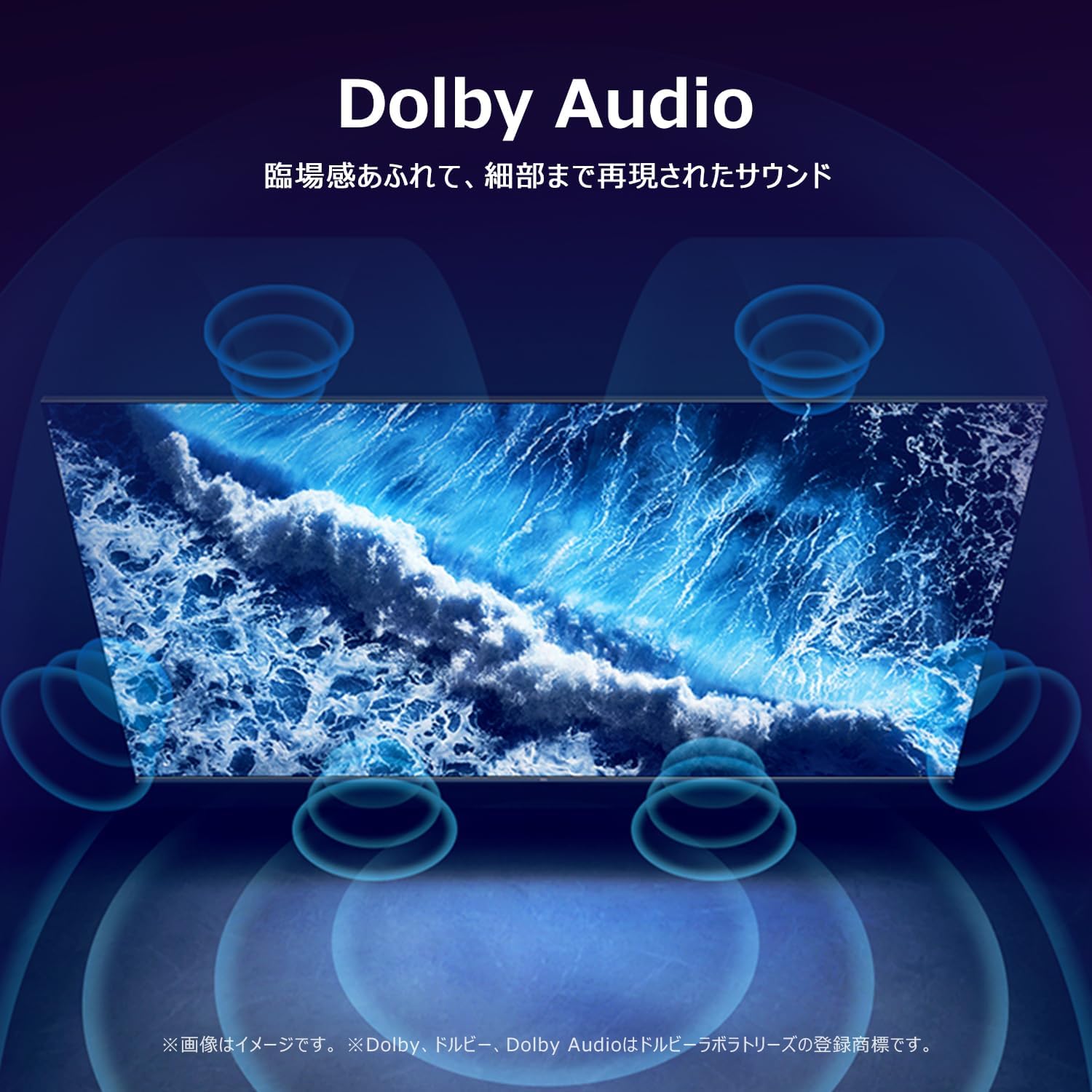
A visual representation of Dolby Audio creating an immersive, three-dimensional sound experience around the viewee.
4.6 Multi-Eye Care
The TV features Multi-Eye Care technology, including low blue light and flicker-free viewing, to provide a comfortable and healthy viewing environment for movies and games.

Images demonstrating the benefits of Multi-Eye Care technology, including low blue light and flicker-free viewing for comfortable movie and gaming sessions.
4.7 Frameless Design
The TV boasts a sleek, frameless design that minimizes bezels, allowing the screen to blend seamlessly into your living space and provide a more expansive viewmpaghara.

A close-up of the iFFALCON TV highlighting its slim, bezel-less design that blends seamlessly into any room.
Vidiyo a na-enye nkọwa zuru ezuview of the FPD Tunerless 4K Google TV, showcasing its high-resolution display, smart functionalities, and modern design for an immersive entertainment experience.
5. Nkọwapụta
| Njirimara | Nkọwa |
|---|---|
| Nha ihuenyo | 55 sentimita asatọ |
| Ụdị ngosi | VA LCD |
| Mkpebi | 4K UHD |
| Ọnụego ume ọhụrụ | 60 Hz |
| Akụkụ akụkụ | 16:9 |
| Ọnụọgụ ọdịiche | 1000:1 |
| Viewna n'akuku | ogo 178 |
| Smart TV Platform | Google TV |
| Ọrụ ịntanetị | Google TV, Netflix, Rakuten TV, Hulu, U-NEXT, ABEMA, DAZN, FOD, AWA, Prime Video, dTV, TELASA, VideoMarket, YouTube |
| Njikọta | Bluetooth, HDMI (3 ports), USB (2 ports), Wi-Fi |
| Njirimara ọdịyo | Dolby Audio, 2.0 Channel Speakers |
| Atụmatụ pụrụ iche | Chromecast, Game Mode, Wide Viewna n'akuku |
| Akụkụ (W x H x D) | 122.6 x 75 x 25.5 cm |
| Ibu ngwaahịa | 9.1 n'arọ |
| Oriri ike kwa afọ | 105 kWh / afọ |
| Ngwa gụnyere | User Manual, Remote Control, Warranty Card, Power Cable |
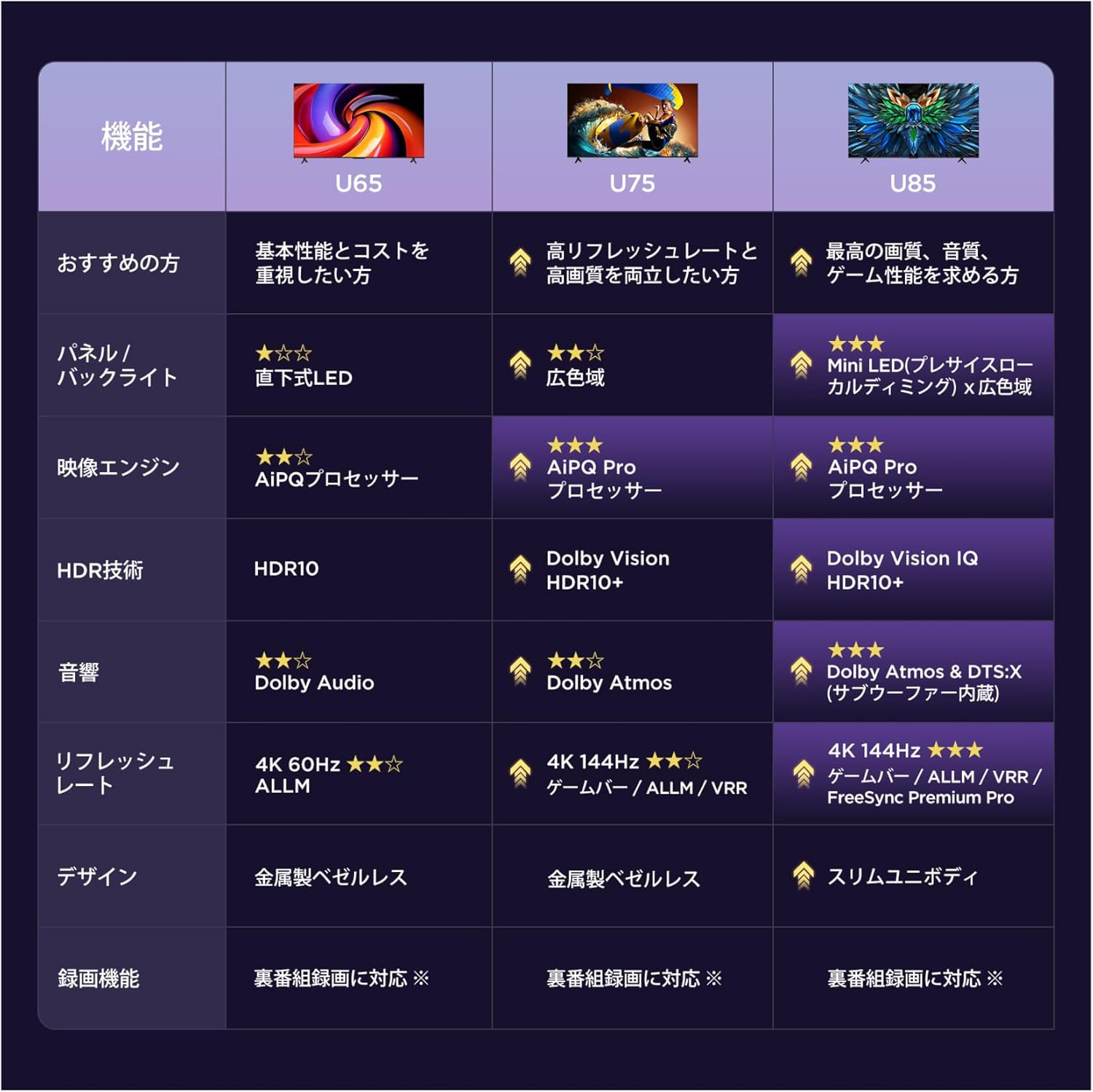
A table comparing key features across iFFALCON's U65, U75, and U85 TV series, highlighting panel type, image engine, HDR technology, audio, refresh rate, and design.

Diagram showing the dimensions of the 55-inch iFFALCON TV, including width (122.6cm), height (75.0cm), and depth (25.5cm), with a recommended viewing distance of approximately 1 meter.
6. Nlekọta
6.1 Na-ehicha ihuenyo ahụ
Iji hichaa ihuenyo ahụ, jiri nwayọọ hichaa ya na akwa dị nro na-enweghị lint. Maka akara ndị isi ike, dị obere dampen akwa na mmiri ma ọ bụ ihe ngwọta na-ehicha ihuenyo kpọmkwem nke e mere maka ngwá electronic. Zere iji kemịkalụ siri ike ma ọ bụ ihe na-emebi emebi.
6.2 Na-ehicha ahụ TV
Wipe the TV body with a soft, dry cloth. Do not use liquid cleaners directly on the TV to prevent damage to internal components.
7. Nchọpụta nsogbu
7.1 Enweghị ike
- Ensure the power cable is securely plugged into both the TV and the electrical outlet.
- Lelee ma oghere ọkụ na-arụ ọrụ site na itinye na ngwaọrụ ọzọ.
- Pịa bọtịnụ ike na njikwa anya ma ọ bụ na TV n'onwe ya.
7.2 Enweghị foto/ụda
- Nyochaa na ahọpụtara isi mmalite ntinye ziri ezi (dịka, HDMI 1, HDMI 2).
- Lelee njikọ USB niile (HDMI, ọdịyo) n'etiti TV na ngwaọrụ mpụga.
- Gbaa mbọ hụ na agbanyụghị ụda ma ọ bụ tọọ ya na ọkwa dị ala.
7.3 Remote Control anaghị arụ ọrụ
- Dochie batrị ndị dị na njikwa anya.
- Gbaa mbọ hụ na enweghị ihe mgbochi n'etiti njikwa anya na ihe mmetụta IR nke TV.
- Try pairing the remote control again if it's a Bluetooth remote (refer to the on-screen instructions during initial setup or in the TV settings).
7.4 Okwu njikọ netwọkụ
- Lelee rawụta Wi-Fi gị ma hụ na ọ na-agba ọkụ ma na-arụ ọrụ nke ọma.
- Restart your TV and router.
- Go to the TV's network settings to re-enter your Wi-Fi password or connect to a different network.
8. Akwụkwọ ikike na nkwado
Your iFFALCON 55U65 TV comes with a warranty card included in the package. Please refer to the warranty card for detailed terms and conditions.
8.1 Nkwado ndị ahịa
For technical assistance, repairs, or any inquiries regarding your iFFALCON product, please contact TCL customer support. iFFALCON is a sub-brand of TCL, and their support team is equipped to assist you.

TCL customer support details, including a phone number (0120-955-517) and websaịtị (https://www.tcl.com/jp/ja/support) for repair and assistance.
- Ekwentị: 0120-955-517
- Oge ọrụ: 09:00 - 18:00
- Websaịtị: https://www.tcl.com/jp/ja/support


