1. Okwu mmalite
Thank you for choosing the Vormooi 64GB Digital Voice Recorder. This device is designed for high-quality audio recording, featuring a durable metal casing, advanced noise reduction, and a user-friendly interface. With its large storage capacity and voice activation capabilities, it is ideal for personal study, meetings, interviews, and capturing important moments.

Image: The Vormooi 64GB Digital Voice Recorder, showcasinnhazi ya dị obere ma mara mma.

Image: Promotional banner highlighting the 64GB storage capacity of the Vormooi Digital Voice Recorder.
2. Kedu ihe dị na Igbe ahụ
Your Vormooi Digital Voice Recorder package includes the following items:
- 1 x 64GB Digital Voice Recorder (Model: P1)
- 1 x Igwe ntị
- 1 x eriri USB-C
- Akwụkwọ ntuziaka onye ọrụ 1 x (akwụkwọ a)
- 1 x Circle Ring (for keychain attachment)

Image: All components included in the product packaging: the voice recorder, USB-C cable, C-C cable, headphones, circle ring, and user manual.
3. Akụrụngwa Ngwaahịa
3.1. High-Quality Recording
Equipped with the latest professional 2159 recording chip, the Vormooi recorder utilizes precise algorithms for superior DSP digital noise reduction. This ensures clearer and more natural recordings, making it an excellent choice for high-fidelity audio capture.

Image: Visual representation of the 1536Kbps clear recording capability, highlighting the 2159 professional chip and strong DSP noise cancellation.

Image: Detailed graphic explaining the 1536-32Kbps high-quality crystal clear recordings, emphasizing the 2159 Professional Chip, Strong DSP Noise Cancellation, and 360° Full Range Capture.
3.2. User-Friendly One-Touch Recording
The device features a simple ON/OFF switch to start or end recording. Files are automatically saved with a date and time stamp for easy organization. Its sturdy black zinc alloy metal casing provides both durability and a sleek design.

Image: Diagram showing the compact size of the voice recorder and the simple 'RECORD' and 'SAVE' slide switch for easy operation.

Image: Close-up of the voice recorder illustrating the simple ON/OFF slide switch for one-click recording.
3.3. Large Capacity and Battery Life
With 64GB of internal memory, the recorder can store up to 900 hours of 160Kbps recording files. A full charge, which takes approximately 1 hour, provides up to 17 hours of continuous recording.

Image: Icons representing 64GB large memory, 4600 hours of memory, Voice Activation (VOR), and durable metal housing (HARD).

Image: Graphics illustrating the low battery save function and the timestamp feature for recorded files, showing how files are named with year, month, day, and time.
3.4. Voice Activated Mode (VORM)
The Voice Activated Mode (VORM) is off by default. When enabled, this function allows the recorder to automatically start recording when sound is detected and pause during silence. This saves memory and streamlines the organization of your recordings by eliminating meaningless blank clips.

Image: Illustration of the Voice Activation feature, showing different sound levels (DB) and corresponding activation levels (1-7).
4. Nhazi
4.1. Ịchaji ngwaọrụ
Before first use, fully charge the voice recorder. Connect the included USB-C cable to the recorder's USB-C port and the other end to a power source (e.g., computer USB port, USB wall adapter). The indicator light will show charging status and turn off when fully charged.
4.2. Ike izizi
To power on the device, slide the record switch to the 'ON' position. A blue indicator light will briefly illuminate, indicating the device is active and ready for operation.
5. Ntuziaka ọrụ
5.1. Ndekọ Audio
- To start recording, simply slide the record switch to the ON position. The device will automatically begin recording.
- To stop recording and save the file, slide the record switch to the Gbanyụọ position. The recording will be saved with a date and time stamp.
5.2. n'ụdị
To listen to your recordings, connect the included earphones to the control panel, and then connect the control panel to the voice recorder's USB-C port. Use the buttons on the control panel to navigate and play recordings.
- Gwuo/kwụsịtụ: Press the central button to play or pause the current recording.
- Elu elu/ala: Use the volume buttons to adjust playback volume.
- Next / Gara aga Track: Use the skip buttons to move between recordings.
5.3. Enabling Voice Activated Mode (VORM)
Refer to the detailed instructions in the included paper manual to enable or disable the Voice Activated Mode (VORM). Once enabled, the recorder will only record when sound is detected, conserving memory and battery life.
6. Connecting to Other Devices (OTG Function)
The Vormooi Digital Voice Recorder supports OTG (On-The-Go) functionality, allowing direct connection to Android phones, Windows, and macOS computers for easy file nyefe na njikwa.
- Connect the voice recorder to your device using the appropriate USB-C cable (or adapter if needed).
- Your device should recognize the voice recorder as an external storage device.
- Navigate to the recorder's storage to access, transfer, or delete your recorded files.
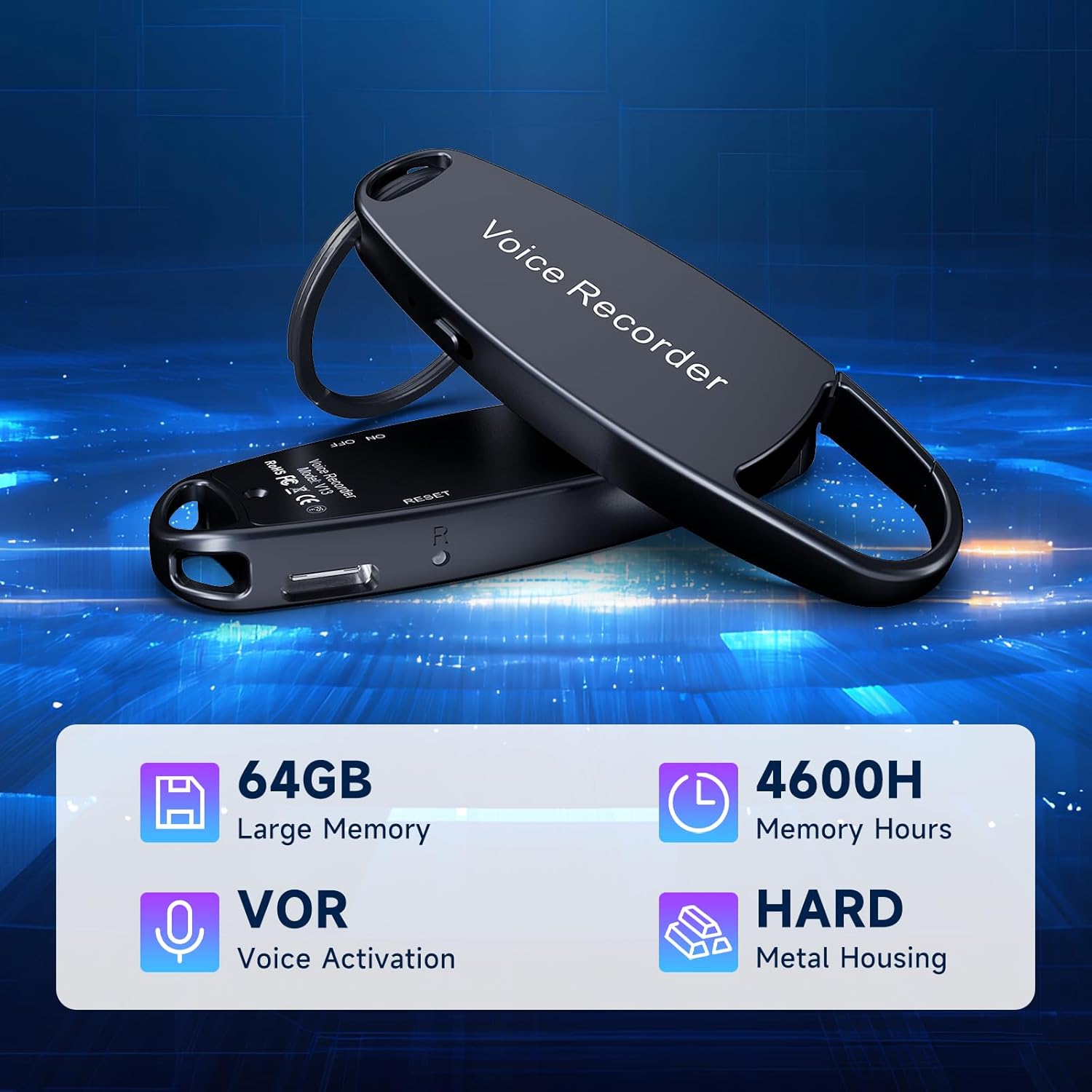
Image: The voice recorder connected to a smartphone, displaying recorded files on the phone's screen, demonstrating the OTG function.

Image: The voice recorder connected via USB-C to both a laptop and a smartphone, illustrating its versatile OTG connectivity for file management across different devices.
7. Nlekọta
- Nhicha: Jiri akwa dị nro dị nro hichaa ngwaọrụ ahụ. Zere iji ihe nhicha mmiri ma ọ bụ ihe mgbaze.
- Nchekwa: Debe ihe ndekọ ahụ n'ebe dị jụụ ma kpọọ nkụ, ebe anwụ na-anaghị anwụ kpọmkwem na oke okpomọkụ dị oke njọ.
- Nlekọta batrị: Iji mee ka batrị dị ogologo, zere ịgbapụ ngwa ahụ mgbe niile. Chajie ya mgbe niile, ọbụlagodi na ọ naghị eji ya ruo ogologo oge.
- Ndabere data: Regularly back up important recordings to your computer or cloud storage to prevent data loss.
8. Nchọpụta nsogbu
| Nsogbu | Ihe nwere ike ime | Ngwọta |
|---|---|---|
| Ngwaọrụ anaghị agbanwu. | Batrị dị ala; ngwaọrụ ahụ kpọnwụrụ akpọnwụ. | Charge the device fully. If unresponsive, try resetting (refer to manual for reset pinhole location if available). |
| Cannot hear recordings during playback. | Headphones not properly connected; volume too low; corrupted file. | Ensure headphones and control panel are securely connected. Adjust volume. Try playing on a computer to check file iguzosi ike n'ezi ihe. |
| Recordings are unclear or noisy. | Environmental noise; microphone obstructed; incorrect settings. | Record in a quieter environment. Ensure microphone is unobstructed. Check recording quality settings (if adjustable). |
| Device not recognized by computer/phone. | Faulty cable; incorrect connection; driver issue. | Try a different USB-C cable. Ensure the cable is fully inserted. Restart both the recorder and the computer/phone. |
| Voice Activated Mode (VORM) not working as expected. | VORM sensitivity setting too high/low; VORM not enabled. | Adjust VORM sensitivity settings. Ensure VORM is properly enabled via the manual's instructions. |
9. Nkọwapụta
| Njirimara | Nkọwa |
|---|---|
| Nọmba nlereanya | P1 |
| Ike Nchekwa ebe nchekwa | 64 GB |
| Ndekọ Ogo | Ruo 1536kbps |
| Recording Time (160Kbps) | Ihe ruru. awa 900 |
| Battery Life (Continuous Recording) | Approx. 17 hours (after 1 hour full charge) |
| Akụkụ ngwaahịa | 0.6 x 5.2 x 5.2 inch (0.6"D x 5.2"W x 5.2"H) |
| Ibu Ibu | 1.06 ounce (gram 30) |
| Ihe kpatara ụdị igwe okwu | Wuru n'ime |
| Jack ekweisi | 3.5 millimeters (via control panel) |
| Ngwaọrụ Akụrụngwa | USB Ụdị C |
| Ngwa dakọtara | Windows/macOS Computer, Android Phones (via OTG) |
| Onye nrụpụta | Vormooi |
| Mba onye si | China |
10. Akwụkwọ ikike na nkwado
Vormooi is committed to providing excellent customer service. If you encounter any problems during the use of your digital voice recorder, please do not hesitate to contact our after-sales support team.
- Support Response: Our support team will promptly respond and work to solve your problem within 24 hours on weekdays.
- Ozi akwụkwọ ikike: Please refer to the product packaging or contact Vormooi customer service for specific warranty details.

Image: A customer service representative, symbolizing Vormooi's commitment to responsible and reliable support, including lifetime technical support, 2-year replacement service, and 24-hour email response.
USE SITUATIONS: Please kindly comply with the relevant laws of the country of use and refrain from using this product for any unlawful purposes.


