1. Okwu mmalite
This manual provides essential instructions for setting up, operating, maintaining, and troubleshooting your CRUA 32-inch 4K UHD 160Hz Curved Gaming Monitor (Model CR320A). Please read this manual thoroughly before using the product to ensure proper functionality and to prevent damage.
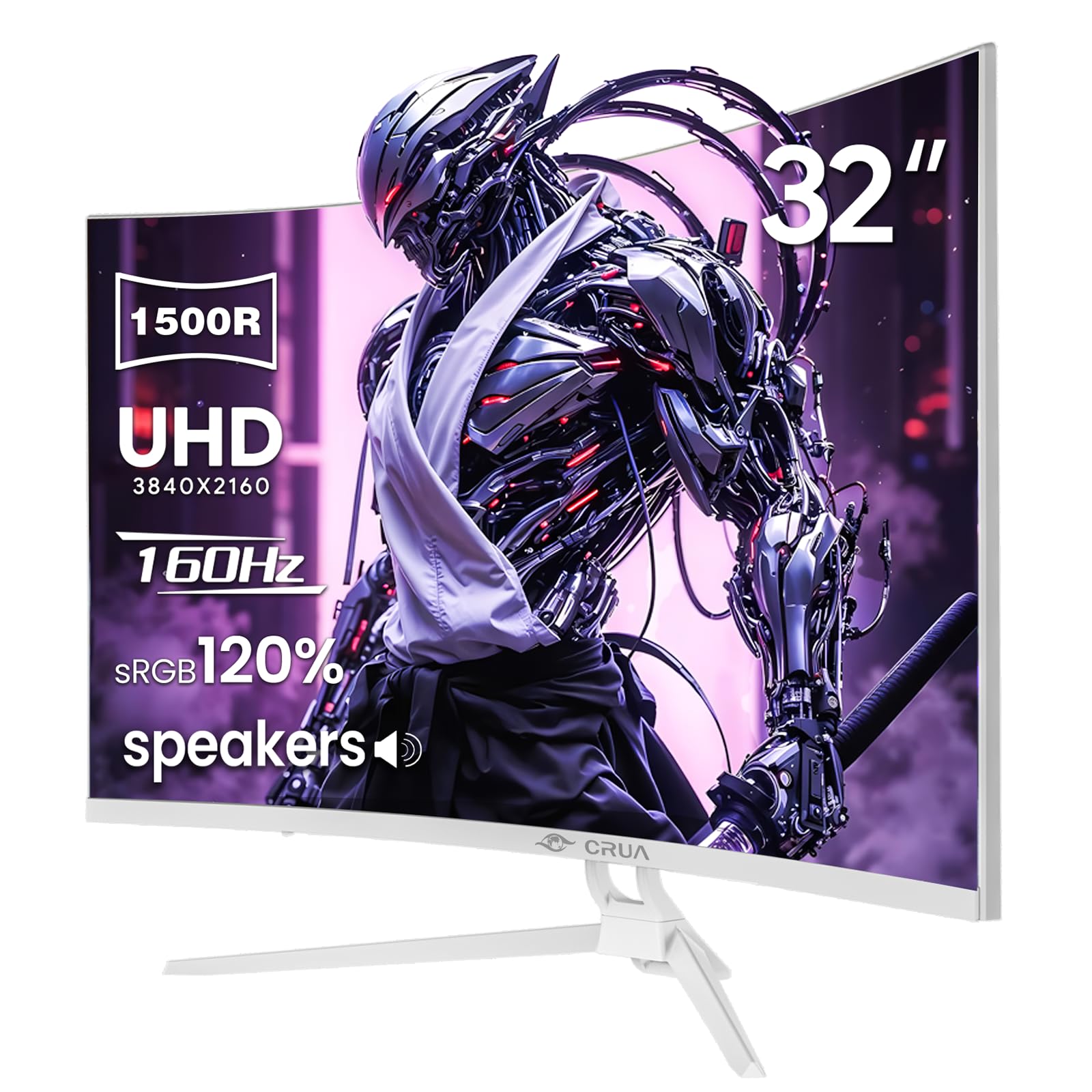
Foto 1: N'ihu view of the CRUA 32-inch 4K UHD 160Hz Curved Gaming Monitor.
2. Kedu ihe dị na Igbe ahụ
Chọpụta na akụrụngwa niile dị na nkwakọ ngwaahịa:
- CRUA 32-inch Monitor
- Monitor Base and Support
- Eriri DisplayPort (DP)
- Ngalaba Na-enye Ike
- Akwụkwọ ntuziaka (akwụkwọ a)
3. Nhazi
3.1 Ịchịkọta Stand
- Carefully remove the monitor from its packaging, placing it face down on a soft, clean surface to prevent screen damage.
- Attach the monitor support arm to the back of the monitor. Ensure it clicks securely into place or is fastened with screws if provided.
- Connect the base to the support arm and secure it with the provided screw(s).
Note: The included stand is fixed and does not offer height, tilt, or swivel adjustments. For adjustable positioning, the monitor supports VESA wall mounting (75mm x 75mm) using a compatible VESA mount (sold separately).

Ọgụgụ 2: N'azụ view of the monitor with stand attachment area and RGB lighting.
3.2 Njikọ eriri
- Connect the DisplayPort (DP) cable from your computer's graphics card to the DP 1.4 port on the monitor. Alternatively, use an HDMI 2.1 cable for compatible devices.
- Connect the power supply unit to the monitor's power input, then plug the power cord into an electrical outlet.
- Gbaa mbọ hụ na njikọ niile echekwara.

Figure 3: Monitor connectivity ports including HDMI 2.1, DP 1.4, and audio out.
4. Na-arụ ọrụ nlekota oru
4.1 Gbanyụọ ma ọ bụ gbanyụọ
Pịa bọtịnụ ike, nke na-adịkarị n'azụ ma ọ bụ ala aka nri nke ihe nleba anya, ka ịgbanwuo ma ọ bụ gbanyụọ ihe nleba anya. Ọkụ na-egosi ike ga-enwu mgbe ihe nleba anya dị.
4.2 Ngosipụta Ngosipụta (OSD) NchNhr
The OSD menu allows you to adjust various monitor settings. Use the navigation buttons (joystick or individual buttons) typically found on the back or bottom of the monitor to access and navigate the OSD.
- Isi mmalite ntinye: Select between DisplayPort and HDMI inputs.
- Ntọala foto: Hazie nchapụta, ọdịiche, nkọ, na okpomọkụ agba.
- Ntọala agba: Fine-tune color gamut (120% sRGB), gamma, and color depth (8-bit).
- Gaming Settings: Enable/disable AMD FreeSync, adjust refresh rate (144Hz/160Hz), and other gaming-specific features.
- Ntọala ọdịyo: Control volume for the built-in speakers or connected external audio devices.
- RGB ọkụ: Customize the RGB lighting effects on the back of the monitor.

Figure 4: Visual representation of color and brightness capabilities.
4.3 AMD FreeSync
This monitor supports AMD FreeSync technology, which synchronizes the monitor's refresh rate with your graphics card's frame rate to eliminate screen tearing and stuttering. Ensure FreeSync is enabled in both the monitor's OSD and your graphics card's control panel for optimal performance.

Figure 5: Visualizing the benefit of 160Hz refresh rate and FreeSync.
4.4 Curved Display (1500R)
The 1500R curvature of the screen provides an immersive viewing experience, reducing eye strain and enhancing depth perception, especially beneficial for gaming and multimedia content.

Figure 6: The 1500R curved screen design.
5. Nlekọta
5.1 Na-ehicha ihe nleba anya
- Gbanyụọ ihe nleba anya mgbe niile wee wepụ eriri ọkụ tupu ihicha ya.
- Jiri akwa dị nro na-enweghị ntụpọ dampejiri mmiri kpuchie ya ma ọ bụ ihe nchacha ihuenyo na-adịghị mma.
- Afesakwala ihe nhicha ozugbo na ihuenyo. Buru ụzọ tinye ya na akwa ahụ.
- Avoid using alcohol, ammonia, or abrasive cleaners, as these can damage the screen surface.
5.2 Nlekọta n'ozuzu
- Debe ihe nlele ahụ ka ọ ghara ịcha anyanwụ kpọmkwem, oke okpomọkụ, na iru mmiri.
- Hụ na ikuku na-abata nke ọma gburugburu ihe nlele ahụ iji gbochie oke okpomọkụ.
- Zere itinye ihe ndị dị arọ na igwe nleba anya ma ọ bụ eriri ya.
6. Nchọpụta nsogbu
6.1 Enweghị ike
- Lelee ma eriri ọkụ eletrik ahụ ejikọtara ya nke ọma na ihe nlele ahụ na ebe ọkụ eletrik ahụ.
- Hụ na ebe ọkụ eletrik ahụ na-arụ ọrụ nke ọma site na itinye ngwaọrụ ọzọ.
- Hụ na etinyere bọtịnụ ike nke ihe nlele ahụ.
6.2 Enweghị akara ngosi
- Confirm that the video cable (DP or HDMI) is securely connected to both the monitor and your computer/device.
- Gbaa mbọ hụ na ahọpụtara isi mmalite ntinye ziri ezi na menu OSD nke onye nleba anya.
- Check if your computer/device is powered on and outputting a signal.
- Nwaa eriri vidiyo ma ọ bụ ọdụ ụgbọ mmiri dị iche ma ọ bụrụ na ọ dị.
6.3 Screen Flickering or Tearing
- Ensure AMD FreeSync is enabled in both the monitor's OSD and your graphics card settings.
- Verify that your graphics card drivers are up to date.
- Check the refresh rate setting in your operating system's display settings; it should be set to 144Hz or 160Hz.
6.4 Washed Out Colors or Poor Picture Quality
- Access the OSD menu and adjust picture settings such as brightness, contrast, and color temperature.
- Tọgharịa ihe nlele ahụ ka ọ bụrụ ntọala ndabara ụlọ ọrụ site na menu OSD.
- Ensure your graphics card output settings are correctly configured for the monitor's resolution (3840x2160) and color depth.
6.5 No Sound from Built-in Speakers
- Check the volume level in the monitor's OSD menu.
- Verify that the audio output on your computer/device is set to the monitor.
- Ensure the video cable (DP or HDMI) supports audio transmission.
7. Nkọwapụta
| Njirimara | Nkọwapụta |
|---|---|
| Nọmba nlereanya | NJ320 |
| Nha ihuenyo | 32 sentimita asatọ |
| Ụdị panel | VA |
| Curvature | 1500R |
| Mkpebi | 4K UHD (3840 x 2160 pikselụ) |
| Akụkụ akụkụ | 16:9 |
| Ọnụego ume ọhụrụ | 144Hz/160Hz |
| Icha ọkụ | 320 Candela (cd/m²) |
| Ọnụọgụ ọdịiche | 3000:1 |
| Agba Gamut | 120% sRGB |
| Omimi agba | 8-bit |
| Ihu Ihuenyo | Matte |
| Njikọta | HDMI 2.1, DisplayPort 1.4 |
| Audio | Ndị na-ekwu okwu arụrụ arụ |
| VESA Ugwu ndakọrịta | 75mm x 75mm |
| Akụkụ ngwaahịa (L x W x H) | 1 x 28 x 16.6 sentimita asatọ |
| Ibu Ibu | 16.57 pound |
8. Akwụkwọ ikike na nkwado
8.1 Product Assurance
CRUA is committed to providing high-quality computer monitors and premium services. We offer assurances for our products to ensure customer satisfaction.
8.2 Nkwado ndị ahịa
If you encounter any issues or have questions regarding your CRUA monitor, please contact our customer support team. We are available to assist you and resolve any problems you may experience.
For support, please refer to the contact information provided on the official CRUA websaịtị ma ọ bụ akwụkwọ ịzụrụ ihe.


