1. Okwu mmalite
This manual provides instructions for the Keychron Custom Coiled Aviator USB-C Cable, designed for reliable connectivity with mechanical keyboards and other USB-C devices. The cable features a durable braided design, a 5-pin (GX12) detachable metal aviator connector, and includes a USB-A adapter for broad compatibility. It supports both fast charging and stable data transfer.
2. Nhazi ntuziaka
Follow these steps to connect your Keychron Custom Coiled Aviator USB-C Cable to your device.
2.1 Cable Components
The cable consists of a coiled section, a straight section, a detachable aviator connector, and USB-C connectors on both ends. A USB-A adapter is also included for devices requiring a USB-A connection.

Image 1: Keychron Coiled Aviator USB-C Cable with the GX12 aviator connector detached, showing the USB-C end and the coiled section.
2.2 Ijikọ eriri
- Connect the Aviator Connector: Align the 5-pin (GX12) aviator connector sections and push them together firmly. Twist the locking ring to secure the connection.
- Connect to Keyboard: Plug the USB-C end of the coiled section into the USB-C port on your mechanical keyboard.
- Jikọọ na Kọmputa/Ngwaọrụ: Plug the USB-C end of the straight section into a USB-C port on your computer or host device.
- Using the USB-A Adapter (Optional): If your computer or device only has USB-A ports, attach the included USB-A adapter to the USB-C end of the straight section, then plug it into a USB-A port.

Image 2: Keychron Coiled Aviator USB-C Cable with the GX12 aviator connector securely attached.
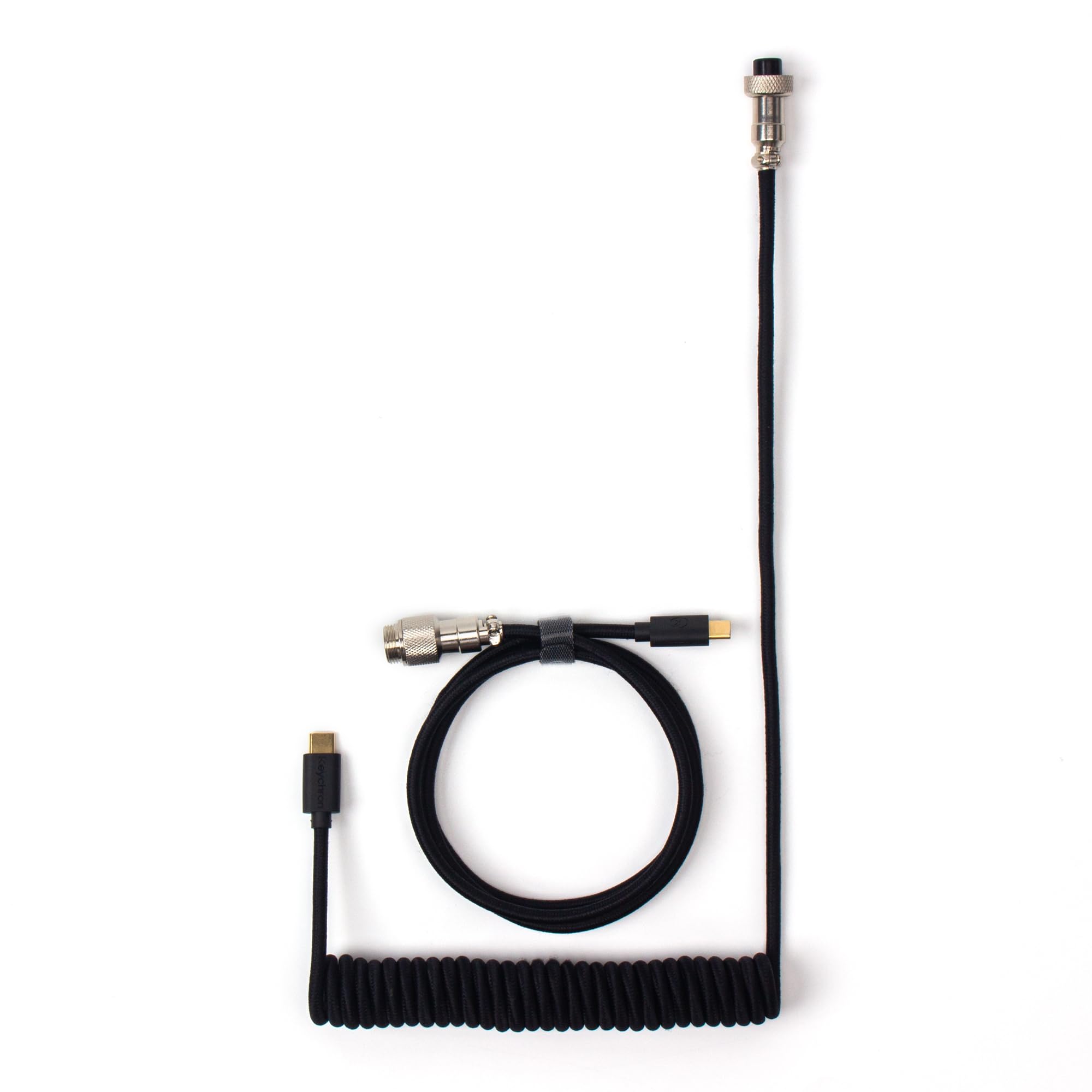
Image 3: Keychron Coiled Aviator USB-C Cable displaying both USB-C connectors, one on the coiled section and one on the straight section.
3. Ntuziaka ọrụ
Once connected, the Keychron Custom Coiled Aviator USB-C Cable facilitates both power delivery and data communication between your keyboard and the host device.
3.1 Data Transfer and Charging
- The cable ensures stable data transfer for keyboard input and firmware updates.
- It supports efficient charging for compatible devices, including mechanical keyboards with rechargeable batteries.
3.2 Ndakọrịta zuru oke
This cable is compatible with a broad range of devices, including:
- Keychron Q, Q Pro, Q Max, V, V Max series keyboards.
- Keychron 81 Pro, K4 Pro, K10 Pro keyboards.
- Keychron low-profile keyboards (e.g., Q6, Q6 Max, Q6 HE, Q1, Q1 HE, Q3 Max, Q3 HE, Q5, Q5 Max, V1, V1 Max, V3, V3 Max, V5, V5 Max, V6, V6 Max, K3, K3 Max).
- Most other USB-C mechanical keyboards.
- Other USB-C peripherals requiring data transfer or charging.
4. Nlekọta
Proper care will extend the lifespan and maintain the performance of your cable.
- Ijikwa: Avoid excessive pulling or bending, especially at the connector points, to prevent internal wire damage.
- Nlekọta eriri igwe: To maintain the coiled shape, avoid overstretching the coil frequently. Allow it to naturally retract when not in use.
- Nhicha: Jiri ákwà dị nro ma kpọrọ nkụ hichaa eriri na njikọ ya. Ejila kemịkalụ siri ike ma ọ bụ ihe ndị na-eme ka ọ ghara ịdị mma.
- Nchekwa: Store the cable in a clean, dry place away from direct sunlight and extreme temperatures.
- Aviator Connector: Ensure the aviator connector is clean and free of debris before connecting. Avoid forcing the connection if it does not align easily.
5. Nchọpụta nsogbu
If you encounter issues with your cable, try the following troubleshooting steps:
- No Connection/Device Not Recognized:
- Ensure all connectors (USB-C, aviator, USB-A adapter if used) are fully and securely plugged in.
- Gbalịa ijikọ eriri na ọdụ ụgbọ USB dị iche na kọmputa gị.
- Test the cable with another compatible device to determine if the issue is with the cable or the original device.
- If using the USB-A adapter, ensure it is firmly attached to the USB-C end.
- Nchaji nwayọ:
- Verify that the power source (e.g., USB port, wall adapter) provides sufficient power for your device.
- Ensure the cable is directly connected and not through a non-powered USB hub.
- Njikọ na-adịte aka:
- Lelee maka mmebi ọ bụla a na-ahụ anya nke eriri ma ọ bụ njikọ ahụ.
- Ensure the aviator connector's locking ring is fully tightened.
- Avoid placing heavy objects on the cable or bending it sharply.
6. Nkọwapụta
| Njirimara | Nkọwa |
|---|---|
| Ụdị | Keychron |
| Nlereanya | Cab-B |
| Ụdị njikọ | USB Type C (with USB-A adapter included) |
| Ụdị USB | USB |
| Njirimara Pụrụ Iche | Braided, Coiled Design, Detachable Aviator Connector (5-Pin GX12), Data Transfer |
| Ngwa dakọtara | Keychron Q, Q Pro, Q Max, V, V Max, 81 Pro, K4 Pro, K10 Pro, low-profile keyboards, and most USB-C mechanical keyboards. |
| Number of Pins (Aviator) | 5 |
| Teknụzụ Njikọta | USB |
| Agba | Nwa |
7. Akwụkwọ ikike na nkwado
For warranty information and technical support, please refer to the official Keychron website or contact Keychron customer service directly. Keep your purchase receipt for warranty claims.
Keychron Official Websaịtị: www.keychron.com


