Okwu mmalite
Thank you for choosing the AIKELA Bluetooth Speaker with Video Scrolling Remote and Phone Stand. This multi-functional device is designed to enhance your media experience by providing amplified sound, a stable viewing platform, and convenient remote control. Whether you're watching videos, listening to podcasts, or making hands-free calls, this product offers a seamless and enjoyable experience.

The AIKELA Bluetooth Speaker with Phone Stand and its accompanying remote control.
Ihe ngwugwu
Biko lelee ngwungwu maka ihe ndị a:
- Bluetooth Speaker with Phone Stand x 1
- Ime Remote x 1
- -Dị-C USB x 1
- Akwụkwọ ntuziaka onye ọrụ x 1

Visual representation of all items included in the product package.
Njirimara ngwaahịa
- Small But Powerful Sound: The upgraded wireless Bluetooth speaker delivers clear, loud sound for music, movies, videos, and podcasts. It includes a built-in microphone for crisp hands-free calls, which can also assist individuals with hearing loss.
- Video Scrolling Remote: A dedicated Bluetooth remote allows for easy scrolling, pausing, playing videos, and adjusting phone volume. This feature is ideal for platforms like YouTube, TikTok, or Netflix, freeing your hands during various activities.
- Adjustable Phone Stand: The stand features a weighted base with non-slip silicone to securely hold your phone. Its adjustable angle ensures optimal viewing, whether on a desk, kitchen counter, or bedside table.
- Portable & Long-Lasting: With a foldable, lightweight design, the speaker is easy to transport. Its rechargeable battery provides up to 10 hours of use on a single 1.5-hour charge, making it suitable for home, office, or travel.

The product combines a Bluetooth speaker, phone stand, built-in microphone, and remote control.

Nwee obi ụtọ amplified sound for media and clear hands-free calls.

The phone stand is adjustable and foldable for convenience.

The speaker offers up to 10 hours of battery life on a 1.5-hour charge.
Ntuziaka nhazi
1. Ịchaji ngwaọrụ
Before first use, fully charge the AIKELA Bluetooth Speaker using the provided Type-C cable. Connect the cable to the speaker's charging port and a compatible USB power source.
2. Ịgbanye / gbanyụọ
Locate the ON/OFF button on the speaker. Press and hold to power on or off the device.
3. Bluetooth Pairing (Speaker)
- Ensure the speaker is powered on and in pairing mode (indicated by a blinking blue LED light).
- On your smartphone or tablet, go to Bluetooth settings.
- Chọọ maka available devices and select "YX01" (or similar name) to connect.
- Once connected, the LED light will become solid blue.
4. Bluetooth Pairing (Remote Control)
- Slide the ON/OFF button on the back of the remote control to the ON position.
- On your smartphone or tablet, go to Bluetooth settings.
- Chọọ maka available devices and select "YK01 (Remote Control)" to connect.
- Once connected, the remote is ready for use.
5. iOS Specific Setup for Remote Control
For iOS devices, you must enable AssistiveTouch for the remote control to function correctly with video scrolling and other gestures. Follow these steps:
- Gaa na Ntọala.
- Họrọ Nnweta.
- Kpatụ Metụ aka.
- Gbanwuo AssistiveTouch.
- Gbaa mbọ hụ Perform Touch Gestures agbanwuru.
- Hazie nke Mmetụta nsuso to 20%-30% for optimal performance.

Step-by-step guide for enabling AssistiveTouch on iOS devices to use the remote control.
6. Adjusting the Phone Stand
The phone stand is designed to be adjustable for various viewing angles. Gently adjust the hinges to achieve your desired height and tilt. Ensure your device is securely placed on the stand's non-slip surface. The stand is compatible with most 4"-13" smartphones, tablets, and e-readers.
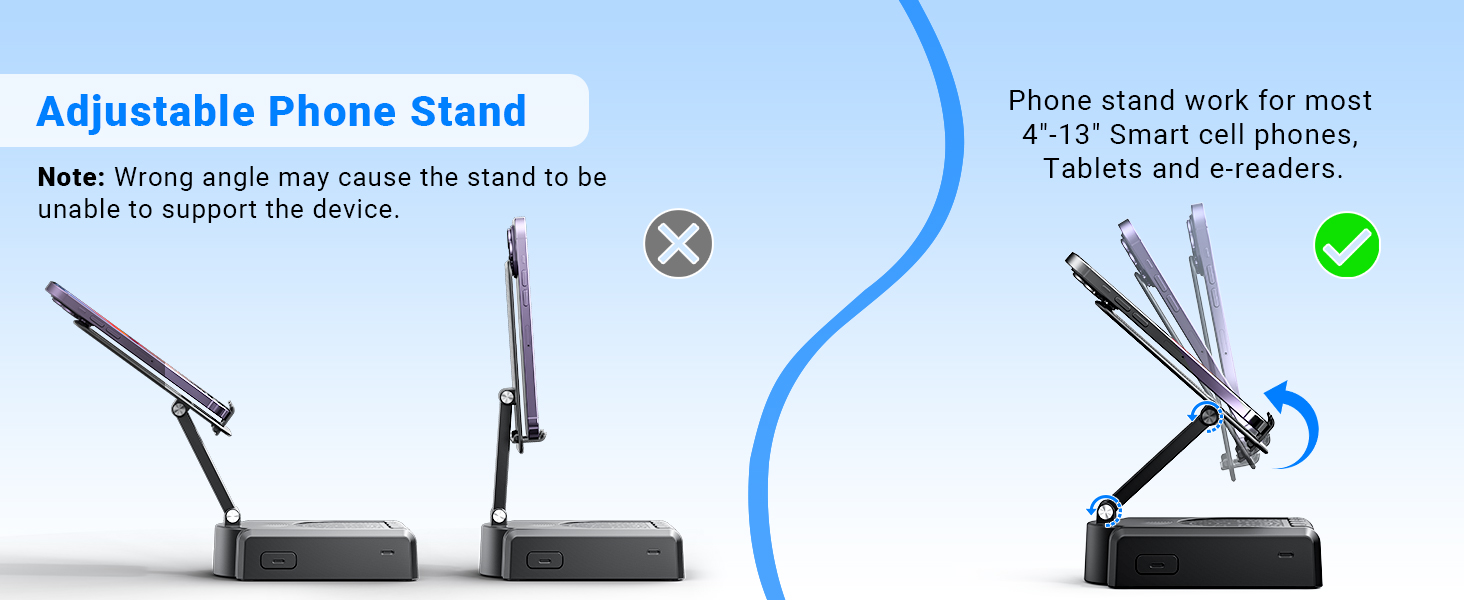
Demonstration of the adjustable angles of the phone stand.
Ntuziaka ọrụ
Njikwa Okwu
The speaker features intuitive buttons for basic functions:
- Gbanyụọ/gbanyụọ: Gbanyụọ ma ọ bụ gbanyụọ ngwaọrụ ahụ.
- Pause/Play/Answer/Hang Up: Control media playback and phone calls.
- Nke gara aga/olu-: Skip to the previous track or decrease volume.
- Osote/Mpịakọta+: Skip to the next track or increase volume.
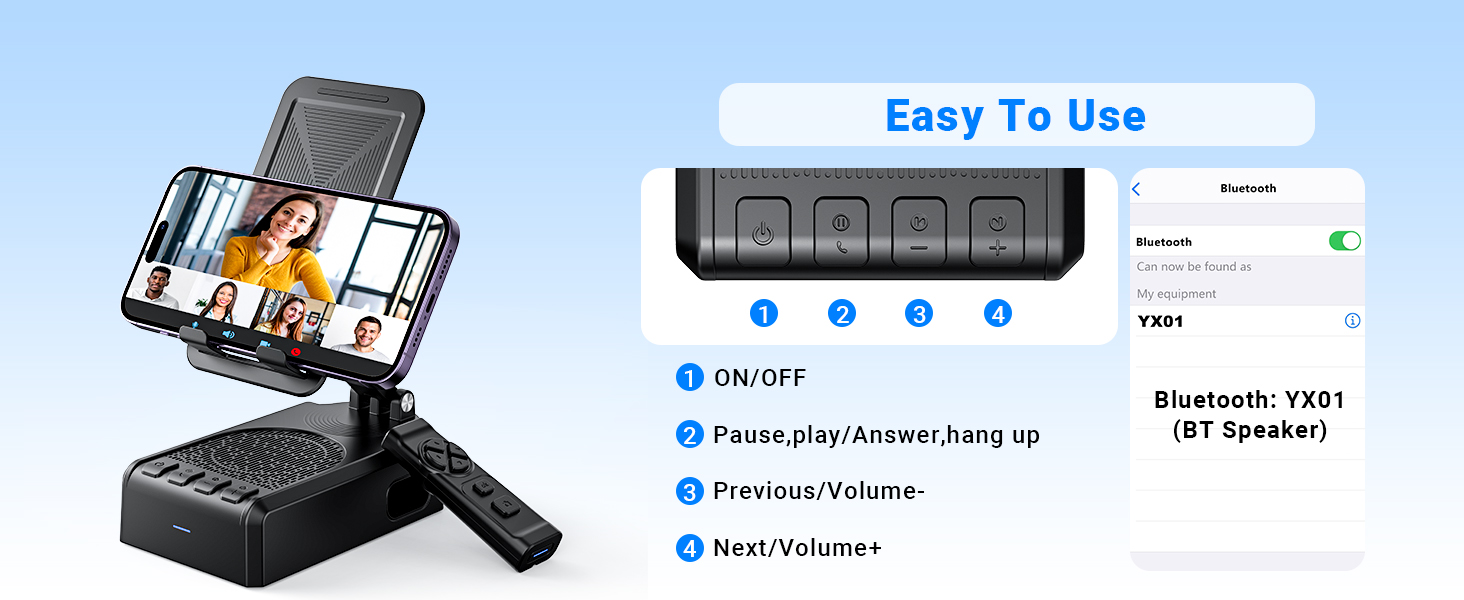
gafereview of the speaker's control buttons and their functions.
Ọrụ njikwa anya
The Bluetooth remote control provides convenient hands-free operation for various applications:
- Single click (Up/Down arrows): Scroll up/down in apps like TikTok or YouTube.
- Single click (Left/Right arrows): Swipe left/right (e.g., for next/previous video).
- Long press (Left/Right arrows): Adjust volume (Volume- / Volume+).
- OK button (center): Kpọọ/kwụsịtụ mgbasa ozi.
- Double click (OK button): Single 'like' in social media apps.
- Long press 3s (OK button): Continuous likes (in TikTok live state).
- Bọtịnụ igwefoto: Exit continuous likes (in TikTok live state).
Note: The remote control is not compatible with music software or Kindle devices.
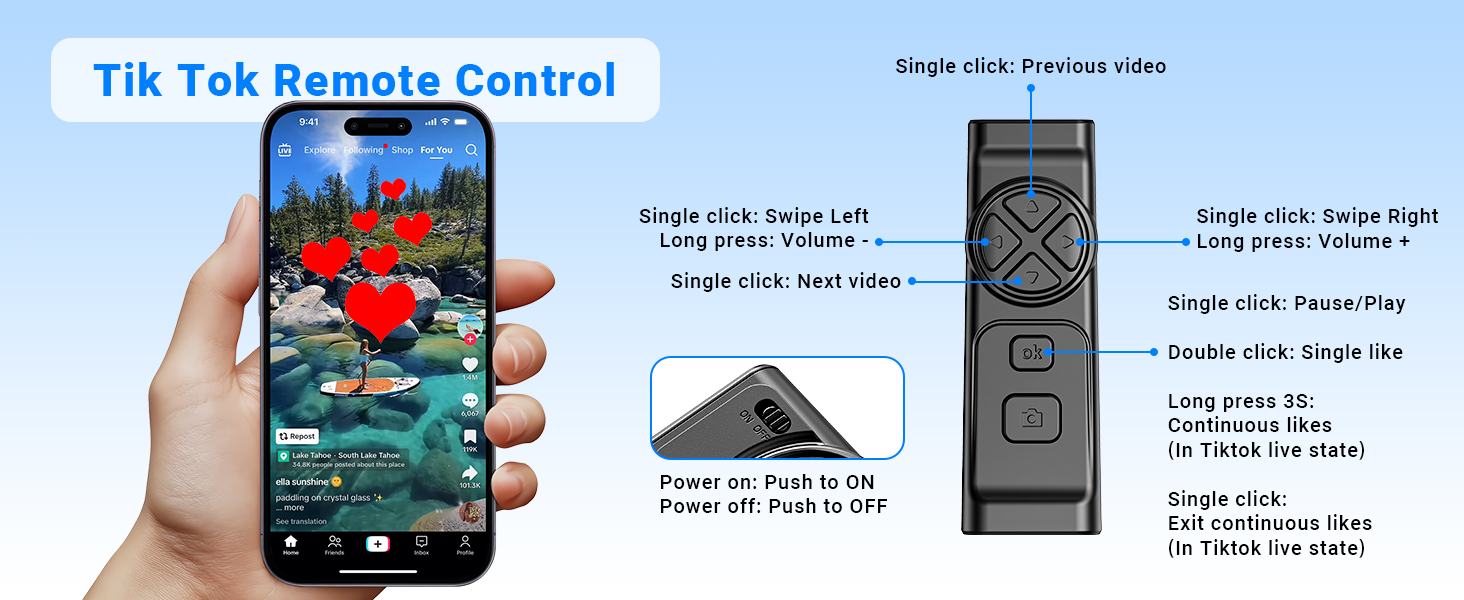
Detailed functions of the remote control for video scrolling and interaction.
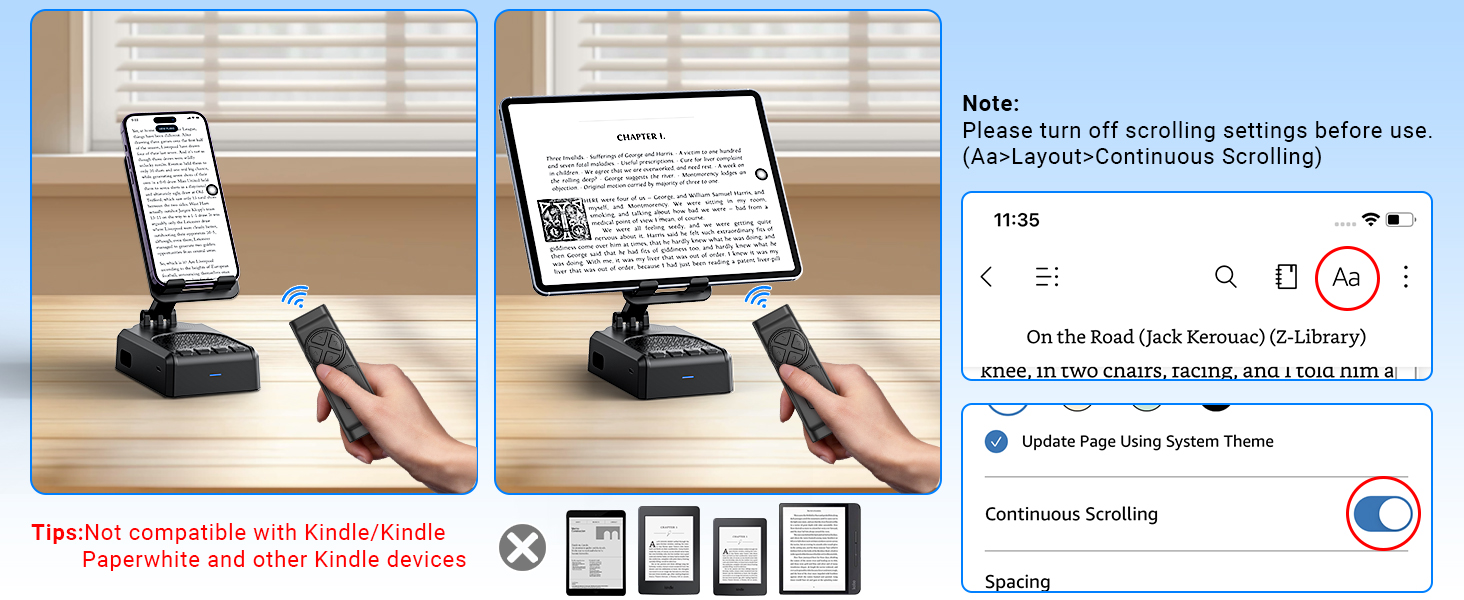
Important note regarding the remote control's compatibility with certain applications and devices.
Nlekọta na nlekọta
- Keep the device dry. Do not expose it to moisture or extreme temperatures.
- Jiri ákwà dị nro ma kpọọ nkụ hichaa ngwaọrụ ahụ. Zere iji kemịkalụ siri ike ma ọ bụ ihe nhicha na-eme ka ihe dị nro hichaa ya.
- Chekwaa ngwaọrụ ahụ n'ebe dị jụụ, kpọrọ nkụ mgbe ọ naghị eji ya.
- Zere idobe ma ọ bụ idobe ngwaọrụ ahụ na mmetụta siri ike.
Nchọpụta nsogbu
Remote Control Issues (iOS)
Nsogbu: The remote control cannot scroll through videos on an iOS device.
Ngwọta: Ensure AssistiveTouch is properly configured. Go to Ntọala> Ịnweta> Metụ> AssistiveTouch. Turn on AssistiveTouch, then turn on Perform Touch Gestures, and adjust the Mmetụta nsuso to 20%-30%.
Nsogbu: Remote control still not working after enabling AssistiveTouch.
Ngwọta:
- Verify the remote control is powered on (slide the button on the back to ON).
- Confirm the remote is paired with your phone via Bluetooth. Check your phone's Bluetooth settings.
- If issues persist, try disabling and re-enabling the AssistiveTouch function.
Visual guide for troubleshooting remote control issues on iOS devices.
Low Volume on Android Devices
Nsogbu: The speaker volume is too low on an Android device.
Ngwọta: After connecting the speaker via Bluetooth, go to your phone's Bluetooth settings, find the connected speaker (e.g., YX01), tap the gear icon or settings icon next to it, and ensure 'Sync volume with phone' or 'Media volume sync' is enabled.

Instructions for adjusting volume sync settings on Android devices.
Nkọwa nka nka
| Njirimara | Nkọwapụta |
|---|---|
| Aha Nlereanya | YX01, YK01 |
| Ụdị Ọkà Okwu | Ọkà Okwu Nwere Ike |
| Atụmatụ pụrụ iche | Bass Boost, Built-In Microphone, Lightweight, Portable, Stereo Pairing |
| Ngwa dakọtara | Android phone, Samsung, Tablet, iPad, iPhone |
| Ọnụọgụ nkeji | 1.0 Ọnụ |
| Nhazi ọwa ụda gburugburu | 1.0 |
| Agba | Nwa |
| Ndụ batrị | Awa 10 |
| Akụkụ ngwaahịa | 5.7"D x 2.08"W x 3.34"H |
| Ibu Ibu | 0.36 Kilogram (12.6 ounces) |
| Enweghị mmiri | Ụgha |
| Oge Nchaji | Awa 1.5 |
| Ụdị akwụkwọ ikike | Oke |
| Oke kachasị elu (Bluetooth) | 393 Inches (10 Meters) |
| Ọnụọgụ nke ihe | 1 |
| Usoro njikwa | Ime, metụ |
| Teknụzụ nzikọrịta ozi ikuku | Bluetooth |
| Isi Iyi Ike | Akwanyere batrị |
| Ọnụọgụ nke batrị | 2 batrị achọrọ (gụnyere) |
| Ụdị ọkwọ ụgbọ ala ọdịyo | Ọkwọ ụgbọala dị ike |
| Ọnụọgụ igwe okwu | 1 |
| Protocol Njikọta | Bluetooth |
| Ụdị | Oge a |
| Onye nrụpụta | AIKELA |
| Ike Nwepu kacha elu | 1 Watt |
| Ọnọdụ mmepụta ọdịyo | Stereo |
| Ụdị nkwụnye | Ugwu okpokoro |
Akwụkwọ ikike na nkwado
AIKELA provides 12 months of support for your Speaker Stand. If you encounter any problems or have questions, please contact customer service. For quick assistance, use the 'Find Order - Contact Seller' option on your purchase platform.


