1. Ngwaahịa gafereview
The Miofive S1 E Dash Cam is a high-performance 4K Ultra HD car camera designed to capture crystal-clear footage of your journeys. It features a 143-degree wide-angle lens, built-in GPS for precise route and speed recording, and Wi-Fi connectivity for easy access via the Miofive app. Advanced features include WDR Night Vision, 24-hour parking monitoring (requires separate hardwire kit), G-sensor for collision detection, and seamless loop recording.
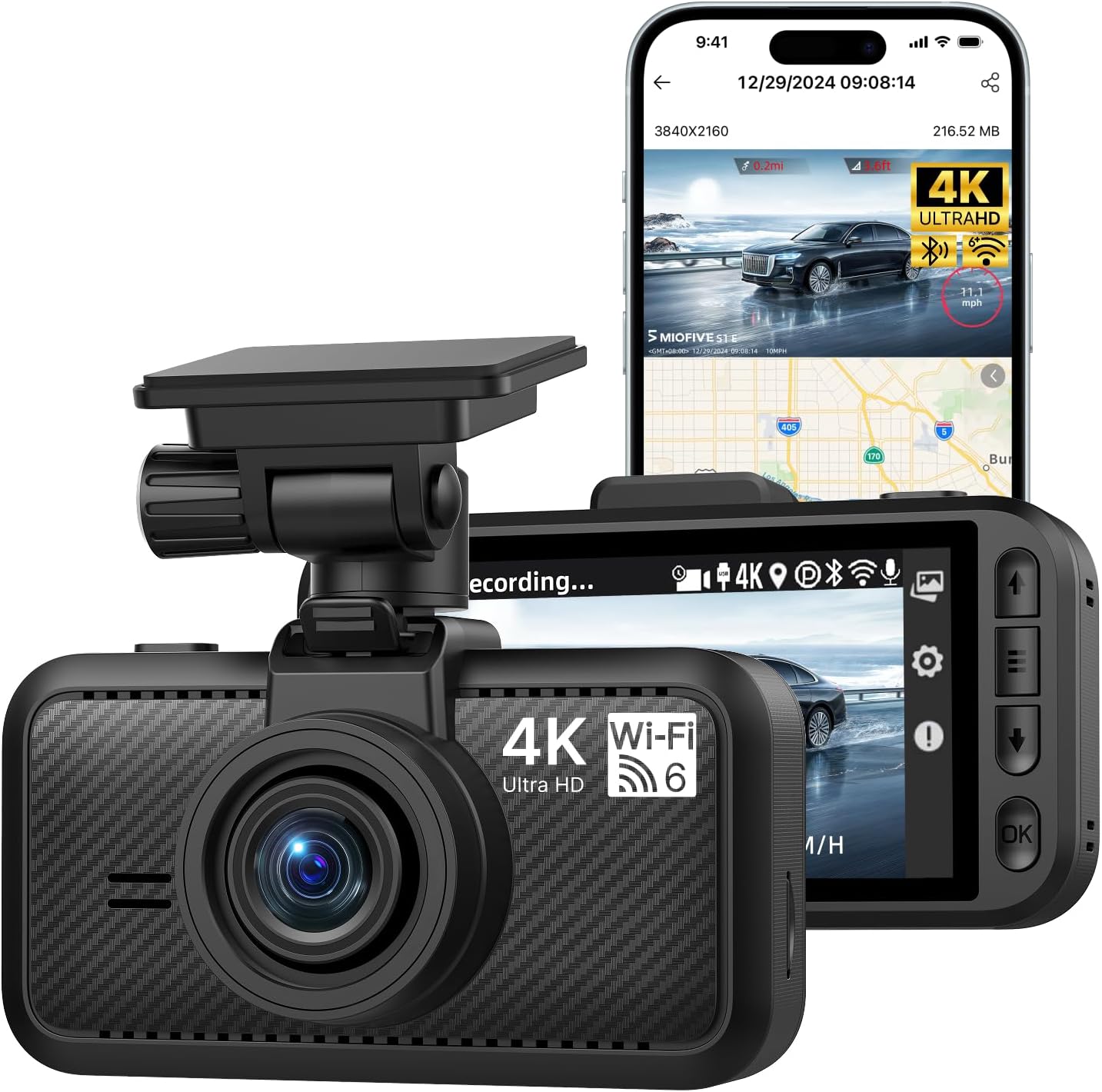
Image 1.1: Miofive S1 E Dash Cam and companion app interface.
2. Kedu ihe dị na Igbe ahụ
Chọpụta na akụrụngwa niile dị na ngwugwu:
- S1 E Dash Cam x 1
- Car chaja x 1
- Ịchaji eriri x 1
- Ngwa eji eji eriri USB x 1
- USB data x1
- Ihe nkiri Electrostatic x 2
- Nrapado x 1
- Akwụkwọ ntuziaka onye ọrụ x 1

Image 2.1: All included components of the Miofive S1 E Dash Cam package.
3. Ntuziaka Nhazi
3.1 Installing the Dash Cam
- Họrọ ebe mgbago: Select a position on your windshield that does not obstruct your view of the road. The area behind the rearview mirror is often ideal.
- Hichaa Ihuenyo: Ensure the chosen area on the windshield is clean and dry before applying the electrostatic film and adhesive.
- Tinye ihe nkiri Electrostatic: Adhere one of the provided electrostatic films to the cleaned windshield area. This helps in easy removal and prevents adhesive residue.
- Attach Adhesive Mount: Apply the adhesive mount to the electrostatic film. Press firmly for 30 seconds to ensure a secure bond.
- Kpọọ Dash Cam: Slide the dash cam onto the mounted bracket until it clicks into place. Adjust the camera angle to ensure a clear view nke ụzọ n'ihu.
3.2 Njikọ ike
- Connect Car Charger: Tinye chaja ụgbọala ahụ n'ime oghere ike 12V nke ụgbọala gị (oghere ọkụ siga).
- Jikọọ eriri nchaji: Connect the charging cable from the car charger to the USB Type-C port on the dash cam.
- Nyefee eriri USB: Use the provided cable prying tool to neatly tuck the charging cable along the edges of your windshield and dashboard to minimize obstruction.
3.3 Inserting and Formatting the Micro SD Card
The Miofive S1 E supports up to a 512GB Class 10 - U3 speed micro SD card (not included). A high-quality, reliable micro SD card is crucial for optimal performance.
- Fanye kaadị SD: With the dash cam powered off, carefully insert the micro SD card into the designated slot until it clicks into place.
- Hazie SD Kaadị: It is essential to format the micro SD card before first use and periodically thereafter to ensure stable recording and prevent data corruption. This can typically be done through the dash cam's settings menu or via the Miofive app.

Image 3.1: Micro SD card insertion and compatibility information.
3.4 App Connection (Wi-Fi & GPS)
The Miofive S1 E features built-in Wi-Fi and GPS for enhanced functionality and easy management via the Miofive app.
- Download the Miofive App: Chọọ maka "Miofive" in your smartphone's app store (iOS or Android) and download the official application.
- Enable Wi-Fi on Dash Cam: Power on the dash cam. Navigate to the Wi-Fi settings on the dash cam's screen and enable Wi-Fi.
- Jikọọ site na ngwa: Open the Miofive app on your smartphone. Follow the in-app instructions to connect to the dash cam's Wi-Fi network. The default Wi-Fi name and password can be found on the dash cam's screen or in the included user manual.
- Atụmatụ nnweta: Ozugbo ejikọrọ, ị nwere ike view ndu footage, configure settings, download recorded videos, and track GPS data directly from your smartphone.

Image 3.2: Wi-Fi 6 connectivity for high-speed data transfer to the Miofive app.
4. Ntuziaka ọrụ
4.1 Basic Arụmọrụ
- Ndekọ akpaaka: The dash cam will automatically power on and begin recording when connected to your vehicle's power supply and the engine starts.
- Ndekọ akwụkwọ ntuziaka: Press the designated button on the dash cam to manually start or stop recording.
- Nkpọghachi: Use the dash cam's screen or the Miofive app to review vidiyo ndị e dekọrọ.
4.2 Atụmatụ
4.2.1 4K Ultra HD mkpebi
The S1 E records in 4K (3840x2160P) Ultra HD, providing highly detailed and clear video footage. This resolution allows for better recognition of license plates and road signs.

Image 4.1: Visual representation of 4K resolution clarity.
4.2.2 Super Night Vision
Equipped with a large F/1.8 aperture and a 7-glass lens, the dash cam enhances light intake, ensuring clear video recording even in low-light conditions and at night.

Image 4.2: Super Night Vision technology details.
4.2.3 GPS arụnyere n'ime ya
The integrated GPS module precisely records your driving route, speed, and location data. This information is embedded in the video files na ike ịbụ viewed on the dash cam's screen or through the Miofive app, providing crucial evidence in case of incidents.

Image 4.3: GPS Route Tracking functionality.
4.2.4 24-Hour Parking Monitor
When properly installed with the optional Miofive hardwire kit (ASIN: B0CRHJQ3WQ, sold separately), the dash cam can provide continuous 24-hour parking monitoring. This feature records events when your vehicle is parked, protecting against potential incidents.

Image 4.4: 24-Hour Parking Monitor feature.
4.2.5 G-Sensọ (Ndekọ Mberede)
The built-in G-sensor detects sudden impacts or collisions. In the event of a detected incident, the dash cam automatically locks the current video segment, preventing it from being overwritten by loop recording. This ensures critical footage echekwara dị ka ihe akaebe.

Image 4.5: G-Sensor functionality for emergency recording.
4.2.6 Ndekọ loop
The loop recording feature ensures continuous recording by automatically overwriting the oldest unlocked video files when the micro SD card reaches its storage capacity. This eliminates the need for manual deletion of old footage.

Image 4.6: Seamless Loop Recording process.
4.2.7 Super Capacitors
The Miofive S1 E utilizes supercapacitors instead of traditional lithium batteries. This design provides superior temperature resistance (-4°F to 158°F / -20°C to 70°C) and extends the product's lifespan, ensuring reliable operation in various climates.

Image 4.7: Super Capacitor technology for enhanced durability.
5. Nlekọta
- Regular SD Card Formatting: To maintain optimal recording performance and prevent data corruption, it is recommended to format the micro SD card once a month. Back up any important videos before formatting.
- Nchacha oghere: Gently clean the camera lens with a soft, lint-free cloth to ensure clear video quality. Avoid using abrasive materials or harsh chemicals.
- Mmelite femụwe: Periodically check for firmware updates via the Miofive app. Firmware updates can improve performance, add new features, and resolve bugs.
6. Nchọpụta nsogbu
6.1 Okwu nkịtị na Ngwọta
| Nsogbu | Ihe nwere ike ime | Ngwọta |
|---|---|---|
| Igwefoto dash anaghị agbanye. | Enweghị ike; eriri/chaja nwere nsogbu. | Check car charger connection and vehicle's 12V outlet. Ensure charging cable is securely connected. Test with another power source if possible. |
| Ndekọ nkwụsị ma ọ bụ footage mebiri emebi. | SD card issue (not Class 10 U3, full, corrupted, or fake). | Ensure you are using a Class 10 - U3 speed micro SD card (Miofive Ultimate Micro SD Cards recommended). Format the SD card. Replace the SD card if the issue persists. |
| Ihe nlele ebe a na-adọba ụgbọala anaghị arụ ọrụ. | Hardwire kit not installed or incorrectly installed. | The 24-hour parking monitor requires the Miofive hardwire kit (ASIN: B0CRHJQ3WQ), sold separately. Ensure it is correctly installed according to its instructions. |
| Nsogbu njikọ Wi-Fi. | Incorrect password; too far from dash cam; app issues. | Ensure correct Wi-Fi password. Stay within 3-5 meters of the dash cam. Restart the app and dash cam. |
| Ogo vidiyo adịghị mma. | Lensi ruru unyi; ihe mkpuchi ka dị na lensi; ọnọdụ ọkụ dị ala. | Clean the camera lens. Remove any protective film from the lens. Ensure WDR Night Vision is enabled in settings for low light. |
7. Nkọwapụta
| Njirimara | Nkọwa |
|---|---|
| Aha Nlereanya | S1E(4K) |
| Mkpebi ịse vidiyo | 2160p (4K UHD) |
| Akụkụ ngwaahịa | 6 x 4 x 4 sentimita asatọ |
| Ibu Ibu | 15.8 ounces |
| Teknụzụ Njikọta | Bluetooth, Wi-Fi (Wi-Fi 6) |
| Atụmatụ pụrụ iche | Built-in Bluetooth Pairing, Wi-Fi, GPS, Supercapacitor, Microphone, Loop Recording, Parking Monitor, Night Vision, G-Sensor, Free Miofive App, Over-the-Air Firmware Updates, Up to 512GB External Storage Support (NOT INCLUDED) |
| Ụdị nkwụnye | Ugwu ikuku ikuku |
| Usoro njikwa | Ngwa |
| Agba | Nwa |
| Isi Iyi Ike | Supercapacitor |
8. Akwụkwọ ikike na nkwado
Miofive offers an 18-month warranty for the S1 E Dash Cam. For any questions, suggestions, or technical assistance, please contact our dedicated customer support team.
- Oge ikike: Ọnwa iri na abụọ
- Nkwado ndị teknuzu: 24/7 availability
- Nkwado email: support@miofive.com
- Lifetime Technical Solution Support

Image 8.1: Miofive Warranty and Support information.


