Okwu mmalite
This manual provides essential information for the setup, operation, maintenance, and troubleshooting of your Onn 22 inch 1080P 100 Hz FHD LED Monitor. Please read this guide thoroughly before using the product to ensure optimal performance and safety.
The Onn 22 inch FHD LED Monitor is designed for a variety of applications, offering a vivid 1920x1080 resolution, a 100Hz refresh rate, and a 6.5ms response time for efficient performance. Its slim profile and T-shaped base are ideal for saving desk space.
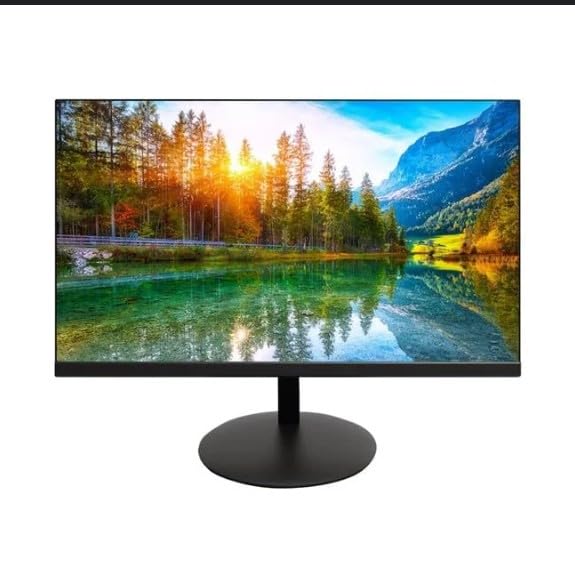
The image shows the Onn 22 inch FHD LED Monitor, highlighting its 100Hz refresh rate and 1080p resolution. The monitor features a slim design and a T-shaped base.
Ntuziaka nhazi
- Iwepu: Carefully remove the monitor and all accessories from the packaging. Ensure all components are present: monitor, T-shaped base, HDMI cable, and power adapter.
- Ịchịkọta Stand: Attach the T-shaped base to the monitor. The design is screw-less for easy assembly. Ensure it is securely fastened.
- Ijikọ na ngwaọrụ:
The monitor supports both HDMI and VGA inputs. Connect the provided HDMI cable from your computer's HDMI output to the HDMI IN port on the monitor. Alternatively, use a VGA cable for VGA input.

This image displays the rear panel of the Onn monitor, illustrating the available input ports: HDMI IN, VGA IN, and the DC 12V power input. These ports are essential for connecting the monitor to a computer or other devices.
- Njikọ ike: Connect the power adapter to the DC 12V input port on the monitor, then plug the adapter into a power outlet.
- Na-edozi Nyochaa: The monitor is capable of swivel, tilt, rotation, and height adjustment. Adjust the screen to your preferred viewing angle maka nkasi obi ergonomic.
- Ntọala Nlebanya Abụọ: This monitor is suitable for a fully functioning dual monitor setup. Connect a second monitor using the appropriate cables and configure your operating system's display settings.
Ntuziaka ọrụ
- Gbanyụọ/ Gbanyụọ: Press the power button, usually located on the bottom or back of the monitor, to turn it on or off.
- Nhọrọ ntinye: If the monitor does not automatically detect the input source, use the On-Screen Display (OSD) menu buttons to manually select between HDMI and VGA inputs.
- Ntugharị NchNhr OSD: Use the physical buttons on the monitor (typically on the back or bottom edge) to navigate the OSD menu. This allows you to adjust settings such as brightness, contrast, color temperature, and input source.
- Resolution and Refresh Rate: The monitor supports a native resolution of 1920x1080 at a 100Hz refresh rate. Ensure your computer's display settings are configured to these specifications for the best visual experience.
- Mmekọrịta na-agbanwe agbanwe: The monitor features Adaptive Sync for gaming, which helps to reduce screen tearing and stuttering. Ensure this feature is enabled in your graphics card settings if supported.
Nlekọta
- Na-ehicha ihuenyo: Jiri nwayọ hichaa ihuenyo ahụ site na iji akwa dị nro na-enweghị lint. Maka akara ndị isi ike, dị obere dampen the cloth with water or a non-abrasive, monitor-specific cleaning solution. Avoid spraying liquids directly onto the screen.
- Na-ehicha Casing: Jiri akwa dị nro dị nro hichaa ihe nleba anya casing. Do not use strong detergents or solvents, as they may damage the finish.
- Igwe ikuku: Gbaa mbọ hụ na egbochighị oghere ikuku ikuku nke onye nleba anya ka ọ ghara ikpo oke ọkụ.
- Nchekwa: When not in use for extended periods, store the monitor in a cool, dry place, away from direct sunlight and extreme temperatures.
Nchọpụta nsogbu
- Enweghị ike:
- Lelee ma ejikọrọ eriri ọkụ na ma ihe nleba anya na oghere ọkụ.
- Nyochaa na oghere ọkụ na-arụ ọrụ nke ọma.
- Enweghị akara:
- Ensure the video cable (HDMI or VGA) is firmly connected to both the monitor and the computer.
- Select the correct input source using the monitor's OSD menu.
- Lelee ma agbanyere kọmputa gị na ọ bụghị na ọnọdụ ụra.
- Flickering Screen or Poor Image Quality:
- Lelee eriri vidiyo maka mmebi ma ọ bụ njikọ rụrụ arụ.
- Hazie mkpebi ahụ ma mee ka ntọala ọsọ dị ọhụrụ na kọmputa gị ka o kwekọọ na nkọwapụta nke onye nlele ahụ (1920x1080, 100Hz).
- Tọgharịa ntọala ihe nlele ka ọ bụrụ ntọala ụlọ ọrụ mmepụta ihe site na menu OSD.
- Bọtịnụ anaghị aza:
- Unplug the monitor from the power outlet, wait for 30 seconds, and then plug it back in.
If problems persist, please refer to the support information provided in the "Support and Warranty" section.
Nkọwapụta
| Ụdị | Onn |
| Nọmba nlereanya | 100140681 |
| Aha Nlereanya | OTTO |
| Nha ihuenyo | 21.5 sentimita asatọ |
| Ụdị ngosi | LED, LCD |
| Mkpebi | 1920 x 1080 (FHD 1080p) |
| Ọnụego ume ọhụrụ | 100 Hz |
| Oge nzaghachi | 6.5 nkeji |
| Ngwaọrụ Akụrụngwa | hdmi, vga |
| Atụmatụ pụrụ iche | Ndozi elu |
| Viewna n'akuku | 160 ogo |
| Akụkụ akụkụ | 16:9 |
| Akụkụ ngwaahịa | 49.2 x 20 x 37.2 cm; 3.24 n'arọ |
Nkwado na akwụkwọ ikike
For technical support, product inquiries, or warranty information, please visit the official Onn support websaịtị ma ọ bụ kpọtụrụ ndị ahịa ha ọrụ.
- Nkwado gọọmentị Websaịtị: onnsupport.ca
- Akwụkwọ ikike: Specific warranty details may vary by region and purchase date. Please refer to the documentation included with your product or visit the support websaịtị maka ozi akwụkwọ ikike kacha ugbu a.


