Okwu mmalite
This manual provides detailed instructions for the setup, operation, and maintenance of your Taiahiro Wireless Gaming Keyboard and Mouse Combo. This combo features a 98-key RGB backlit mechanical keyboard with blue switches and an ergonomic wireless gaming mouse, offering versatile connectivity options (USB-C, 2.4G, Bluetooth 5.0) for various devices.
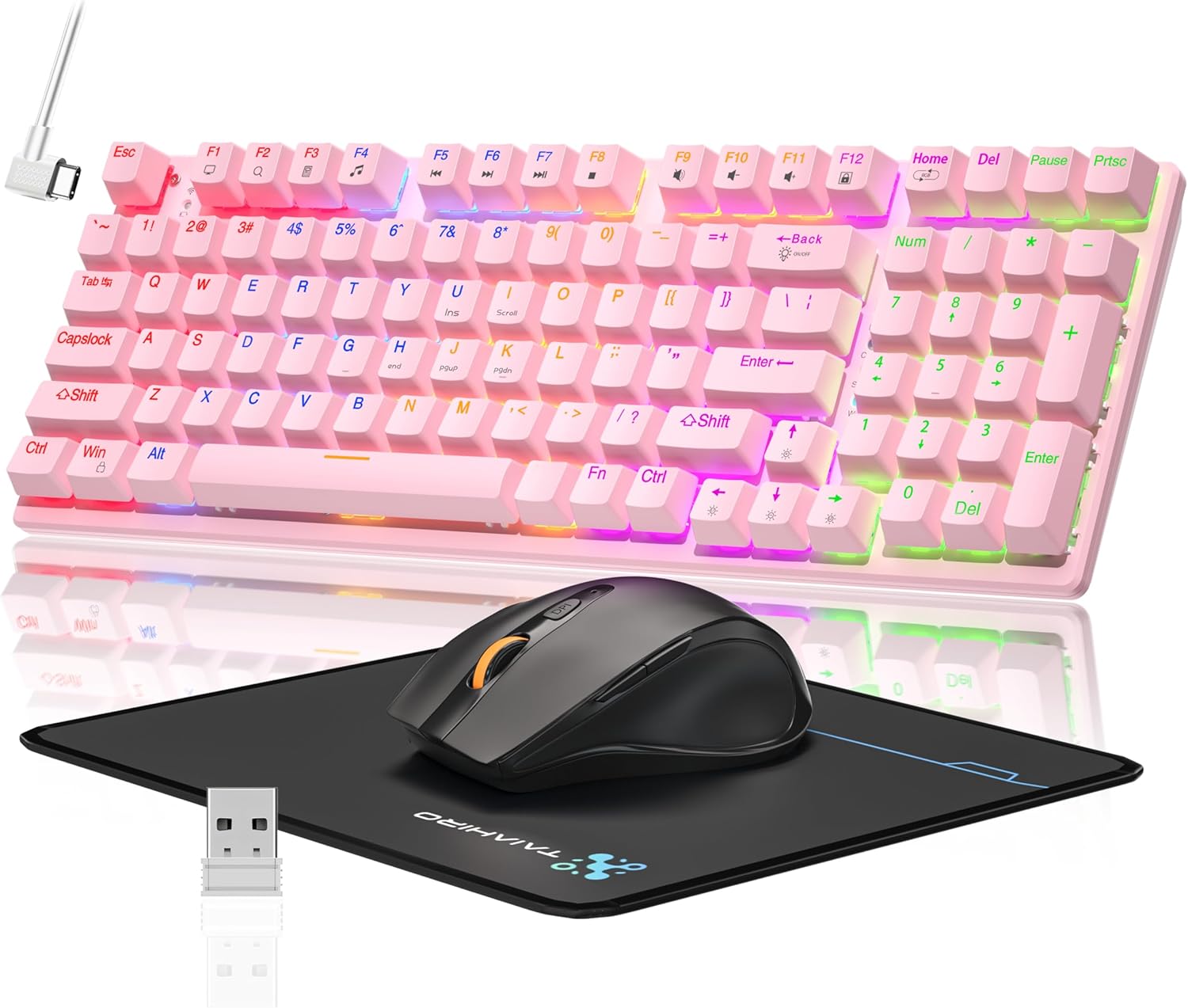
Image: The Taiahiro Wireless Gaming Keyboard and Mouse Combo, featuring a pink 98-key mechanical keyboard with RGB backlighting, a black ergonomic mouse, and a mouse pad. A USB receiver is also visible.
Ihe ngwugwu
- Ikuku Mechanical kiiboodu
- Ikuku Egwuregwu Mouse
- USB-C USB
- 2.4G USB nnata
- Mpempe òké
- Akwụkwọ ntuziaka (akwụkwọ a)
Melite
Mbido kiiboodu
The keyboard supports three connectivity modes: USB-C wired, 2.4G wireless, and Bluetooth 5.0.
- Njikọ eriri USB-C: Connect the provided USB-C cable from the keyboard to an available USB port on your computer. The keyboard will be recognized automatically.
- Njikọ ikuku 2.4G:
- Locate the 2.4G USB receiver, typically stored in the mouse or keyboard compartment.
- Tinye eriri USB 2.4G n'ọdụ ụgbọ mmiri dị na kọmputa gị.
- Ensure the keyboard's mode switch (usually on the back or side) is set to 2.4G mode.
- Ahụigodo kwesịrị jikọọ na akpaghị aka.
- Njikọ Bluetooth 5.0:
- Gbaa mbọ hụ na atọrọ ngbanwe ọnọdụ ahụigodo na ọnọdụ Bluetooth.
- Na ngwaọrụ gị (PC, laptọọpụ, mbadamba, ama ama), mee ka Bluetooth rụọ ọrụ ma chọọ ngwaọrụ ọhụrụ.
- Select "Taiahiro Keyboard" (or similar name) from the list of available devices.
- Soro ihe ọ bụla na-egosi na ihuenyo ka ịmechaa njikọta.

Image: A pink mechanical keyboard connected to various devices (monitor, laptop, tablet) illustrating its triple-mode connectivity via Bluetooth, 2.4GHz, and USB-C.
Ntọala òké
The mouse supports 2.4G wireless and Bluetooth connectivity.
- Njikọ ikuku 2.4G:
- Insert 1 AA battery (not included) into the mouse.
- Plug the 2.4G USB receiver (shared with keyboard) into an available USB port on your computer.
- Ensure the mouse's power switch is turned ON.
- Òké ahụ kwesịrị ijikọ na akpaghị aka.
- Njikọ Bluetooth:
- Insert 1 AA battery (not included) into the mouse.
- Ensure the mouse's power switch is turned ON and set to Bluetooth mode.
- Na ngwaọrụ gị, mee ka Bluetooth rụọ ọrụ ma chọọ ngwaọrụ ọhụrụ.
- Select "Taiahiro Mouse" (or similar name) from the list of available devices.
- Soro ihe ọ bụla na-egosi na ihuenyo ka ịmechaa njikọta.

Image: A wireless gaming mouse highlighting its 4 adjustable DPI levels and showing the battery compartment with a tiny USB receiver and space for a 1AA battery.
Ntuziaka ọrụ
Ọrụ ahụigodo
- RGB ọkụ azụ: The keyboard features 8 different RGB lighting modes.
- Pịa Fn + Ụlọ iji okirikiri okirikiri ọkụ ụdịdị.
- Pịa Fn + ↑/↓ to adjust brightness (5 levels).
- Pịa Fn + ←/→ to adjust breathing speed (5 levels).
- Igodo mgbasa ozi: Jiri ihe Fn key in combination with F-keys for multimedia controls (e.g., Fn+F1 for media player, Fn+F2 for volume down, etc.). Refer to the keycap legends for specific functions.
- Ụkwụ na-agbanwe agbanwe: The keyboard has adjustable feet on the underside to change the typing angle for ergonomic comfort.
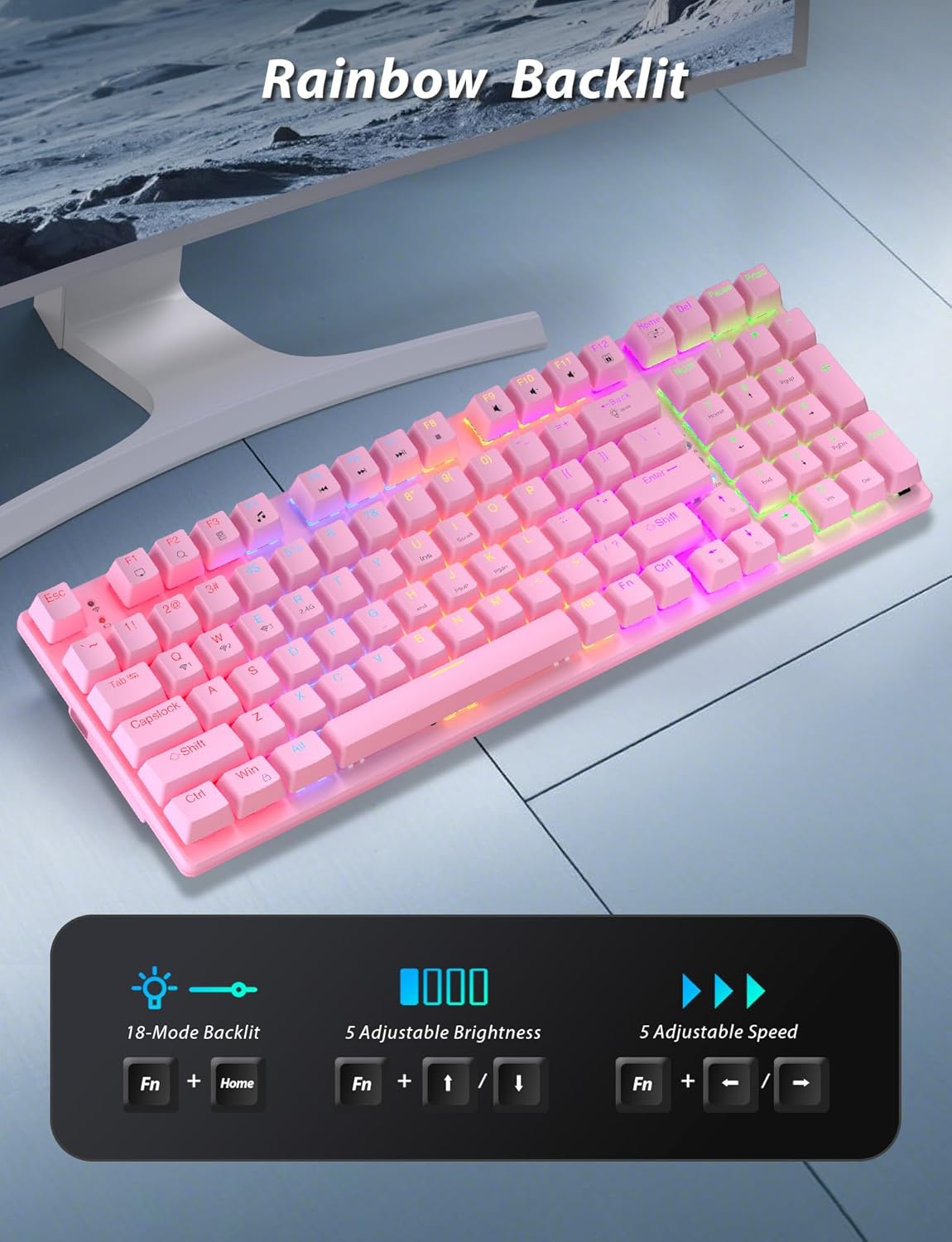
Image: A pink mechanical keyboard displaying its rainbow backlit keys, with an overlay showing the key combinations (Fn + Home, Fn + ↑/↓, Fn + ←/→) for controlling 8 modes, 5 adjustable brightness levels, and 5 adjustable speeds.

Foto: A nso nso view of the side of the pink mechanical keyboard, showing its ergonomic sloped design and the adjustable feet extended for comfortable typing. The accompanying mouse is also shown on a mousepad.
Arụ Ọrụ
- Ndozi DPI: The mouse features 4 adjustable DPI levels (800/1600/2400/3200). Press the DPI button (usually located behind the scroll wheel) to cycle through the sensitivity settings.
- Nhazi Ergonomic: The contoured shape of the mouse is designed to fit comfortably in your hand, reducing fatigue during extended use.
- Anti-skid Scroll Wheel: Provides precise scrolling control.
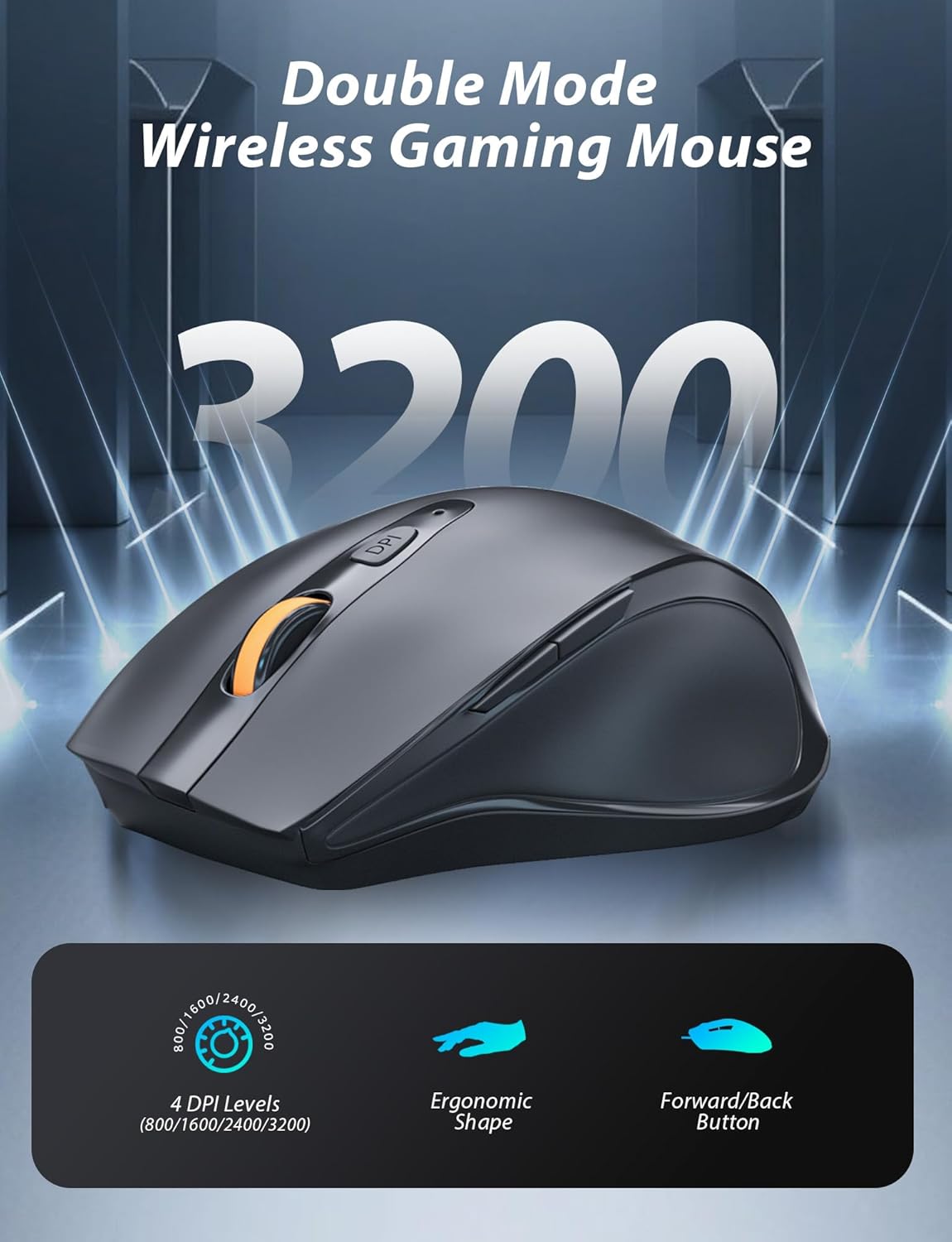
Image: A wireless gaming mouse with a prominent scroll wheel and DPI button, illustrating its 4 adjustable DPI levels (800/1600/2400/3200), ergonomic shape, and forward/back buttons.
Nlekọta
- Nhicha: Jiri ákwà dị nro ma kpọrọ nkụ hichaa elu nke ahụigodo na òké. Maka nhicha miri emi, jiri obere d hichaa elu nke ahụigodo na òké.amp cloth can be used, ensuring no liquid enters the internal components. Avoid harsh chemicals or abrasive materials.
- Ngbanwe batrị: For the mouse, replace the AA battery when performance degrades. For the keyboard, recharge via the USB-C cable when the battery indicator shows low power.
- Nchekwa: Mgbe ejighị ya mee ogologo oge, chekwaa ngwakọta ahụ n'ebe dị jụụ, kpọrọ nkụ na-adịghị na ìhè anyanwụ kpọmkwem na oke okpomọkụ.
Nchọpụta nsogbu
| Nsogbu | Ngwọta |
|---|---|
| Keyboard/Mouse not connecting via 2.4G. |
|
| Keyboard/Mouse not connecting via Bluetooth. |
|
| RGB backlighting not working or dim. |
|
| ihe nrụaka òké na-anaghị arụ ọrụ nke ọma maọbụ na-anaghị anabata ozi. |
|
Nkọwapụta
| Njirimara | Nkọwa |
|---|---|
| Nọmba nlereanya | BK6301 |
| Ụdị ahụigodo | 98-Key Mechanical Keyboard |
| Ngbanwe Ụdị | Mgbanwe na-acha anụnụ anụnụ |
| Njikọta ahụigodo | USB-C (Wired), 2.4G Wireless, Bluetooth 5.0 |
| Njikọ òké | Ikuku 2.4G, Bluetooth |
| Ọkwa DPI òké | 800/1600/2400/3200 |
| Ịkụ azụ azụ | RGB (8 Modes, 5 Brightness, 5 Speed) |
| Ngwa dakọtara | PC, Laptop, Smartphone, Tablet (Windows, macOS, Android) |
| Keyboard Key Life | Nde 50 Pịa |
| Igodo kiiboodu | Approx. 14.96 x 5.51 x 3.15 inches (from Package Dimensions) |
| Ibu Ibu | 2.72 pounds (combo weight) |
| Batrị òké | Batrị 1 x AA (anaghị etinye ya) |
| Batrị ahụigodo | batrị 1 x C (gụnyere) Note: This seems unusual for a keyboard, usually Li-ion. Based on input "1 C batteries required. (included)". Will state as per input. |

Foto: A nso nso view of the mechanical blue switches on the keyboard, showing the keycap removed and the switch mechanism, along with specifications like 50,000,000 keystrokes life, key force, and stroke travel.
Akwụkwọ ikike na nkwado
Taiahiro products are designed for reliability and performance. For warranty information or technical support, please refer to the contact details provided on the product packaging or visit the official Taiahiro websaịtị. Debe akwụkwọ nnata ịzụrụ maka akwụkwọ ikike.
For further assistance, you may contact Taiahiro customer service through their official channels. Please provide your product model number (BK6301) and a detailed description of the issue when seeking support.