Okwu mmalite
This manual provides detailed instructions for the installation, operation, and troubleshooting of your J-Tech Digital 4K HDMI Multiviewer Switch (JTECH-MV41AE). Please read this manual thoroughly before using the product to ensure proper functionality and to maximize your experience.

Image: J-Tech Digital 4K HDMI Multiviewer Switch (JTECH-MV41AE) with remote and a display showing multiple video inputs.
Ozi nchekwa
- Gbaa mbọ hụ na ikuku ikuku dị na gburugburu ngwaọrụ ahụ.
- Ewepụla ngwaọrụ ahụ na mmiri ma ọ bụ oke mmiri.
- Jiri naanị ihe nkwụnye ọkụ enyere.
- Zere itinye ihe dị arọ na ngwaọrụ.
- Debe ngwaọrụ ahụ pụọ na isi mmalite okpomọkụ.
Ihe ngwugwu
Chọpụta na ihe niile dị na ngwugwu gị:
- 1x J-Tech Digital 4K HDMI Multiviewer Switch (JTECH-MV41AE)
- 1x Iye Remote Control
- 1 x 5V DC nkwụnye ọkụ
- 1x Akwụkwọ ntuziaka onye ọrụ
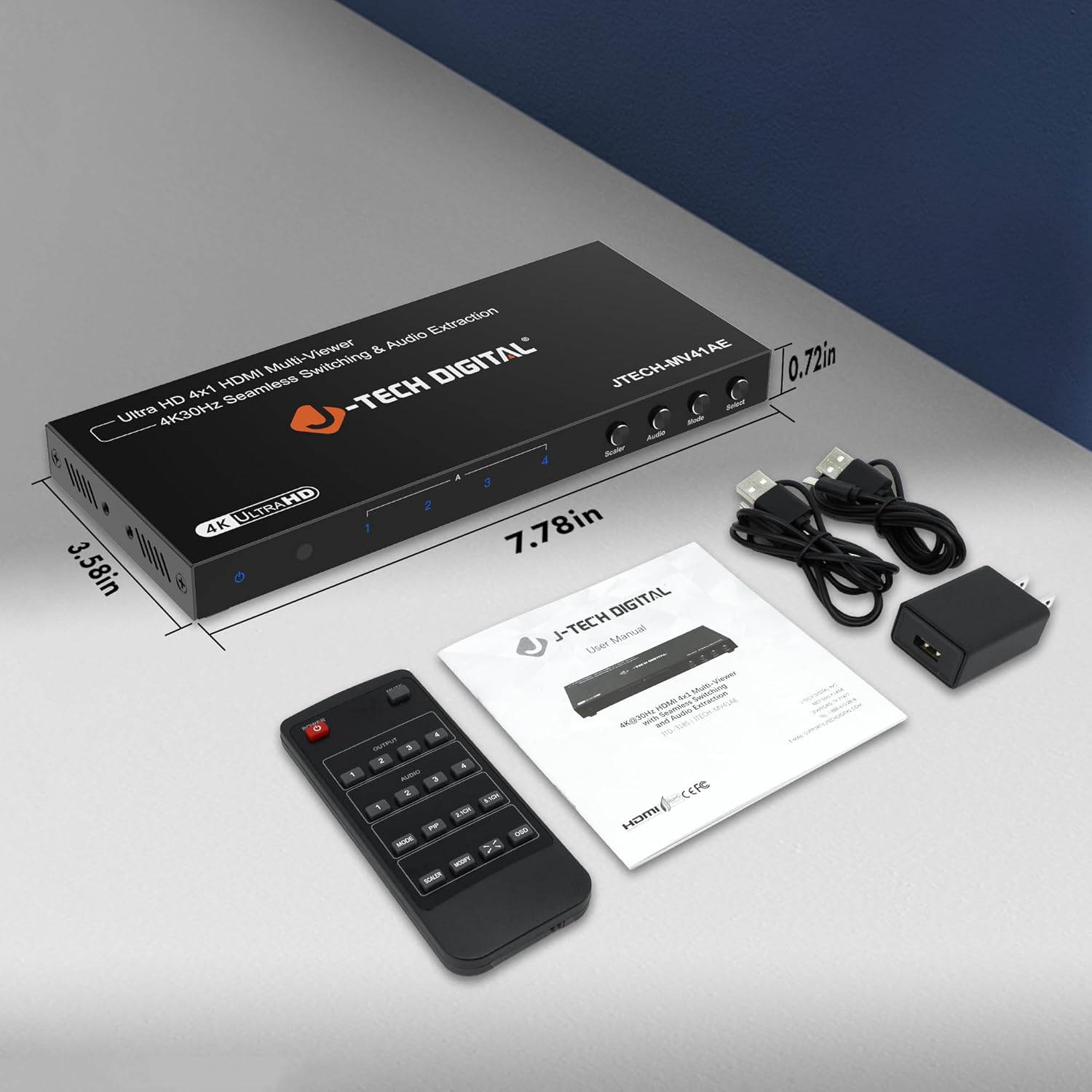
Image: Package contents of the JTECH-MV41AE.
Ngwaahịa gafereview
Front and Rear Panel Interface

Image: Detailed diagram of the multiviewer switch's front and rear panels.
Ogwe ihu:
- Igwe ọkụ ọkụ: Na-egosi ọkwa ike.
- Onye nnata IR: Maka akara njikwa dị anya.
- HDMI 1-4 Input Indicators: LEDs show active HDMI inputs.
- Input 1-4 Selection Buttons: Select individual HDMI inputs.
- Scaler Button: Adjusts output resolution.
- Bọtịnụ ọdịyo: Controls audio output settings.
- Bọtịnụ ụkpụrụ: Cycles through viewụdịdị ụdị.
- Họrọ bọtịnụ: Confirms selections or activates PiP.
Ngbanwe azụ:
- HDMI 1-4 Input: Connect your HDMI source devices.
- Ihe mmepụta HDMI: Connect to your display (TV, monitor, projector).
- Audio Output (Stereo): 3.5mm jack for analog audio extraction.
- Audio Output (TOSLINK): Optical port for digital audio extraction.
- Micro USB (RS-232 Control): For advanced control via PC.
- DC 5V: ọdụ ụgbọ mmiri ntinye ike.
- Gbanyụọ/gbanyụọ Power toggle.
Atụmatụ igodo
- Supports up to 4 HDMI sources on a single display.
- Seamless switching between source devices without delay or black screen.
- Supports 4K@30Hz resolution.
- Features 6 different viewing modes, including Picture-in-Picture (PiP) with custom location control.
- Audio extraction via Optical (TOSLINK) and 3.5mm stereo outputs.
- Control via remote control, front panel buttons, or RS232.
Ntọala na nwụnye
Follow these steps to set up your J-Tech Digital 4K HDMI Multiviewnke Switch:
- Jikọọ isi iyi HDMI: Connect up to four HDMI source devices (e.g., PC, game console, Blu-ray player, STB) to the HDMI Input 1-4 ports on the rear panel of the multiviewihe ngbanwe.
- Jikọọ HDMI ngosi: Connect an HDMI cable from the HDMI Output port on the multiviewer switch to the HDMI input of your display (TV, monitor, or projector).
- Jikọọ Mmepụta Ọdịyo (Nhọrọ): If you wish to extract audio to an external sound system, connect an optical cable to the TOSLINK port or a 3.5mm stereo cable to the Stereo port on the rear panel.
- Njikọ Ike: Plug the provided 5V DC power adapter into the DC 5V port on the rear panel, then plug the adapter into a power outlet.
- Ike Na: Flip the ON/OFF switch on the rear panel to the 'ON' position. The Power LED on the front panel should illuminate.

Image: Connection diagram for the JTECH-MV41AE.
Ọrụ
Ịgbanyụ/ Gbanyụọ
Use the ON/OFF switch on the rear panel to power the device. The front panel Power LED indicates the power status.
Nhọrọ ntinye
You can select the desired HDMI input using the front panel buttons (Input 1-4) or the corresponding number buttons on the IR remote control.
Viewna esdị
Multiviewer switch offers 6 different viewing modes. Press the Ụdị button on the front panel or remote to cycle through these modes:
- Single Display Mode
- Dual Side Mode (Side by Side)
- Dual Side Mode (Up and Down)
- 4 Equal Display Mode
- 1 Big, 3 Small Display Mode
- Picture-in-Picture (PiP) Mode (1 Big, 1 Small)

Image: Six display modes supported by the JTECH-MV41AE.
Picture-in-Picture (PiP) Function
In PiP mode, you can customize the location of the small window. Press the PiP button on the remote control to adjust its position on the screen.
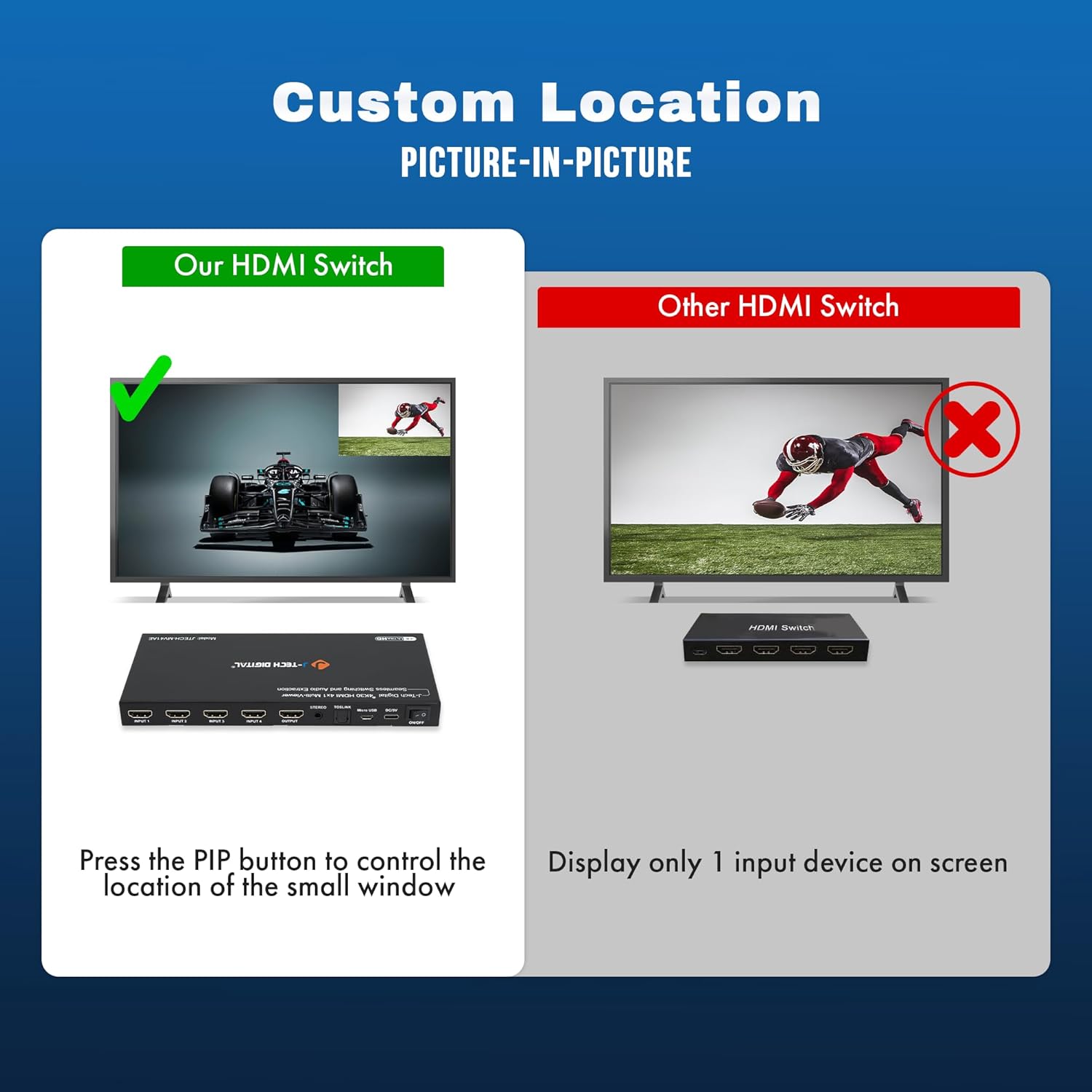
Image: Custom Picture-in-Picture location control feature.
Mgbanwe na-enweghị ntụpọ
The device features seamless switching, meaning there is no black screen or delay when transitioning between different source devices. This ensures a smooth viewahụmahụ.

Image: Seamless switching functionality.
Mwepụta ọdịyo
Audio from any of the incoming HDMI signals can be extracted to an external sound system using the Optical (TOSLINK) or 3.5mm analog audio outputs on the rear panel.
Njikwa RS232
For advanced control and integration into professional setups, the device can be controlled via RS232 using the Micro USB port and appropriate software.
Nlekọta
To ensure the longevity and optimal performance of your J-Tech Digital 4K HDMI Multiviewer Switch, follow these maintenance guidelines:
- Nhicha: Jiri ákwà dị nro ma kpọọ nkụ hichaa mpụta nke ngwaọrụ ahụ. Zere iji kemịkalụ siri ike ma ọ bụ ihe nhicha ihe nhicha.
- Igwe ikuku: Gbaa mbọ hụ na egbochighị oghere ikuku iji gbochie ikpo oke ọkụ.
- Nchekwa: Mgbe ọ naghị eji ya ogologo oge, chekwaa ngwaọrụ ahụ n'ebe dị jụụ na ebe kpọrọ nkụ na-adịghị na ìhè anyanwụ kpọmkwem na oke okpomọkụ.
- Njikwa USB: Keep cables neatly organized and avoid sharp bends or excessive tension to prevent damage.
Nchọpụta nsogbu
If you encounter issues with your multiviewer switch, refer to the following common problems and solutions:
| Nsogbu | Ihe nwere ike ime | Ngwọta |
|---|---|---|
| No video output or flickering screen. | Loose cable connections, incompatible resolution, power issue. | Check all HDMI and power cable connections. Ensure they are secure. Try a different HDMI cable. Verify that your display supports the output resolution (4K@30Hz). Cycle power to the device and display. |
| Enweghị mmepụta ọdịyo. | Incorrect audio settings, loose audio cable, incompatible audio format. | Check audio cable connections (Optical/3.5mm). Ensure your external sound system is correctly configured. Press the 'Audio' button on the device or remote to adjust audio settings. |
| Njikwa anya anaghị arụ ọrụ. | Dead batteries, obstructed IR path. | Replace batteries in the remote. Ensure there are no obstructions between the remote and the device's IR receiver. |
| Device defaults to 2K resolution on startup. | Default setting behavior. | Press the 'Scaler' button multiple times to cycle to the desired 4K resolution. This setting may need to be reapplied after each power cycle. |
| Cannot switch between inputs. | No signal from source, faulty button/remote. | Ensure all source devices are powered on and sending a signal. Try using both the front panel buttons and the remote control. |
Nkọwapụta
- Ụdị: JTECH-MV41AE
- Akụkụ ngwaahịa: 3.58 x 7.78 x 0.72 sentimita asatọ
- Ibu ihe: 1.4 pound
- Agba: Nwa
- Ụdị njikọ: HDMI
- Ụdị eriri: HDMI
- Ọdụ mbata: 4x HDMI
- Ọdụ ụgbọ mmiri mmepụta: 1x HDMI, 1x Optical (TOSLINK), 1x 3.5mm Stereo
- Nkwado mkpebi: Ruo 4K@30Hz
- Ụzọ njikwa: IR Remote, Front Panel Buttons, RS232
- Ngwa dakọtara: Blu-Ray Player, Gaming Console, Laptop, Projector, Television

Image: Wide compatibility of the JTECH-MV41AE.
Akwụkwọ ikike na nkwado
All J-Tech Digital products include a one-year manufacturer replacement warranty. Additionally, J-Tech Digital provides free lifetime technical support from their customer support team located in Stafford, TX.
Oge Nkwado nka na ụzụ: Monday – Friday, 9 AM – 6 PM CST.
Contact information is available on the J-Tech Digital seller page or official websaịtị.


