1. Okwu mmalite
The ORICO MiniMate Thunderbolt 4 External SSD is designed to provide high-speed storage expansion for your Mac Mini M4. Featuring a Thunderbolt 4/3 interface and an Intel JHL7440 chipset, it offers data transfer speeds up to 3100MB/s. This device is specifically engineered to complement the Mac Mini M4's dimensions and aesthetics, providing a seamless integration for your desktop setup. It is compatible only with Thunderbolt interfaces.
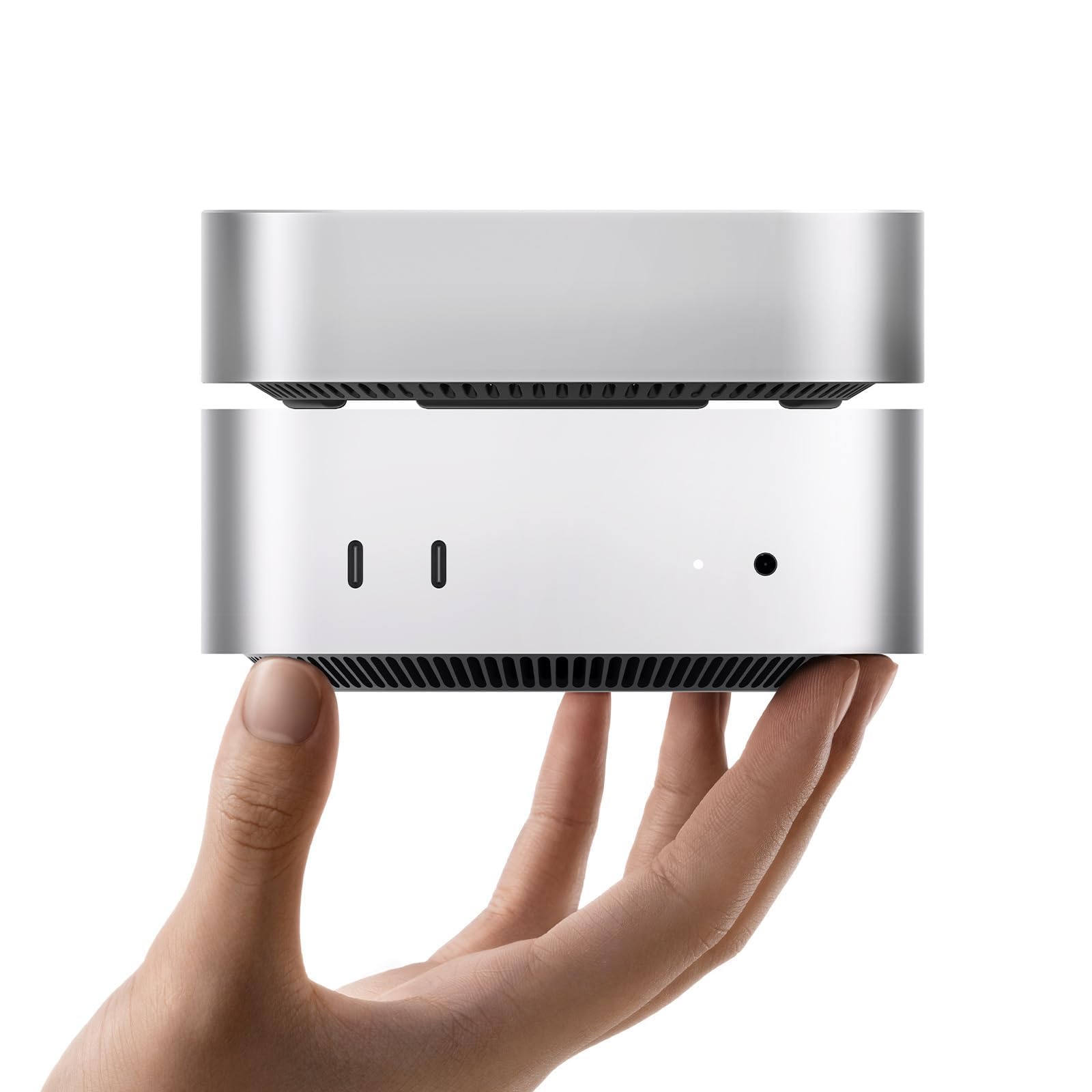
Image: The ORICO MiniMate Thunderbolt 4 External SSD, a compact device designed for storage expansion.
2. Kedu ihe dị na Igbe ahụ
Biko chọpụta na ihe niile dị na ngwugwu:
- ORICO MiniMate External SSD
- Akwụkwọ ntuziaka onye ọrụ
- 40Gbps USB-C to USB-C Cable

Image: Contents of the ORICO MiniMate package, including the SSD unit, user manual, and USB-C to USB-C cable.
3. Nhazi ntuziaka
Follow these steps to set up your ORICO MiniMate External SSD:
- Positioning the MiniMate: Place the ORICO MiniMate directly beneath your Mac Mini M4. The MiniMate is designed to match the dimensions of the Mac Mini M4 for a stable and integrated setup.
- Ijikọ eriri: Use the provided 40Gbps USB-C to USB-C cable. Connect one end to the Thunderbolt port on the ORICO MiniMate and the other end to a Thunderbolt 3 or Thunderbolt 4 port on your Mac Mini M4. Ensure a secure connection.
- Ike Na: Ensure your Mac Mini M4 is powered on. The ORICO MiniMate does not require a separate power adapter as it draws power directly from the Thunderbolt connection.
- Nkwekọrịta sistemụ: Your Mac Mini M4 should automatically detect the ORICO MiniMate. A new drive icon may appear on your desktop or in Finder under "Locations".
- Initial Formatting (if necessary): For first-time use or if you wish to change the file system, you may need to format the SSD.
- Mepee Utility Disk on your macOS device (Applications > Utilities > Disk Utility).
- Select the ORICO MiniMate drive from the sidebar.
- Pịa Hichapụ.
- Choose a format (e.g., APFS for macOS, ExFAT for cross-platform compatibility) and a scheme (e.g., GUID Partition Map).
- Pịa Hichapụ ọzọ iji gosi. Warning: This will delete all data on the drive.

Image: The ORICO MiniMate positioned beneath a Mac Mini M4, illustrating the integrated setup.
Vidiyo: Efereview of the ORICO MiniMate, demonstrating its physical integration with the Mac Mini M4 and highlighting its features. This video shows the connection process and general use.
4. Ọrụ
The ORICO MiniMate provides fast and reliable external storage for various applications.
4.1. Nyefee data
Leverage the Thunderbolt 4/3 interface for high-speed data transfers. With speeds up to 3100MB/s, large files, such as 4K videos, high-resolution images, and extensive project files, can be moved quickly and efficiently between your Mac Mini M4 and the MiniMate.

Image: A graphic illustrating the data transfer speeds of Thunderbolt (40Gbps) compared to various USB-C standards, emphasizing the high performance of the ORICO MiniMate.
4.2. Mgbasawanye nchekwa
The MiniMate serves as a direct storage expansion for your Mac Mini M4. You can store documents, videos, photos, and other materials on the MiniMate, freeing up internal storage on your Mac Mini for applications and system files. This setup is ideal for managing growing data needs without impacting your primary system performance.

Image: A visual representation of the ORICO MiniMate as a storage expansion companion, showing various data types like videos, information, and databases being stored.
4.3. Ihe ngosi eji eme ihe
- Creative Workflows: Ideal for video editing, graphic design, and music production, where large project files and media libraries benefit from fast external storage.
- Mmepe ngwanrọ: Store development environments, large code repositories, and virtual machines for quick access and improved workflow efficiency.
- Egwuregwu: Install large game titles on the external SSD to reduce load times and expand your game library without consuming internal drive space.
- General Data Storage: Use it for backups, archiving important documents, or simply extending your available storage for everyday files.

Image: Depicts the ORICO MiniMate being used in various scenarios such as creative work (video editing), coding, and gaming, highlighting its versatility.
5. Nlekọta
Proper maintenance ensures the longevity and optimal performance of your ORICO MiniMate:
- Nhicha: Use a soft, dry cloth to clean the exterior of the device. Avoid liquid cleaners or abrasive materials.
- Ọnọdụ gburugburu: Operate the MiniMate within typical room temperatures. Avoid extreme heat, cold, or high humidity.
- Nkwụsị nke ọma: Always eject the drive from your operating system before physically disconnecting the cable to prevent data corruption.
- Mmelite femụwe: Periodically check the ORICO official website for any available firmware updates for your device to ensure optimal performance and compatibility.
6. Nchọpụta nsogbu
If you encounter issues with your ORICO MiniMate, refer to the following common problems and solutions:
- Amataghị ngwaọrụ:
- Ensure the USB-C to USB-C cable is securely connected to both the MiniMate and a Thunderbolt 3/4 port on your Mac Mini M4.
- Verify that your Mac Mini M4 is powered on.
- Restart your Mac Mini M4.
- Confirm that the port on your Mac Mini M4 is a Thunderbolt interface. The MiniMate is ekwekọghị with non-Thunderbolt USB-C ports.
- Check Disk Utility to see if the drive is detected but unformatted.
- Ọsọ mbufe data dị nwayọ:
- Ensure you are using the provided 40Gbps USB-C to USB-C cable.
- Confirm that the MiniMate is connected to a Thunderbolt 3 or Thunderbolt 4 port on your Mac Mini M4. Using a standard USB-C port will result in lower speeds.
- Close any background applications that might be heavily utilizing system resources or other storage devices.
- Mkpọtụ na-adịghị ahụkebe:
- The MiniMate features an upgraded silent fan designed to keep noise below 40dB during normal operation. If you experience excessive or unusual noise, ensure the device is placed on a flat, stable surface and that the fan vents are not obstructed.

Foto: nkọwa zuru ezu view of the Intel JHL7440 Chipset, which ensures stable and high-speed data transfer and compatibility with Thunderbolt 4/3 ports.
7. Nkọwapụta
| Njirimara | Nkọwa |
|---|---|
| Ụdị | ORICO |
| Nọmba nlereanya | M4T4-512GB |
| Ụdị draịvụ ike | Mbanye steeti siri ike (SSD) |
| Ike Nchekwa Dijitalụ | 512 GB |
| Interface Hard Disk | Thunderbolt |
| Teknụzụ Njikọta | USB (Thunderbolt 3/4 compatible) |
| Ọsọ mbufe data | Ruo 3100MB / s |
| Chipset | Intel JHL7440 |
| Ndakọrịta | Mac Mini M4 (Thunderbolt 3/4 interfaces only) |
| Njirimara Pụrụ Iche | Backward Compatible (with Thunderbolt 3) |
| Ibu Ibu | 3.17 ounces |
| Akụkụ ngwugwu | 5.91 x 4.25 x 0.98 sentimita asatọ |
8. Akwụkwọ ikike & Nkwado
ORICO products come with a standard manufacturer's warranty. For specific warranty details, duration, and terms, please refer to the warranty card included in your product packaging or visit the official ORICO websaịtị.
If you require technical assistance, troubleshooting beyond this manual, or have questions regarding your product, please contact ORICO customer support through their official websaịtị ma ọ bụ ozi kọntaktị enyere na akwụkwọ ngwaahịa gị.
ORICO Official Websaịtị: www.oricotech.com


