
1. Okwu mmalite
This manual provides comprehensive instructions for the Symcode 2D Bluetooth Barcode Scanner, Model MJ-X1. This portable device is designed for efficient and versatile barcode scanning, supporting both 1D and 2D barcodes. It features multiple connection options, an intelligent display screen, and a convenient clip-on design, making it suitable for various inventory and point-of-sale applications.
2. Atụmatụ igodo
- Intelligent LCD Screen: 1.5-inch display showing scanning time, connection status (Bluetooth, 2.4GHz wireless, USB wired), battery level, barcode data, and total scan count.
- Njikọta dị iche iche: Supports Bluetooth, 2.4G Wireless, and USB Wired connections for broad compatibility with various devices.
- Advanced 2D Decoding: Capable of scanning most 1D and 2D barcodes from paper and screens, including damaged or low-contrast codes.
- Enwere ike ibugharị: Features a convenient clip-on and magnetic suction design for easy attachment to clothing, belts, or metal surfaces.
- Ogologo ndụ batrị: Built-in 2000mAh battery provides extended standby time (up to 30 days) and 5-7 days of frequent use.
- Multiple Configuration Options: Adjustable settings for time stamp, instant/storage upload modes, sound/vibration control, and custom prefix/suffix digits via the screen menu.
- Three Scanning Modes: Key Trigger, Auto-sensing, and Continuous Scanning modes for different operational needs.

Image: Demonstrates the scanner's clip-on and magnetic features, showing it attached to a pocket, belt, and a metal shelf, emphasizing its portability and versatile attachment options.
3. Ihe ngwugwu
Please verify that all items listed below are included in your package. If any items are missing or damaged, please contact Symcode customer support.
- 1 x Symcode 2D Bluetooth Barcode Scanner (MJ-X1)
- 1 x USB Cable (1.6m/5.2ft)
- 1 x 2.4GHz Wireless Dongle
- 1 x agba
- 1 x Akwụkwọ ntuziaka onye ọrụ
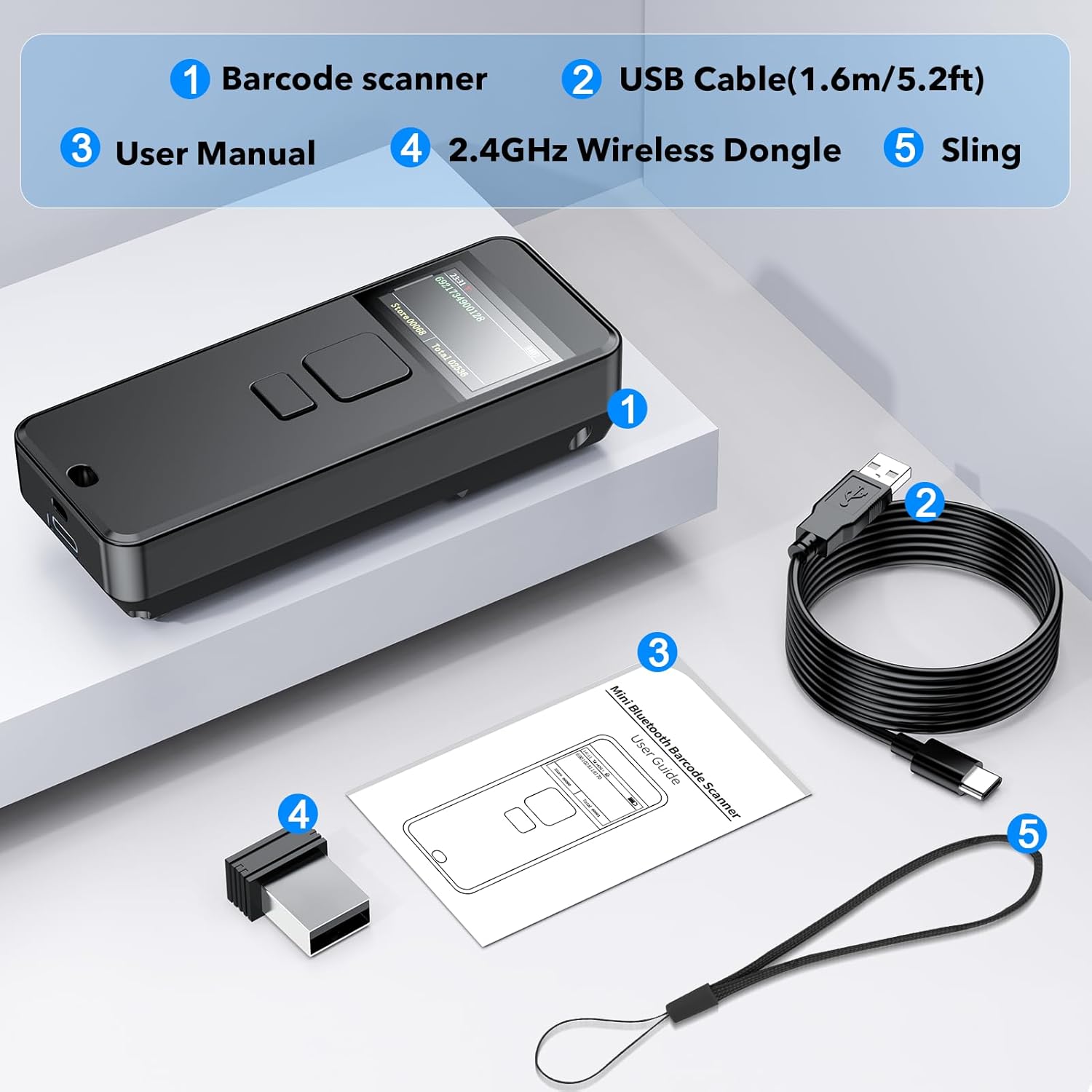
Image: Visual representation of the package contents, including the barcode scanner, USB cable, 2.4GHz wireless dongle, sling, and user manual.
4. Nhazi
4.1 Nchaji izizi
Before first use, fully charge the scanner using the provided USB-C cable. Connect the USB-C end to the scanner and the USB-A end to a power adapter or computer USB port. The battery indicator on the screen will show charging status.
4.2 Removing Protective Film
A protective film is applied to the display screen to prevent scratches during shipping. Gently peel off this film from the corner before using the scanner for optimal screen clarity.

Image: Illustrates the process of removing the protective film from the scanner's display screen, showing "before" and "after" views.
4.3 Ụdị njikọ
The Symcode MJ-X1 offers three connection methods: Bluetooth, 2.4G Wireless, and USB Wired. You can switch between these modes directly through the scanner's menu.
- Njikọ Bluetooth:
Ideal for connecting to smartphones, tablets, and Bluetooth-enabled computers. Scan the Bluetooth pairing barcode (found in the full user manual) or select Bluetooth mode from the scanner's menu. Then, search for "Symcode Scanner" on your device's Bluetooth settings and pair.
Oke: Approximately 15m/49ft in barrier environments, up to 50m/164ft in barrier-free environments.
- Njikọ ikuku 2.4G:
Use the provided 2.4GHz wireless dongle for computers without Bluetooth. Plug the dongle into a USB port on your computer. The scanner will automatically connect to the dongle when in 2.4G wireless mode.
Oke: Approximately 30m/98ft in barrier environments, up to 150m/492ft in barrier-free environments.
- Njikọ eriri USB:
Connect the scanner directly to your computer using the USB-C cable. This mode provides faster data transfer and simultaneous charging. The scanner will function as a USB-HID keyboard device.

Image: Compares the effective range of 2.4GHz wireless and Bluetooth connections for the scanner in both barrier and barrier-free environments.
5. Ntuziaka ọrụ
5.1 Gbanyụọ ma ọ bụ gbanyụọ
Press and hold the power button (usually located on the side or front) to turn the scanner on or off. The LCD screen will illuminate upon power-on.
5.2 Ụdị nyocha
The scanner supports three primary scanning modes, selectable via the device's menu or by scanning specific configuration barcodes from the full manual.
- Ụdị ihe mkpali: Press the scan button to activate the scanner and read a barcode.
- Ụdị nyocha na-aga n'ihu: The scanner continuously emits a scan beam, reading barcodes as they pass through the beam without needing to press the button for each scan.
- Automatic Sensing Mode: The scanner activates its beam only when it detects a barcode in its field of view, then reads it automatically.

Image: Illustrates the three scanning modes: Key Trigger, Continuous Scanning, and Automatic Sensing, showing how the scanner interacts with barcodes in each mode.
5.3 Display Screen Information
The 1.5-inch LCD screen provides real-time information:
- Scanning Time: Na -egosiputa oge ugbu a.
- Ụzọ njikọ: Indicates whether the scanner is connected via Bluetooth, 2.4GHz wireless, or USB wired.
- Ọkwa ike batrị: Na-egosi ụgwọ batrị fọdụrụnụ.
- Barcodes Data: Displays the last scanned barcode content.
- Stored Data Amount: Shows the quantity of barcodes stored in memory (in storage mode).
- Total Scanning Amount: Displays the cumulative number of scans.
Mara: To display goods names and prices, specific data upload to the scanner via a dedicated tool may be required. Contact Symcode support for details.
5.4 Data Upload Modes
The scanner supports two data upload modes:
- Ụdị nbudata ngwa ngwa: Barcodes are transmitted immediately to the connected device after scanning.
- Ụdị Nchekwa: Barcodes are stored in the scanner's internal memory and can be uploaded later as a batch.
5.5 Customization and Settings
The scanner allows for various configurations through its screen menu or by scanning specific setup barcodes provided in the comprehensive user manual. These include:
- Turning sound and vibration on/off.
- Adding custom prefix/suffix digits to scanned data.
- Hiding specific characters from scanned data.
- Adding keyboard keys (e.g., TAB, CR&LF) to the scanning output.
- Setting time stamps for scanned data.

Image: Depicts various practical applications of the Symcode barcode scanner, including retail point-of-sale, warehouse inventory management, and pharmacy use.
6. Nlekọta
6.1 Nhicha
To maintain optimal performance, keep the scanner's scanning window clean. Use a soft, lint-free cloth lightly dampened with water or a mild, non-abrasive cleaner. Do not use harsh chemicals or abrasive materials, as they can damage the device.
6.2 Nlekọta batrị
The scanner is equipped with a built-in rechargeable Lithium Polymer battery.
- Avoid exposing the battery to extreme temperatures (hot or cold).
- Charge the device regularly, even if not in frequent use, to prolong battery life.
- Ọ bụrụ na a gaghị eji ngwaọrụ ahụ ruo ogologo oge, chajie ya ruo ihe dịka 50% tupu echekwa ya.
7. Nchọpụta nsogbu
If you encounter issues with your Symcode barcode scanner, please refer to the following common problems and solutions:
| Nsogbu | Ihe kpatara/ Ngwọta nwere ike ime |
|---|---|
| Scanner anaghị agbanye ọkụ. | Battery is depleted. Charge the scanner fully. |
| Cannot connect via Bluetooth/2.4G Wireless. |
|
| Scanner does not read barcodes. |
|
| Scanned data is incorrect or incomplete. |
|
| Cannot configure prefix/suffix or other advanced settings. |
|
For further assistance, please refer to the complete user manual or contact Symcode customer support.
8. Nkọwapụta
| Njirimara | Nkọwa |
|---|---|
| Nọmba nlereanya | MJ-X1 |
| Akụkụ | 5.35 x 4.25 x 2.13 sentimita asatọ |
| Ibu Ibu | 5 ounces |
| Teknụzụ Njikọta | Bluetooth, Ikuku 2.4G, eriri USB |
| Isi Iyi Ike | Akwanyere batrị |
| Ụdị batrị | 1 batrị lithium polymer (gụnyere) |
| Ike batrị | 2000mAh |
| Ngwa dakọtara | Desktọpụ, Laptọọpụ, Ama Ama, Mbadamba |
| Onye nrụpụta | akara ngosi |
| Barcode akwadoro | 1D: ISBN/UPC/EAN, UPC/EAN With Supplementals, Code39, Interleaved 2 of 5, Code93, Code 128, Codabar. 2D: QR, Data Matrix, PDF417. |
9. Akwụkwọ ikike na nkwado
9.1 Ozi akwụkwọ ikike
Symcode products typically come with a standard manufacturer's warranty covering defects in materials and workmanship. Please refer to the warranty card included with your product or visit the official Symcode websaịtị maka usoro na ọnọdụ akwụkwọ ikike akọwapụtara. Debe nnata nzụta gị dị ka ihe akaebe nke ịzụrụ maka nkwupụta ikike.
9.2 Nkwado ndị ahịa
For technical assistance, troubleshooting, or any inquiries regarding your Symcode 2D Bluetooth Barcode Scanner, please contact Symcode customer support.
- Nkwado n'ịntanetị: Visit the official Symcode website for FAQs, drivers, and digital manuals.
- Nkwado email: Rụtụ aka na nkwakọ ngwaahịa gị ma ọ bụ onye ọrụ gọọmentị webebe nrụọrụ weebụ maka adreesị ozi-e ọrụ ndị ahịa.
- Nkwado ndị na-ere ahịa Amazon: You can also contact the seller "Symcode" directly through your Amazon order history for product-specific inquiries.


