Okwu mmalite
Thank you for choosing the ATTACK SHARK G500 Wireless Over-ear Noise Canceling Headphones. This manual provides detailed instructions for setting up, operating, maintaining, and troubleshooting your new headphones. Please read this manual thoroughly before use to ensure optimal performance and longevity of your device.
Ngwaahịa gafereview
The ATTACK SHARK G500 headphones are designed to deliver a superior audio experience with advanced Active Noise Cancellation (ANC) technology. They offer versatile connectivity options, comfortable wear, and long-lasting battery life, making them suitable for various activities from gaming to travel.

Figure 1: ATTACK SHARK G500 Wireless Over-ear Noise Canceling Headphones (Beige)
The image displays the ATTACK SHARK G500 headphones in a beige color, highlighting their over-ear design and cushioned earcups.
Ihe ngwugwu
- ATTACK SHARK G500 Wireless Over-ear Headphones
- USB Type-C Nchaji USB
- 3.5mm Audio USB
- Akwụkwọ ntuziaka onye ọrụ
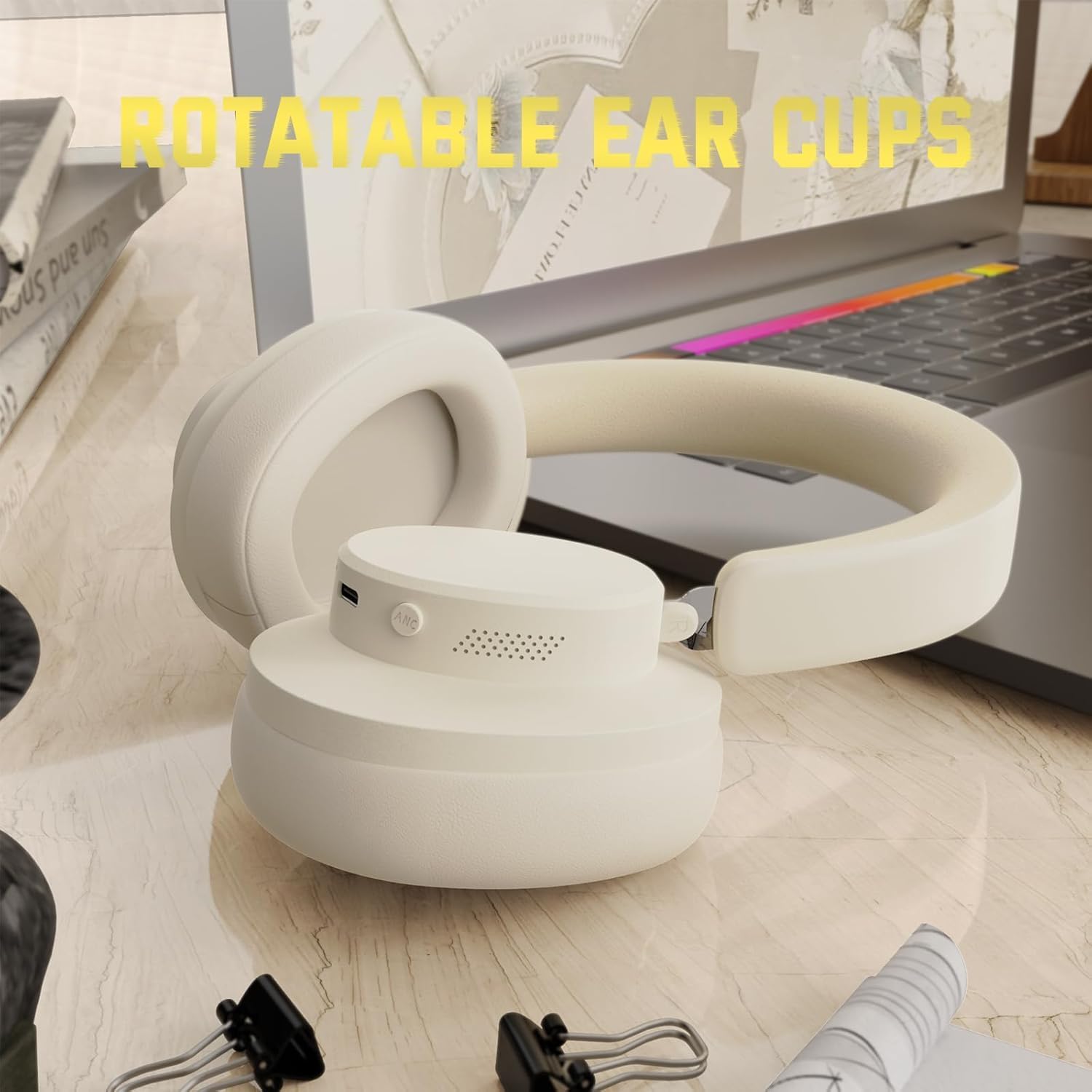
Figure 2: Included accessories with the G500 headphones
This image shows the complete package contents, including the headphones, charging cable, 3.5mm audio cable, and the user manual.
Melite
1. Ịchaji ekweisi
- Locate the USB Type-C charging port on the headphone earcup.
- Connect the provided USB Type-C charging cable to the headphones and a compatible USB power source (e.g., computer, wall adapter).
- The LED indicator will illuminate during charging. A full charge typically takes approximately 2 hours.
- The LED indicator will change color or turn off once charging is complete.
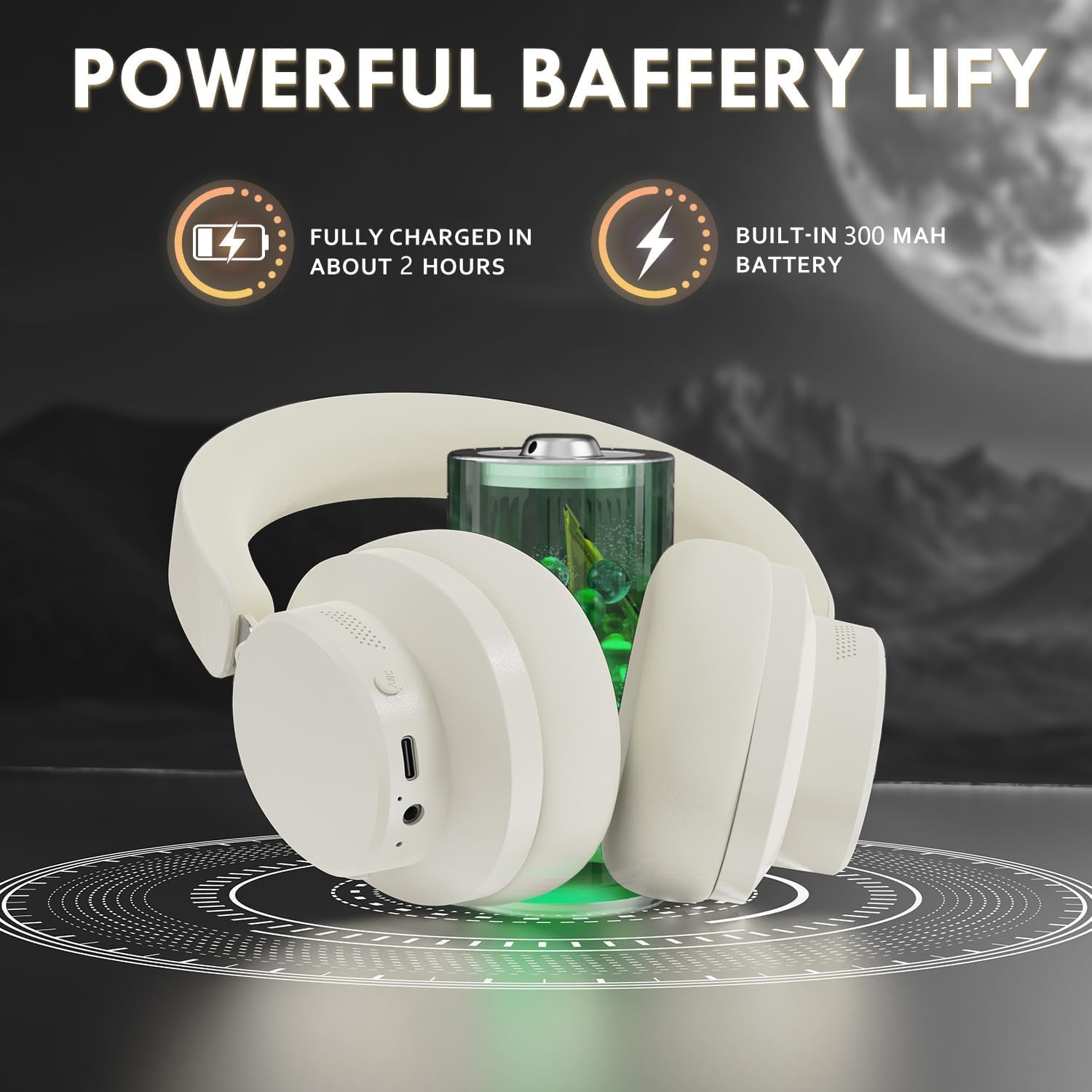
Figure 3: Location of the charging port and LED indicator
This image highlights the USB Type-C charging port and the LED indicator on the headphone earcup, essential for monitoring charging status.
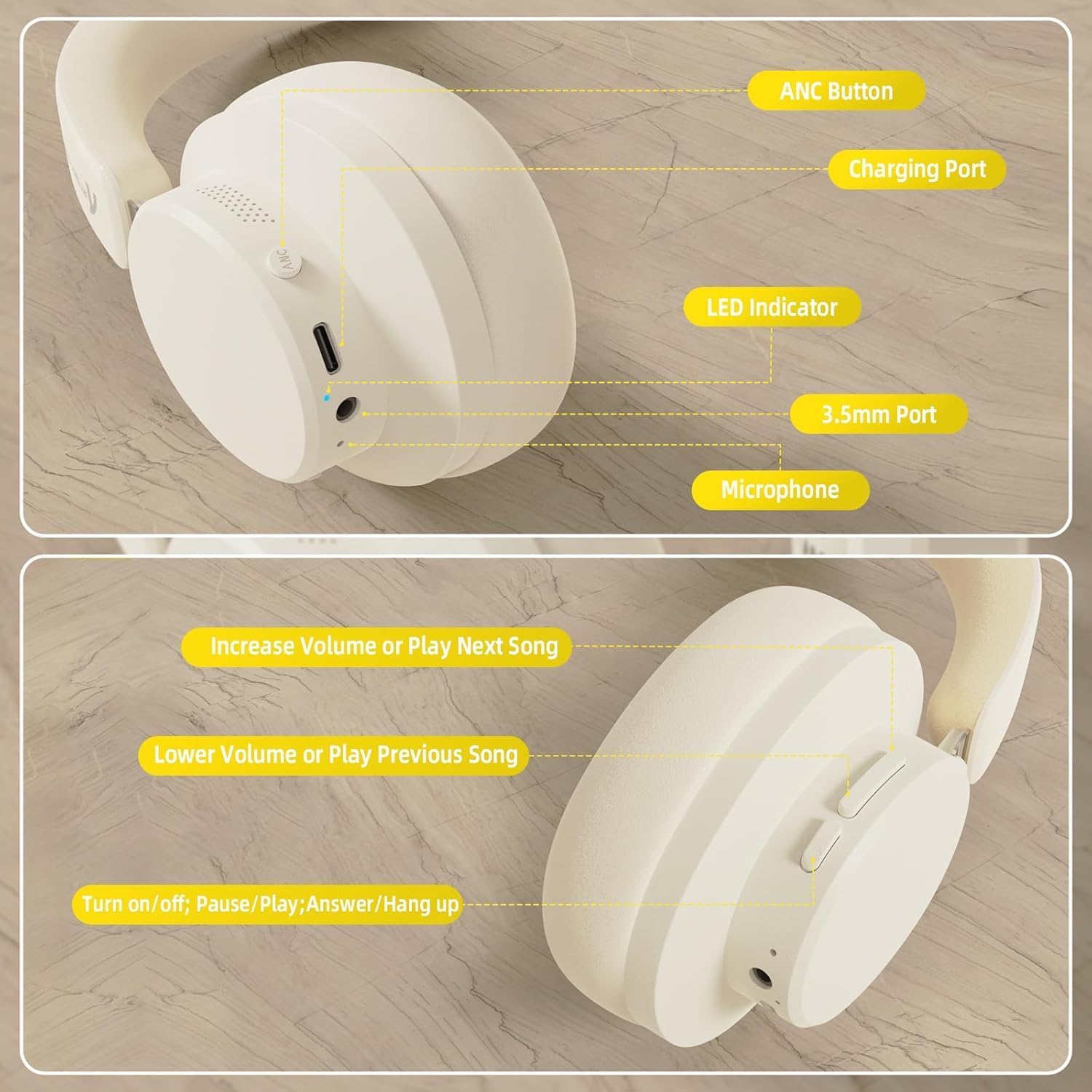
Figure 4: Visual representation of headphones charging
The image illustrates the headphones connected to a power source, with a battery icon indicating the charging process.
2. Njikọ Bluetooth
- Gbaa mbọ hụ na agbanyụrụ ekweisi nke ọma ma gbanyụọ ya.
- Press and hold the Power/Multi-function button until the LED indicator flashes, indicating pairing mode.
- Na ngwaọrụ gị (smartphone, tabletị, laptọọpụ), gbanye Bluetooth wee chọọ ngwaọrụ dị.
- Select "ATTACK SHARK G500" from the list of devices to pair.
- The LED indicator will stop flashing and remain solid once successfully paired.
Video 1: ATTACK SHARK G300 Wireless Over-Ear Headphones (demonstrates general headphone features, including connectivity)
Vidiyo a na-enye nkọwa zuru okeview of ATTACK SHARK wireless over-ear headphones, showcasing their design and some features, which can be helpful for understanding the physical aspects and basic operation of the G500 model.
Figure 5: Dual mode connection example
The image illustrates the headphones connected wirelessly to both a smartphone and a laptop, demonstrating the dual-mode connectivity.
3. Njikọ eriri
- Insert one end of the 3.5mm audio cable into the 3.5mm port on the headphone earcup.
- Connect the other end of the 3.5mm audio cable to the audio output jack of your device.
- Igwe ekweisi ga-agbanwe na-akpaghị aka na ọnọdụ wired.
Ntuziaka ọrụ
Njikwa agafelaview
Ọgụgụ 6: Zuru ezu view of headphone controls
This image provides a clear diagram of all control buttons and ports on the headphones, including the ANC button, charging port, LED indicator, 3.5mm port, and microphone.
Gbanyụọ/ Gbanyụọ
- To Power On: Press and hold the Multi-function button for 3 seconds.
- To Power Off: Press and hold the Multi-function button for 3 seconds.
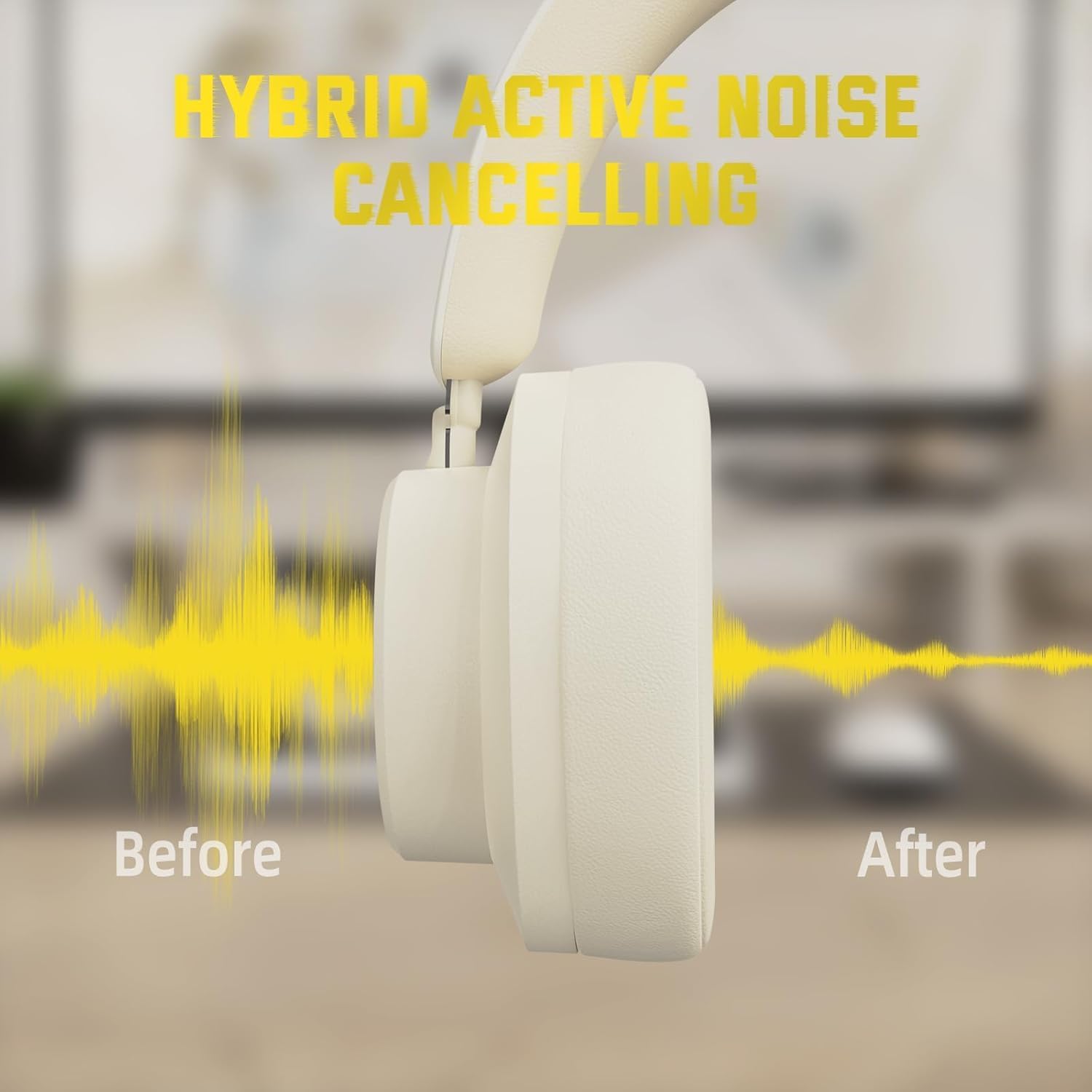
Nkagbu Noise nọchiri anya (ANC)
- Press the ANC button to toggle Active Noise Cancellation on/off.
- When ANC is active, ambient noise will be significantly reduced.
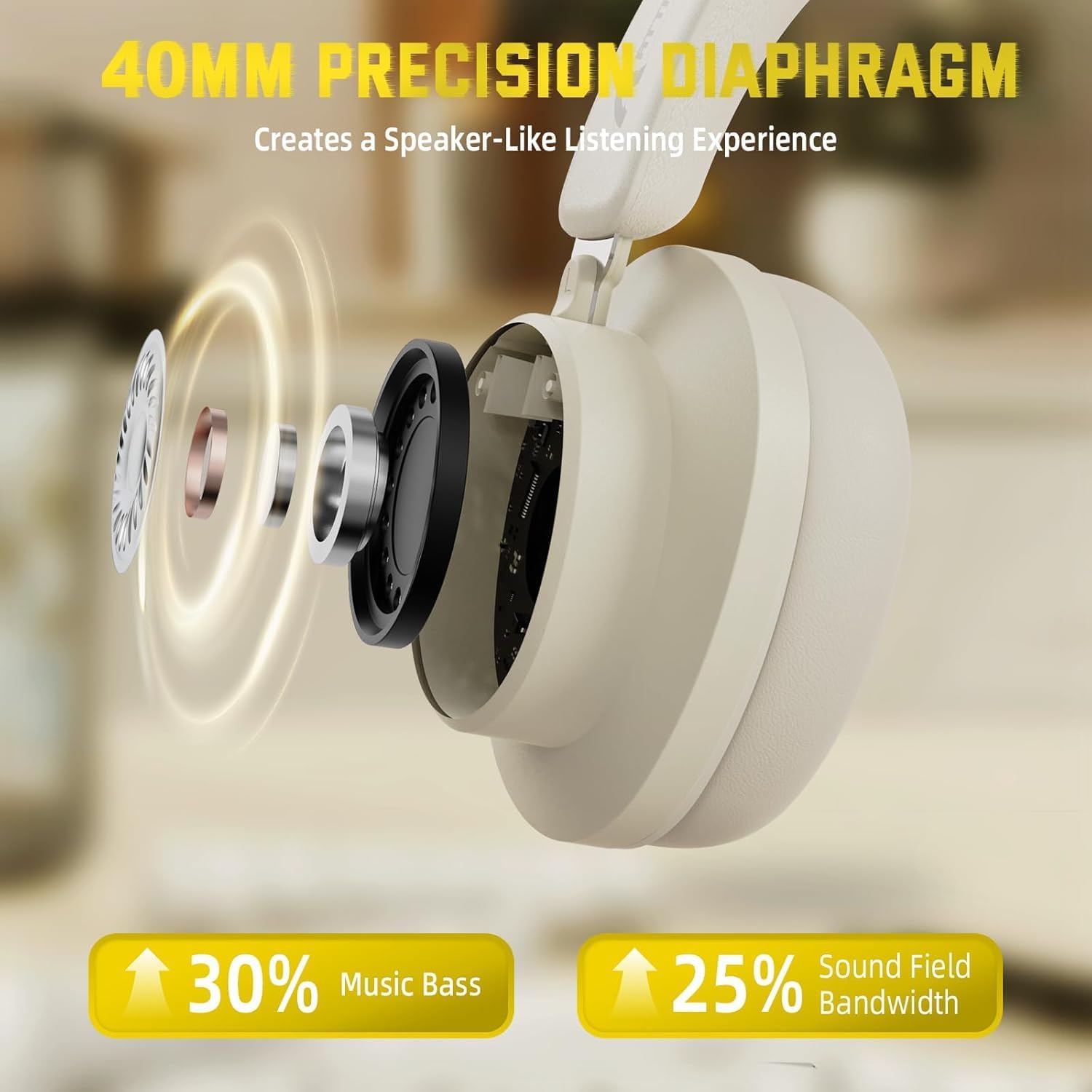
Figure 7: Hybrid Active Noise Cancelling in action
This diagram visually represents the effect of Hybrid Active Noise Cancelling, showing how external noise is reduced when the feature is activated.
Music Playback & Calls
- Play/Pause: Short press the Multi-function button.
- Next Song: Long press the Volume + button.
- Previous Song: Long press the Volume - button.
- Volume Up: Short press the Volume + button.
- Volume Down: Short press the Volume - button.
- Answer/End Call: Short press the Multi-function button.
- Reject Call: Long press the Multi-function button.
Nlekọta
- Jiri akwa dị nro hichaa ekweisi mgbe niile.
- Zere ikpughe ekweisi gị n'ebe okpomọkụ dị oke elu, iru mmiri dị elu, ma ọ bụ mmiri mmiri dị.
- Store the headphones in a cool, dry place when not in use. The rotatable earcups allow for compact storage.
- Anwala ịkwasa ma ọ bụ rụkwaa ekweisi n'onwe gị, n'ihi na nke a ga-emebi akwụkwọ ikike.

Figure 8: Rotatable earcups for easy storage
This image demonstrates the rotatable earcups, which allow the headphones to be folded flat for convenient storage and portability.
Nchọpụta nsogbu
| Nsogbu | Ngwọta enwere ike |
|---|---|
| Igwe ekweisi anaghị agbanwu | Ensure the headphones are fully charged. Press and hold the Multi-function button for 3-5 seconds. |
| Enweghị ike ijikọ site na Bluetooth | Make sure the headphones are in pairing mode (flashing LED). Turn off and on Bluetooth on your device. Ensure the headphones are not connected to another device. |
| No sound in wireless mode | Check device volume and headphone volume. Ensure headphones are successfully paired. Try re-pairing. |
| No sound in wired mode | Ensure the 3.5mm audio cable is securely connected to both the headphones and the device. Check device volume. |
| ANC anaghị arụ ọrụ nke ọma | Ensure the ANC button is pressed and the feature is active. Adjust headphone fit to ensure a good seal around your ears. |
Nkọwapụta
| Njirimara | Nkọwa |
|---|---|
| Aha Nlereanya | G500 |
| Teknụzụ Njikọta | Waya, Igwe na-enweghị eriri (Bluetooth 5.0) |
| Jack ekweisi | 3.5mm ọkpụrụkpụ |
| Njikwa mkpọtụ | Active Noise Cancellation (21±2DB reduction) |
| Ụdị ọkwọ ụgbọ ala ọdịyo | 40mm Neodymium Dynamic Driver |
| Ndụ batrị | Up to 20 Hours (300 mAh battery) |
| Ihe onwunwe | Memory Foam, Plastic/Other Lightweight Polymer |
| Ibu Ibu | 10.8 ounces (ihe dị ka 210g) |
| Atụmatụ pụrụ iche | Microphone Included, Rechargeable Battery, Rotatable Earcups |
| Ngwa dakọtara | Laptops, Desktops, Tablets, Telephones, Gaming Consoles, Cellphones |
Akwụkwọ ikike na nkwado
For warranty information and customer support, please refer to the official ATTACK SHARK website or contact your retailer. Keep your purchase receipt as proof of purchase for warranty claims.


