1. Okwu mmalite
The ATTACK SHARK X68 HE is a high-performance 60% mechanical gaming keyboard designed for speed, precision, and customization. Featuring magnetic switches with Hall Effect triggering technology, it offers an 8000Hz polling rate for ultra-low latency and adjustable actuation points from 0.1mm to 3.4mm. Its robust design includes PBT keycaps and full RGB backlighting, making it suitable for both intense gaming and efficient typing across Windows and Mac systems.

Figure 1: Key features of the ATTACK SHARK X68 HE keyboard.
2. Ihe ngwugwu
Biko chọpụta na ihe niile dị na ngwugwu gị:
- ATTACK SHARK X68 HE Gaming Keyboard
- USB-C Coiled Cable
- Akwụkwọ ntuziaka onye ọrụ
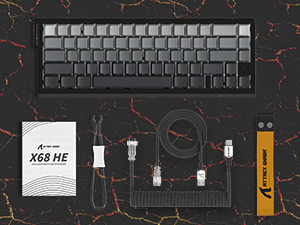
Figure 2: Included items in the product package.
3. Nhazi
To set up your ATTACK SHARK X68 HE keyboard, follow these simple steps:
- Jikọọ eriri USB-C: Locate the USB-C port on the back of the keyboard. Insert the smaller end of the provided coiled USB-C cable into this port.
- Jikọọ na Kọmputa: Insert the standard USB-A end of the cable into an available USB port on your computer (PC or Mac).
- Nwụnye ọkwọ ụgbọala: The keyboard is plug-and-play for basic functionality. For advanced customization, including DKS, macros, and RGB settings, download the dedicated web driver software from the official ATTACK SHARK websaịtị.
- Nkwanye: Place the keyboard on a stable, flat surface. Consider using a wrist rest for ergonomic comfort during extended use.
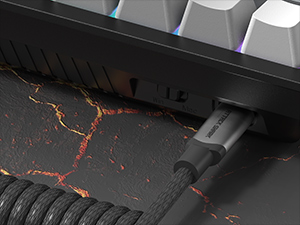
Figure 3: Connecting the USB-C cable to the keyboard.
4. Ntuziaka ọrụ
The ATTACK SHARK X68 HE is a 60% layout keyboard, meaning some functions are accessed via a function (Fn) layer. Familiarize yourself with the key legends and the Fn key combinations for full functionality.
Ọrụ igodo isi
- Mpịnye ọkọlọtọ: All alphanumeric keys, symbols, and modifiers (Shift, Ctrl, Alt, Win/Cmd) function as standard.
- Igodo ọrụ (Fn): Press and hold the Fn key to access secondary functions printed on the front or side of certain keycaps. For example, arrow keys, F-keys, and multimedia controls are typically accessed this way.
Polling Rate and Latency
The keyboard operates at an 8000Hz polling rate, providing a rapid 0.125ms response time. This ensures minimal input lag for competitive gaming and fast-paced tasks.

Figure 4: 8000Hz Polling Rate for ultra-fast response.
5. Nhazi
The ATTACK SHARK X68 HE offers extensive customization options through its web driver software and on-board controls.
Adjustable Actuation Points & Rapid Trigger
Utilizing magnetic switches, the keyboard allows you to customize the actuation point of each key from 0.1mm to 3.4mm with 0.01mm precision. This feature, combined with Rapid Trigger technology, enables faster resets and re-presses, providing a significant advantage in gaming by allowing dynamic keystrokes (DKS), Snap Tap, and Mod-Tap functions.

Figure 5: Adjustable Actuation Point mechanism.
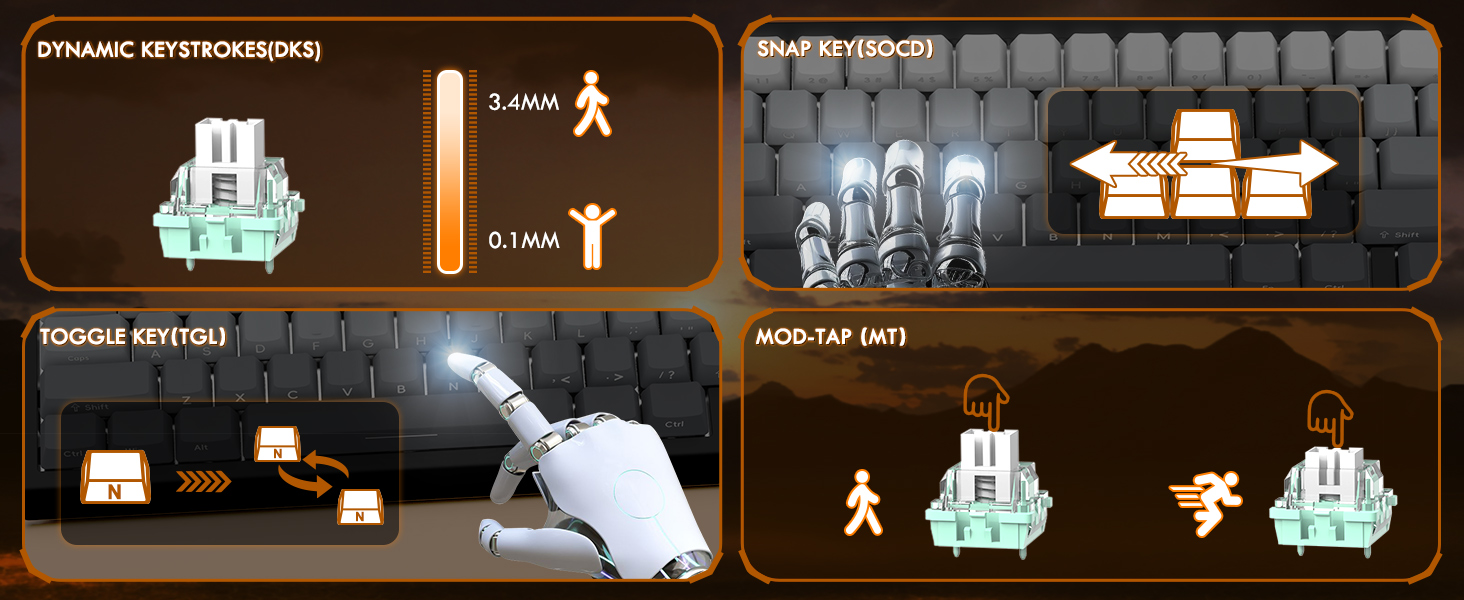
Figure 6: Explanation of DKS, Snap Tap, Toggle Key, and Mod-Tap features.
Ntughari RGB
The keyboard features 16 million-color RGB lighting with over 20 preset light effects and multiple dynamic modes. You can adjust backlight brightness, speed, and switch between different lighting modes and colors using Fn key combinations or the web software ọkwọ ụgbọala.
- Ụta Fn + elu/ala: Adjust Backlit Brightness.
- Fn + Ụka akaekpe/aka nri: Adjust Backlit Speed.
- Fn + \|: Switch Light Mode.
- Fn + Enter: Switch Light Color.
- Fn + Oghere azụ: Gbanyụọ/ Gbanyụọ.

Figure 7: Full RGB light effects.
Web Software ọkwọ ụgbọala
The professional customized web software allows for comprehensive customization on both Windows and Mac. You can easily configure DKS, key combinations, macros, key remapping, and detailed RGB lighting settings. This enables a truly personalized experience for various user needs and gaming styles.

Foto 8: Web driver software interface for customization.
6. Nlekọta
Ndozi nke ọma na-achọpụta ogologo ndụ yana ezigbo arụmọrụ nke ahụigodo gị.
Nhicha
- Nchacha izugbe: Use a soft, dry cloth to wipe down the keyboard surface regularly.
- Mwepụ uzuzu: Jiri ikuku mkpakọ iji wepụ uzuzu na irighiri ihe n'etiti igodo igodo.
- Nhicha miri emi: For deeper cleaning, you may carefully remove the PBT keycaps using a keycap puller (not included unless specified in package contents). Clean the keycaps with mild soap and water, ensuring they are completely dry before reattaching.
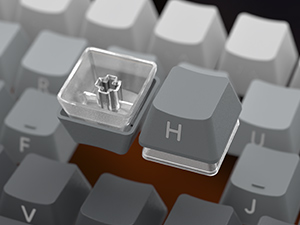
Figure 9: Keycap removal for cleaning.
Nchekwa
Mgbe ọ naghị eji ya ogologo oge, chekwaa ahụigodo ahụ n'ebe dị jụụ, kpọrọ nkụ na-adịghị na ìhè anyanwụ kpọmkwem na oke okpomọkụ.
7. Nchọpụta nsogbu
If you encounter issues with your ATTACK SHARK X68 HE keyboard, please refer to the following common solutions:
- Ahụigodo Anaghị aza:
- Gbaa mbọ hụ na ejikọrọ eriri USB-C nke ọma na ma ahụigodo na kọmputa.
- Gbalịa ijikọ ahụigodo na ọdụ ụgbọ USB dị iche na kọmputa gị.
- Nwalee ahụigodo na kọmpụta ọzọ ka ewepụ nsogbu ndị metụtara sistemụ.
- Igwe ọkụ RGB anaghị arụ ọrụ:
- Check if the RGB lighting is turned off using the Fn + Backspace shortcut.
- Gbaa mbọ hụ na web driver software is installed and updated, and check lighting settings within the software.
- Verify that the keyboard is receiving sufficient power from the USB port.
- Igodo anaghị edebanye aha ma ọ bụ pịnye ugboro abụọ:
- Clean under the affected keycaps to remove any debris.
- Adjust the actuation point settings in the web driver software. Sometimes, a very low actuation point can lead to unintended presses or misfires.
- Ensure the keyboard firmware is up to date via the web software ọkwọ ụgbọala.
- Software Issues / Customization Not Applying:
- Ensure you are using the correct and latest version of the ATTACK SHARK web driver software for the X68 HE model.
- Run the software as an administrator (on Windows).
- Temporarily disable any antivirus or firewall software that might be interfering with the web ọkwọ ụgbọ ala.
If the problem persists after trying these steps, please contact ATTACK SHARK customer support for further assistance.
8. Nkọwapụta
| Njirimara | Nkọwa |
|---|---|
| Nlereanya | X68 Ọ |
| Ụdị | Mwakpo Shark |
| Teknụzụ Njikọta | USB-C (nwere eriri) |
| Nkọwa ahụigodo | Igwe eji egwu igwe |
| Ngbanwe Ụdị | Magnetic Switches (Hall Effect) |
| Ọnụego ntuli aka | 8000Hz |
| Oge nzaghachi | 0.125ms |
| Actuation Point Range | 0.1mm to 3.4mm (0.01mm accuracy) |
| Isi okwu | PBT Keycaps (Contour Line 3.0 version) |
| Ịkụ azụ azụ | Full RGB (16 million colors, 20+ preset effects) |
| Mgbochi mmụọ | Igodo zuru ezu Anti-Ghosting |
| Ngwa dakọtara | Laptop, PC, Tablet (Windows/Mac) |
| Akụkụ ngwaahịa | 14.25 x 6.18 x 0.79 sentimita asatọ |
| Ibu Ibu | 2.01 pound |
| Ọnụọgụ igodo | 66 |
9. Akwụkwọ ikike na nkwado
ATTACK SHARK products are designed for durability and performance. For specific warranty information, please refer to the warranty card included with your product or visit the official ATTACK SHARK website. If you require technical support, have questions about product functionality, or need assistance with troubleshooting, please contact ATTACK SHARK customer service through their official channels.
Nkwado n'ịntanetị: Visit the ATTACK SHARK official website for FAQs, driver downloads, and support contact information.
Nkwado email: Rụtụ aka na nkwakọ ngwaahịa gị ma ọ bụ onye ọrụ gọọmentị webebe nrụọrụ weebụ maka adreesị ozi-e nkwado ndị ahịa.


