1. Okwu mmalite
This manual provides detailed instructions for the setup, operation, maintenance, and troubleshooting of your Phomemo D520BT Bluetooth Thermal Label Printer. Please read this manual thoroughly before using the device to ensure proper functionality and to extend the product's lifespan.

Figure 1: Phomemo D520BT printer in purple, printing a shipping label, with a smartphone displaying a label design connected via Bluetooth. This image illustrates the printer's compact design and wireless printing capability.
2. Ihe ngwugwu
Nyochaa na etinyere ihe niile edepụtara n'okpuru na ngwugwu gị. Ọ bụrụ na ihe ọ bụla na-efu ma ọ bụ mebie, biko kpọtụrụ nkwado ndị ahịa.
- Phomemo D520BT Thermal Printer
- Roll Label (sample)
- Ntuziaka mmalite ngwa ngwa
- Ntuziaka onye ọrụ (akwụkwọ a)
- Ụdọ ọkụ
- eriri USB
- Ụdị-C nkwụnye
- Ihe nkwụnye ọkụ

Figure 2: All components included in the Phomemo D520BT product package.
3. Ntuziaka Nhazi
3.1 Nwepu
- Jiri nlezianya wepụ ihe nbipute na ngwa niile na nkwakọ ngwaahịa.
- Remove any protective films or packing materials from the printer.
3.2 Ndekọ Ibugo
The Phomemo D520BT supports both roll paper and folding paper labels.
- Open the printer cover by gently lifting it.
- For Roll Paper: Place the label roll into the internal paper holder, ensuring the labels feed from the bottom and the printing side faces upwards. Guide the first label through the output slot until it is slightly visible.
- For Folding Paper: Place the stack of folding labels behind the printer, ensuring the labels feed smoothly into the rear input slot and the printing side faces upwards. Guide the first label through the output slot until it is slightly visible.
- Mechie mkpuchi ngwa nbipute nke ọma.

Figure 3: The Phomemo D520BT printer supports both folding paper and roll paper labels.
3.3 Ijikọ ngwa nbipute
The D520BT offers both USB and Bluetooth connectivity.
3.3.1 USB Connection (Windows, Mac, Chrome OS, Linux)
- Connect one end of the USB cable to the printer and the other end to your computer.
- Jikọọ ihe nkwụnye ọkụ na ngwa nbipute wee gbanye ya n'ime oghere ọkụ.
- Gbanwuo ngwa nbipute.
- Install the necessary printer drivers for your operating system. Drivers can typically be found on the official Phomemo websaịtị.
3.3.2 Bluetooth Connection (Android, iOS, iPad)
- Jikọọ ihe nkwụnye ọkụ na ngwa nbipute wee gbanye ya n'ime oghere ọkụ.
- Gbanwuo ngwa nbipute.
- Budata ma wụnye ya “Labelife” ngwa sitere na ụlọ ahịa ngwa ngwaọrụ gị.
- Open the Labelife app and follow the in-app instructions to pair your device with the D520BT printer via Bluetooth.

Figure 4: The Phomemo D520BT supports both Bluetooth and USB connectivity for various devices and operating systems.
4. Ntuziaka ọrụ
4.1 Gbanyụọ ma ọ bụ gbanyụọ
- Ike Na: Press the power button located on the printer. The indicator light will illuminate.
- Gbanyụọ: Pịa ma jide bọtịnụ ike ruo mgbe ọkụ ihe ngosi ahụ gbanyụrụ.
4.2 Ibipụta Aha
- Ensure the printer is powered on and connected to your device (computer via USB or mobile device via Bluetooth).
- Open the document or application from which you wish to print.
- Họrọ Phomemo D520BT dị ka ngwa nbipute gị.
- Adjust print settings as needed (e.g., label size, orientation). The printer supports a width range of 1 to 4.6 inches.
- Initiate the print command.
The Labelife app provides various free templates for customizing shipping labels, address labels, barcode labels, and thank-you stickers.
4.3 Atụmatụ
- High Speed Printing: The D520BT can print up to 72 labels per minute (150mm/s), suitable for high-volume printing tasks.
- Mkpebi dị elu: Prints at 203 DPI, ensuring sharp and precise details on each label.
- Wide Printing Range: Supports label widths from 1 inch to 4.6 inches, accommodating various label types including 4x6 inch shipping labels.
- Ink-Free Thermal Technology: Utilizes direct thermal printing, eliminating the need for ink or toner cartridges.
- Ichekwa oghere: Features a built-in paper holder, reducing the need for external label racks and optimizing desktop space.
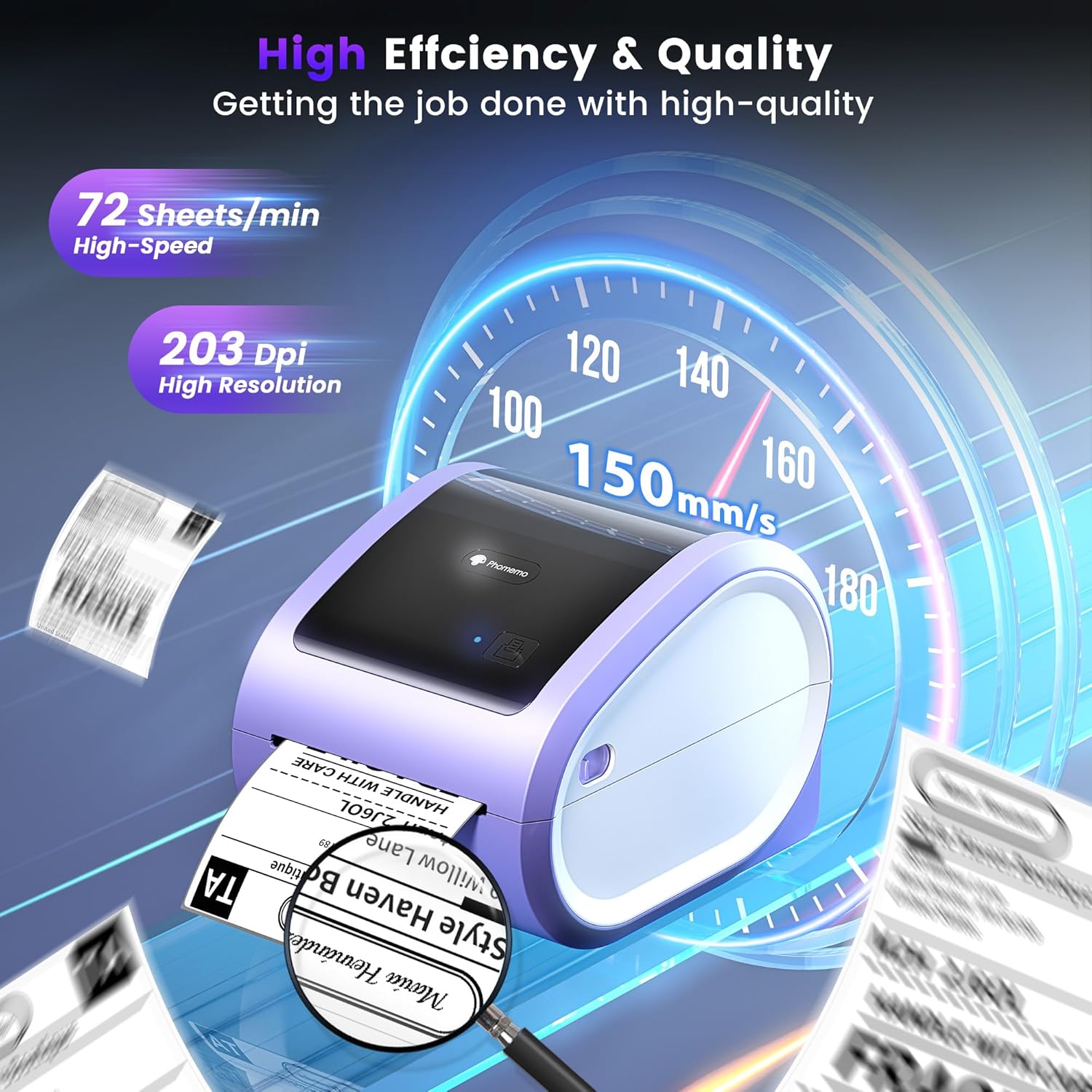
Figure 5: The Phomemo D520BT offers high efficiency and quality with a print speed of 150mm/s and 203 DPI resolution.

Figure 6: The Phomemo D520BT is compatible with various label sizes, from 1 inch to 4.6 inches wide.

Figure 7: The Phomemo D520BT supports multi-scenario applications for various labeling needs.

Figure 8: The Phomemo D520BT is compatible with all major shipping and sales platforms.
5. Nlekọta
5.1 Na-ehicha isi mbipụta
Regular cleaning of the print head ensures optimal print quality and extends the printer's life.
- Gbanyụọ ngwa nbipute wee wepụ eriri ọkụ.
- Mepee mkpuchi ngwa nbipute.
- Gently wipe the print head with an alcohol swab or a soft, lint-free cloth lightly dampetinyere ya na mmanya isopropyl.
- Allow the print head to dry completely before closing the cover and powering on the printer.
5.2 Nchekwa
Store the printer in a cool, dry place away from direct sunlight and extreme temperatures. Avoid exposing the printer to dust or moisture.
6. Nchọpụta nsogbu
If you encounter issues with your Phomemo D520BT printer, refer to the following common problems and solutions:
- Igwe nbipute anaghị agbanye:
- Ensure the power adapter is securely connected to both the printer and a working power outlet.
- Check if the power button has been pressed firmly.
- Labels not printing or feeding incorrectly:
- Verify that labels are loaded correctly with the printing side facing up.
- Ensure there are no obstructions in the label path.
- Check if the label roll or stack is depleted.
- Poor print quality (faded, streaky, or blank labels):
- Clean the print head as described in Section 5.1.
- Hụ na ị na-eji akara ọkụ dị elu.
- Check print density settings in your printer preferences.
- Nsogbu njikọ Bluetooth:
- Ensure Bluetooth is enabled on your mobile device and the printer.
- Restart both the printer and your mobile device.
- Ensure you are within the Bluetooth range.
- Re-pair the printer through the Labelife app.
- Nsogbu njikọ USB:
- Verify the USB cable is securely connected to both the printer and the computer.
- Ensure the correct printer drivers are installed.
- Gbalịa ọdụ ụgbọ mmiri ma ọ bụ eriri USB dị iche.
For further assistance, refer to the detailed video tutorials and user manuals available online, or contact Phomemo customer support.
7. Nkọwapụta
| Njirimara | Nkọwapụta |
|---|---|
| Ụdị | Phomemo |
| Aha Nlereanya | D520BT |
| Teknụzụ Njikọta | Bluetooth, USB |
| Teknụzụ obibi akwụkwọ | Thermal |
| Njirimara Pụrụ Iche | Portable, Built-in Holder |
| Mmepụta ngwa nbipute | Monochrome |
| Ọsọ mbipụta kacha | 150 mm/s (72 labels/min) |
| Mkpebi Mbipụta | 203 DPI |
| Obosara Mbipụta kacha | 4.6 sentimita asatọ |
| Ibu Ibu | 2.4 pound |
| Akụkụ ngwaahịa | 10.31"D x 10.31"W x 7.87"H |
8. Akwụkwọ ikike na nkwado
Phomemo provides customer support to assist with any questions or issues you may encounter. For detailed warranty information, please refer to the warranty card included with your product or visit the official Phomemo website. Our customer support team is available via phone, email, or remote support.
For additional resources, including video tutorials and updated user manuals, please visit the Phomemo support page.


