1. Okwu mmalite
This manual provides detailed instructions for the installation, operation, and maintenance of the Aiphone VM-RMVU Residential Fire Alarm Compatible Monitor Security Master Unit. Please read this manual thoroughly before using the product to ensure correct and safe operation. Keep this manual in a safe place for future reference.
2. Ntọala na nwụnye
The Aiphone VM-RMVU unit is designed for wall-mounted installation. Ensure proper power supply and network connections as described below.
2.1 Mpụga View na Ịkwalite
Refer to the diagram below for the external dimensions and mounting details. The unit requires a compatible wall box for installation.

Foto nke 1: Mpụga view of the Aiphone VM-RMVU unit with detailed mounting dimensions. This diagram illustrates the physical layout, including the location of the power switch, sensors, microphone, speaker, and various indicator lights. It also shows the dimensions for wall-mounted installation.
2.2 Njikọ njikọ
Follow the wiring diagram carefully to connect the master unit to power, entrance units, sub-units, and other security devices. The system supports both wired and wireless LAN connections.
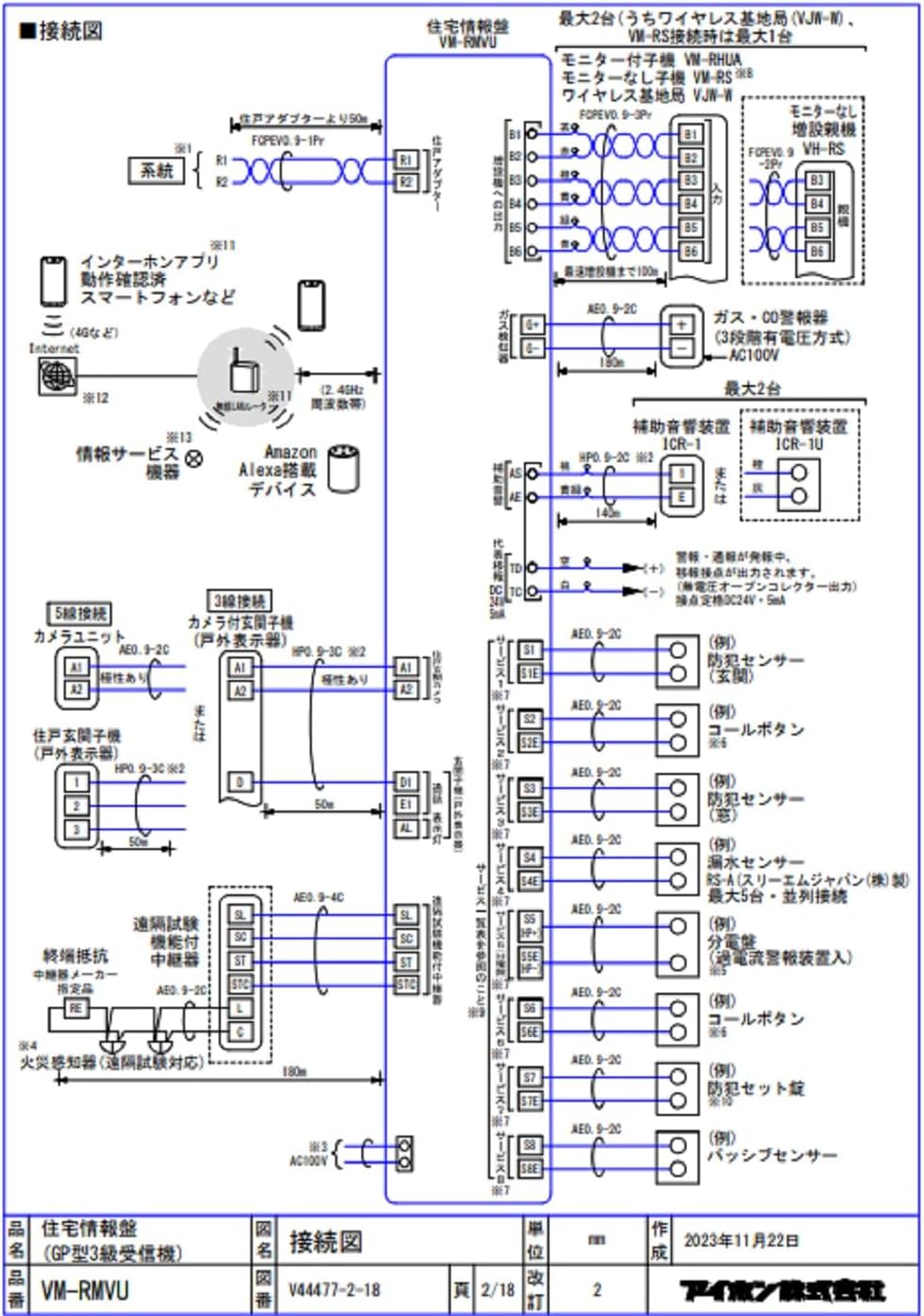
Foto nke 2: Comprehensive wiring diagram for the Aiphone VM-RMVU system. This diagram details connections for power, entrance units, monitor sub-units, wireless base stations, extension master units, gas/CO alarms, auxiliary alarm devices, call buttons, security set panels, and passive sensors. It also illustrates connections for internet apps, smartphones, and Amazon Alexa devices via wireless LAN.
Ịnye ọkụ:
- Connect the unit to an AC100V, 50/60Hz power source.
- Ensure the power switch (located on the rear panel) is in the OFF position before connecting.
Njikọ netwọk:
- The VM-RMVU supports wireless LAN (IEEE 802.11b/g/n) for connection to internet apps, smartphones, and Amazon Alexa devices.
- Refer to the separate wireless LAN setup guide for detailed configuration instructions.
3. Ntuziaka ọrụ
The Aiphone VM-RMVU features a 7-inch TFT LCD touch panel and intuitive buttons for various functions.

Foto nke 3: Front panel of the Aiphone VM-RMVU showing the 7-inch LCD display and control buttons. Key buttons include EMERGENCY, POWER indicator, TALK, OFF, OPEN, and ALARM STOP. The model name 'AIPHONE VM-RMVU' is also visible below the screen.
3.1 Ọrụ ndị bụ isi
- Gbanyụọ/ Gbanyụọ: Press the power switch on the rear panel to turn the unit on or off. The green POWER indicator will illuminate when on.
- Ịza oku: When an entrance unit calls, the display will show the caller. Press the KWURU button to initiate a simultaneous call. The green TALK indicator will light up.
- Oku agwụ: Pịa Gbanyụọ button to end a call. The red OFF indicator will light up briefly.
- Ọnụ ụzọ mmeghe: Mgbe oku na-aga, pịa MEghere button to unlock the connected door. The green OPEN indicator will light up.
3.2 Security and Alarm Functions
- Bọtịnụ ihe mberede: Pịa AHỤ button in case of an emergency to trigger an alarm.
- Alarm Stop: If an alarm sounds (e.g., fire, gas, security alert), press the Kwụsị Mkpu button to silence it. The red ALARM STOP indicator will light up when an alarm is active.
- Security Display: The security display unit provides visual indicators for Fire, Gas, and Security Alert statuses.
3.3 Touch Panel Operation
The 7-inch TFT LCD is a touch panel. Navigate through menus and settings by tapping on the screen icons and options. Refer to the on-screen guide for specific menu functions.
4. Nlekọta
Regular maintenance ensures the longevity and optimal performance of your Aiphone VM-RMVU unit.
- Nhicha: Use a soft, dry cloth to clean the unit's surface and display. Do not use abrasive cleaners or solvents.
- Nyocha: Periodically check all connections for security and ensure no cables are damaged.
- Mmelite ngwanrọ: Lelee onye nrụpụta website for any available firmware updates to ensure your unit has the latest features and security enhancements.
5. Nchọpụta nsogbu
If you encounter issues with your Aiphone VM-RMVU unit, refer to the following common troubleshooting steps:
- Enweghị ike: Ensure the power cable is securely connected and the power switch on the rear panel is ON. Check your circuit breaker.
- Enweghị Vidiyo/Ọdịyo: Verify all wiring connections to entrance units and sub-units. Ensure network connectivity for wireless functions.
- Alarm Malfunction: Check the status indicators on the security display unit. If the issue persists, contact customer support.
- Touch Panel Unresponsive: Try restarting the unit by turning the power off and on. If the problem continues, contact support.
For more complex issues, please consult a qualified technician or Aiphone customer support.
6. Nkọwapụta
| Njirimara | Nkọwapụta |
|---|---|
| Ụdị | Aiphone |
| Nọmba nlereanya | VM-RMVU |
| Ike Voltage | AC100V: 50/60Hz |
| Oriri ike | Standby 6W: Max 17W |
| Ụzọ oku | Simultaneous Call Method |
| Ngosipụta | 7-inch TFT LCD Display (Touch Panel) |
| Ọnụ ọgụgụ pikselụ | Ihe ruru. 1.15 nde pikselụ |
| Ikuku LAN | IEEE 802.11b/g/n (2.4GHz) |
| Akụkụ ngwaahịa (LxWxH) | 18 x 22 x 4.5 cm |
| Ibu | Ihe ruru. 880g |
| Okpomọkụ gburugburu na-arụ ọrụ | 0 ruo 40 Celsius |
| Ngwa gụnyere | Isi otu |
7. Akwụkwọ ikike na nkwado
For warranty information, technical support, or service inquiries, please refer to the official Aiphone website or contact your local Aiphone distributor. Keep your purchase receipt as proof of purchase.
Aiphone Official Websaịtị: www.aiphone.com


