Okwu mmalite
The 1Mii SafeFly Pro is a versatile Bluetooth 5.3 audio adapter designed to transmit and receive audio wirelessly. It features an OLED screen for clear status display and supports advanced audio codecs for high-quality sound. This device allows you to connect your wireless headphones to non-Bluetooth audio sources or stream audio from your Bluetooth-enabled devices to wired audio systems.
Kedu ihe dị na Igbe ahụ

This image displays all items included in the 1Mii SafeFly Pro package. You will find the SafeFly Pro Bluetooth Audio Adapter, a USB-C Charging Cable, a 3.5mm Female to Female Audio Adapter, and a Keychain.
- SafeFly Pro Bluetooth Audio Adapter
- USB-C eriri USB
- 3.5mm Female to Female Audio Adapter
- Keychain
- Akwụkwọ ntuziaka (akwụkwọ a)
Ngwaahịa gafereview

Ihe onyonyo a na-enye nkọwa zuru ezu view of the 1Mii SafeFly Pro, highlighting its key components. These include the flexible audio cable with a 3.5mm audio connection, an audio plug protector, the OLED display screen, the 'M' key, the 'OK' key, the TX/RX sliding switch, a one-click reset button, and the USB-C charging port.
Ngwa na Ọrụ:
- Njikọ ọdịyo 3.5mm: Connects to audio source (TX mode) or audio receiver (RX mode).
- Audio Plug Protector: Protects the 3.5mm audio plug when not in use.
- OLED Display Screen: Shows battery level, volume, paired device names, and active audio codecs.
- 'M' Key: In pairing mode, press once to select the connected device. In TX mode, press twice to switch the Bluetooth decoding format.
- 'OK' Key: Power ON/OFF (long press for 1 second). Long press for 2 seconds to enter pairing mode. Also functions as Play/Pause.
- TX/RX Sliding Switch: Selects Transmitter (TX) or Receiver (RX) mode.
- Tọgharịa bọtịnụ: Pịa ogologo sekọnd ise ka ịtọgharịa ngwaọrụ ahụ.
- Ọdụ ụgbọ mmiri USB-C: Maka ịchaji batrị dị n'ime.
Melite
1. Ịchaji ngwaọrụ
Before first use, fully charge the SafeFly Pro using the provided USB-C charging cable. Connect the cable to the USB-C port on the device and a standard USB power adapter (not included). The OLED screen will indicate charging status.
2. Ịgbanye / gbanyụọ
- Iji gbanye: Long press the 'OK' button for 1 second.
- Iji gbanyụọ: Long press the 'OK' button for 1 second.
3. Ịhọrọ Ụdị Ọrụ (TX/RX)
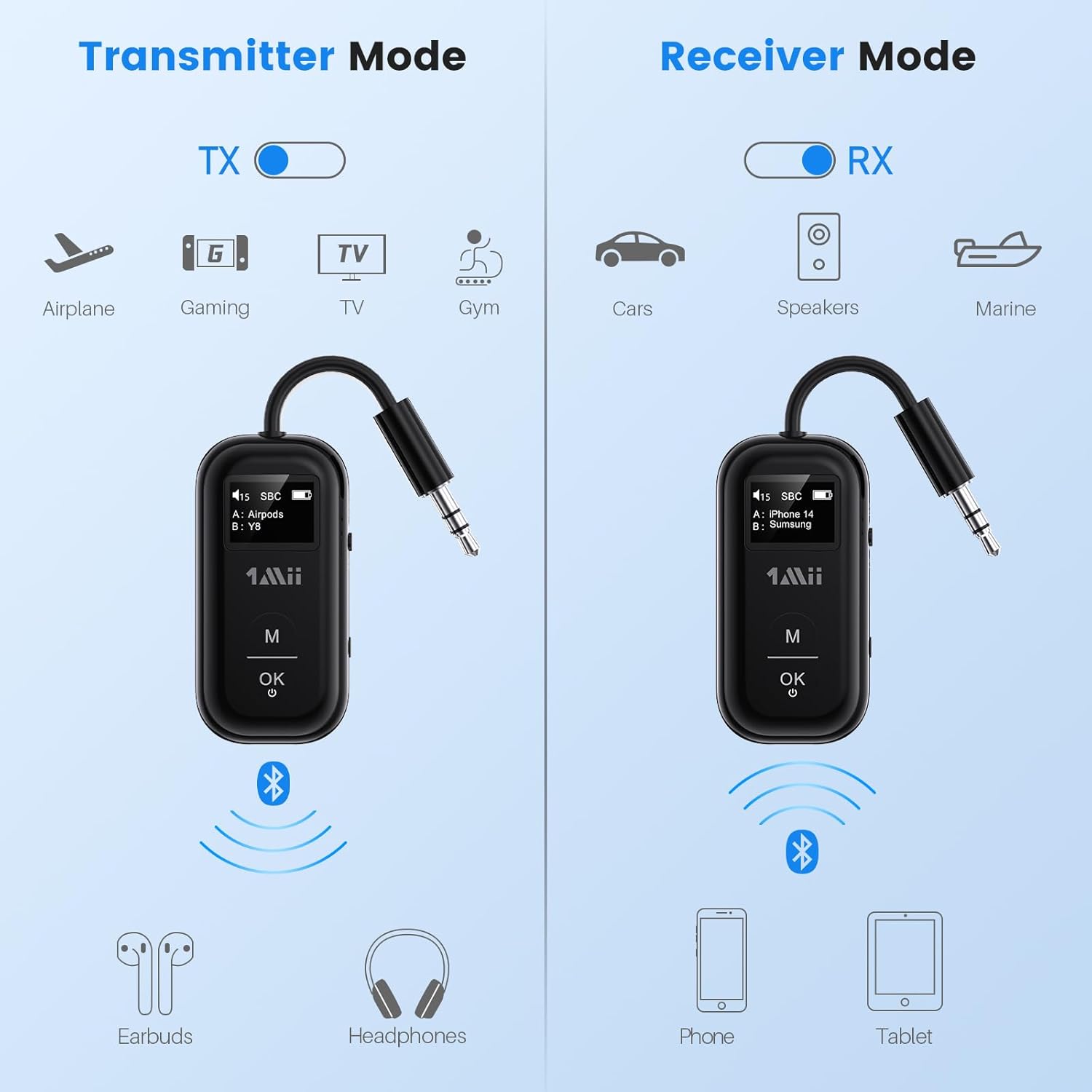
This image illustrates the two operating modes: Transmitter (TX) and Receiver (RX). TX mode is used for devices like airplanes, gaming consoles, TVs, and gym equipment to transmit audio to earbuds or headphones. RX mode is used for cars, speakers, and marine systems to receive audio from phones or tablets.
Use the TX/RX sliding switch on the side of the device to select the desired mode:
- Ụdị TX (Nnyefe) For sending audio from non-Bluetooth devices (e.g., airplane entertainment, TV, gym equipment) to Bluetooth headphones or speakers.
- Ụdị RX (nnata): For receiving audio from Bluetooth-enabled devices (e.g., smartphones, tablets) to wired audio systems (e.g., car stereo, home speakers).
4. Pairing in TX Mode (Connecting to Headphones)

- Set the SafeFly Pro to TX mode using the sliding switch.
- Plug the 3.5mm audio connection into your audio source (e.g., airplane entertainment system, TV headphone jack). If needed, use the dual-prong airplane adapter.
- Long press the 'OK' button on the SafeFly Pro for 2 seconds to enter pairing mode. The screen will display "Searching".
- Put your Bluetooth headphones or speakers into pairing mode. Refer to your headphone's manual for specific instructions.
- The SafeFly Pro will automatically search for and connect to nearby Bluetooth devices. Once connected, the device name will appear on the OLED screen.
- To connect a second pair of headphones: After the first device is connected, long press the 'OK' button again for 2 seconds to enter pairing mode for the second device. Put the second pair of headphones into pairing mode. Both devices will then be connected simultaneously.

This image shows the 1Mii SafeFly Pro connected to an airplane's in-flight entertainment system, enabling wireless audio streaming to a user's Bluetooth headphones.
5. Pairing in RX Mode (Connecting to Smartphones/Tablets)
- Set the SafeFly Pro to RX mode using the sliding switch.
- Plug the 3.5mm audio connection into your wired audio system's AUX input (e.g., car stereo, home speaker).
- Long press the 'OK' button on the SafeFly Pro for 2 seconds to enter pairing mode. The screen will display "Searching".
- On your smartphone or tablet, go to Bluetooth settings and select "1Mii SafeFly Pro" from the list of available devices to connect.
- Once connected, the device name will appear on the OLED screen.
- To connect a second smartphone/tablet: After the first device is connected, long press the 'OK' button again for 2 seconds to enter pairing mode for the second device. Connect the second smartphone/tablet via its Bluetooth settings.

This image shows the 1Mii SafeFly Pro in RX mode, connected to a car's audio system, receiving audio wirelessly from a smartphone.
Ntuziaka ọrụ
Ngosipụta ihuenyo OLED

Ihe onyonyo a na-enye nso nso view of the OLED screen, indicating the power status, audio format (e.g., SBC), volume level, battery level, and the names of the two currently paired devices (A and B).
The OLED screen provides real-time information:
- Ọkwa batrị: Na-egosi ụgwọ batrị fọdụrụnụ.
- Ọkwa olu: Displays the current audio output volume.
- Ngwa ejikọtara: Shows the name(s) of the connected Bluetooth headphones or smartphones.
- Codec ọdịyo: Displays the active audio codec (e.g., aptX LL, aptX HD, aptX Adaptive, aptX, AAC, SBC).
Ọrụ bọtịnụ
- 'OK' Button: Short press to Play/Pause audio.
- Bọtịnụ 'M': In TX mode, press twice to cycle through available audio codecs (aptX LL, aptX HD, aptX Adaptive, AAC, SBC) if supported by your connected headphones.
Nlekọta
To ensure the longevity and optimal performance of your 1Mii SafeFly Pro, follow these maintenance guidelines:
- Nhicha: Jiri ákwà dị nro ma kpọọ nkụ hichaa ngwaọrụ ahụ. Ejila ihe nhicha mmiri ma ọ bụ ihe ndị na-eme ka ọ dị nro hichaa ya.
- Nchekwa: Chekwaa ngwaọrụ ahụ n'ebe dị jụụ, kpọrọ nkụ na-adịghị na ìhè anyanwụ kpọmkwem na oke okpomọkụ.
- Nlekọta batrị: Avoid fully discharging the battery frequently. Charge the device regularly, even if not in use, to maintain battery health.
- Ijikwa: Jiri nlezianya jikwaa ngwaọrụ ahụ. Zere idobe ya ma ọ bụ tinye ya na mmetụta siri ike.
Nchọpụta nsogbu
If you encounter issues with your SafeFly Pro, try the following steps:
- Ngwaọrụ anaghị agba ọkụ: Gbaa mbọ hụ na chajịrị ngwaọrụ ahụ nke ọma. Jikọọ ya na isi iyi ọkụ site na iji eriri USB-C.
- Enweghị ike ijikọ:
- Ensure the SafeFly Pro is in the correct TX or RX mode.
- Make sure both the SafeFly Pro and your target Bluetooth device are in pairing mode.
- Bugharịa ngwaọrụ ndị ahụ nso na ibe ha.
- Turn off and on both devices, then try pairing again.
- Enweghị Ọdịyo/Ọdịyo Na-adịghị Mma:
- Check that the 3.5mm audio cable is securely connected to both the SafeFly Pro and the audio source/receiver.
- Ensure the volume on both the SafeFly Pro and the connected device is turned up.
- Verify that the correct audio codec is selected (in TX mode, press 'M' twice to cycle).
- Test with a different audio cable or source/receiver if possible.
- Device Frozen/Unresponsive: Long press the Reset Button (small hole on the side) for 3 seconds using a thin object (e.g., paperclip) to restart the device.
Nkọwapụta
| Akụkụ ngwaahịa | 2.24 x 1.18 x 0.51 sentimita asatọ |
| Ibu Ibu | 0.64 ounces |
| Nọmba Nlereanya ihe | SafeFly Pro |
| Batrị | 1 batrị lithium polymer (gụnyere) |
| Teknụzụ Njikọta | AUX, Bluetooth 5.3 |
| Isi Iyi Ike | Akwanyere batrị |
| Ihe onwunwe | Acrylonitrile Butadiene Styrene (ABS) |
| Atụmatụ pụrụ iche | AptX LL/HD/Adaptive, Bluetooth Transmitter & Receiver, Built-in Battery, Connect 2 Devices, with Screen |
Ozi nchekwa
Please read and follow these safety guidelines to prevent damage to the device or personal injury:
- Avoid exposure to extreme temperatures (hot or cold).
- Handle the battery with care. Do not puncture, disassemble, or expose to fire.
- Be aware of potential interference with other wireless devices.
- Debe ngwaọrụ ahụ na mmiri na mmiri mmiri ndị ọzọ.
- Anwala ịrụzi ma ọ bụ gbanwee ngwaọrụ ahụ n'onwe gị. Kpọtụrụ ndị ọrụ nkwado maka enyemaka.
Akwụkwọ ikike na nkwado
1Mii products are designed for reliability and performance. For warranty information, technical support, or customer service inquiries, please refer to the official 1Mii website or contact their customer support team directly. Keep your purchase receipt as proof of purchase for warranty claims.


