1. Okwu mmalite
Thank you for choosing the Blaupunkt 50UGC5500S 50-inch 4K Ultra HD LED Google Smart TV. This manual provides essential information for setting up, operating, and maintaining your new television. Please read these instructions carefully before use and retain them for future reference.
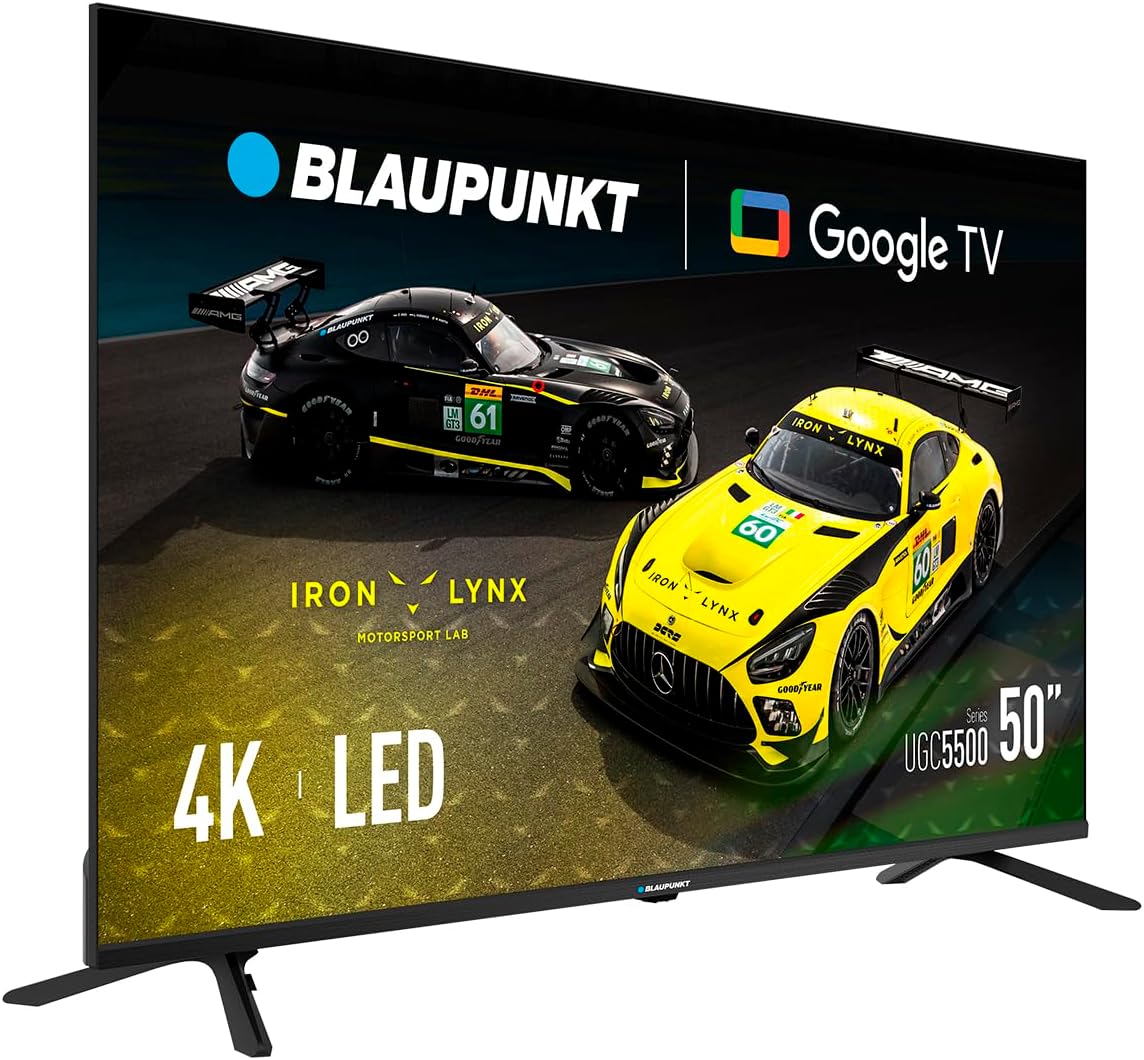
Figure 1.1: Blaupunkt 50UGC5500S Smart TV (Angled View)
This television features a stunning 4K Ultra HD display, integrated Google TV for access to a wide range of streaming services and apps, and advanced connectivity options including Wi-Fi and Bluetooth. Enjoy an immersive viewing experience with vibrant colors and clear sound.

Figure 1.2: Enjoying the Blaupunkt Smart TV
2. Ozi nchekwa
Na-edebe nchekwa nchekwa ndị a mgbe niile iji gbochie ujo ọkụ eletrik, ọkụ ma ọ bụ mebie ihe onyonyo.
- Isi mmalite ike: Jikọọ TV naanị na oghere ọkụ AC nke voltage.
- Igwe ikuku: Gbaa mbọ hụ na ikuku ikuku zuru oke na gburugburu TV. Akwụsịla oghere ikuku.
- Mmiri na mmiri: Ewepụla TV na mmiri ozuzo ma ọ bụ mmiri. Edokwala ihe jupụtara na mmiri mmiri na TV.
- Nhicha: Kwupuo TV tupu ihicha. Jiri akwa dị nro ma kpọọ nkụ.
- Nkwanye: Place the TV on a stable, level surface or mount it securely to a wall. Keep it away from heat sources.
- Ije ozi: Do not attempt to service the TV yourself. Refer all servicing to qualified personnel.
3. Ihe ngwugwu
Chọpụta na ihe niile dị na nkwakọ ngwaahịa:
- Blaupunkt 50UGC5500S 50-inch Smart TV
- Njikwa anya
- Igwe ọkụ ọkụ
- Nkwụ (2 iberibe)
- Akwụkwọ ntuziaka (akwụkwọ a)
- Kpọsara maka Mgbakọ kwụrụ ọtọ
4. Nhazi
4.1 Mgbakọ Nguzo
Iji tinye ihe nkwụnye na telivishọn gị:
- Jiri nlezianya dobe TV ihu ala n'elu dị nro ma dị ọcha iji gbochie mmebi ihuenyo.
- Kwado ibe nkwụnye ọ bụla na oghere kwekọrọ na ala TV.
- Jiri skru ndị enyere kee ihe ọ bụla e ji ejide ya. Hụ na e siri ike nke ọma.

Figure 4.1: TV with Stand Assembled
4.2 Mgbidi mgbidi (nhọrọ)
This TV is compatible with VESA 300 x 300 mm wall mounts. Wall mount kits are sold separately. Follow the instructions provided with your wall mount for proper installation. Ensure the wall can support the weight of the TV (11 kg) and the mount.
4.3 Ngwa jikọọ
Jikọọ ngwaọrụ mpụga gị na TV site na iji ọdụ ụgbọ mmiri kwesịrị ekwesị.
- HDMI: Connect Blu-ray players, game consoles, or set-top boxes to the HDMI ports (3 available).
- USB: Connect USB storage devices for media playback or software updates (2 available).
- Ethernet (RJ45): For a wired internet connection (2 available).
- Antenna/Cable: Jikọọ erimeri gị ma ọ bụ eriri TV.

Ọgụgụ 4.2: N'azụ View of TV with Ports

Foto 4.3: Akụkụ View of TV with Ports
4.4 First Power On and Initial Setup
After connecting the power cable, press the power button on the remote control or the TV. The TV will guide you through the initial setup process:
- Nhọrọ asụsụ: Họrọ asụsụ nke masịrị gị.
- Njikọ netwọk: Connect to your Wi-Fi network or use an Ethernet cable.
- Ntọala Akaụntụ Google: Sign in with your Google account to access Google TV features, apps, and personalized recommendations.
- Nyocha ọwa: Scan for available TV channels.
- Ntọala nzuzo: Review ma gbanwee ntọala nzuzo dịka achọrọ.
5. .rụ ọrụ
5.1 Ọrụ njikwa anya
The remote control allows you to navigate the TV's interface and control various functions. Familiarize yourself with the buttons for power, volume, channel, input selection, and Google Assistant.
5.2 Google TV Interface
Google TV organizes movies, shows, and live TV from all your apps into one place. Use the remote's navigation buttons to browse content, access your favorite streaming services like Netflix, YouTube, and Prime Video, and discover new content.

Figure 5.1: TV Displaying High-Quality Content
5.3 Njikwa olu site na iji Google Assistant
Press the Google Assistant button on your remote and speak into the microphone to search for content, control smart home devices, get answers, and more.
5.4 Atụmatụ Njikọta
- Wi-Fi (2T2R): Connect wirelessly to your home network for internet access.
- Bluetooth Bluetooth: Pair Bluetooth-enabled devices such as headphones, soundbars, or game controllers.
- Chromecast arụnyere: Cast content from your compatible mobile devices or computer directly to the TV screen.
5.5 Ntọala foto na ụda
Access the settings menu to adjust picture modes (e.g., Standard, Vivid, Movie), brightness, contrast, and color. For audio, select sound modes, adjust bass/treble, and enable Dolby Audio features for an optimized listening experience.
6. Nlekọta
6.1 Na-ehicha ihuenyo ahụ
Jiri nwayọ hichaa ihuenyo ahụ site na iji akwa dị nro na-enweghị lint. Maka akara ndị isi ike, dị obere dampen akwa na mmiri ma ọ bụ pụrụ iche ihuenyo Cleaner. Efesala mmiri mmiri ozugbo na ihuenyo.
6.2 ihicha ụlọ ọrụ
Wipe the TV cabinet with a soft, dry cloth. Avoid using abrasive cleaners or solvents that could damage the finish.
6.3 Nlekọta n'ozuzu
- Kwụpụ TV n'oge oké ifufe ọkụ ma ọ bụ mgbe ejighi ya ogologo oge.
- Do not place heavy objects on the TV or power cord.
- Keep the TV away from direct sunlight and extreme temperatures.
7. Nchọpụta nsogbu
Ọ bụrụ na ị na-enwe nsogbu na TV gị, rụtụ aka na azịza ndị a na-ahụkarị:
| Nsogbu | Ngwọta enwere ike |
|---|---|
| Enweghị ike | Check if the power cable is securely connected to the TV and the power outlet. Ensure the outlet is active. |
| Enweghị foto, mana ụda dị ugbu a | Nyochaa isi mmalite ntinye ziri ezi ahọpụtara. Lelee njikọ eriri na ngwaọrụ mpụga. |
| Enweghị ụda, mana Foto dị ugbu a | Check volume levels and mute settings. Ensure external audio devices are connected correctly. |
| Njikwa Remote anaghị arụ ọrụ | Dochie batrị. Hụ na enweghị ihe mgbochi ọ bụla n'etiti remote na TV. |
| Enweghị ike ijikọ na Wi-Fi | Check your router and modem. Re-enter the Wi-Fi password. Try restarting the TV and router. |
8. Nkọwapụta
Detailed technical specifications for the Blaupunkt 50UGC5500S Smart TV:
- Ụdị: 50UGC5500S
- Ngosipụta nha: 50 sentimita asatọ
- Ngosipụta teknụzụ: Ikanam
- Mkpebi: 4K Ultra HD (pikselụ 3840 x 2160)
- Ọnụego ume ọhụrụ: 60 Hz
- Sistemụ nrụọrụ: Google TV
- Mmepụta ọdịyo: 16 W (2 x 8 W) with Dolby compatibility
- Njikọta:
- 3 x HDMI ọdụ ụgbọ mmiri
- 2 x ọdụ ụgbọ USB
- 2 x RJ45 (Ethernet) ports
- Bluetooth 5.1
- Wi-Fi 2T2R
- CI + oghere
- Atụmatụ pụrụ iche: Built-in Speaker, Chromecast, Parental Control, Flat Screen
- Nkwalite VESA: 300 x 300 mm
- Akụkụ ngwaahịa (ya na nkwụnye): 112.1 cm (obosara) x 70.8 cm (ịdị elu) x 25.4 cm (omimi)
- Product Weight (with stand): 11 n'arọ
- Oriri ike: 70 W (SDR/HDR Class G)
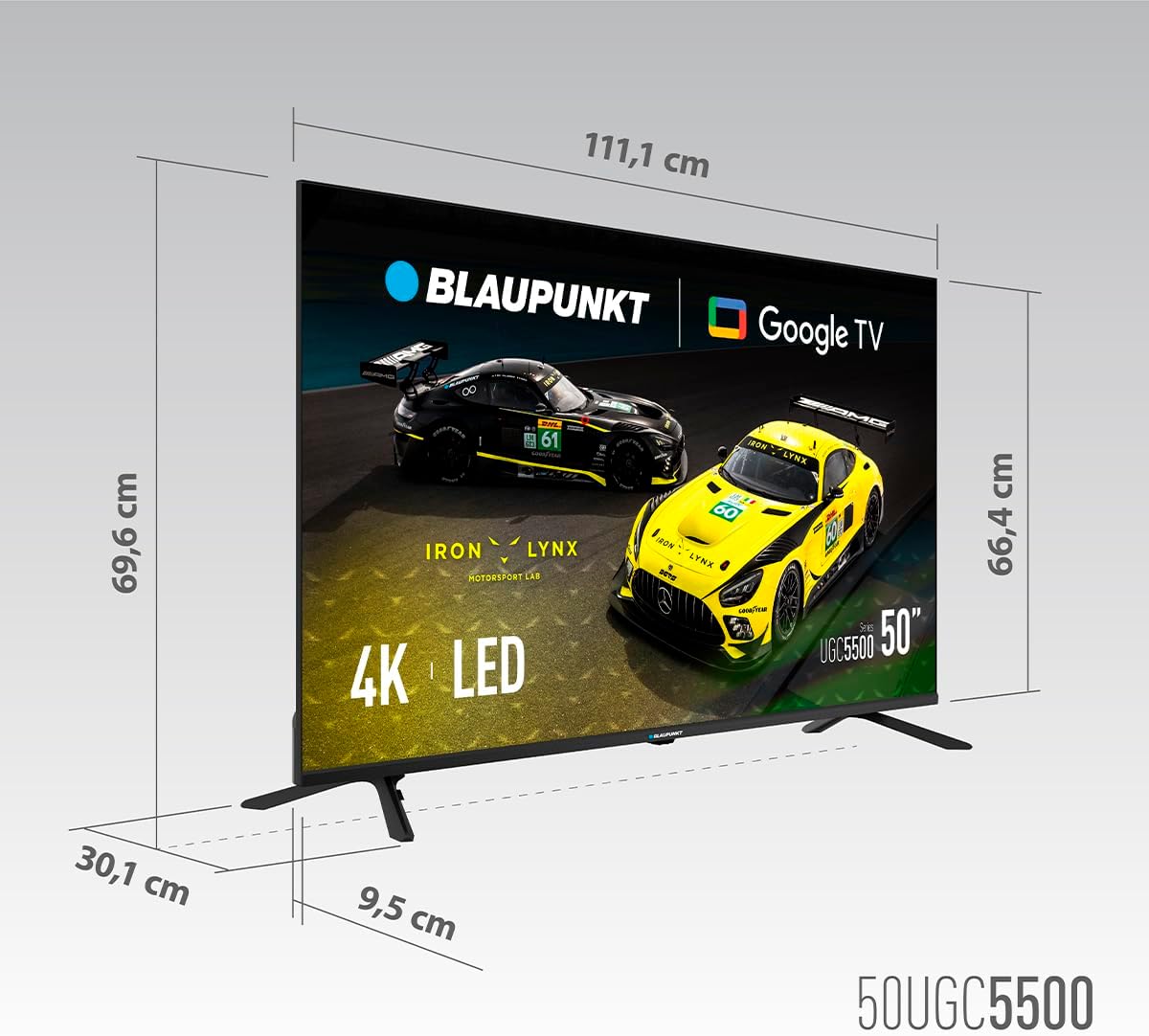
Foto 8.1: Akụkụ TV

Figure 8.2: Energy Label (SDR/HDR Class G)
For more detailed energy information, visit: https://eprel.ec.europa.eu/qr/2045779
9. Akwụkwọ ikike na nkwado
Your Blaupunkt 50UGC5500S Smart TV comes with a standard manufacturer's warranty. Please refer to the warranty card included in your package for specific terms and conditions, including the warranty period and coverage details.
For technical support, troubleshooting assistance, or service inquiries, please contact Blaupunkt customer service. Contact information can typically be found on the Blaupunkt official websaịtị ma ọ bụ na akwụkwọ ikike gị.


