1. Okwu mmalite
This manual provides detailed instructions for the setup, operation, maintenance, and troubleshooting of your ATTACK SHARK X66 Gasket Wireless Mechanical Keyboard. Please read this manual thoroughly before using the product to ensure optimal performance and longevity.

Foto: N'elu-ala view of the ATTACK SHARK X66 Gasket Wireless Mechanical Keyboard, showcasing its compact layout and keycap design.
2. Ngwaahịa gafereview
2.1 Atụmatụ
- Nhazi dị obere nke 60%: Features 66 keys and a volume knob, optimizing desktop space while maintaining portability.
- Upgraded Gasket Mount: Incorporates 5 layers of sound insulation (PORON Sandwich Foam, Foamed IXPE Under Shaft Pads, PET Acoustic Premium Pads, Shaft Seat Sound Deadening Foam, Customized Bottom Foams) for reduced noise and a smooth typing experience.
- Njikọta Ụdị Atọ: Supports Bluetooth, 2.4GHz wireless, and USB-C wired connections.
- Multi-Device Tasking: Three Bluetooth channels (FN+Q/FN+W/FN+E) for efficient switching between devices.
- Batrị na-adịte aka: Equipped with a 3000mAh large-capacity rechargeable battery.
- Hot Swappable Switches: Full hot-swappable design compatible with 3-pin/5-pin switches, featuring pre-lubed Strawberry switches for a creamy sound and smooth keystroke.
- Ìhè azụ RGB dị ike: Offers 9 backlight colors and 18 lighting effects with 16 million LED colors, customizable via software.
- Igodo igodo na-adịgide adịgide: Features side-printed gradient PBT keycaps that are resistant to oiling, non-slip, and wear-resistant.

Foto: Ofeview of the X66 keyboard highlighting key features such as RGB Backlight, Triple Mode Connectivity, Hot Swappable switches, PBT Keycaps, 60% Layout, 3000mAh Battery, and Gasket Structure.
Ihe ngwugwu 2.2
- ATTACK SHARK X66 Mechanical Keyboard
- USB-C Cable (1.5 meters)
- 2-in-1 Key Puller and Switch Puller
- Additional Strawberry Switches (2 pieces)
- Akwụkwọ ntuziaka onye ọrụ
3. Nhazi
3.1 Ụdị Njikọta
The X66 keyboard supports three connection modes: 2.4GHz wireless, Bluetooth, and USB-C wired.

Image: Diagram illustrating the three connectivity modes: Bluetooth 5.0, 2.4GHz Wireless with a USB dongle, and Type-C Wired connection.
- Njikọ ikuku 2.4GHz:
- Chọta onye nnata USB nke 2.4GHz.
- Tinye ihe nnata n'ọdụ ụgbọ mmiri USB dị na kọmputa gị.
- On the keyboard, slide the mode switch to the '2.4G' position. The keyboard will automatically connect.
- Njikọ Bluetooth:
- On the keyboard, slide the mode switch to the 'BT' position.
- Ka ịbanye ọnọdụ njikọta, pịa ma jide FN + Q, FN + W, ma ọ bụ FN + E for 3-5 seconds until the corresponding key's backlight flashes rapidly.
- On your device (PC, Mac, Tablet), search for Bluetooth devices and select 'ATTACK SHARK X66' to pair.
- Once paired, the key's backlight will stop flashing and remain steadily lit. You can pair up to three Bluetooth devices and switch between them using FN + Q/W/E.
- Njikọ eriri USB-C:
- Jikọọ eriri USB-C enyere na ọdụ ụgbọ USB-C nke ahụigodo.
- Jikọọ nsọtụ nke ọzọ nke eriri na ọdụ USB dị na kọmputa gị.
- Ahụigodo ahụ ga-agbanwe na-akpaghị aka gaa na ọnọdụ wired wee malite chajị.
3.2 Mgbanwe Sistemụ Ọrụ
The keyboard features a dedicated switch for Windows and Mac operating systems.
- Locate the 'Win/Mac' switch on the side or back of the keyboard.
- Slide the switch to the appropriate operating system setting for optimal key mapping.
4. Ntuziaka ọrụ
4.1 Volume Knob Functionality
The aluminum CNC metal knob provides convenient control over audio.
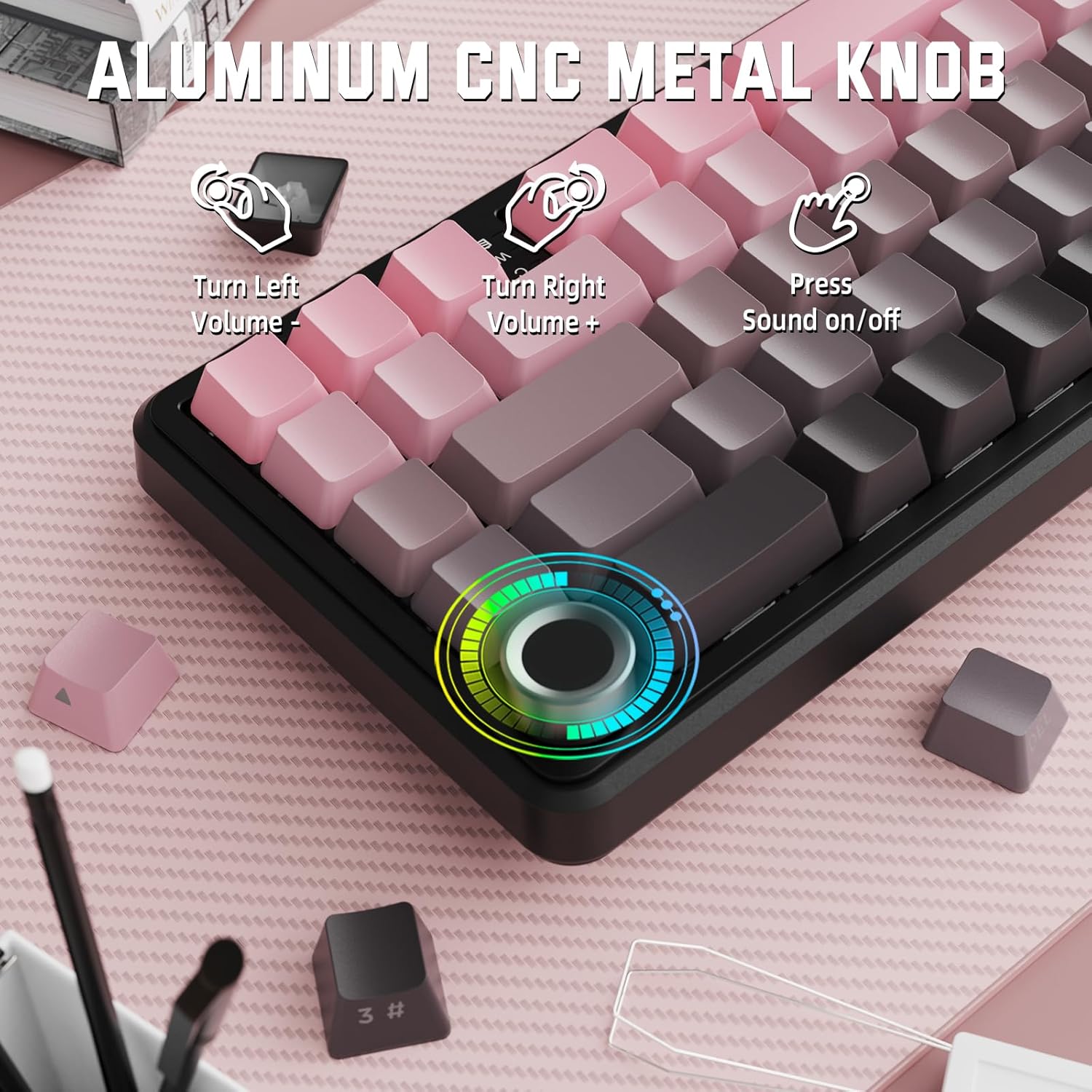
Image: Close-up of the volume knob with icons indicating its functions: Turn Left (Volume -), Turn Right (Volume +), Press (Sound on/off).
- Tụgharịa aka ekpe: Belata olu.
- Tụgharịa aka nri: Welie olu.
- Pịa: Mechie/Mechie ụda.
4.2 Njikọta Igodo Ọrụ (Igodo FN)
Due to the compact 60% layout, some functions are accessed via the FN key.
| Ngwakọta | Ọrụ |
|---|---|
| FN + Q/W/E | Switch between Bluetooth devices 1, 2, and 3 |
| FN + Backspace | Lelee ike batrị |
| FN + 1-0 (top row) | F1-F10 functions (e.g., FN+1 for F1) |
| FN + -/= | F11/F12 functions |
| FN + \| | Hichapụ |
| FN + P | Ihuenyo mbipụta |
| FN + [ { | Ụlọ |
| FN + ]} | Ọgwụgwụ |
| FN +;: | Ibe elu |
| FN + ' " | Ibe ala |
| FN + Arrow Keys | Navigation (e.g., FN+Up Arrow for Page Up) |
5. Nhazi
5.1 RGB Backlight Settings
The keyboard features dynamic RGB backlighting with multiple effects and colors.

Image: Visual representation of RGB backlight controls including turning on/off, changing lighting mode, speed, direction, brightness, and color, often in combination with the FN key.
- Turn on/off Lighting / Power Saving Mode: Specific key combination (refer to keyboard legends or software).
- Ụdị ọkụ: Cycle through 18 lighting effects.
- Ọsọ ọkụ: Gbanwee ọsọ nke mmetụta ọkụ na-agbanwe agbanwe.
- Ntuziaka ọkụ: Change the direction of certain lighting effects.
- Ọkụ ọkụ: Adjust the intensity of the backlight.
- Agba ọkụ: Select from 9 preset backlight colors or customize via software.
5.2 Mmemme ngwanrọ
For advanced customization of RGB modes, macros, and key remapping, dedicated software is available.
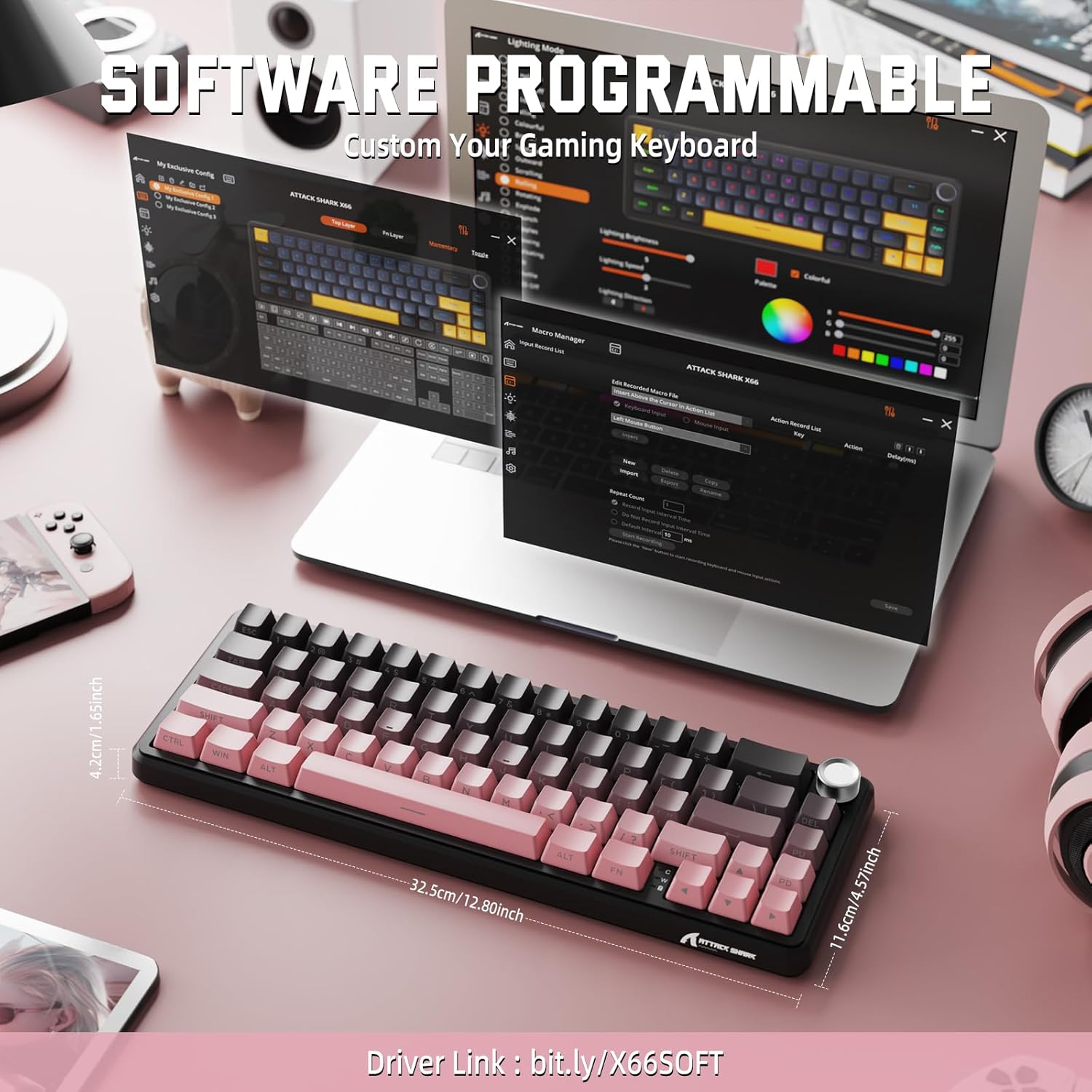
Image: Screenshot of the keyboard's software interface, showing options for custom key assignments, macro recording, and RGB lighting customization. A driver link is provided for download.
Download the official software from the manufacturer's websaịtị. Akụrụngwa na-enye gị ohere:
- Hazie mmetụta ọkụ na agba RGB.
- Program macros for complex key sequences.
- Tinyegharịa igodo nkeonwe na ọrụ dị iche iche.
- Mepụta ma chekwaa ọtụtụ ọkachamarafiles maka ngwa dị iche iche ma ọ bụ egwuregwu.
6. Nlekọta
6.1 Ihicha ahụigodo
- Kwụpụ kiiboodu site na isi mmalite ike niile tupu ihicha.
- Jiri akwa dị nro na-enweghị ntụpọ dampejiri mmiri tinye ma ọ bụ ihe ngwọta dị nro iji hichaa igodo igodo na chassis.
- Maka uzuzu na irighiri ihe n'etiti igodo, jiri ikuku abịakọrọ.
- Zere iji kemịkalụ siri ike, abrasives, ma ọ bụ ihe mgbaze.
6.2 Hot Swappable Switch Replacement
The keyboard's hot-swappable design allows for easy switch replacement without soldering.

Image: Illustration showing how to remove and insert mechanical switches on the X66 keyboard, highlighting compatibility with 3-pin and 5-pin switches.
- Jiri mkpịsị ugodi ahụ enyere ka ọ were nwayọ wepu okpu igodo achọrọ.
- Use the provided switch puller to carefully grip the top and bottom clips of the switch and pull it straight up.
- Dozie ntụtụ nke mgba ọkụ ọhụrụ ahụ na oghere dị na PCB. Gbaa mbọ hụ na ntụtụ ahụ kwụ ọtọ ka ịzena-ehulata.
- Jiri nwayọ pịa mgba ọkụ ọhụrụ ahụ ka ọ banye ebe ruo mgbe ọ pịrị na nchekwa.
- Tinyegharịa okpu ahụ.
6.3 Njikwa batrị
The keyboard is equipped with a 3000mAh rechargeable battery.

Image: Visual guide on how to check the battery capacity using FN + Backspace, showing different battery level indicators (30%, 50%, 100%) with corresponding key light patterns.
- Ịchaji: Connect the keyboard via the USB-C cable to a computer or a USB power adapter. The charging indicator will show the charging status.
- Na-enyocha ọkwa batrị: Pịa FN + Backspace to display the current battery capacity via the key backlights.
- Ndụ batrị: A full charge provides long-lasting usage, but actual duration varies based on RGB lighting usage and connection mode.
7. Nchọpụta nsogbu
| Nsogbu | Ihe nwere ike ime | Ngwọta |
|---|---|---|
| Ahụigodo anaghị aza | Low battery, incorrect connection mode, driver issue. | Charge the keyboard. Ensure the mode switch is set correctly (2.4G, BT, or Wired). Reconnect the USB receiver/cable. Re-pair Bluetooth. Try a different USB port. |
| Njikọ Bluetooth anaghị akwụsi ike | Interference, distance, low battery. | Ensure no strong interference sources nearby. Move closer to the device. Charge the keyboard. Re-pair the Bluetooth connection. |
| Njikọ ikuku 2.4GHz anaghị ejikọta | Receiver not plugged in, incorrect mode, interference. | Ensure the 2.4GHz receiver is securely plugged in. Set the keyboard mode switch to '2.4G'. Try a different USB port for the receiver. |
| Ọkụ RGB anaghị arụ ọrụ ma ọ bụ ezighi ezi | Lighting settings, software issue. | Check lighting control key combinations (FN + lighting keys). Ensure software is installed and updated. Reset lighting settings via software. |
| Igodo anaghị edebanye aha ma ọ bụ pịnye ugboro abụọ | Mgbanwe na-ezighi ezi, irighiri ihe n'okpuru igodo igodo. | Remove keycap and clean around the switch. If issue persists, replace the switch using the provided switch puller and spare switches. |
| Volume knob not functioning | Software conflict, physical obstruction. | Ensure no software is overriding media controls. Check for any physical debris around the knob. Restart the computer. |
8. Nkọwapụta
| Njirimara | Nkọwa |
|---|---|
| Nọmba nlereanya | X66 |
| Nhazi | 66 Keys, 60% Compact QWERTY |
| Njikọta | Bluetooth (5.0), 2.4GHz Wireless, USB-C Wired |
| Mgbanwe | Hot Swappable (3-pin/5-pin compatible), Pre-lubed Strawberry Mechanical Switches |
| Isi okwu | Side-printed Gradient PBT |
| Ìhè azụ | RGB (16+ Million Colors, 9 preset colors, 18 effects) |
| Ike batrị | 3000mAh |
| Ngwa dakọtara | Windows, Mac OS, Laptop, PC, Tablet |
| Ihe onwunwe | Polybutylene Terephthalate, Polycarbonate |
| Ibu Ibu | 2 pound (ihe dị ka 0.91 n'arọ) |
| Akụkụ ngwugwu | 14.02 x 6.54 x 2.05 sentimita (ihe dịka 35.6 x 16.6 x 5.2 cm) |
| Onye nrụpụta | Mwakpo Shark |
9. Akwụkwọ ikike na nkwado
For warranty information and technical support, please refer to the official ATTACK SHARK websaịtị ma ọ bụ kpọtụrụ onye na-ere ahịa gị. Debe akwụkwọ nnata ịzụrụ maka akwụkwọ ikike.
Onye nrụpụta: Mwakpo Shark
Onye na-ere ahịa: MAGIC-REFINER US
10. Video ngwaahịa
Vidiyo: Ihe ngosi vidiyo ngwaahịa gọọmentịasing the features and design of the ATTACK SHARK X66 Gasket Wireless Mechanical Keyboard, including its compact size, RGB lighting, hot-swappable switches, and multi-mode connectivity. The video highlights the keyboard's aesthetic appeal and functional aspects.


