1. Okwu mmalite
This manual provides detailed instructions for the setup, operation, and maintenance of your TONOR SL4000 2.1 Soundbar with Subwoofer. Please read this manual thoroughly before using the product to ensure proper functionality and to maximize your audio experience.
The TONOR SL4000 2.1 Soundbar system delivers a maximum power of 160W with a frequency response of 55Hz to 20kHz, offering clear sound and powerful bass. It is designed for home cinema, gaming, and music, providing a versatile audio solution.
2. Ihe ngwugwu
Biko lelee na ihe niile dị na ọ dịkwa mma:
- Nkeji ụda ụda 1 x
- 1 x Subwoofer
- 1 x nkwụnye ọkụ
- 1 x Njikwa anya
- 1 x HDMI Cable (ARC compatible)
- 1 x eriri anya dijitalụ
- 1 x 3.5mm USB USB
- Ngwunye mgbidi
3. Nhazi
3.1 Ntinye
The soundbar's elegant and slim design allows it to fit perfectly under your TV. The subwoofer can be placed on the floor near the soundbar for optimal bass performance. A wall mounting kit is included for alternative installation.
3.2 Connecting the Soundbar and Subwoofer
Connect the subwoofer to the soundbar using the dedicated cable. Ensure a secure connection.
3.3 Njikọ ike
Connect the power adapter to the soundbar's DC IN port and then plug it into a power outlet.
3.4 Njikọ ọdịyo
The soundbar offers versatile connectivity options. Choose the connection method that best suits your devices:
- HDMI (ARC): For optimal audio quality and control via your TV remote, connect the included HDMI cable from the soundbar's HDMI (ARC) port to your TV's HDMI (ARC/eARC) port.
- Ngwa anya: Connect the included optical cable from the soundbar's OPTICAL port to your TV's optical output.
- AUX: Use the included 3.5mm audio cable to connect the soundbar's AUX port to the audio output of your device (e.g., TV headphone jack, PC).
- USB: Insert a USB drive into the USB port for direct MP3 playback.
- Bluetooth Bluetooth: For wireless connection with smartphones, tablets, or other Bluetooth-enabled devices.

Image: Steps for connecting the soundbar via HDMI ARC. Step 1: Connect the cable to the TV's ARC port. Step 2: Connect the other end to the soundbar's ARC port. Step 3: Press the HDMI ARC button on the remote control.

Image: Rear panel of the soundbar displaying HDMI (ARC), USB, Optical, and AUX input ports.
4. Ntuziaka ọrụ
4.1 Gbanyụọ ma ọ bụ gbanyụọ
Pịa bọtịnụ ike dị na ụda ma ọ bụ njikwa anya iji gbanye ma ọ bụ gbanyụọ ngwaọrụ ahụ.
4.2 Nhọrọ ntinye
Use the 'Input' button on the remote control to cycle through available input sources: HDMI (ARC), Optical, AUX, USB, and Bluetooth.
4.3 Njikwa olu
Use the 'VOL+' and 'VOL-' buttons on the remote control to adjust the master volume. The subwoofer's bass levels can also be adjusted independently.
4.4 Ụdị nhazi nhata
The soundbar features an advanced DSP chip with three preset equalization modes to optimize your audio experience:
- Ọnọdụ Cinema: Provides an immersive sound experience, ideal for movies.
- Ụdị egwu: Ensures clear and rich sound reproduction for music.
- Ụdị egwuregwu: Enhances your gaming experience with optimized audio.
Switch between these modes using the dedicated buttons on the remote control.

Image: Remote control with clearly labeled buttons for 'Game', 'Films' (Cinema), and 'Music' sound modes.
4.5 Njikọ Bluetooth
Iji jikọọ site na Bluetooth:
- Select Bluetooth input on the soundbar. The indicator light will flash.
- Enable Bluetooth on your device (smartphone, tablet).
- Chọọ maka "TONOR SL4000" in your device's Bluetooth settings and select it to pair.
- Once connected, the indicator light will be solid.
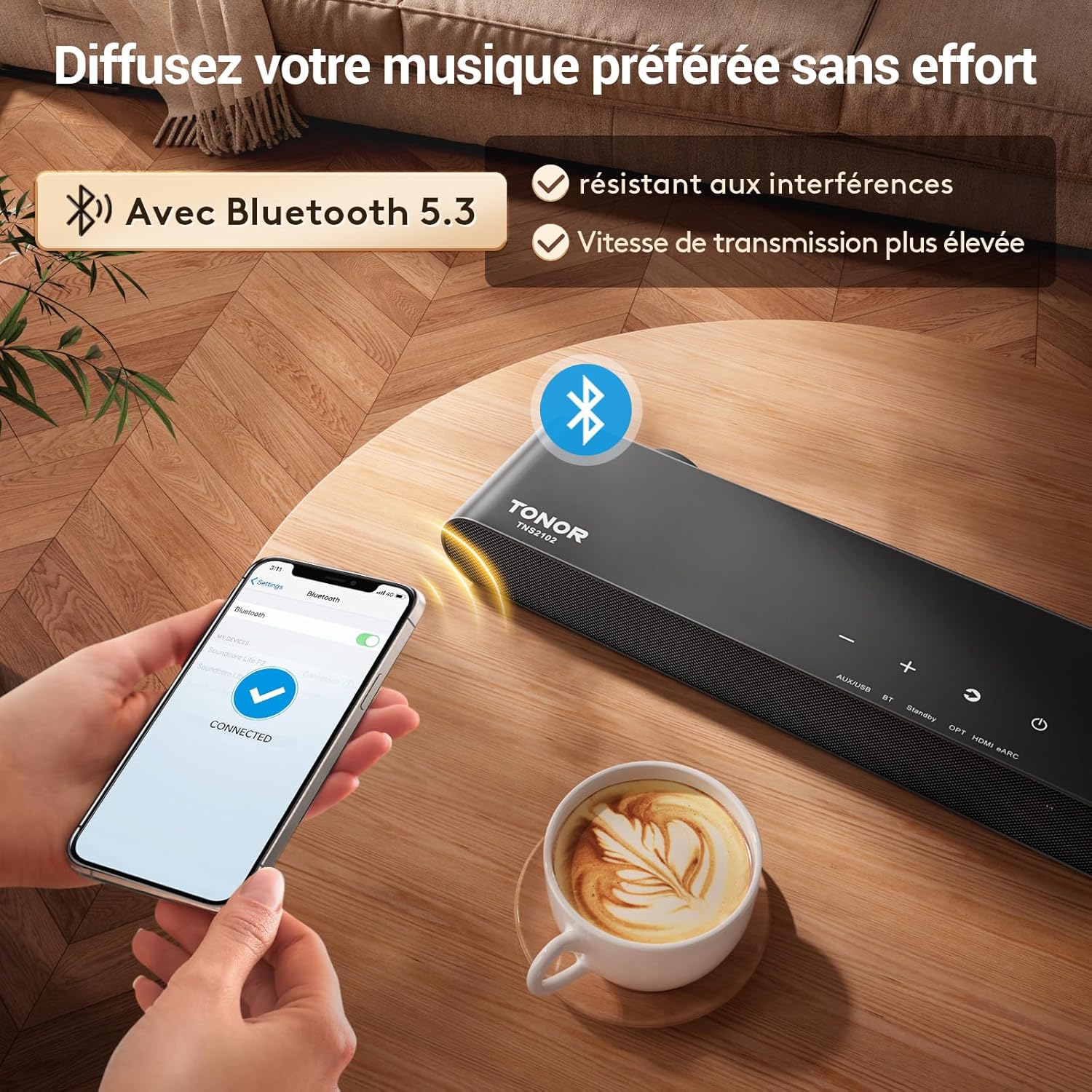
Image: A smartphone screen showing a successful Bluetooth connection to the TONOR soundbar, with the soundbar visible in the background.
4.6 USB playback
Insert a USB drive containing MP3 audio files into the USB port. The soundbar will automatically switch to USB input and begin playback. Use the remote control for play/pause, next track, and previous track functions.
5. Nlekọta
To ensure the longevity and optimal performance of your TONOR SL4000 soundbar and subwoofer, follow these maintenance guidelines:
- Nhicha: Jiri akwa dị nro ma kpọọ nkụ hichaa elu igwe ụda na subwoofer. Ejila ihe nhicha mmiri ma ọ bụ ihe abrasive, n'ihi na ha nwere ike imebi njedebe.
- Igwe ikuku: Hụ na ihe mkpuchi ụda na subwoofer nwere ikuku zuru oke. Ekpuchila oghere ikuku ọ bụla.
- gburugburu: Zere ikpughe ihe dị n'ime ya na oke okpomọkụ, iru mmiri, ma ọ bụ ìhè anyanwụ kpọmkwem. Debe ya ebe okpomọkụ na mmiri na-agaghị erute.
- Nchekwa: If storing the unit for an extended period, disconnect it from the power supply and store it in a cool, dry place.
6. Nchọpụta nsogbu
If you encounter issues with your TONOR SL4000 soundbar, please refer to the following common problems and solutions:
| Nsogbu | Ihe nwere ike ime | Ngwọta |
|---|---|---|
| Enweghị ike | Ejikọghị eriri ọkụ; Igwe ọkụ anaghị arụ ọrụ | Gbaa mbọ hụ na ejikọrọ eriri ọkụ na nchekwa. Gbalịa nweta ike dị iche. |
| Enweghị ụda | Ntinye ezighi ezi ahọpụtara; Olu dị oke ala; Ejikọghị eriri nke ọma | Select the correct input source. Increase volume. Check all audio cables are securely connected. Ensure TV audio output is set correctly. |
| Nsogbu njikọ Bluetooth | Ụda ụda adịghị n'ụdị njikọta; Ngwaọrụ dị oke anya; Ntuchi | Ensure soundbar is in Bluetooth pairing mode. Move device closer to the soundbar. Avoid strong interference sources. |
| Njikwa anya anaghị arụ ọrụ | Batrị agwụla; Ihe mgbochi dị n'etiti remote na soundbar | Replace remote control batteries. Remove any obstructions. Ensure remote is pointed at the soundbar's sensor. |
| Distorted sound at high volumes | Volume too high; Poor audio source quality | Reduce the volume. Try a different audio source to check if the issue persists. |
Ọ bụrụ na nsogbu ahụ dịgidere mgbe ịnwale azịza ndị a, biko kpọtụrụ nkwado ndị ahịa.
7. Nkọwapụta
| Njirimara | Nkọwa |
|---|---|
| Ụdị | TONOR |
| Aha Nlereanya | TNS2100 |
| Nọmba Nlereanya ihe | SL4000 |
| Ụdị Ọkà Okwu | Gburugburu ụda, Subwoofer |
| Nhazi ọwa ụda gburugburu | 2.1 |
| Teknụzụ Njikọta | Auxiliary, Bluetooth, HDMI, Optical, USB |
| Teknụzụ nzikọrịta ozi ikuku | Bluetooth 5.3 |
| Ike Mmepụta Ọkà Okwu Kachasị Elu | 80 Watts (Total system power up to 160W peak) |
| Nzaghachi ugboro ugboro | 55Hz - 20 kHz |
| Nha Ọkà Okwu | 5.25 Inches (Subwoofer) |
| Atụmatụ pụrụ iche | 3D Surround Sound, Built-in DSP, 3 EQ Modes |
| Ngwa dakọtara | Smart TV, Smartphone, Tablet, Desktop Computer, Laptop |
| Eji ngwaahịa akwadoro | For game console, For music player, For computer, For smartphone or tablet, For ambient sound system, For television |
| Usoro njikwa | Njikwa anya |
| Agba | Nwa |
| Ihe onwunwe | Plastic |
| Akụkụ ngwaahịa (L x W x H) | 48 x 23 x 35.5 cm |
| Ibu Ibu | 4500 grams |
| Isi Iyi Ike | Igwe ọkụ eletrik |
| Waterproof | Ụgha |
8. Akwụkwọ ikike Ozi
This product comes with a Limited Warranty. Please refer to the warranty card included in your package for specific terms and conditions. Keep your proof of purchase for warranty claims.
9. Nkwado ndị ahịa
For technical assistance, troubleshooting beyond this manual, or warranty inquiries, please contact TONOR customer support. Contact information can typically be found on the official TONOR websaịtị ma ọ bụ na nkwakọ ngwaahịa.


