1. Okwu mmalite
This manual provides detailed instructions for the setup, operation, and maintenance of your FoMaKo M4 SDI 4K HDMI Video Mixer Switcher. Please read this manual thoroughly before using the device to ensure proper functionality and to prevent damage.
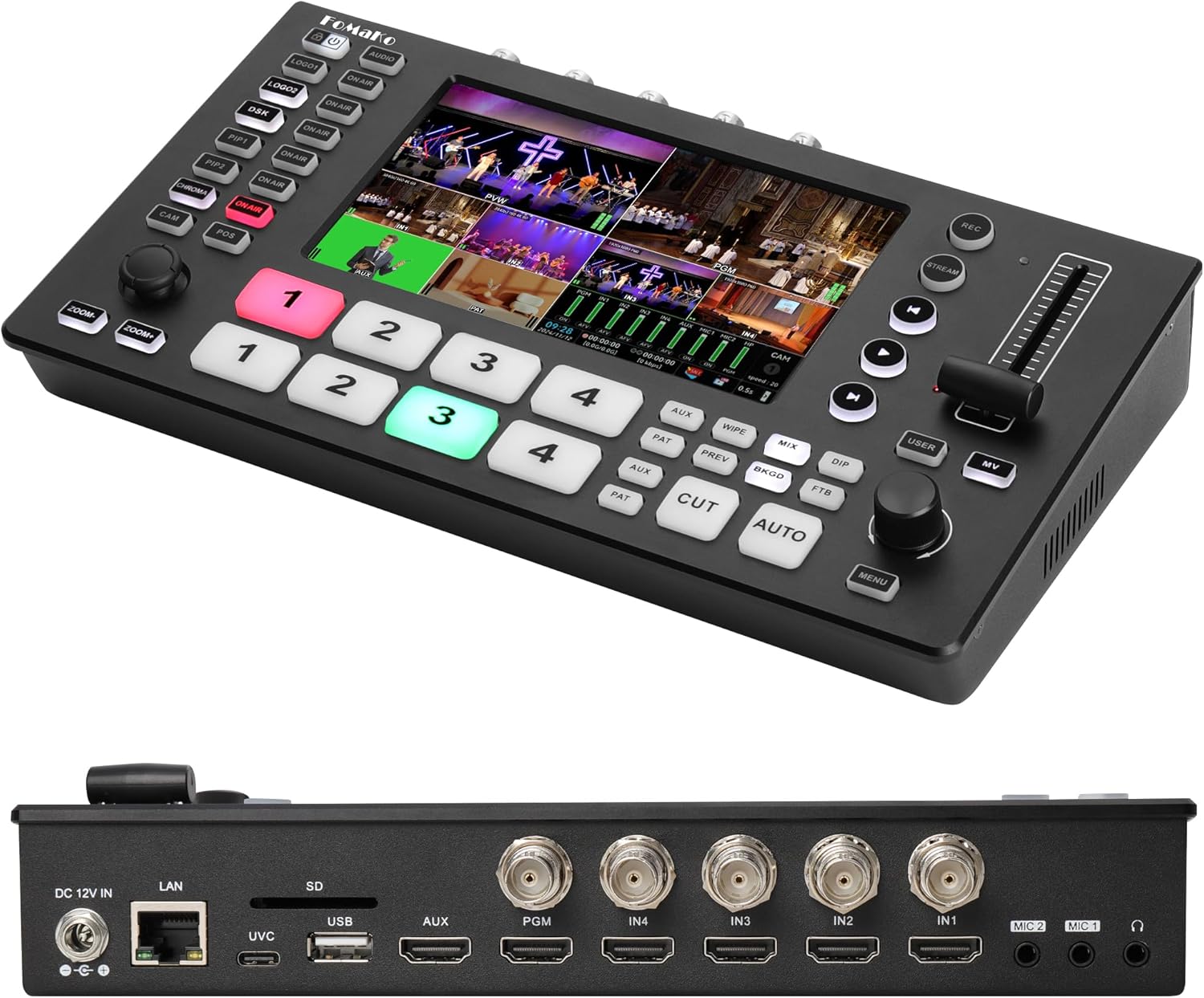
Foto 1.1: Ihu na azụ view of the FoMaKo M4 SDI 4K HDMI Video Mixer Switcher, showcasinnhazi ya dị obere na ọdụ ụgbọ mmiri dị iche iche.
2. Ihe ngwugwu
Chọpụta na ihe niile dị na ngwugwu:
- FoMaKo M4 SDI 4K HDMI Video Mixer Switcher Unit
- Ihe nkwụnye ọkụ
- USB USB 3.1
- Akwụkwọ ntuziaka (akwụkwọ a)
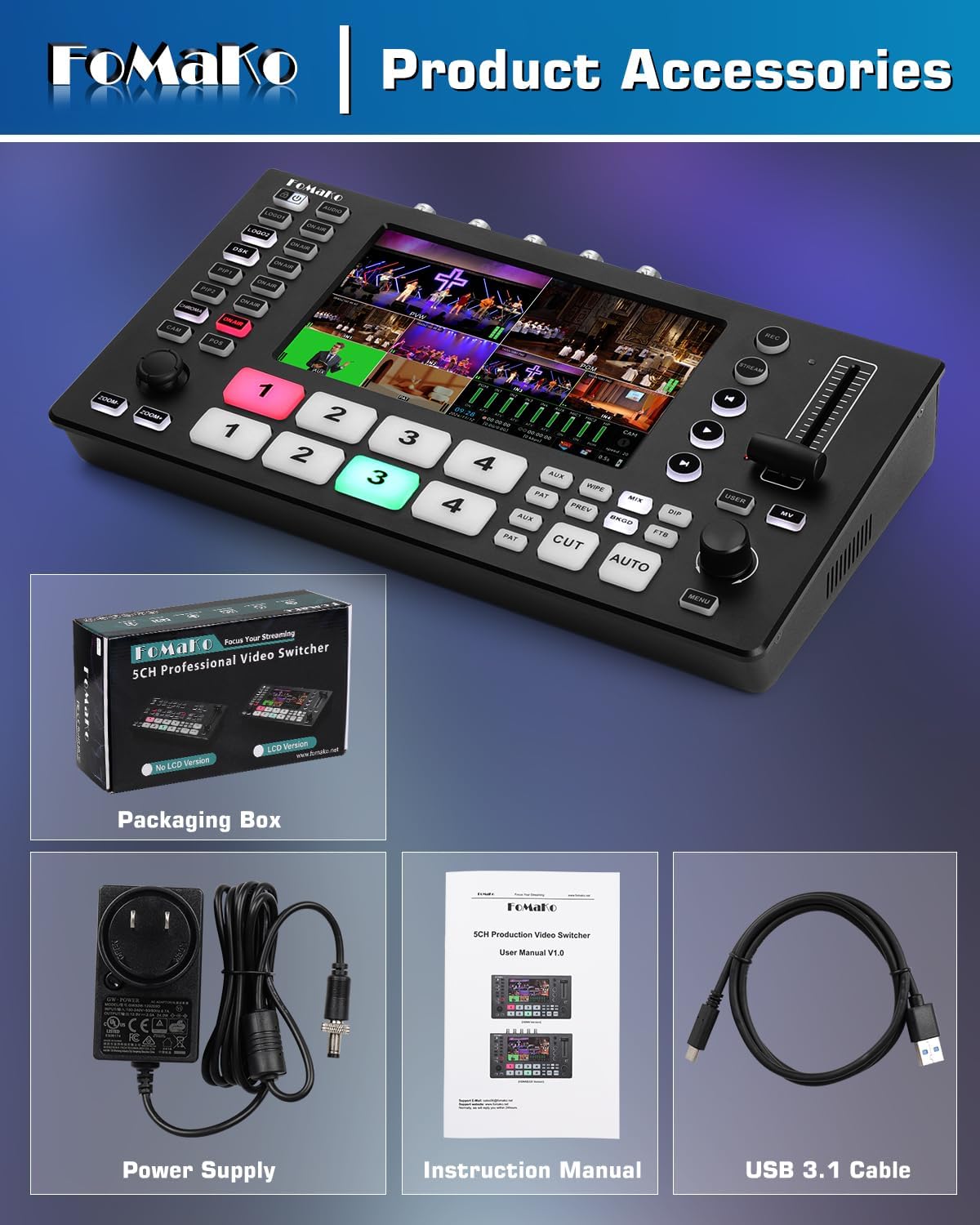
Image 2.1: Included accessories: the switcher unit, power supply, instruction manual, and USB 3.1 cable.
3. Nhazi
3.1. Ngwaọrụ gafereview na njikọ
The FoMaKo M4 features a comprehensive set of inputs and outputs for professional video production. Familiarize yourself with the panel layout and port functions.

Image 3.1: Detailed diagram illustrating the front panel controls and rear interface ports of the M4 switcher.
3.2. Ijikọ Ngwaọrụ Gị
Follow the connection diagram to integrate your cameras, monitors, and other equipment with the switcher.
- Ntinye vidiyo: Connect up to four HDMI sources and four SDI sources. HDMI IN1 and IN2 support 4K 60FPS input.
- Ntinye Audio: Utilize the two independent 3.5mm inputs for microphones or line devices.
- Nsonaazụ vidiyo: Connect your program (PGM) and auxiliary (AUX) monitors via SDI and HDMI outputs.
- USB 3.1: Connect to a computer for lossless live streaming.
- USB 2.0: For PGM recording and firmware upgrades.
- Ọdụ ụgbọ mmiri LAN: For network control and RTSP live streaming.

Image 3.2: A visual guide for connecting various devices such as cameras, computers, monitors, and audio equipment to the M4 switcher.
3.3. Na-agbanye ike
After all connections are secure, connect the power supply to the DC 12V IN port and then to a power outlet. Press the power button to turn on the device.
4. Ntuziaka ọrụ
4.1. Input and Output Management
The 5.5-inch FHD LCD screen provides real-time monitoring of all multi-source feeds. Use the input selection buttons (1-4) to choose your preview (PVW) and program (PGM) sources.

Image 4.1: The M4 switcher's capability to simultaneously accept 4K P60 and 1080P60 inputs across its various ports.
4.2. Transition Effects
The M4 offers 30 professional transition effects, including MIX, WIPE, and DIP. Select your desired effect using the dedicated buttons and execute transitions with the T-Bar or CUT/AUTO buttons.

Image 4.2: Visual representation of the 30 available switching effects, categorized by MIX, WIPE, and DIP.
4.3. Advanced Keying Functions
Utilize Chroma Key, Luma Key, and DSK for real-time graphics overlay, picture-in-picture (PIP), and logo insertion.
- Chroma Key: For green screen effects. Ensure the PAT layer is active during chroma operations.
- DSK: For adding subtitles and other graphic overlays.
- PIP: Display multiple video sources simultaneously.

Image 4.3: Demonstration of double channel chroma keying functionality, showing both preview and program outputs with green screen effects.
4.4. PTZ Camera Control
The M4 supports PTZ camera control, allowing for rapid and precise camera switching. Ensure all PTZ cameras and the video mixer are connected to the same router.
- CAM Button: Short press to activate a camera; long press to select a camera for knob control.
- POS Button: Save and recall camera presets.
- ZOOM+/- Buttons: Control the zoom function of the PTZ camera lens.

Image 4.4: The PTZ camera control interface on the M4, highlighting the joystick and dedicated buttons for camera movement and zoom.
4.5. Ndekọ vidiyo
The M4 supports high bit rate dual recording via both SD card and USB storage options. Users can select a bit rate range from 5-30 Mbps (default is 20 Mbps).

Image 4.5: The M4 switcher connected to external USB storage and an SD card, illustrating its dual recording capabilities.
4.6. Live Streaming
The M4 offers two-channel RTSP network livestreaming to various platforms and Type-C USB 3.1 for direct live streaming. Users can control bitrate (5-50 Mbps) and frame rate (24-60fps) for each channel.

Image 4.6: The M4 switcher displaying both vertical (mobile) and horizontal (computer) live streaming modes, adaptable for different platforms.
4.7. Remote Control
Ihe arụnyere web server allows for remote control via computers and smartphones. Access the switcher's interface through a web browser for comprehensive control.

Foto 4.7: Ọpụamples of remote control interfaces on a smartphone, tablet, and computer web browser for the M4 switcher.
4.8. Customization: Videos, Backgrounds, and Logos
The AUX input can import SD cards and USB drives to record videos, as well as import custom videos. You can add custom logos and backgrounds, with adjustable position and cropping.

Image 4.8: Interface showing options to add custom videos, backgrounds, and logos to the M4 switcher's output.
5. Nlekọta
5.1. Nhicha
Regularly clean the device with a soft, dry cloth. Avoid using liquid cleaners or solvents that may damage the surface or internal components.
5.2. Mmelite firmware
Periodically check the FoMaKo official website for firmware updates. Updates can be performed via the USB 2.0 port to enhance functionality and performance.
6. Nchọpụta nsogbu
If you encounter issues with your FoMaKo M4, refer to the following common solutions:
- Enweghị ike: Gbaa mbọ hụ na ejikọrọ ihe nkwụnye ọkụ na nke ọma na ma ngwaọrụ yana ebe ọ na-arụ ọrụ.
- Enweghị mmepụta vidiyo: Verify that input sources are active and correctly connected. Check output monitor connections and ensure the correct PGM source is selected.
- Okwu ọdịyo: Confirm audio input levels and settings. Check cable connections for microphones or line devices.
- Ihuenyo Na-egbukepụ egbukepụ: If the internal display flickers, try powering the unit off and on. If the issue persists, contact customer support.
- Remote Control Connectivity: Ensure the switcher and your control device are on the same network and the LAN cable is properly connected.
7. Nkọwapụta
| Njirimara | Nkọwa |
|---|---|
| Nọmba nlereanya | M4 |
| Akụkụ ngwaahịa | 7 x 14 x 4 sentimita asatọ |
| Ibu Ibu | 2.2 pound |
| Ntinye vidiyo | 4x HDMI (IN1/IN2 support 4K 60FPS), 4x SDI |
| Mpụta vidiyo | 1x SDI PGM, 1x HDMI PGM, 1x HDMI AUX, 1x USB 3.1 Lossless |
| Ntinye ọdịyo | 2x 3.5mm (MIC/Line) |
| Ngosipụta | 5.5 Inch FHD LCD Screen |
| Edekọ | SD Card, USB 2.0 (PGM recording) |
| Mgbasa ozi dị ndụ | Type-C USB 3.1, 2-Channel RTSP Network |
| Keying Functions | Chroma Key, Luma Key, DSK, PIP, LOGO |
| Mmetụta Mgbanwe | 30 (MIX, WIPE, DIP) |
| Njikwa | PTZ Camera Control, Built-in Web Server (Remote Control) |
8. Akwụkwọ ikike na nkwado
FoMaKo provides comprehensive support for your product:
- Akwụkwọ ikike nke afọ 3: Covers manufacturing defects and ensures product reliability.
- Nkwenye nkwụghachi ego nke ụbọchị 30: Risk-free purchase.
- Free Online Training: Resources to help you get started easily.
- 24/7 Expert Assistance: Responses within 24 hours. Please include your Order ID for faster service.
- Lifetime Customer Technical Support: Ongoing assistance for the lifespan of your product.

Foto 8.1: Ofeview of FoMaKo's customer support and warranty offerings, including 24/7 assistance and a 3-year limited warranty.


