Okwu mmalite
Thank you for choosing the GOLOZA Digital Alarm Clock. This manual provides detailed instructions for setting up, operating, and maintaining your new alarm clock. Please read this manual thoroughly before use to ensure optimal performance and longevity of the device.

Image: The GOLOZA Digital Alarm Clock with its large red LED display showing 8:30. A smartphone is connected to the clock's USB port for charging, illustrating the charging feature.
Ihe ngwugwu
Biko lelee ngwungwu maka ihe ndị a:
- GOLOZA Digital Alarm Clock Unit
- Ihe nkwụnye ọkụ
- Akwụkwọ ntuziaka onye ọrụ
Njirimara ngwaahịa
The GOLOZA Digital Alarm Clock is designed with user convenience and functionality in mind, offering several key features:
- 4 Levels Brightness & Night Mode: Customize display brightness with four levels, including an "Off" option. The thoughtful night mode automatically dims the display during a preset period (default: 7:00 pm – 7:00 am) to ensure undisturbed sleep.
- Dual Customizable Alarms & Workday Modes: Set two independent alarms with options for weekday, weekend, or custom day settings to fit various schedules.
- Progressive Rings & 9-Minute Snooze: The alarm volume gradually increases for a gentle wake-up. A large, easily reachable snooze button provides an additional 9 minutes of sleep.
- Reliable Memory Function: Equipped with a memory function that retains time and alarm settings during power outages when 2*AAA batteries (not included) are installed. The clock requires continuous power via the included adapter for operation.
- USB Nchaji Port: Features a built-in 5W USB port for convenient charging of mobile devices. Note that this is a standard charging port, not a fast-charging one.
- Ọrụ na-enweghị mgbake: Designed with top-mounted buttons for intuitive and easy control, making it suitable for users of all ages.
Melite
1. Njikọ ike
Connect the provided power adapter to the DC IN port on the back of the alarm clock and then plug it into a standard wall outlet. The display will light up, indicating the clock is powered on.
2. Nwụnye ndabere batrị
For the memory function to work during power outages, install two (2) AAA batteries (not included) into the battery compartment located on the bottom of the clock. Ensure correct polarity (+/-) when inserting the batteries. These batteries only retain time and alarm settings and do not power the display or alarm sound.

Foto: nkọwa zuru ezu view of the GOLOZA Digital Alarm Clock's rear, highlighting the battery compartment for two AAA batteries and the power input, demonstrating how the memory function works when the clock is plugged in.
Ntuziaka ọrụ
1. Isetịpụ Oge
- Long press the "Time Set" button (usually indicated by a clock icon) on the top of the clock until the hour display starts flashing.
- Use the "+" or "-" buttons to adjust the hour.
- Press the "Time Set" button again to switch to minute adjustment. Use "+" or "-" to set the minutes.
- Press the "Time Set" button once more to confirm and exit time setting mode.
2. Ịtọ Mkpu (Mkpu 1 na Mkpu 2)
The clock supports two independent alarms (Alarm 1 and Alarm 2) with customizable settings for specific days.
- Slide the alarm switch (usually on the back or side) to "Customize" mode.
- Long press the "Alarm 1" button (or "Alarm 2" for the second alarm) until the hour display flashes.
- Use the "+" or "-" buttons to adjust the alarm hour.
- Press the "Alarm 1" (or "Alarm 2") button again to switch to minute adjustment. Use "+" or "-" to set the minutes.
- Continue pressing the "Alarm 1" (or "Alarm 2") button to cycle through the days of the week (MON, TUE, WED, THU, FRI, SAT, SUN). For each day, press the "+" or "-" button to enable or disable the alarm for that specific day. You can select individual days, weekdays only, weekends only, or every day.
- Once all desired days are set, long press the "Alarm 1" (or "Alarm 2") button again to save the settings and exit.
Watch the video below for a visual guide on setting customized alarms:
Video: This video demonstrates the step-by-step process of setting a customized alarm on the GOLOZA Digital Alarm Clock, including setting the time and selecting specific days for the alarm to activate.

Image: A visual representation of the GOLOZA Digital Alarm Clock's display, illustrating the dual alarm icons and the customizable day selection for alarm activation, showing options for weekday, weekend, and specific days.
3. Brightness Adjustment & Night Mode
Press the "DIMMER" button on the top of the clock to cycle through the four brightness levels (100%, 75%, 50%, 25%) and an "OFF" option for the display.
The clock features an automatic night mode. By default, the display brightness will automatically dim to 25% between 7:00 PM and 7:00 AM. This setting cannot be manually adjusted.

Image: The GOLOZA Digital Alarm Clock display illustrating the four levels of brightness (100%, 75%, 50%, 25%) and an off option, demonstrating its adaptability to different lighting conditions.

Image: The GOLOZA Digital Alarm Clock on a bedside table in a dimly lit bedroom, showcasing its automatic dimming feature during night mode (7:00 PM - 7:00 AM) for comfortable viewing.
4. Ọrụ snooze
When the alarm sounds, press the large "SNOOZE" button on the top of the clock to temporarily silence the alarm for 9 minutes. The alarm will sound again after the snooze period ends.

Image: The GOLOZA Digital Alarm Clock on a bedside table, with a focus on the prominent "SNOOZE" button, indicating its easy accessibility for temporary alarm silencing.
Usoro elekere 5. 12/24
Press the "12/24H" button on the top of the clock to switch between 12-hour (with AM/PM indicator) and 24-hour time formats.
6. Oge nchekwa ụbọchị (DST)
To activate or deactivate Daylight Saving Time, press the "DST" button (usually combined with another function or a dedicated button). The display will adjust by one hour forward or backward accordingly.
7. USB Nchaji Port
The 5W USB port on the side of the clock can be used to charge small electronic devices like smartphones. Connect your device's USB charging cable to this port. Note that charging speed may vary depending on the device and cable.
Nlekọta
To maintain your GOLOZA Digital Alarm Clock, follow these guidelines:
- Jiri ákwà dị nro ma kpọọ nkụ hichaa elekere ahụ. Ejila ihe nhicha ma ọ bụ ihe mgbaze.
- Zere ikpughe elekere ahụ na oke okpomọkụ, anwụ kpọmkwem, ma ọ bụ oke iru mmiri.
- Do not disassemble the clock. This will void the warranty.
Nchọpụta nsogbu
| Nsogbu | Ihe kpatara/ Ngwọta nwere ike ime |
|---|---|
| Ngosipụta bụ oghere ma ọ bụ na ọ naghị enwu. | Ensure the power adapter is securely plugged into both the clock and a working wall outlet. Check if the "DIMMER" setting is set to "OFF". |
| Oti mkpu anaghị ada ụda. | Verify that the alarm is enabled for the current day and time. Check the alarm volume setting if applicable (though this model has progressive rings, not explicit volume control). Ensure the clock is powered. |
| Time or alarm settings reset after power outage. | Ensure 2*AAA batteries are correctly installed in the battery compartment. These batteries provide backup for settings during power interruptions. |
| High-pitched noise from the unit. | This could indicate an internal component issue. Disconnect power and contact customer support for assistance. |
Nkọwapụta
| Njirimara | Nkọwa |
|---|---|
| Ụdị | GOLOZA |
| Nọmba nlereanya | GE901 |
| Agba | Red (Display) |
| Ụdị ngosi | Ikanam |
| Akụkụ ngwaahịa | 6.4"W x 3.2"H |
| Ibu Ibu | 9.5 ounces |
| Isi Iyi Ike | Igwe ọkụ eletrik |
| Ndabere batrị | 2 x AAA batteries (not included) for memory function |
| Ọdụ ụgbọ mmiri USB | 5W (Standard Charging) |
| Elekere mkpu | Yes, Dual Alarms |
| Ogologo oge snooze | Nkeji 9 |
| Ọkwa ihie | 4 Levels + OFF |
| Ụdị abalị | Automatic Dimming (7:00 PM - 7:00 AM, 25% Brightness) |
Akwụkwọ ikike na nkwado
GOLOZA provides a Akwụkwọ ikike nke ọnwa 24 maka ngwaahịa a, na-ahụ na ịdị mma na ntụkwasị obi dị.
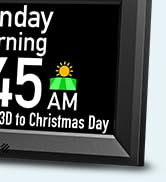
Image: A graphic indicating "GOLOZA SUPPORT" and "24 Months Warranty," along with instructions on how to contact for questions via Amazon: "Account -> Orders -> Order Detail -> Sold by: GOLOZA -> Ask a question."
For any questions, technical assistance, or warranty claims, please contact GOLOZA customer support through your Amazon order details:
- Go to your Amazon account.
- Navigate to "Your Orders".
- Find the order for your GOLOZA Digital Alarm Clock.
- Click on "Order Detail".
- Locate "Sold by: GOLOZA" and click on "Ask a question".
Our customer service team is available to assist you.