1. Okwu mmalite
This manual provides detailed instructions for the setup, operation, and maintenance of your THOMSON 8-inch Digital Photo Frame (Model: TRDF-8001C). Please read this manual thoroughly before using the device to ensure proper functionality and to maximize your enjoyment of its features. This digital photo frame is designed to display your cherished photos and videos with an 8-inch IPS HD screen, offering a clear and vibrant viewahụmahụ.
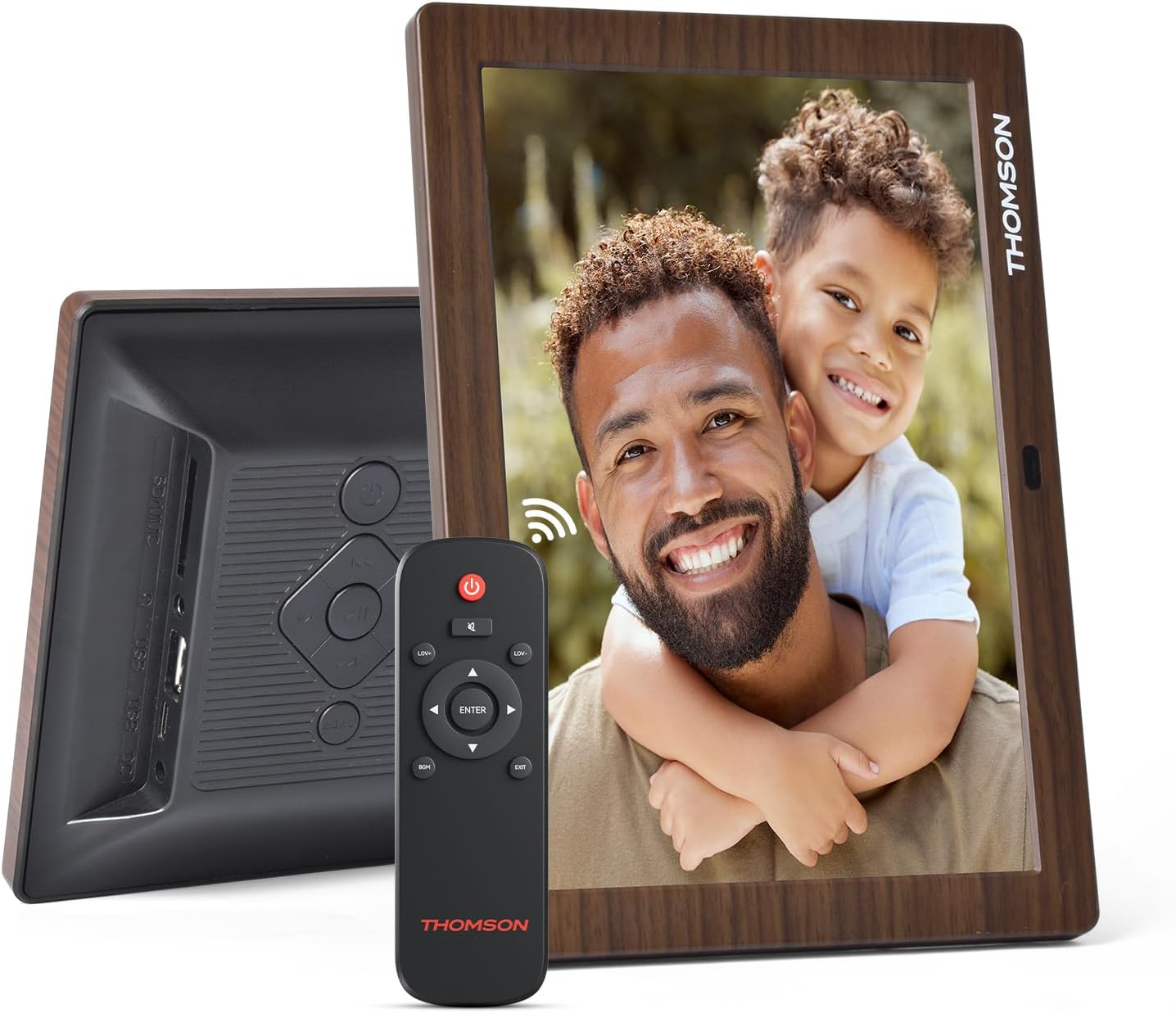
2. Kedu ihe dị na Igbe ahụ
Mgbe ebupuchara, biko hụ na ihe niile edepụtara n'okpuru nọ na ọ dị mma:
- THOMSON 8-inch Digital Photo Frame
- Njikwa anya
- Ihe nkwụnye ọkụ
- Photo Frame Stand
- Akwụkwọ ntuziaka onye ọrụ

Figure 2.1: Contents of the THOMSON Digital Photo Frame package.
3. Nhazi
3.1 Njikọ ike
- Connect the power adapter to the DC-IN port on the back of the digital photo frame.
- Tinye ihe nkwụnye ọkụ n'ime oghere eletrik ọkọlọtọ.
- The frame will automatically power on.
3.2 Ntọala mbụ
- Upon first startup, you will be prompted to select your preferred language. Use the navigation buttons on the remote control or the physical buttons on the back of the frame to select and confirm.
- Tọọ ụbọchị na oge dị ugbu a.
Ọgụgụ 3.1: N'azụ view of the frame with power input and physical controls.
3.3 Ịwụnye nkwụnye
The digital photo frame can be placed on a flat surface using the included stand. Insert the stand into the designated slot on the back of the frame. The frame also supports wall mounting using the integrated mounting holes.
4. Ntuziaka ọrụ
4.1 Ngosipụta atụmatụ
- 8-inch IPS HD Screen: Enjoy clear and vibrant images with a 1280x800 resolution from various viewakụkụ .
- Ntughari akpaaka: The built-in gravity sensor automatically adjusts the photo orientation (landscape or portrait) for optimal viewing.

Figure 4.1: The 8-inch IPS HD screen provides a high-quality display for your memories.
4.2 Mgbasa ozi
The frame supports playback of photos, music, and videos. You can navigate through your media using the remote control or the physical buttons.
- Photo Slideshow: Configure slideshow intervals and transition effects in the settings.
- Nkpọghachi egwu: Kpọọ egwu ndabere mgbe viewfoto ndị dị.
- Ihe nkiri vidiyo: Enjoy your favorite video clips directly on the frame.

Figure 4.2: User interface for media selection and playback options.
4.3 Remote Control and Physical Buttons
Control your digital photo frame conveniently using the included remote control or the physical buttons located on the back of the frame.
- Ọrụ njikwa anya: Power on/off, adjust volume, navigate images, control background music, and access menus.
- Bọtịnụ anụ ahụ: Provide direct control for essential functions, useful for elderly users.

Figure 4.3: Remote control for convenient operation of the frame.
4.4 Expansion Modes
The frame supports various expansion options for storing your media:
- SD/SDHC/MMC Card: Expand storage up to 32 GB.
- USB-A/Type-C/U-disk: Connect USB drives for additional media.
- Mara: This frame does not have built-in storage. An external memory card or USB drive is required for media storage.

Figure 4.4: Memory expansion slots on the back of the frame.
4.5 Automatic Power On/Off
You can set a customized automatic start and stop time for the frame to conserve energy and manage display times.

Figure 4.5: Setting automatic power on/off times for convenience.
5. Nlekọta
- Na-ehicha ihuenyo: Use a soft, dry, lint-free cloth to gently wipe the screen. For stubborn marks, slightly dampen akwa na mmiri ma ọ bụ ihe ngwọta na-ehichapụ ihuenyo. Zere kemịkalụ siri ike.
- Na-ehicha Frame: Wipe the frame with a soft, dry cloth.
- Nchekwa: When not in use for extended periods, disconnect the power adapter and store the frame in a cool, dry place away from direct sunlight.
6. Nchọpụta nsogbu
| Nsogbu | Ihe nwere ike ime | Ngwọta |
|---|---|---|
| Frame anaghị agbanye ọkụ. | Ejikọtaghị ihe nkwụnye ọkụ ma ọ bụ mejọrọ. | Ensure the power adapter is securely connected to the frame and a working power outlet. Try a different outlet. |
| No images/videos displayed. | No memory card/USB drive inserted or media files are corrupted/unsupported. | Insert a memory card or USB drive with supported media files. Lelee file formats (JPEG for photos, MP4 for videos). Ensure the memory card/USB drive is properly inserted. |
| Njikwa anya anaghị arụ ọrụ. | Low battery or obstruction. | Replace the remote control battery. Ensure there are no obstructions between the remote and the frame's IR receiver. |
| Images are distorted or incorrect orientation. | Incorrect display settings or disabled auto-rotation. | Check display settings in the menu. Ensure the auto-rotation feature is enabled if desired. |
7. Nkọwapụta
- Nọmba nlereanya: TRDF-8001C
- Nha ihuenyo: 8 sentimita asatọ
- Mkpebi: 1280x800 (WXGA)
- Akụkụ akụkụ: 16:10
- Ngosipụta teknụzụ: IPS HD
- Njikọta: DC-4.0, USB-A, Type-C, SD Card, 3.5MM earphone jack
- Mgbasawanye ebe nchekwa: SD/SDHC/MMC card up to 32GB, U-disk
- Isi mmalite ike: Igwe ọkụ eletrik
- User Interface Input: Buttons, Remote Control
- Ihe Frame: Plastic
- Akụkụ ngwaahịa: 24.4 x 18 x 2.51 cm
- Arọ ngwaahịa: 240 grams
8. Akwụkwọ ikike na nkwado
For warranty information and customer support, please refer to the documentation included in your product packaging or visit the official Thomson websaịtị. Debe nnata nzụta gị dị ka ihe akaebe nke ịzụrụ ihe maka akwụkwọ ikike ọ bụla.


