Okwu mmalite
Thank you for choosing the TECKNET Wireless Mouse. This manual provides detailed instructions for setting up, operating, and maintaining your mouse to ensure optimal performance. This mouse offers versatile connectivity options, precise control, and a comfortable, silent user experience.
Ngwaahịa gafereview
Mara ihe ndị dị na TECKNET Wireless Mouse gị nke ọma.

Image: Front and bottom view of the TECKNET Wireless Mouse, highlighting the scroll wheel, left/right buttons, forward/backward buttons, DPI switch, Bluetooth pairing button, USB receiver storage, and battery compartment.
- Bọtịnụ aka ekpe/aka nri: Standard òké pịa ọrụ.
- Mpempe akwụkwọ mpịakọta: Maka mpịakọta kwụ ọtọ na ọrụ pịa etiti.
- Bọtịnụ n'ihu/Azu: Ịnyagharịa web pages or documents. (Note: Side buttons are not compatible with macOS).
- Bọtịnụ Mgbanwe DPI: Adjusts mouse sensitivity (4800/3200/2400/1600/1200/800 DPI).
- Bọtịnụ Njikọ Bluetooth: Na-ebute ọnọdụ njikọta Bluetooth.
- 2.4G/Off/BT Switch: Selects connection mode or turns off the mouse.
- Ihe nnata USB: Stores securely within the mouse for 2.4G wireless connection.
- Akụkụ batrị: Holds 2 AAA batteries (not included).
- Ihe ngosi LED: Displays connection status and low battery warning.
Melite
1. Ịwụnye batrị
- Mepee mkpuchi nke batrị dị n'okpuru òké ahụ.
- Tinye batrị AAA abụọ (anaghị etinye ya), hụ na polarity ziri ezi (+/-).
- Mechie mkpuchi oghere batrị.

Image: The underside of the mouse with the battery cover removed, showing two AAA batteries correctly inserted.
2. Ijikọ òké
The TECKNET Wireless Mouse supports two connection modes: 2.4G Wireless (via USB receiver) and Bluetooth.
2.1. 2.4G Wireless Connection (USB Receiver)
- Locate the USB receiver stored in the battery compartment of the mouse.
- Tinye eriri USB n'ọdụ ụgbọ mmiri USB-A dị na kọmputa gị.
- Mikpuo mgba ọkụ dị n'ala òké ahụ gaa n'ọnọdụ "2.4G".
- Òké kwesịrị jikọọ na kọmputa gị ozugbo.

Image: A green TECKNET Wireless Mouse positioned between a laptop with a USB-A receiver plugged in and a tablet, illustrating dual connectivity options.
Text Description for Video: This video demonstrates the process of installing AAA batteries into the TECKNET Wireless Mouse and connecting it via the 2.4G USB receiver. It shows the location of the battery compartment and the USB receiver, as well as the power/mode switch on the underside of the mouse. The video also highlights the forward/backward buttons and DPI switch on the top of the mouse.
2.2. Njikọ Bluetooth
- Mikpuo mgba ọkụ dị n'ala òké ahụ gaa n'ọnọdụ "BT".
- Press and hold the Bluetooth pairing button (usually located near the mode switch) for 3-5 seconds until the LED indicator starts blinking blue, indicating pairing mode.
- Na kọmputa ma ọ bụ ngwaọrụ gị, gaa na ntọala Bluetooth wee chọọ ngwaọrụ ọhụrụ.
- Họrọ "TECKNET Mouse" (maọbụ aha yiri ya) site na ndepụta ngwaọrụ dị maka ijikọ.
- The LED indicator will stop blinking and remain solid blue once connected.
Text Description for Video: This video provides a detailed demonstration of how to set up and pair the TECKNET Wireless Mouse using its Bluetooth functionality. It shows the user switching the mouse to Bluetooth mode, pressing the pairing button, and then connecting it to a computer. The video also briefly showcases the silent click feature and the ergonomic design of the mouse.
Text Description for Video: This video highlights the silent click feature of the TECKNET Wireless Mouse and demonstrates its easy pairing process via Bluetooth. The user shows the mouse's underside, including the battery compartment and the mode switch, and then performs a silent click to emphasize the quiet operation. The video also briefly mentions the convenience of using AAA batteries.
Ntuziaka ọrụ
Mmezi DPI
Press the DPI switch button located on the top of the mouse to cycle through 6 adjustable DPI settings: 800, 1200, 1600, 2400, 3200, and 4800. This allows you to customize cursor speed and precision to your preference.

Image: The TECKNET Wireless Mouse with an overlay showing the 6 adjustable DPI settings, emphasizing precise control.
Njirimara Pịa jụụ
The mouse is designed for silent operation, providing whisper-quiet clicks. This feature is ideal for environments where noise reduction is important, such as libraries, offices, or late-night use.

Image: A person using the TECKNET Wireless Mouse in a quiet environment, with text indicating "Silent Click" and "Inaudible click sound, quiet and focused, without disturbing others."
Ụdị ụra akpaka
To conserve battery life, the mouse will automatically enter sleep mode after approximately 5 minutes of inactivity. To wake the mouse, simply click any button.
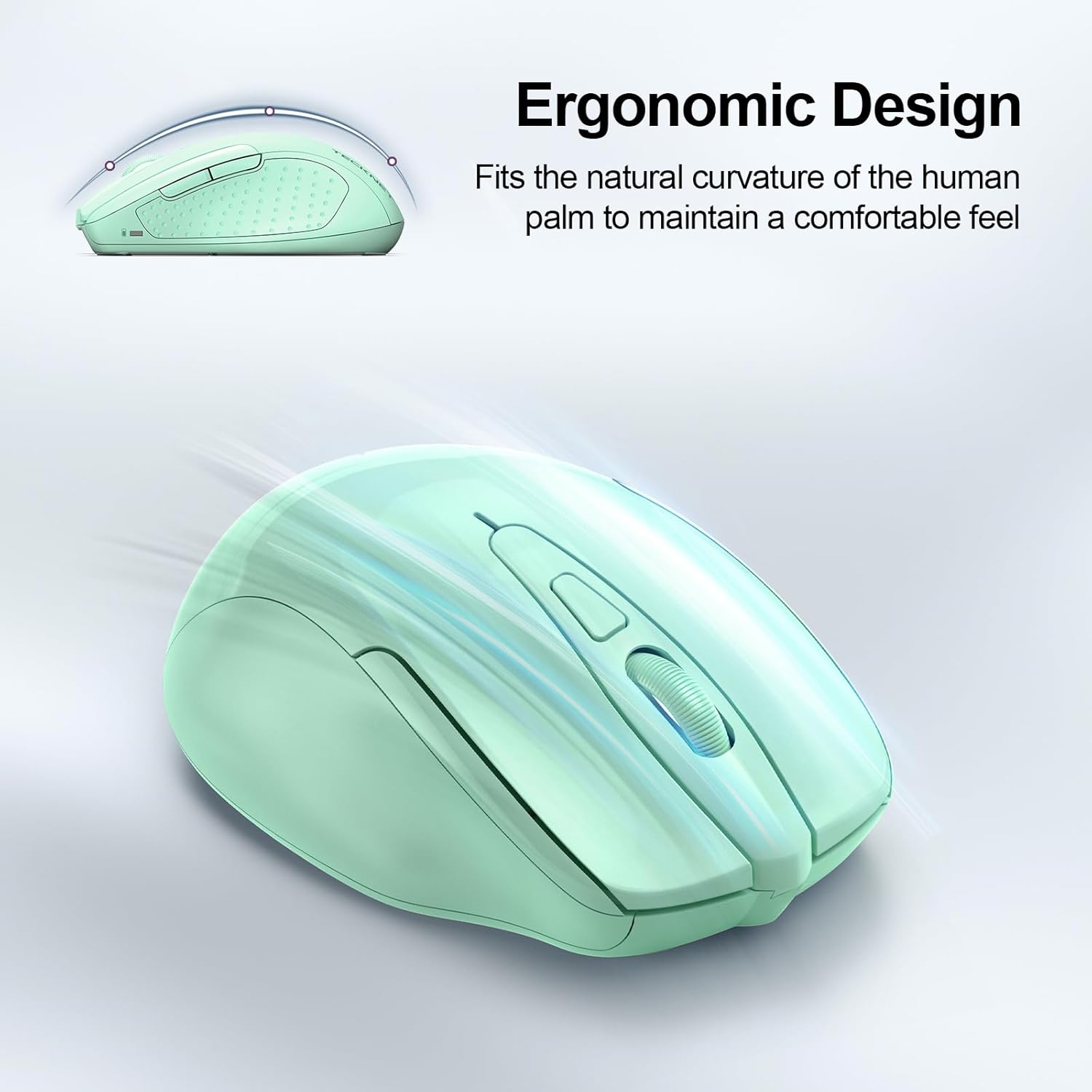
Image: A visual representation of the mouse's power states: Working, Stand-by, Auto-sleep, and how to activate it by pressing a button.
Nlekọta
- Nhicha: Jiri ákwà dị nro ma kpọọ nkụ hichaa òké ahụ. Zere iji kemịkalụ siri ike ma ọ bụ ihe ndị na-emebi ihe.
- Ngbanwe batrị: Replace batteries when the LED indicator shows a low battery warning (red light).
- Nchekwa: When not in use for extended periods, turn off the mouse using the switch on the bottom to further conserve battery life.
Nchọpụta nsogbu
| Nsogbu | Ngwọta |
|---|---|
| Òké anaghị aza. |
|
| Mmegharị cursor na-adịghị agbanwe agbanwe ma ọ bụ na-adị nwayọ. |
|
| Njikọ Bluetooth na-adakarị. |
|
| Side buttons not working on macOS. | Side buttons are not compatible with macOS. This is a known limitation. |
Nkọwapụta
| Njirimara | Nkọwa |
|---|---|
| Nlereanya | BM307 |
| Njikọta | 2.4G Wireless (USB-A receiver), Bluetooth 5.0/3.0 |
| Ọkwa DPI | 800, 1200, 1600, 2400, 3200, 4800 (Enwere ike ịgbanwe) |
| Bọtịnụ | 6 Buttons (Left/Right, Scroll Wheel, Forward/Backward, DPI Switch, Bluetooth Pairing) |
| Isi Iyi Ike | Batrị 2 x AAA (anaghị etinye ya) |
| Atụmatụ pụrụ iche | Silent Click, Ergonomic Design, Automatic Sleep Mode |
| Ndakọrịta | Windows, macOS (side buttons not compatible), Chrome OS, Linux |
| Akụkụ | 4.53 x 3.15 x 1.85 sentimita asatọ |
| Ibu | 3.52 ounces |
Akwụkwọ ikike na nkwado
TECKNET na-enye ọrụ Akwụkwọ ikike nke ọnwa 36 (Registered Only) for this product. If you encounter any problems or have questions regarding the use of your TECKNET Wireless Mouse, please contact our professional customer service team for assistance.
Contact information can typically be found on the TECKNET official websaịtị ma ọ bụ site na ikpo okwu ịzụrụ ihe.


