1. Okwu mmalite
This manual provides detailed instructions for the setup, operation, and maintenance of your ATTACK SHARK X98PRO Wireless Mechanical Keyboard. The X98PRO features tri-mode connectivity (Bluetooth, 2.4GHz wireless, USB-C wired), hot-swappable switches, a customizable TFT screen, and a multi-function CNC knob, designed for both gaming and productivity across various operating systems.
2. Ihe ngwugwu
- ATTACK SHARK X98PRO Mechanical Keyboard
- USB-C to USB-A Braided Cable
- 2.4GHz ihe nnabata ikuku
- Onye na-adọkpụ igodo
- Gbanwee Puller
- Akwụkwọ ntuziaka (akwụkwọ a)
3. Keyboard Layout and Components
The X98PRO features a compact 98-key layout, integrating a numeric keypad while maintaining a smaller footprint than a full-size keyboard. Key components include:
- 1.14-inch TFT Screen: Located above the numeric keypad, this screen displays various information and allows for customization.
- CNC Multi-Function Knob: Positioned next to the TFT screen, this knob controls volume, brightness, RGB effects, and connection modes.
- Ọdụ USB-C: Maka njikọ wired na ịchaji.
- 2.4GHz Wireless Receiver Storage: Typically located in a dedicated slot on the keyboard for safekeeping.


4. Nhazi
4.1. Ịchaji ahụigodo
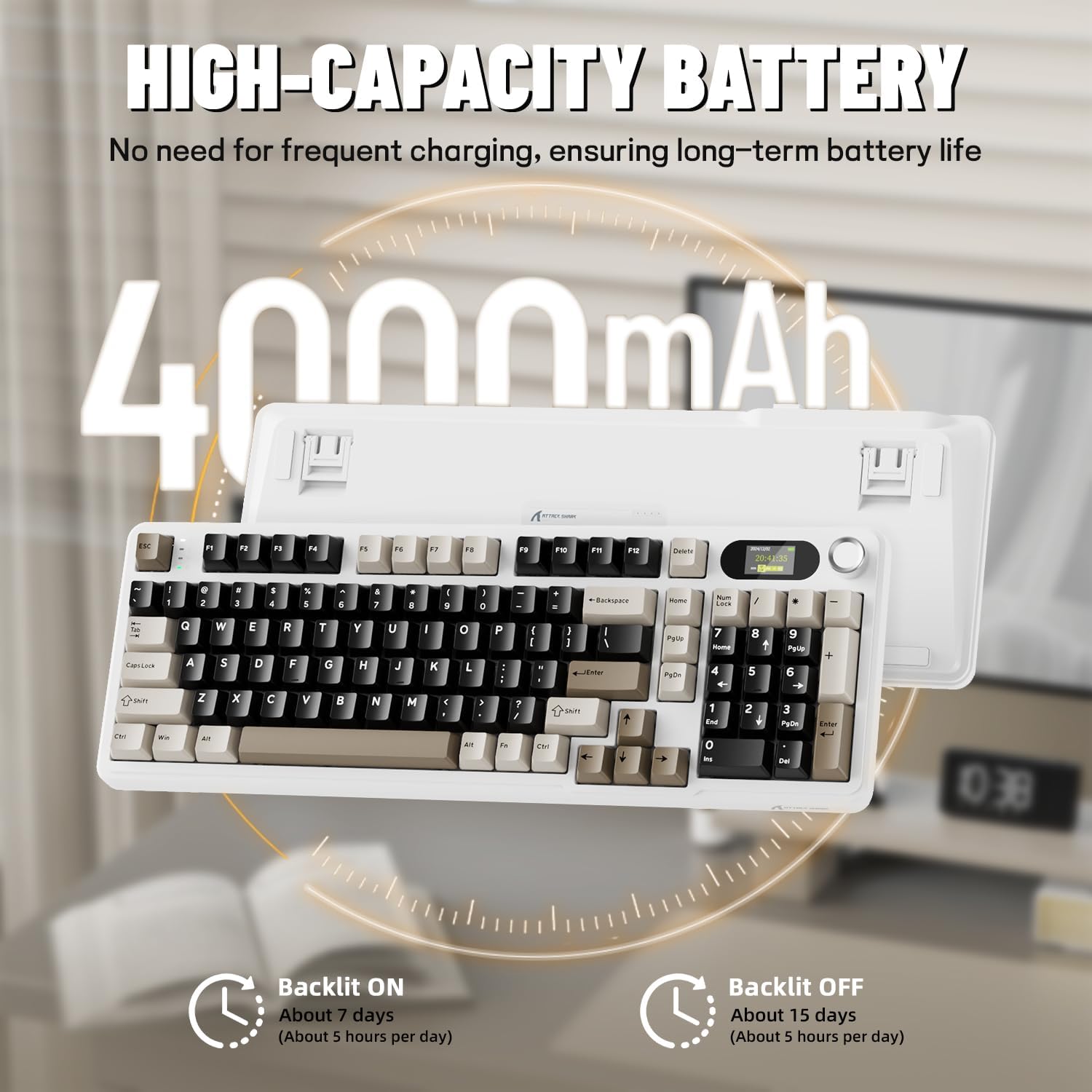
Before first use, it is recommended to fully charge the keyboard. Connect the provided USB-C cable to the keyboard's USB-C port and the other end to a USB-A power source (e.g., computer, wall adapter). The TFT screen will indicate charging status. The keyboard features a 4000mAh battery for extended wireless use.
4.2. Ụdị Njikọ
The X98PRO supports three connection modes:
- Ụdị eriri USB-C: Connect the keyboard directly to your device using the USB-C cable. This mode also charges the keyboard.
- Ọnọdụ ikuku 2.4GHz:
- Insert the 2.4GHz wireless receiver into an available USB port on your computer.
- Switch the keyboard's mode selector to 2.4G. The keyboard should automatically connect.
- Ụdị Bluetooth 5.0: Igodo ahụ nwere ike ijikọ ya na ngwaọrụ Bluetooth atọ.
- Switch the keyboard's mode selector to Bluetooth.
- Pịa ma jide fn+1, fn+2, ma ọ bụ fn+3 for 3-5 seconds until the indicator light flashes, indicating pairing mode.
- On your device (PC, Mac, Tablet), search for Bluetooth devices and select "ATTACK SHARK X98PRO" to pair.
- Ka ịgbanwee n'etiti ngwaọrụ Bluetooth ejikọtara, pịa fn+1, fn+2, ma ọ bụ fn+3 nkenke.

4.3. Nhazi izizi (Web-based Driver)
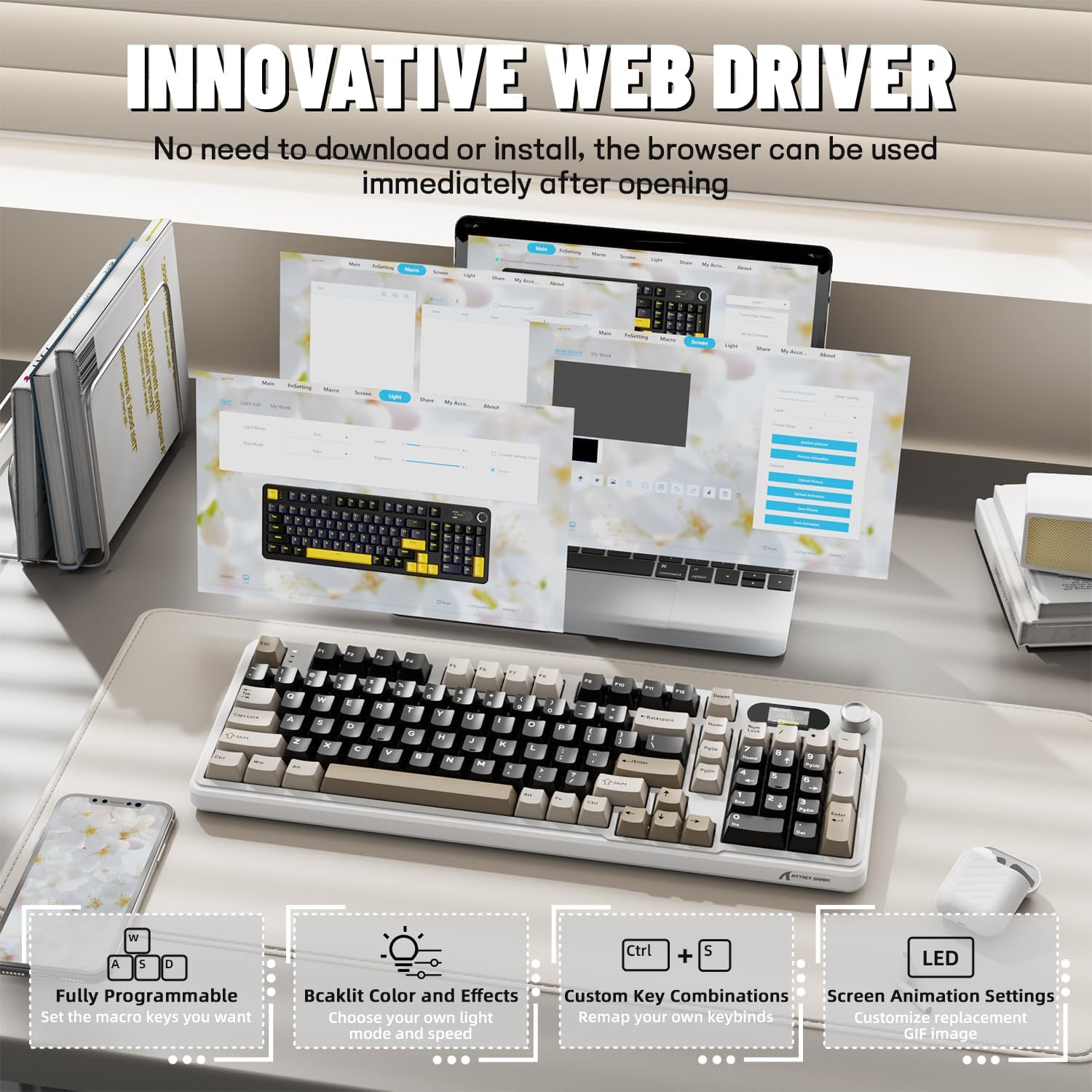
The X98PRO utilizes an intuitive web-based driver for advanced customization. This allows you to edit, upload, and switch display content for the TFT screen, customize RGB lighting, remap keys, and set macros without installing dedicated software. Access the official ATTACK SHARK websaịtị maka web driver interface.
5. Ntuziaka ọrụ
5.1. TFT Screen Functions
The 1.14-inch TFT screen can display various information:
- Ọnọdụ Sistemu: Connection mode (wired, 2.4G, BT1/2/3), operating system (Win/Mac).
- Ndụ batrị: Real-time battery level.
- Oge: Oge ugbu a.
- Custom GIFs: Upload personalized animations via the web ọkwọ ụgbọ ala.
To navigate the TFT screen menu, rotate the CNC knob to scroll through options and press the knob to confirm a selection.
5.2. CNC Multi-Function Knob
The CNC knob provides intuitive control over several keyboard features:
- Njikwa olu: By default or after switching, rotate to adjust system volume.
- Njikwa ihie: Gbanwee ọkụ azụ azụ.
- Mmetụta RGB: Gbasaa site na mmetụta ọkụ RGB dị iche iche.
- Ụdị njikọ: Switch between wired, 2.4GHz, and Bluetooth modes.
To switch the knob's function (e.g., between volume and RGB control), press Fn + Knob (press the knob down).
5.3. RGB backlighting
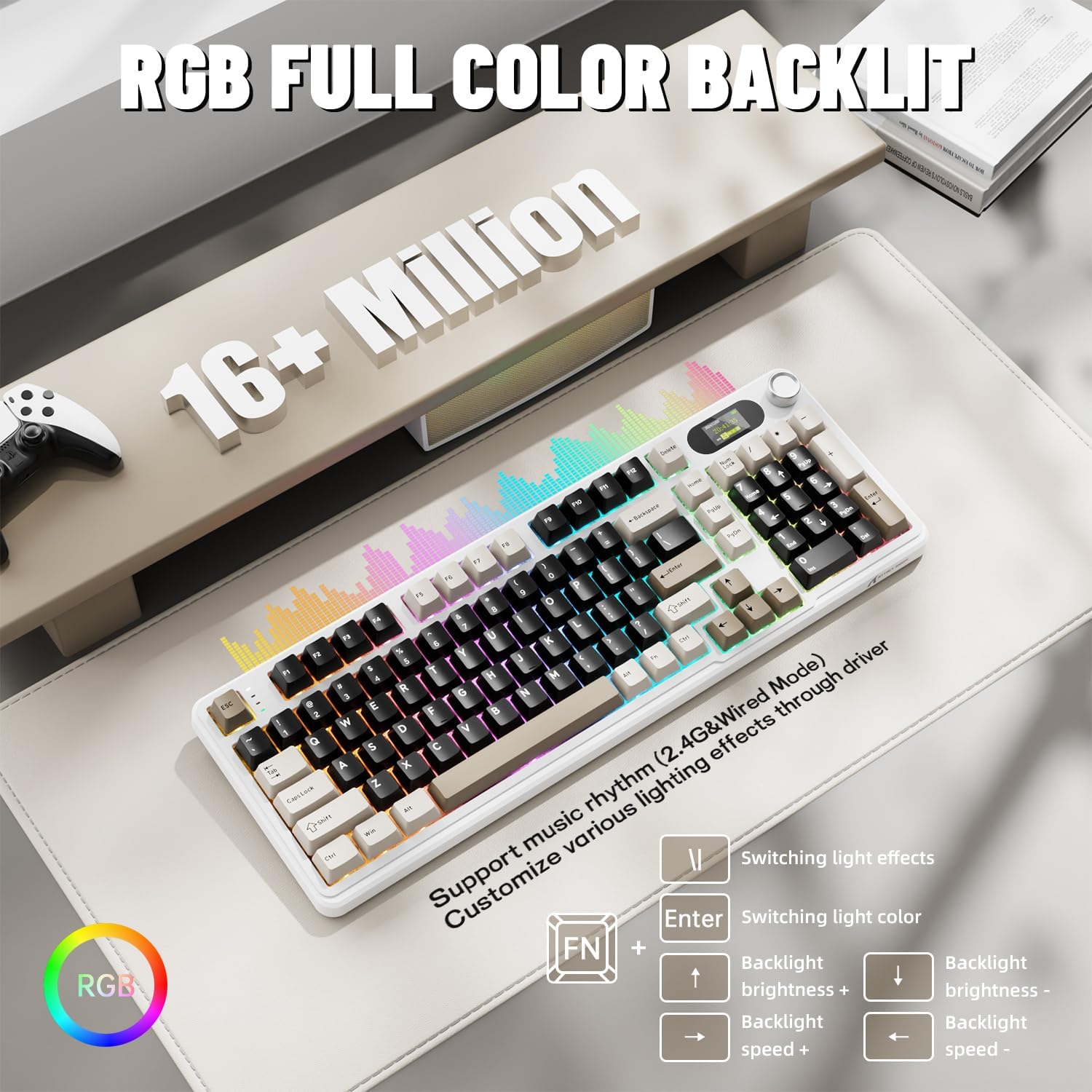
The X98PRO features full RGB backlighting with multiple effects. Control options include:
- Mmetụta ọkụ na-agbanwe: Pịa Fn + Tinye.
- Switching Light Color: Pịa Fn + \|.
- Ìhè azụ: Pịa Fn + akụ elu (abawanye) ma ọ bụ Fn + akụ ala (belata).
- Ọsọ ọkụ azụ: Pịa Fn + Ụka aka ekpe (welata) ma ọ bụ Fn + Akụ aka nri (mmụba).
Further customization of RGB lighting, including per-key lighting and custom profiles, is available through the web-based driver.
5.4. Mgbanwe Ndị A Na-agbanwe n'Ọkụ
The X98PRO features a hot-swappable PCB, allowing you to easily change mechanical switches without soldering. It is compatible with most 3-pin and 5-pin mechanical switches.
- Using the provided switch puller, carefully grip the switch and pull it straight up to remove it.
- Dozie ntụtụ nke mgba ọkụ ọhụrụ ahụ na oghere dị na PCB. Gbaa mbọ hụ na ntụtụ ahụ kwụ ọtọ.
- Gently press the new switch into place until it clicks. Do not force it.

6. Nlekọta
6.1. Nhicha
- Kwụpụ kiiboodu site na isi mmalite ike niile tupu ihicha.
- Jiri ihe ndọpụta mkpuchi igodo wepụ mkpuchi igodo maka ihicha nke ọma.
- Wipe the keyboard surface with a soft, damp akwa . Zere kemịkalụ siri ike.
- Jiri ikuku a kpọchiri akpọchi wepụ uzuzu na ihe ndị dị n'etiti igodo.
6.2. Ngbanwe na ndochi igodo
Refer to Section 5.4 for instructions on replacing switches. Keycaps can be removed using the provided keycap puller and replaced with compatible sets.
7. Nchọpụta nsogbu
- Ahụigodo anaghị aza: Ensure the keyboard is charged. Check the connection mode (wired, 2.4G, BT) and ensure it matches your device. For 2.4GHz, ensure the receiver is properly inserted. For Bluetooth, re-pair if necessary.
- TFT screen not updating/syncing: Ensure the keyboard is connected to a device. For time synchronization or custom GIFs, use the web-based driver.
- Ndụ batrị dị mkpụmkpụ: Ensure the keyboard is fully charged. Reduce backlight brightness or disable RGB effects to conserve battery.
- Igodo anaghị edebanye aha: If a specific key is not working, try removing and re-inserting its switch. If the issue persists, consider replacing the switch.
- Nsogbu nhazi: Ensure you are using the official web-based driver. Clear browser cache or try a different browser if experiencing issues.
8. Nkọwapụta
| Ụdị | Mwakpo Shark |
| Nlereanya | X98PRO |
| Teknụzụ Njikọta | 2.4GHz, Bluetooth 5.0, USB-C Wired |
| Nkọwa ahụigodo | Mechanical |
| Ngbanwe Ụdị | Linear (Blueberry switches) |
| Na-ekpo ọkụ | Yes (3-pin and 5-pin compatible) |
| Ike batrị | 4000mAh |
| Atụmatụ pụrụ iche | Customizable TFT Display, Multi-Function CNC Knob, RGB Backlit, Gasket Mount |
| Ngwa dakọtara | Laptop, PC, Tablet (Windows, Mac, Linux) |
| Akụkụ | 16.4 x 5.8 x 1.8 sentimita (ihe dị ka) |
| Ibu Ibu | 2.9 pound |
9. Akwụkwọ ikike na nkwado
For warranty information and technical support, please refer to the official ATTACK SHARK websaịtị ma ọ bụ kpọtụrụ ndị ahịa ha ọrụ. Debe akwụkwọ nnata ịzụrụ maka akwụkwọ ikike.


