1. Okwu mmalite
This manual provides detailed instructions for the installation, operation, and maintenance of your Idatalink Momento M8 (MD-8000) Dash Camera. Please read this manual thoroughly before using the product to ensure proper functionality and safety. The Momento M8 is a 3-channel Full HD dash camera designed to record your driving experiences with advanced clarity and connectivity features.
2. Ihe ngwugwu
Hụ na ihe niile edepụtara n'okpuru dị na ngwugwu ngwaahịa gị:
- Momento M8 Front FHD Dash Camera with built-in Dual 5.0GHz Wi-Fi + GPS
- Hardwire Installation Harness
- 32GB Micro SD Card with SD Card Adapter
- Ugwu
- Akwụkwọ ntuziaka (akwụkwọ a)

Image: The Momento M8 dash camera shown alongside its retail packaging, highlighting its compact design and key features like Wi-Fi and GPS.
3. Ngwaahịa gafereview
The Momento M8 dash camera features a sleek, compact design for discreet installation. It is equipped with a high-quality lens, integrated Wi-Fi, and GPS for comprehensive recording and data logging.

Foto: N'ihu view of the Momento M8 dash camera, showcasing the main lens and indicator light.

Foto: Akụkụ view of the Momento M8 dash camera, illustrating the microSD card slot for storage expansion.
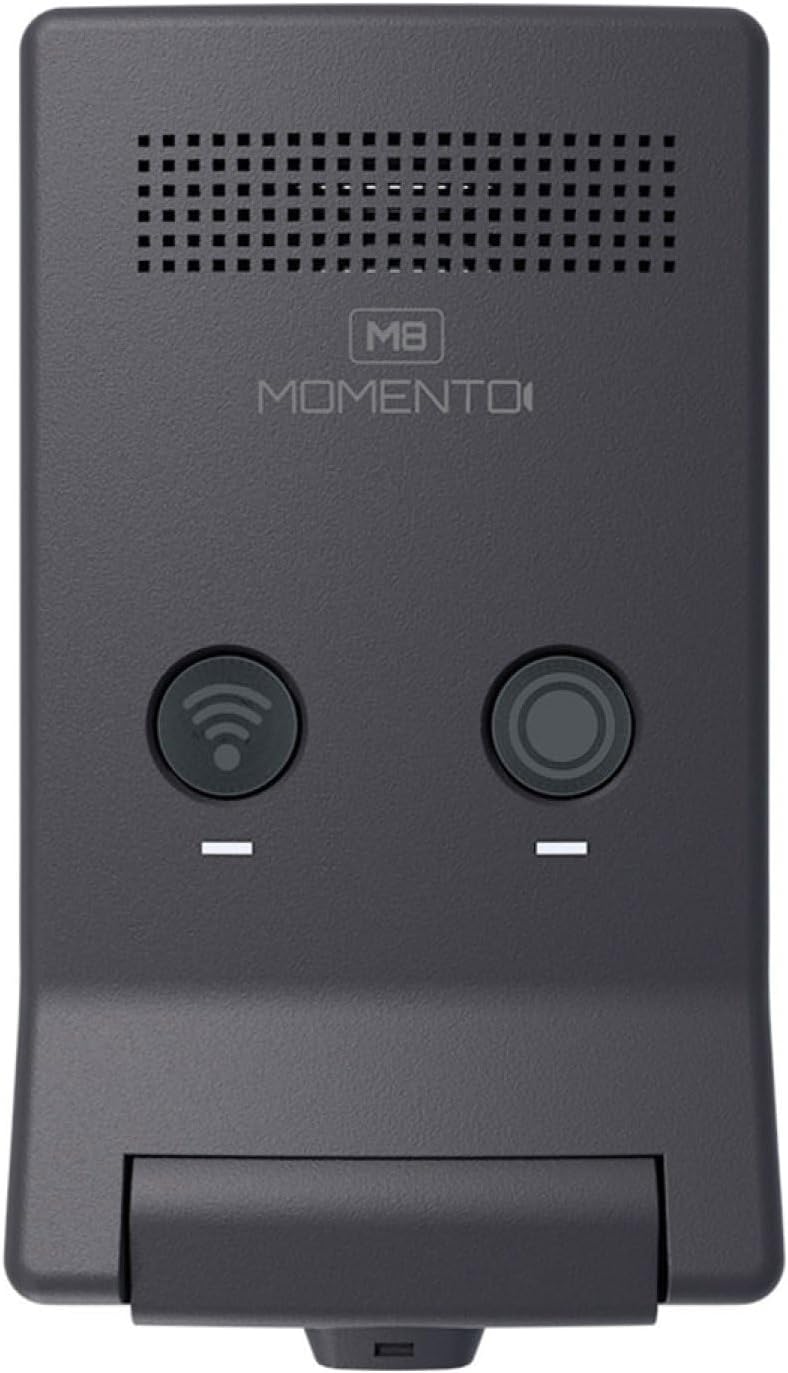
Foto: Top view of the Momento M8 dash camera, showing the Wi-Fi and record buttons.

Foto: A nso nso view of the Momento M8 dash camera's lens, highlighting its optical components.
4. Ntọala na nwụnye
- Ịkwanye igwefoto: Securely attach the camera mount to your vehicle's windshield, ensuring it does not obstruct your view. The camera should be positioned to capture a clear view nke ụzọ n'ihu.
- Inserting the MicroSD Card: Insert the included 32GB MicroSD card into the designated slot on the camera. Ensure it is inserted correctly until it clicks into place. The camera supports cards up to 256GB.
- Njikọ ike: Connect the hardwire installation harness to your vehicle's power supply according to the provided wiring diagram. This ensures continuous power for recording, including parking mode functionality. Consult a professional for hardwire installation if you are unsure.
- Ike izizi: Once connected, the camera will power on automatically when the vehicle starts. Follow any on-screen prompts or app instructions for initial setup.
5. Ntuziaka ọrụ
5.1. Automatic Recording
The Momento M8 dash camera begins recording automatically when the vehicle's ignition is turned on. Recordings are saved in segments to the MicroSD card. In the event of an impact or sudden braking, the G-sensor will trigger emergency recording, protecting the footage si na edegharị ya.
5.2. Manual Recording
Press the designated record button on the camera (refer to Product Overview for button location) to manually initiate an emergency recording. This footage will also be protected from overwriting.
5.3. Gbanyụọ / gbanyụọ
The camera powers on and off with your vehicle's ignition. To manually power off, disconnect the power supply or refer to the app settings for a shutdown option.
6. Wi-Fi Connectivity and App Usage
The Momento M8 features Dual 5.0GHz Wi-Fi for seamless connection to your smartphone or tablet via the Momento App.
- Budata ngwa: Chọọ maka "Momento App" in your device's app store and install it.
- Jikọọ na Wi-Fi: Turn on the dash camera. On your smartphone, go to Wi-Fi settings and connect to the Momento M8's Wi-Fi network. The network name and password can typically be found on the camera or in the camera's initial setup instructions.
- Atụmatụ nnweta: Open the Momento App. You can now view ndu footage, lelee vidiyo e dekọrọ, budata files to your device, and adjust camera settings.

Image: A smartphone screen displaying the Momento M8 dash camera application interface, showing options for live view, gallery, saved videos, and settings.
7. ECO Parking Mode
The ECO Parking Mode provides surveillance when your vehicle is parked. This mode utilizes an advanced sensor to detect impacts or motion, initiating recording to capture incidents even when the vehicle is off. This feature helps conserve battery life by only recording when an event is detected. Ensure the camera is hardwired for continuous power to utilize this feature effectively.
8. Expandable Storage
The Momento M8 dash camera includes a 32GB MicroSD card, providing ample storage for recordings. The camera supports MicroSD cards up to 256GB, allowing for extended recording times. It is recommended to use high-endurance MicroSD cards designed for dash camera use to ensure reliable performance.
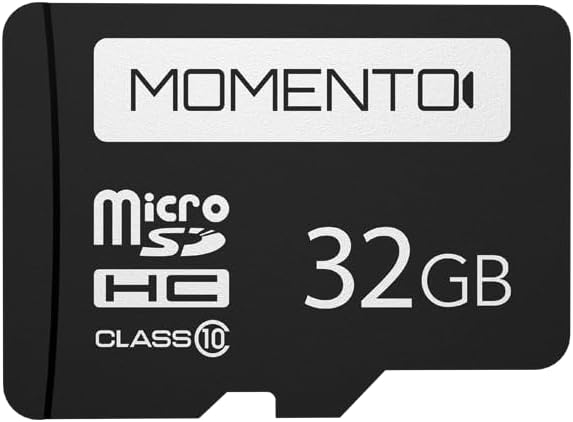
Image: A Momento branded 32GB MicroSD card, indicating its storage capacity and class rating.
9. Nlekọta
- Na-ehicha oghere: Use a soft, lint-free cloth to gently clean the camera lens. Avoid abrasive materials or harsh chemicals.
- Njikwa kaadi MicroSD: Regularly format the MicroSD card (at least once a month) using the camera's settings or the app to maintain optimal performance and prevent data corruption. Back up important footage tupu nhazi.
- Mmelite femụwe: Check the Momento App or the official Idatalink website periodically for firmware updates. Keeping your camera's firmware updated ensures access to the latest features and performance improvements.
10. Nchọpụta nsogbu
| Nsogbu | Ihe kpatara/ Ngwọta nwere ike ime |
|---|---|
| Igwefoto anaghị agba ọkụ. | Check power connection. Ensure the hardwire harness is correctly installed and receiving power. |
| Nsogbu ndekọ (dịka ọmụmaatụ, mmebi files, stops recording). | Format the MicroSD card. Ensure the card is a high-endurance type. Replace the MicroSD card if the issue persists. |
| Wi-Fi connection unstable or unable to connect. | Ensure you are within range of the camera. Restart both the camera and your smartphone. Verify the correct Wi-Fi network and password. |
| GPS not acquiring signal. | Gbaa mbọ hụ na igwefoto nwere nke doro anya view of the sky. Move the vehicle to an open area away from tall buildings or tunnels. |
| Poor image clarity. | Clean the camera lens. Ensure the windshield area in front of the camera is clean. |
11. Nkọwapụta
| Njirimara | Nkọwa |
|---|---|
| Aha Nlereanya | Momento M8 MD-8000 |
| Mkpebi ịse vidiyo | 1080p Full-HD (30fps) |
| Ihe mmetụta onyonyo | Sony IMX Image Sensor |
| Teknụzụ Njikọta | Dual 5.0GHz Wi-Fi, GPS, Smartphone Connectivity (Momento App) |
| Atụmatụ pụrụ iche | ECO Parking Mode, Voice Control, Advanced Image Sensor |
| Nchekwa gụnyere | 32GB Micro-SD Card |
| Max. Storage Support | Up to 256GB MicroSD Card |
| Ụdị nkwụnye | Ugwu ikuku ikuku |
| Akụkụ ngwaahịa | 3 x 3 x 2 sentimita asatọ |
| Ibu Ibu | 12.8 ounces |
| Agba | Nwa |
| Servicedị Ọrụ hicgbọ | Car, Minivan, RV, SUV, Truck |
12. Akwụkwọ ikike na nkwado
The Momento M8 (MD-8000) Dash Camera comes with a 2-Year Warranty from the date of purchase. This warranty covers manufacturing defects and ensures reliable operation of your device.
For technical support, warranty claims, or further assistance, please contact Idatalink customer service. Refer to the official Idatalink websaịtị maka ozi kọntaktị na akụrụngwa nkwado kachasị ugbu a.
Akụrụngwa dị n'ịntanetị: www.idatalink.com


