1. Okwu mmalite
This manual provides detailed instructions for the installation, operation, and maintenance of your VANBAR 2-in-1 Android Car Wireless Adapter. This device converts your car's wired Apple CarPlay or Android Auto system into a wireless connection, enhancing convenience and user experience.
2. Ozi nchekwa
- Anwala ịkwasa ma ọ bụ gbanwee ngwaọrụ ahụ.
- Debe ngwaọrụ ahụ pụọ na mmiri, mmiri, na oke okpomọkụ.
- Ensure the device is securely placed to avoid obstruction while driving.
- Jiri ngwaọrụ ahụ rụọ ọrụ nke ọma ma zere ihe ndọpụ uche mgbe ị na-anya ụgbọala.
3. Ihe ngwugwu
Biko lelee ngwungwu maka ihe ndị a:
- VANBAR 2-in-1 Wireless Adapter (Model: Carplay01)
- Eriri nkwụnye USB-A gaa na USB-C
- Akwụkwọ ntuziaka (akwụkwọ a)
4. Ngwaahịa gafereview
The VANBAR 2-in-1 Wireless Adapter is a compact device designed to enable wireless Apple CarPlay and Android Auto in compatible vehicles. It features a durable alloy casing for efficient heat dissipation and includes both USB-A and USB-C connectivity options.

Image 4.1: VANBAR 2-in-1 Wireless Adapter showing USB-A and USB-C connectivity. The adapter is a small black square with a USB cable attached, and an additional USB-C adapter is shown.

Image 4.2: Diagram illustrating the internal structure of the adapter, highlighting the glass and metal alloy components for excellent heat dissipation.
5. Nhazi ntuziaka
Soro usoro ndị a maka nhazi mbụ:
- Jikọọ ihe nkwụnye ahụ:
Plug the VANBAR wireless adapter into your car's USB port that supports wired Apple CarPlay or Android Auto. Use the provided USB-C adapter if your car has a USB-C port.
- Jikọọ site na Bluetooth:
On your smartphone, enable Bluetooth and Wi-Fi. Chọọ maka the adapter's Bluetooth name (e.g., "VANBAR-XXXX") and pair with it. Confirm any pairing requests on your phone and car display.
- Njikọ akpaaka:
Once paired, the adapter will automatically connect to your phone via Wi-Fi to initiate Apple CarPlay or Android Auto. The car's display should switch to the CarPlay or Android Auto interface.

Image 5.1: Visual guide for connecting the adapter to the car's USB port, pairing via Bluetooth, and the automatic connection process.
6. Ntuziaka ọrụ
After successful setup, the adapter will automatically connect to your smartphone when you start your car. You can then use Apple CarPlay or Android Auto wirelessly.
- Ntugharị: Use your preferred navigation apps directly on your car's display.
- Egwu na Mgbasa Ozi: Stream music, podcasts, and audiobooks.
- Oku & Ozi: Make and receive calls, and send/receive messages using voice commands or the car's interface.
- Njikwa olu: Utilize Siri (for Apple CarPlay) or Google Assistant (for Android Auto) for hands-free operation.

Foto 6.1: Ọpụample of a car display showing multiple CarPlay functions simultaneously, including navigation, music playback, and an incoming call.

Image 6.2: Illustration of different control methods for the car's infotainment system, including touchscreen, steering wheel buttons, and a central rotary knob.
7. Ndakọrịta
This wireless adapter is designed for vehicles equipped with factory-wired Apple CarPlay or Android Auto. It supports:
- Ụgbọ ala: Compatible with most car models from 2015 onwards that have wired CarPlay/Android Auto.
- Ekwentị mkpanaaka:
- Apple CarPlay: Requires iPhone with iOS 10 or later.
- Android Auto: Requires Android phone with Android 11 or later.
For detailed compatibility lists, please refer to the official resources:
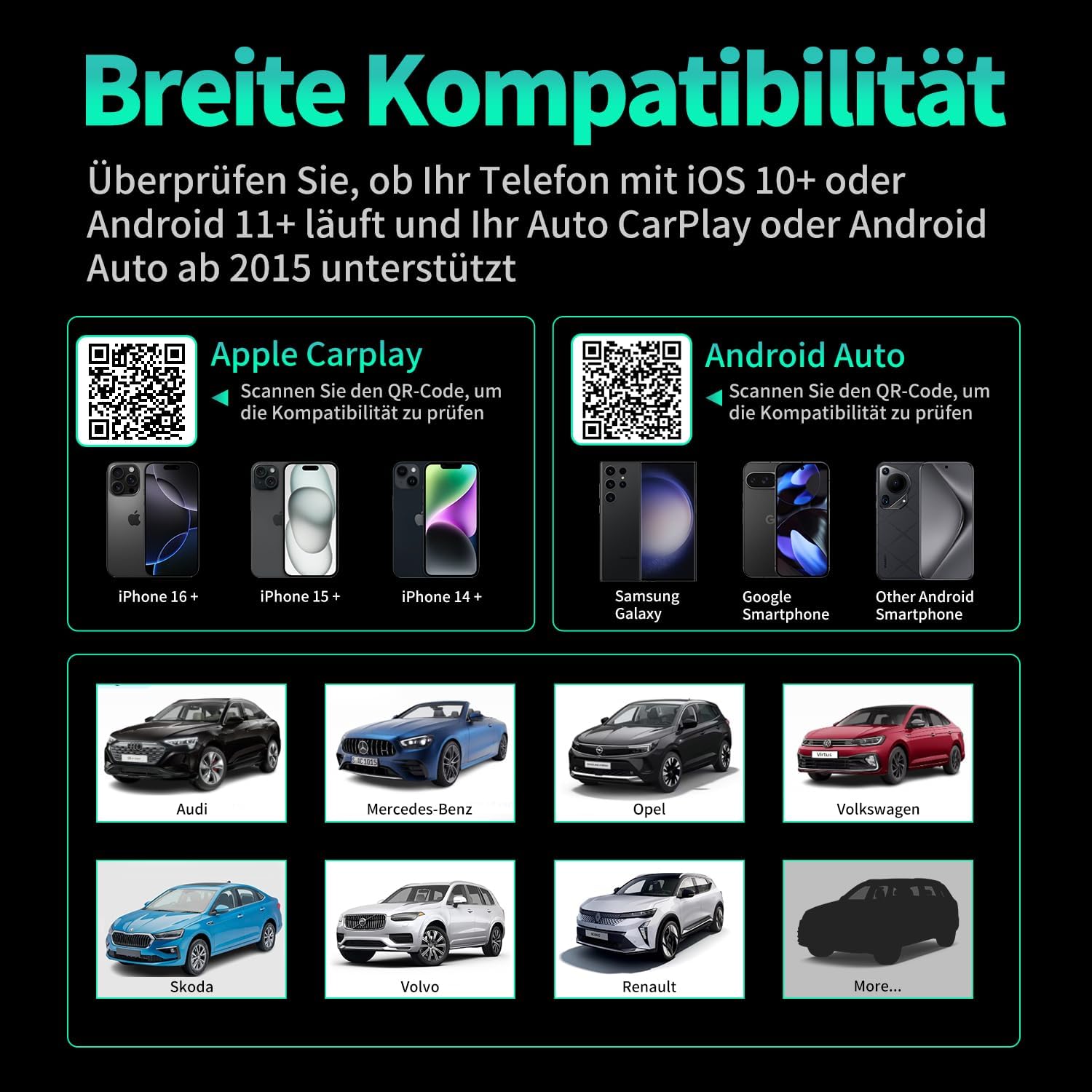
Image 7.1: Compatibility overview displaying supported iPhone models (14+, 15+, 16+), Samsung Galaxy, Google, and other Android smartphones, along with car brands like Audi, Mercedes-Benz, Opel, Volkswagen, Skoda, Volvo, and Renault.
8. Nlekọta
- Nhicha: Jiri ákwà dị nro ma kpọọ nkụ hichaa ngwaọrụ ahụ. Ejila ihe nhicha mmiri ma ọ bụ ihe ndị na-eme ka ọ dị nro hichaa ya.
- Nchekwa: Chekwaa ngwaọrụ ahụ n'ebe dị jụụ, kpọrọ nkụ mgbe ọ naghị eji ya ogologo oge.
- Mmelite femụwe: Lelee onye nrụpụta websaịtị maka mmelite firmware ọ bụla dị iji hụ na arụmọrụ kachasị mma na ndakọrịta.
9. Nchọpụta nsogbu
| Nsogbu | Ihe nwere ike ime | Ngwọta |
|---|---|---|
| Adapter not connecting to car. | Incorrect USB port, car not compatible, loose connection. | Ensure the adapter is plugged into the correct USB port that supports wired CarPlay/Android Auto. Verify car compatibility. Re-plug the adapter firmly. |
| Phone not connecting to adapter. | Bluetooth/Wi-Fi off, incorrect pairing, phone OS not supported. | Ensure Bluetooth and Wi-Fi are enabled on your phone. Forget previous Bluetooth connections and re-pair. Check phone OS version for compatibility (iOS 10+, Android 11+). |
| Njikọ ma ọ bụ nkwụsị oge. | Interference, weak signal, outdated firmware. | Ensure no other devices are causing Wi-Fi interference. Try restarting both the car's infotainment system and your phone. Check for firmware updates. |
| CarPlay/Android Auto anaghị amalite. | CarPlay/Android Auto not enabled in car settings, app issues. | Check your car's infotainment settings to ensure CarPlay/Android Auto is enabled. Restart your phone and the car's system. |
10. Nkọwapụta
| Nọmba nlereanya | Carplay01 |
| Ụdị | VANBAR |
| Teknụzụ Njikọta | Bluetooth 5.0, Wi-Fi (2.4 GHz + 5 GHz), USB |
| Ngwa dakọtara | Smartphones (iOS 10+, Android 11+) |
| Ụdị njikọ | USB Type A, USB Type C (with adapter) |
| Akụkụ ngwaahịa | 1 x 5.5 x 4.5 cm |
| Ibu Ibu | 12 g |
| Agba | Nwa |
| Atụmatụ pụrụ iche | Wireless Android Auto, Wireless Apple CarPlay, GPS Navigation, Spotify, iHeart Radio support |
11. Akwụkwọ ikike na nkwado
For warranty information and technical support, please refer to the official VANBAR websaịtị ma ọ bụ kpọtụrụ ndị ahịa ha ozugbo. Debe akwụkwọ nnata ịzụrụ maka akwụkwọ ikike.


