1. Okwu mmalite
This manual provides detailed instructions for the FREEWOLF M68 60% Wireless Gaming Keyboard. Please read this manual carefully before using the product to ensure proper operation and longevity.

Figure 1: FREEWOLF M68 Wireless Gaming Keyboard (Shimmer color variant)
2. Ngwaahịa gafereview
Akụkụ ndị bụ isi:
- Njikọta ụdị atọ: Supports wired (USB-C), 2.4GHz wireless, and Bluetooth 5.0 connections.
- Ndakọrịta ọtụtụ ngwaọrụ: Connects to Windows, Mac, Linux, PC, Laptop, iPad, iOS, and Android devices.
- Nhazi kọmpat 60%: Features 67 keys, optimizing desktop space.
- Igodo PBT: Durable Polybutylene Terephthalate keycaps with clear legends.
- Rainbow LED Backlighting: Offers constant and breathing modes with adjustable brightness and speed.
- Batrị na-adịte aka: Built-in 2000mAH battery provides extended usage.
- Nhazi Ergonomic: Double leg braces allow for three adjustable typing angles.
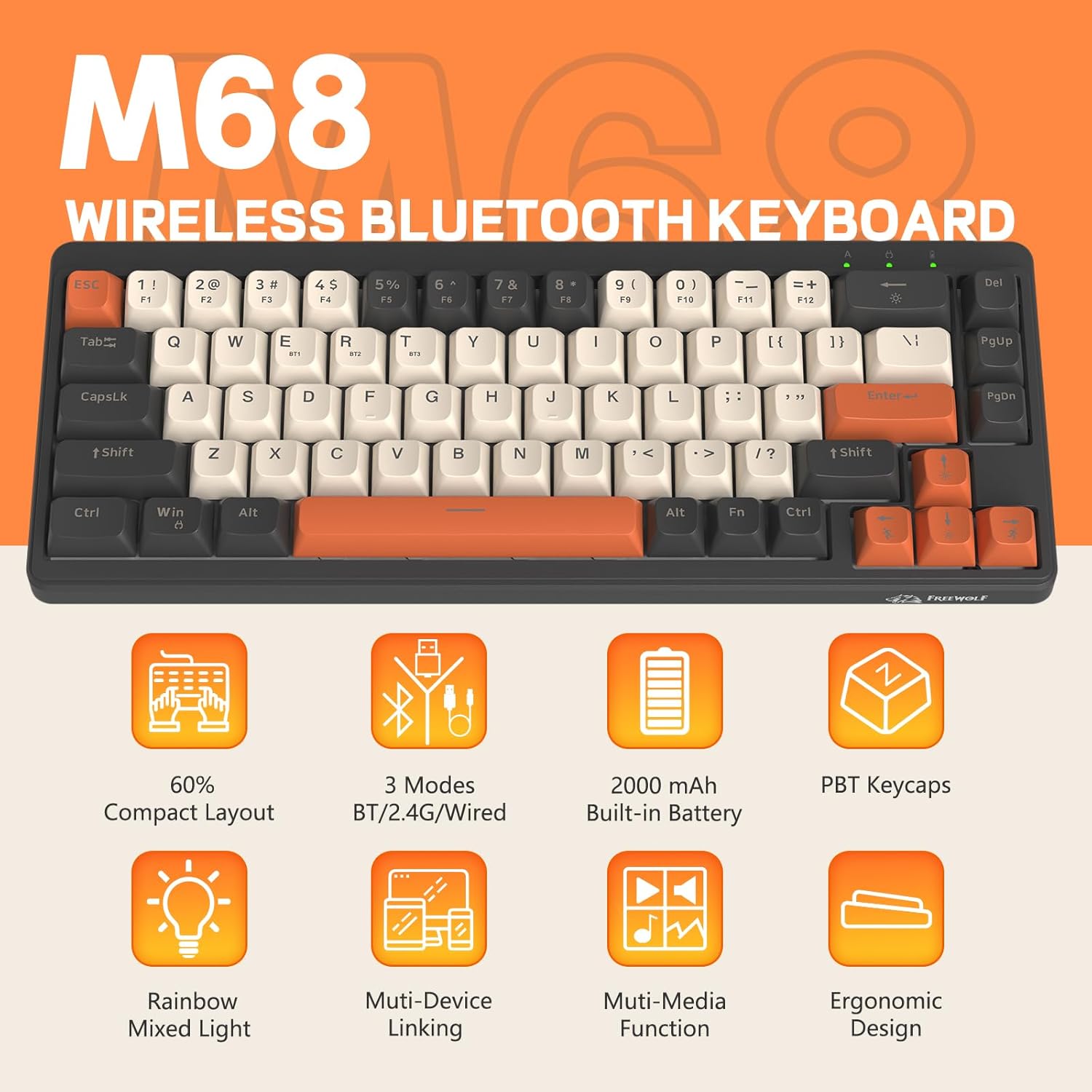
Nyocha 2: N'eluview of FREEWOLF M68 key features.
3. Ntọala na Njikọ
3.1. Tri-Mode Connection Overview
The M68 keyboard supports three connection methods: wired via USB-C, 2.4GHz wireless via a USB receiver, and Bluetooth 5.0. You can switch between these modes using the dedicated switch on the keyboard.

Ọgụgụ 3: Zuru ezu view of the 3-mode connection options.
3.2. Njikọ eriri
- Chọta ọdụ USB-C na ahụigodo ahụ.
- Connect the provided USB-C cable to the keyboard and the other end to your computer's USB port.
- Ensure the mode switch on the keyboard is set to the wired (USB) position.
- Sistemụ gị ga-amata ahụigodo ahụ na akpaghị aka.
3.3. 2.4GHz Njikọ ikuku
- Locate the 2.4GHz USB receiver (often stored in a compartment on the keyboard).
- Tinye eriri USB n'ọdụ ụgbọ mmiri dị na kọmputa gị.
- Set the mode switch on the keyboard to the 2.4GHz wireless position.
- Ahụigodo kwesịrị jikọọ na akpaghị aka. Ọ bụrụ na ọ bụghị, pịa FN + R ibido njikọta.
3.4. Njikọ Bluetooth
The M68 can connect to up to three Bluetooth devices simultaneously.
- Set the mode switch on the keyboard to the Bluetooth position.
- To enter pairing mode for a specific channel (BT1, BT2, or BT3), press and hold FN + Q (maka BT1), FN + W (maka BT2), ma ọ bụ FN + E (for BT3) until the corresponding indicator light flashes rapidly.
- On your device (PC, laptop, tablet, phone), open Bluetooth settings and search for "FREEWOLF M68".
- Select the keyboard to pair. The indicator light will become solid once connected.
- Ka ịgbanwee n'etiti ngwaọrụ Bluetooth ejikọtara, pịa FN + Q/W/E nkenke.
4. Ọrụ
4.1. Njikwa ọkụ azụ
The M68 features customizable rainbow LED backlighting.
- FN + Oghere azụ: Toggle backlight on/off or switch between constant and breathing modes.
- FN + Ụka aka ekpe: Belata ọsọ ọkụ azụ.
- FN + Ụka aka nri: Mee ka ọsọ ọkụ azụ dịkwuo elu.
- FN + akụ elu: Mụbaa nchapụta azụ azụ.
- FN + akụ ala: Belata nchapụta azụ.

Figure 4: Backlight adjustment key combinations.
4.2. Mgbanwe Ergonomic
The keyboard includes double leg braces on the back to adjust the typing angle for comfort.
- Flip the keyboard over to access the leg braces.
- Adjust the two-stage leg braces to achieve your preferred typing angle (flat, one stage, or two stages).

Figure 5: Ergonomic angle adjustments.
4.3. Njikwa batrị
The keyboard has a built-in 2000mAH rechargeable battery.
- Ịchaji: Connect the keyboard via the USB-C cable to a power source (computer USB port or wall adapter). The charging indicator will show status.
- Ndụ batrị: Up to 60 hours with backlight on, and up to 200 hours with backlight off.
- Ịchekwa ike: The keyboard will enter sleep mode after a period of inactivity to conserve battery. Press any key to wake it up.

Figure 6: Battery capacity information.
5. Nlekọta
- Nhicha: Use a soft, dry cloth to clean the keyboard surface. For keycaps, you may use a slightly damp akwa . Zere oke mmiri mmiri.
- Mwepụ isi igodo: If necessary, use a keycap puller to carefully remove PBT keycaps for deeper cleaning or replacement.
- Nchekwa: Chekwaa ahụigodo ahụ n'ebe dị jụụ, kpọrọ nkụ pụọ na ìhè anyanwụ kpọmkwem na oke okpomọkụ.
- Zere Mmiri mmiri: Do not expose the keyboard to liquids to prevent damage to internal components.
6. Nchọpụta nsogbu
| Nsogbu | Ihe nwere ike ime | Ngwọta |
|---|---|---|
| Ahụigodo anaghị azaghachi (Ejikọrọ) | Njikọ eriri dị nro, ọnọdụ na-ezighi ezi. | Ensure USB-C cable is securely connected. Check if the mode switch is set to wired. Try a different USB port. |
| Keyboard not responding (2.4GHz) | USB receiver not connected, incorrect mode, pairing issue. | Ensure USB receiver is plugged in. Set mode switch to 2.4GHz. Re-pair by pressing FN + R. Try a different USB port for the receiver. |
| Keyboard not responding (Bluetooth) | Not paired, incorrect mode, device Bluetooth off. | Ensure device Bluetooth is on. Set mode switch to Bluetooth. Enter pairing mode (FN + Q/W/E) and re-pair. Forget the device on your system and re-pair. |
| Ọkụ azụ anaghị arụ ọrụ ma ọ bụ rapara | Backlight off, low battery, software glitch. | Pịa FN + Backspace to toggle. Charge the keyboard. Try resetting the keyboard (refer to advanced functions if available, or disconnect/reconnect). |
| Igodo anaghị edebanye aha ma ọ bụ pịnye ugboro abụọ | Dust/debris under keycap, switch issue. | Carefully remove keycap and clean. If issue persists, contact support. |
7. Nkọwapụta
| Nlereanya | M68 |
| Ụdị | FREEWOLF |
| Njikọta | Wired (USB-C), Ikuku 2.4GHz, Bluetooth 5.0 |
| Nhazi igodo | 60% (Igodo 67) |
| Ihe mkpuchi igodo | Polybutylene terephthalate (PBT) |
| Ịkụ azụ azụ | Rainbow LED (RGB) |
| Ike batrị | 2000mAH |
| Ngwa dakọtara | Laptop, PC, Tablet (Windows, Mac, Linux, iOS, Android) |
| Akụkụ ngwaahịa | 32.51 x 12.5 x 3.99 cm |
| Ibu | 600 g |
| Atụmatụ pụrụ iche | Ergonomic (adjustable angles), Backlit |
8. Akwụkwọ ikike na nkwado
For warranty information, technical support, or customer service inquiries, please refer to the contact information provided with your purchase or visit the official FREEWOLF websaịtị.
Biko dowe akwụkwọ ikike ịzụrụ ihe ọ bụla.


